

Copy link to clipboard
Copied
I'm in the same predicament.
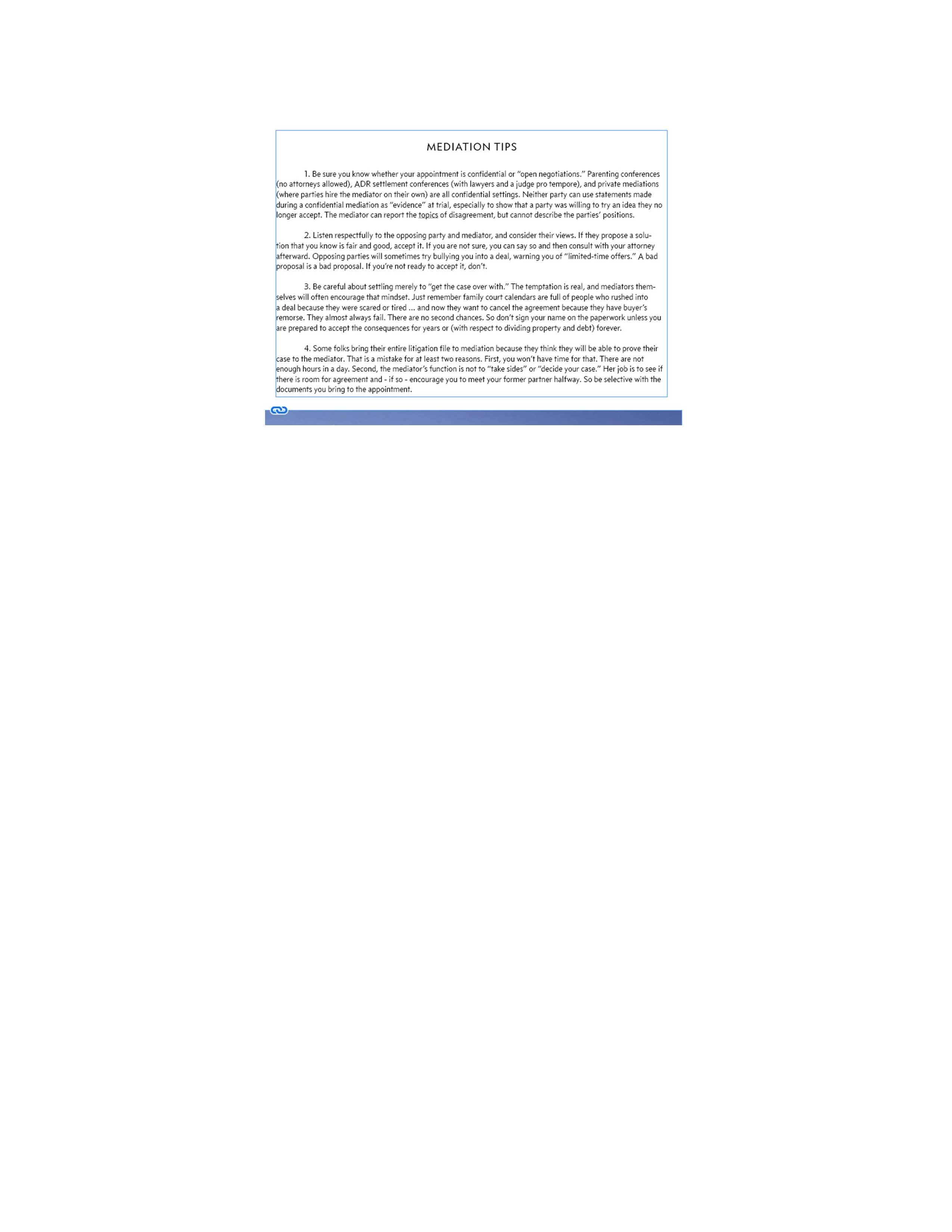
This is a fresh document. A Master Page. I didn't draw from a template, and I've added no pages or layers. I'm working in a simple text box, and want to get rid of the box - leaving just text.
I wouldn't know anything about "locking," but it's certainly nothing I've done or asked for.
Tom
Ps. Here is the box I'm trying to get rid of ... surrounding "Mediation Tips." The blue strip at the bottom is the beginning of a photo, and can be ignored for purposes of this inquiry.
[branched by moderator, as this is a different issue]
and want to get rid of the box - leaving just text.
Just to clarify:
InDesign places everything into frames, either text frames or graphic frames. It's the way the program works.
The two suggestions above allow you to hide the frame's edges so that you're left with only the contents visible. The frame edges don't usually print or end up showing in a PDF or EPUB, but they're there holding the content on the page. As Jane-e said above, it's a non-printing frame edge.
You can't "get rid of
...Copy link to clipboard
Copied
From here it looks like the non-printing frame edge. Go to View > Screen Mode > Preview. Does it go away?
Copy link to clipboard
Copied
Hi, Jane!
I'm not sure what the problem was, but it wasn't that. Anyway, it worked okay this morning, so no worries.
Thank you for caring enough to respond. It was nice of you.
Tom
Copy link to clipboard
Copied
Try View>Extras>Hide Frame Edges.
Copy link to clipboard
Copied
Hi, Bill. I did know about this, but I appreciate your effort. In the end, the problem got solved. (See my message to Bevi below.)
Have a great day!
Tom
Copy link to clipboard
Copied
and want to get rid of the box - leaving just text.
Just to clarify:
InDesign places everything into frames, either text frames or graphic frames. It's the way the program works.
The two suggestions above allow you to hide the frame's edges so that you're left with only the contents visible. The frame edges don't usually print or end up showing in a PDF or EPUB, but they're there holding the content on the page. As Jane-e said above, it's a non-printing frame edge.
You can't "get rid of the box" because it's holding your content.
You can make the frame visible by giving it a border/stroke or a fill. But most times the frame remains invisible and doesn't print.
Hope our suggestions help.
Copy link to clipboard
Copied
Hi, Bevi, and thank you for taking the time to respond so fully.
I did know of InDesign's need for containers, but I couldn't shake the graphic from popping up when I printed to PDF. That was the weird part. Happened twice last night, too, so I know I'm not nuts! ![]()
Anyway, I ran it again this morning, and this time used the "export to PDF" command, and it worked great.
I am sorry to have troubled you.
Kind wishes,
Tom
Copy link to clipboard
Copied
Tom_Alongi wrote
I couldn't shake the graphic from popping up when I printed to PDF.
Anyway, I ran it again this morning, and this time used the "export to PDF" command, and it worked great.
Tom, it's no trouble, we are happy to answer questions! Bill, Bevi, and I all thought it was the non-printing frame edge, we just went about it in different ways.
But now I have another thought. File > Export is the correct way to make a PDF from InDesign. Can you Print to PDF again and see if the problem reoccurs? If it does, it will help us to trouble-shoot for other people. We all thought the problem was inside InDesign, not something that was printing in the PDF.
Thanks! Also, we can all see your answer when you reply to this message. ![]()
~ Jane
Copy link to clipboard
Copied
Tom_Alongi wrote
I did know of InDesign's need for containers, but I couldn't shake the graphic from popping up when I printed to PDF. That was the weird part. Happened twice last night, too, so I know I'm not nuts!
It's an option to export frame edges (and other guides) to PDF. You must of switched that on, accidentally. Such options stay on until ...
Tom_Alongi wrote
Anyway, I ran it again this morning, and this time used the "export to PDF" command, and it worked great.
... you "reset" the Export to Dialog settings by explicitly selecting one of the presets -- even if it's the same.
Get ready! An upgraded Adobe Community experience is coming in January.
Learn more