Participant
May 20, 2023
Answered

Recoloring AI vector in InDesign

  • May 20, 2023
  • 1 reply
  • 1248 views

Hi all,


InDesign 18.1 on Mac OS. How do you Place or Copy a vector graphics from Illustrator and able to edit the colors easily in InDesign?


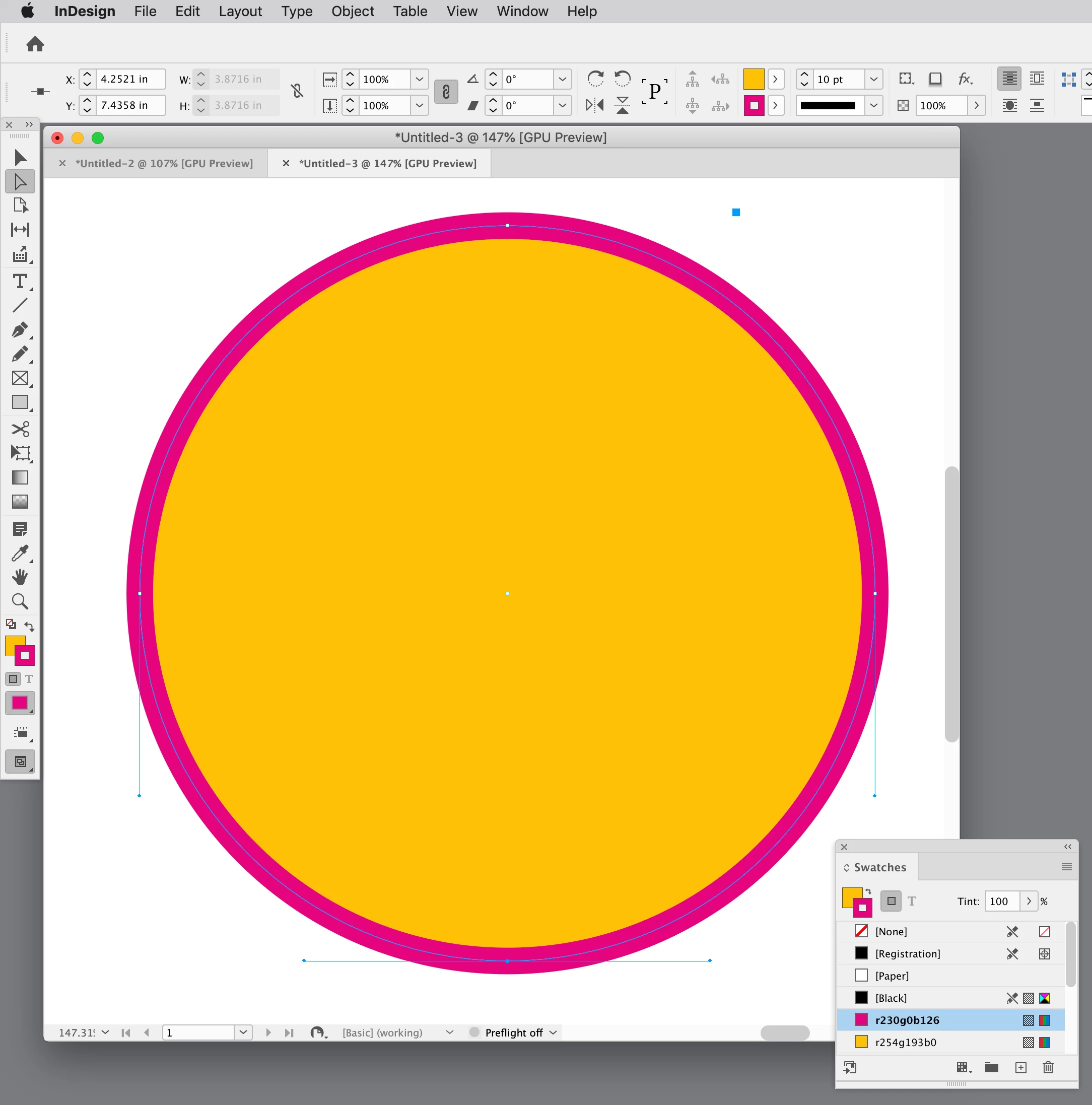
When I place the graphics from Illus, InDesign seems to automatically make it a frame so when I try to change the color of the graphics, it only fills the background.


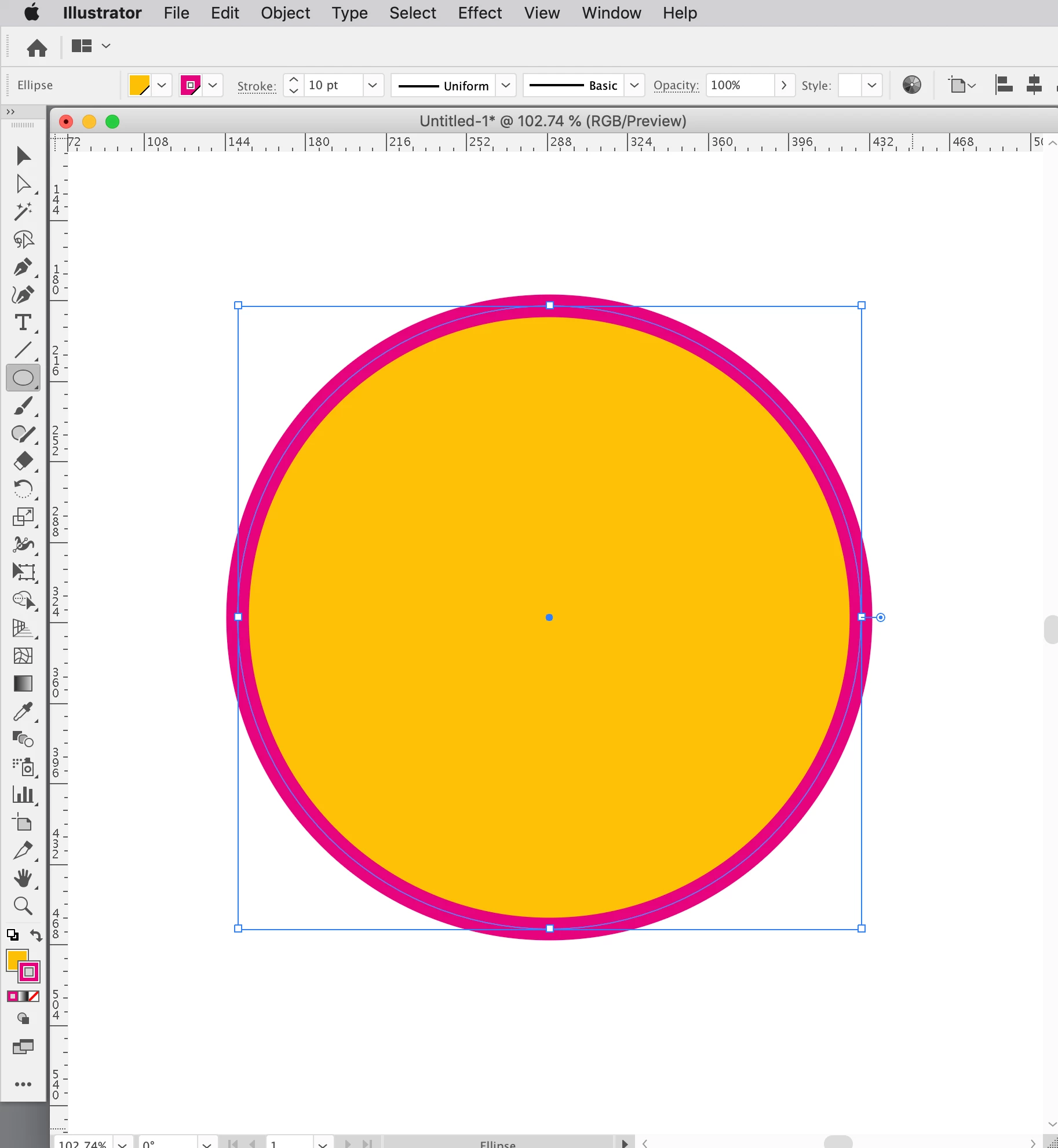
Here's an example of what happened:

 

Here's what I want to do:

 

This topic has been closed for replies.
Correct answer rob day

Thank you for Eugene,


I want to adjust the colour as I'm doing a style guide for a company -- workflow seems faster if I can just click and adjust color as I'm using the logo on various sizes / colors / tints depending on the content of the page. File>Place takes more time but I do understand your point.


By the way, it doesn't matter if it's compound path or not. Even if I create a circle in Illustrator, copy and pasting it to InDesign still make it a frame for some reason.


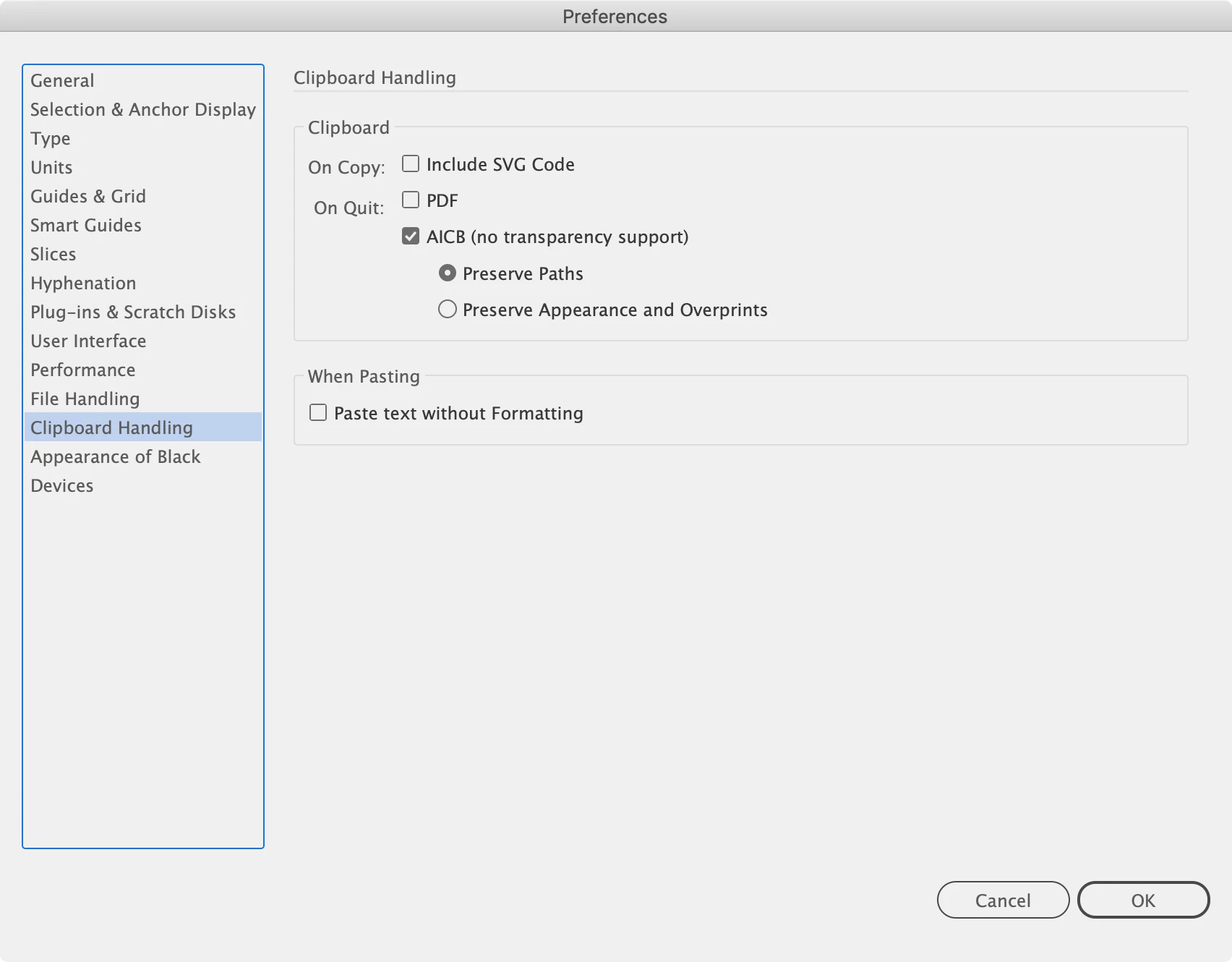
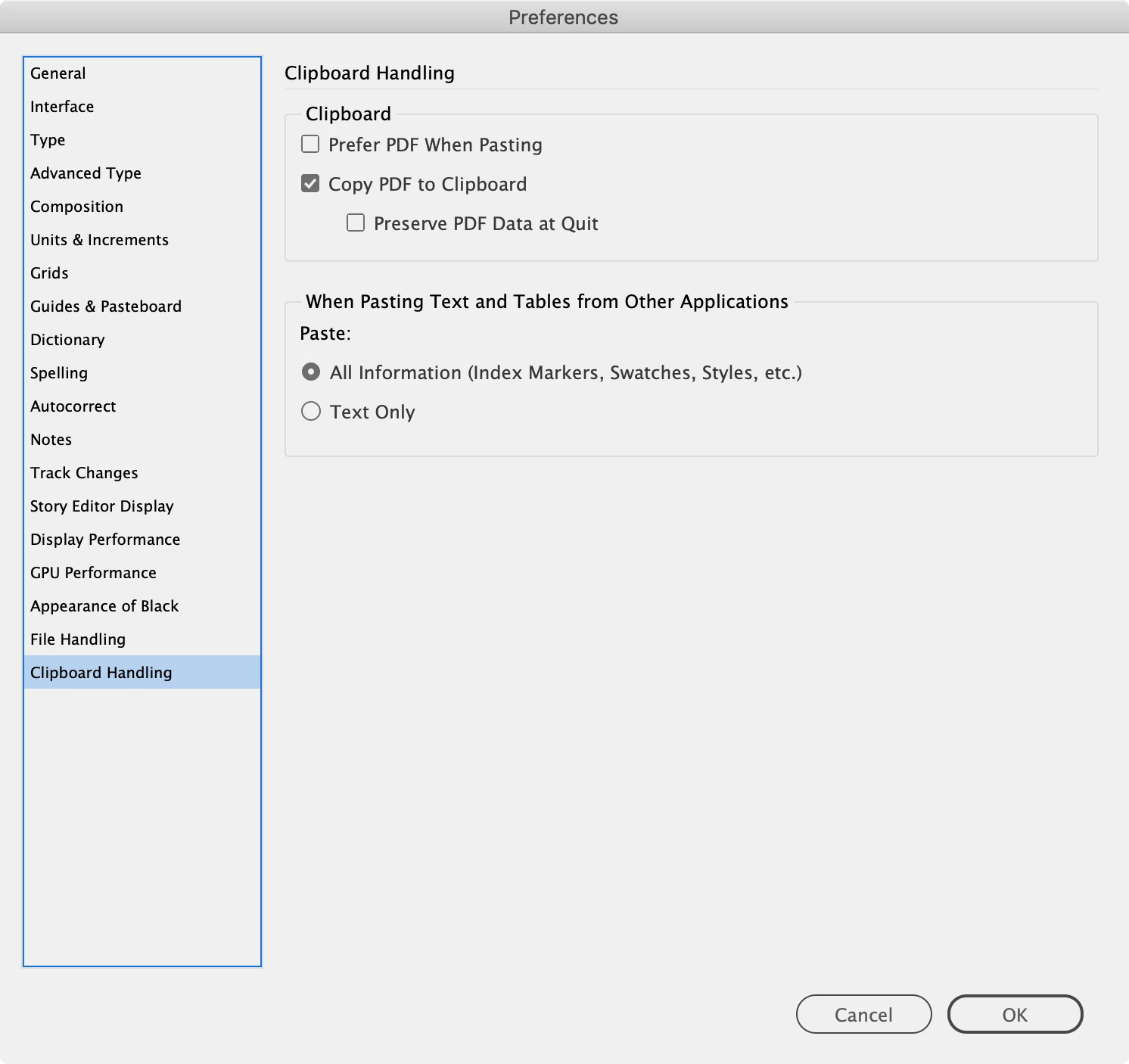
Hi @wutstr , Your Clipboard Handling preferences will affect copying and pasting between AI and ID. Try these settings:


Illustrator:


InDesign


1 reply

wutstrAuthor
Participant
May 20, 2023

Sorry wrong second image:


Community Expert
May 20, 2023

It's likely grouping the objects, or making them compound paths.

It's not really a good idea to copy and paste from Illustrator to InDesign or vice versa - but this is a simple enough graphic and shouldn't have issues.


You can use the Direct Select tool (White Arrow) inthe Tool Panel to select individual pieces.

Ungroup them.

Or release compound paths.  Choose Object > Paths > Release Compound Path.


When you release compound paths for text - the 'counter' of the letter will fill in - so you'll need to tidy that up. 


----------------

Another option to recolour the artwork without selecting it is if the colour is completely unique. 

The Swatch should be added to the InDesign Swatches panel - and from here you can alter the swatch colour and that will change the colour everywhere it's used. 

Really helpful if it's a unique colour. 


------------


But why adjust the colour in InDesign?
Best practice is to use File>Place and place a link - if you need to change the colour the best practice is to create a new version with the colour required - and again use File>Place to place the .ai file directly.


Adding images by copy and paste from InDesign increases the complexity of your InDesign document by adding a lot of information contained in the vector designs - which increases your file sizes - and in some cases can cause corruption to the document (overtime) - not that it would happen often but it's a possibility.


rob day
Community Expert
rob dayCommunity ExpertCorrect answer
Community Expert
May 20, 2023

Thank you for Eugene,


I want to adjust the colour as I'm doing a style guide for a company -- workflow seems faster if I can just click and adjust color as I'm using the logo on various sizes / colors / tints depending on the content of the page. File>Place takes more time but I do understand your point.


By the way, it doesn't matter if it's compound path or not. Even if I create a circle in Illustrator, copy and pasting it to InDesign still make it a frame for some reason.


Hi @wutstr , Your Clipboard Handling preferences will affect copying and pasting between AI and ID. Try these settings:


Illustrator:


InDesign