Known Participant
June 3, 2024
Answered

Removing a portion of an image (SVG)

  • June 3, 2024
  • 4 replies
  • 4279 views

Hi!

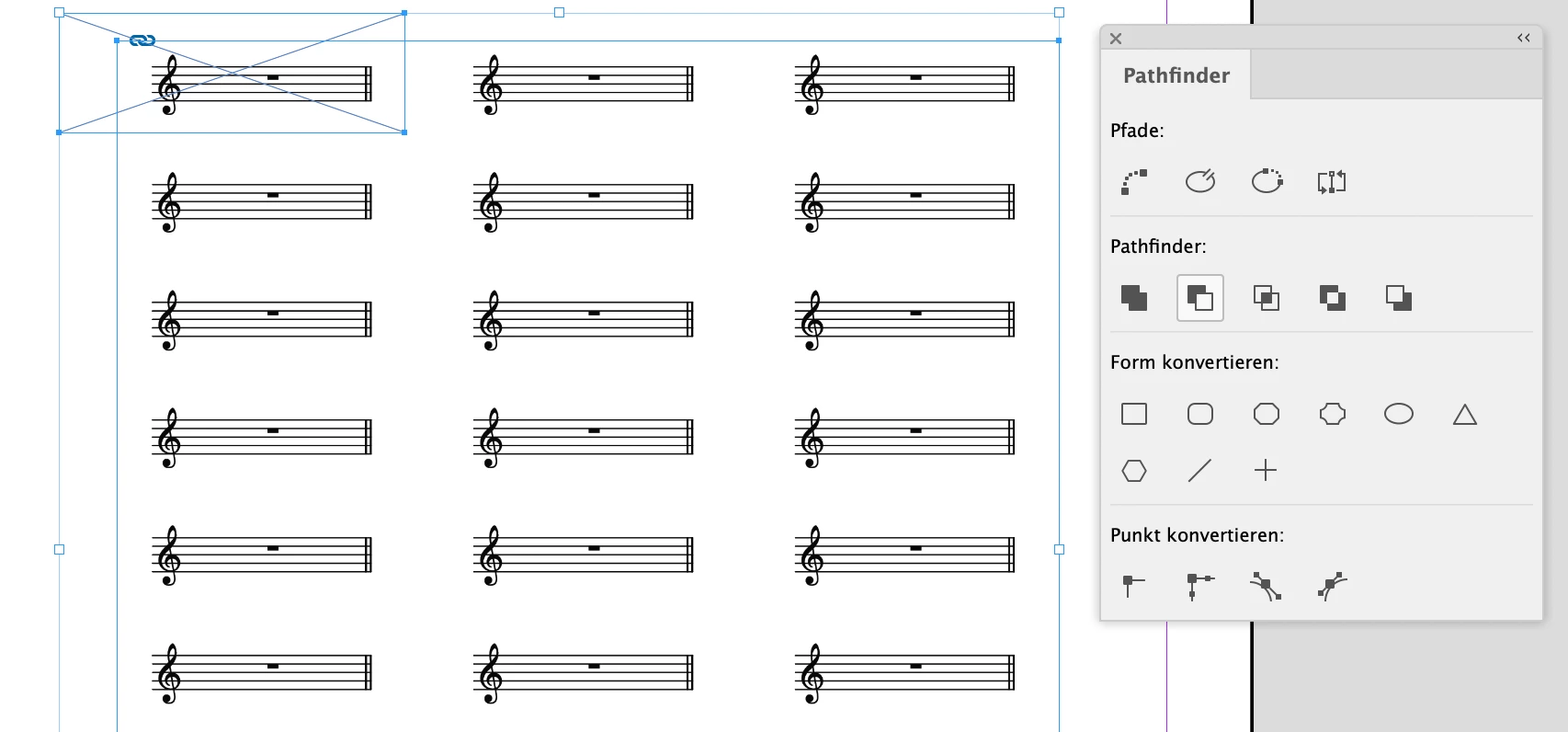
I need to remove a small part of an imported SVG.  I know how to move parts of an image around within a frame, and also how to crop parts of the image/SVG, but I need to know how to remove a small section like a corner of an SVG. I have attached a screenshot with a small box around the area I need to remove, for ease of reference.  I've tried the scissors tool but this only seems to work from point to another point.


Please can someone tell me if this can be done?  Similar to the way the Shapes Builder tool works in Illustrator where part of something can be erased.


If it were possible to do it in the program before it gets put into InDesign if I could, but it's not possible.

Thank you in advance!
This topic has been closed for replies.
Correct answer Laubender

Hi @Carolyn32257242he70 ,

your SVG file uses RGB colors. What you need most likely for a pure black & white print job is pure CMYK Black color.

So if you need editing the SVG file, open it in Adobe Illustrator, remove the part you do not want, convert all colors to CMYK Black. Make sure that all fills and strokes are 100% Black. Then save the file as an Adobe Illustrator file and place it on your InDesign page.


If you are unsure how to edit, recolor and save the graphic in Illustrator, ask in the Adobe Illustrator forum:

https://community.adobe.com/t5/illustrator/ct-p/ct-illustrator?page=1&sort=latest_replies&lang=all&tabid=all


If you are fine with the graphic file format SVG and the RGB color space you could also mask the corner of the graphic in InDesign.


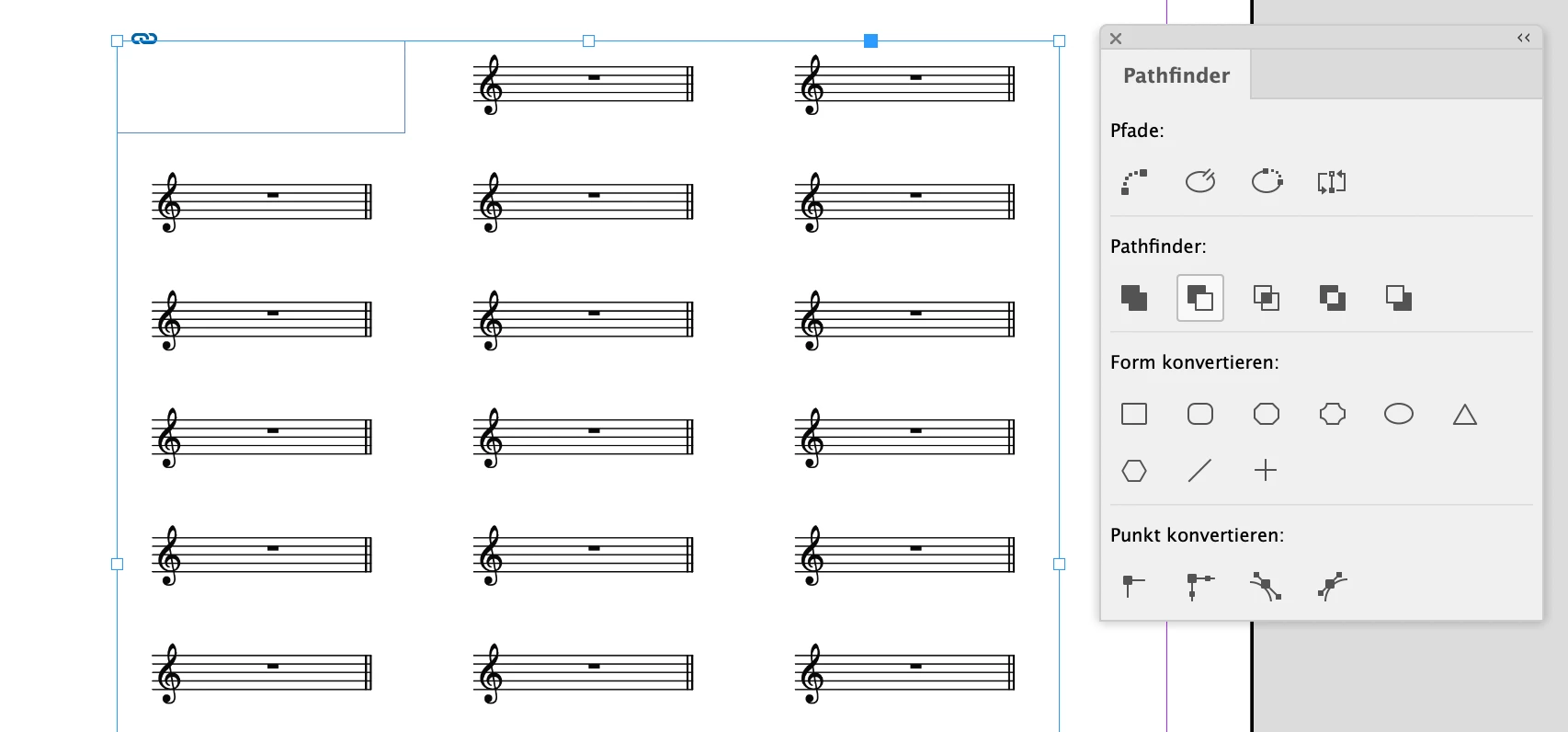
Simply draw out a rectangle on top of the corner you like to remove. Select the rectangle plus the graphic frame that holds your SVG. Use the function "subtract", the second one in the Pathfinder panel under Pathfinder. From my German InDesign:


Result, a graphic frame that is a polygon with two additional path points:


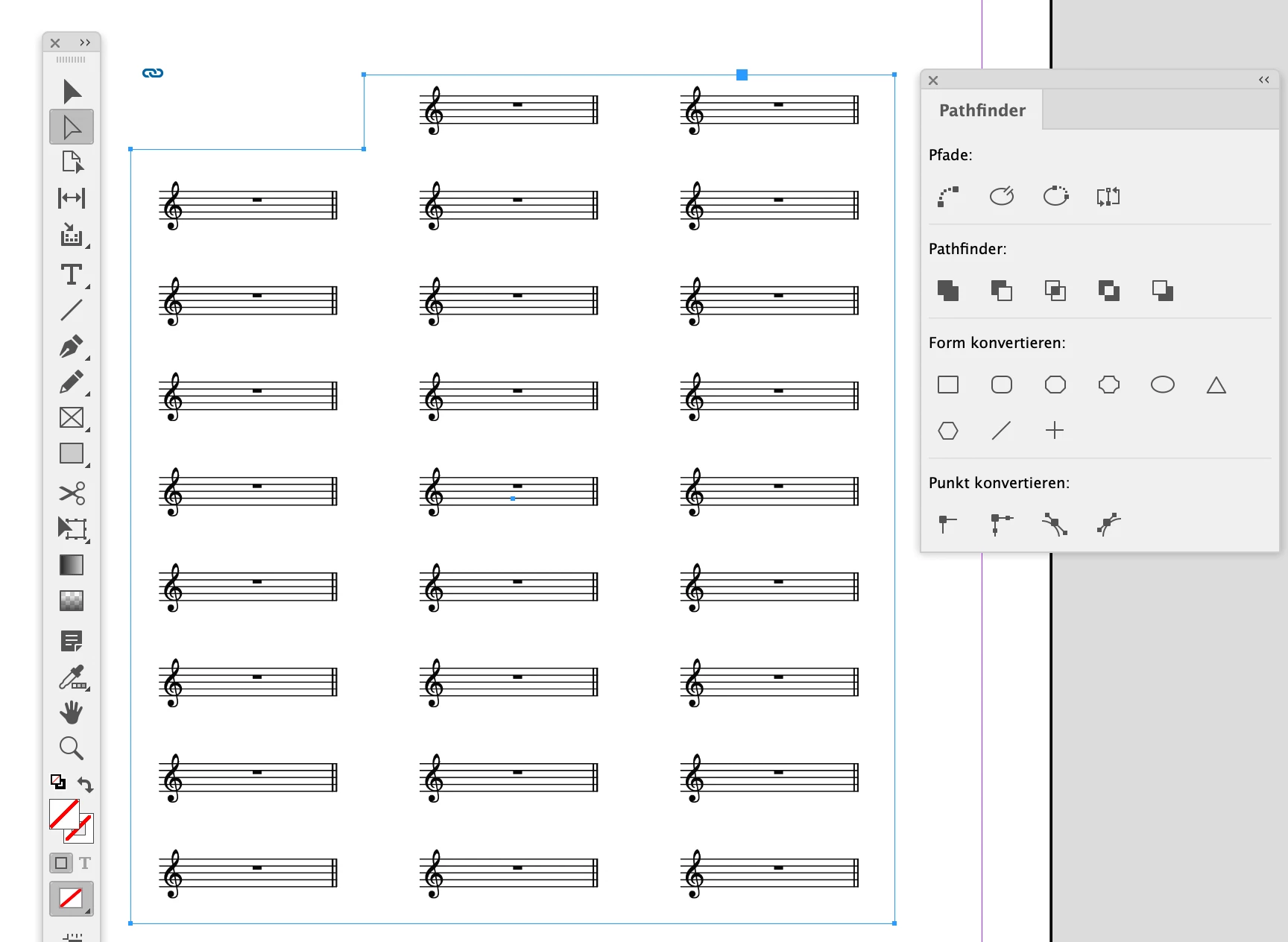
Direct selection tool showing the path points:


Regards,
Uwe Laubender
( Adobe Community Expert )

4 replies

LaubenderCommunity ExpertCorrect answer
Community Expert
June 4, 2024

Hi @Carolyn32257242he70 ,

your SVG file uses RGB colors. What you need most likely for a pure black & white print job is pure CMYK Black color.

So if you need editing the SVG file, open it in Adobe Illustrator, remove the part you do not want, convert all colors to CMYK Black. Make sure that all fills and strokes are 100% Black. Then save the file as an Adobe Illustrator file and place it on your InDesign page.


If you are unsure how to edit, recolor and save the graphic in Illustrator, ask in the Adobe Illustrator forum:

https://community.adobe.com/t5/illustrator/ct-p/ct-illustrator?page=1&sort=latest_replies&lang=all&tabid=all


If you are fine with the graphic file format SVG and the RGB color space you could also mask the corner of the graphic in InDesign.


Simply draw out a rectangle on top of the corner you like to remove. Select the rectangle plus the graphic frame that holds your SVG. Use the function "subtract", the second one in the Pathfinder panel under Pathfinder. From my German InDesign:


Result, a graphic frame that is a polygon with two additional path points:


Direct selection tool showing the path points:


Regards,
Uwe Laubender
( Adobe Community Expert )

Known Participant
June 11, 2024

Hi Uwe... 

This is very helpful thank you so much!  I'll try it, (and also check the Black and white on SVGs because they DO need to have no colour whatsoever for the print costs!), so thank you once again!

John D Herzog
Inspiring
June 3, 2024

You cannot edit the image in InDesign. You can alter the containing box to knock out that corner like you would with a clipping mask. If you have "Crop Image Data to Frames" selected in compression, it will delete that corner if exporting it as a PDF.

James Gifford—NitroPress
Legend
June 3, 2024

That's a valid approach, but bordering on a hack for what looks to be a repetitive layout/project. Best to back up all the way to source art and make it right rather than paste stuff over stuff in ID — IMVHO.

John D Herzog
Inspiring
June 3, 2024

I agree. Personally, I would take it into Illustrator and fix the link. If all you have is InDesign though, this could get you a new base file. You just cannot export SVGs from InDesign.

BobLevine
Community Expert
Community Expert
June 3, 2024
Well, it's certainly not possible in InDesign.
Known Participant
June 3, 2024

I thought maybe that was the case, thanks for confirming!  

James Gifford—NitroPress
Legend
June 3, 2024

I don't believe InDesign supports any kind of actual image editing, although it can drop directly to Photoshop, for example.


I'm pretty sure Illustrator can edit SVGs, although I'm not sure the access through ID is so direct.

Known Participant
June 3, 2024

Ah ok thanks so much. I suspected as much but was hoping for a possibility!  Thank you James!