QJessi1974
Participating Frequently
August 20, 2021
Answered

Removing the frame around text and images

  • August 20, 2021
  • 5 replies
  • 5725 views

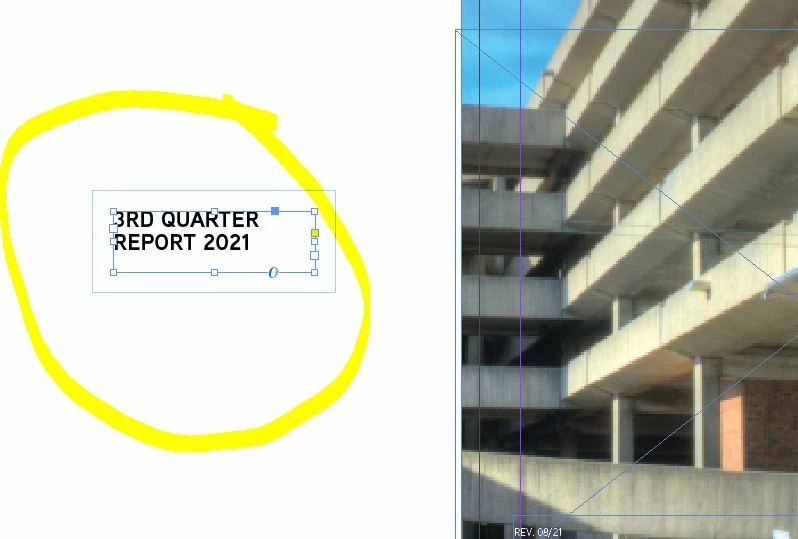
Hello - I've not run into this problem before but for the last few weeks when I create a new layout, the text and images are automatically inserting a sizable frame around the items. The frame doesn't allow anything within the border and is causing a headache with trying to place objects and text close together. How do I get rid of it? And did I accidentally set this to a default? I've been using InDesign for several years and never had this issue.

come up. Thanks for any assistance - photo for reference.


Correct answer Randy Hagan

Do you have text wrap settings on that text frame?


I think it may be as easy as:
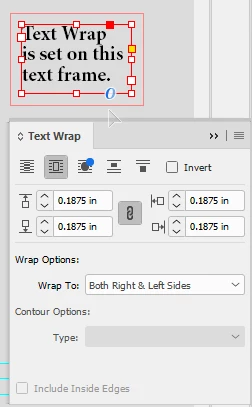
 

  1. Select the text frame with your Arrow/Selection Tool. Then open your Text Wrap panel, which should show some variation of text wrap (that outside border that doesn't let you place anything inside of it. In the example at right, the text frame is set with a regular wrap of 3/16ths of an inch, or .1875 in. If any button is selected in the Text Wrap panel except the one at the far left, the one with the lines going straight through the box, you have a text wrap set around your text frame. With the text frame selected, click on that far left button and the text wrap will disappear ... on that selected text frame.
  2. Since you're getting that text wrap all the time, you likely have it selected as your tool default for perhaps your Type Tool, likely your Arrow/Selection Tool, and maybe your Rectangle Tool and/or Rectangle Frame Tool as well. To go back to your defaults, choose each tool in your Tools panel, then make sure absolutely nothing is selected. Go to your Text Wrap panel and click the far left button to ensure that the default setting for those tools uses No text wrap.


Do these steps and you should be done with this perplexing little issue. For what it's worth, I know this from personal (unfortunate) experience.


Hope this helps,


Randy

5 replies

pixxxelschubser
Community Expert
Community Expert
August 20, 2021

Hi @Randy Hagan 

I suspect the same thing.


Text Wrap active? Maybe even in object style?

Randy Hagan
Community Expert
Randy HaganCommunity ExpertCorrect answer
Community Expert
August 20, 2021

Do you have text wrap settings on that text frame?


I think it may be as easy as:


  1. Select the text frame with your Arrow/Selection Tool. Then open your Text Wrap panel, which should show some variation of text wrap (that outside border that doesn't let you place anything inside of it. In the example at right, the text frame is set with a regular wrap of 3/16ths of an inch, or .1875 in. If any button is selected in the Text Wrap panel except the one at the far left, the one with the lines going straight through the box, you have a text wrap set around your text frame. With the text frame selected, click on that far left button and the text wrap will disappear ... on that selected text frame.
  2. Since you're getting that text wrap all the time, you likely have it selected as your tool default for perhaps your Type Tool, likely your Arrow/Selection Tool, and maybe your Rectangle Tool and/or Rectangle Frame Tool as well. To go back to your defaults, choose each tool in your Tools panel, then make sure absolutely nothing is selected. Go to your Text Wrap panel and click the far left button to ensure that the default setting for those tools uses No text wrap.


Do these steps and you should be done with this perplexing little issue. For what it's worth, I know this from personal (unfortunate) experience.


Hope this helps,


Randy

QJessi1974
Participating Frequently
August 23, 2021

Thank you - that worked! I have no idea how it became the default on there but at least I know how to fix it if it happens again. Appreciate all the assistance.

Diane Burns
Inspiring
August 20, 2021

Looks like text inset is set. Can you check Object > Text Frame Options and tell us if an inset is there?

It may have been set as a default by mistake.

You can close all documents, then go to Text Frame Options and set it to zero. That will prevent it from occuring again.

If it's within a document, de-select everthing, then set it to zero and new Text Frames will not have the inset.

QJessi1974
Participating Frequently
August 20, 2021

I've tried to check the presets and nothing seems to be in there. I'm on Windows 10 and InDesign version 16.3 according to my cloud.

J E L
Community Expert
Community Expert
August 20, 2021

@QJessi1974 Okay. I'm running the same. So, even when you change the text box settings, does the extra padding appear? Or is it just when you first lay something out on the page? In other words, is it "stuck" on this setting no matter what you try? You mentioned it's happening when you create a new layout. If you go back to an older document, does the same thing happen when you place new text or objects? I can't think what else would be causing this. I don't think it has to do with a content aware fit setting if it's happening with text. When is the last time you logged all the way out and shut your system down (not a restart)? Sometimes that clears things out. Otherwise, maybe try going back to an earlier version and see if it's happening there. Maybe someone else will come along that has some more ideas. 

J E L
Community Expert
Community Expert
August 20, 2021

@QJessi1974 Yes, that's strange. It has to be some object setting that is interfering with the text box. I can't duplicate it without adding padding. Please let us know your version and OS. Have you tried preference resets and so on yet?