

RGB Inconsistencies in InDesign CC 2018 (Windows 7)
Issue
The following issue happens although I am not even trying to convert to CMYK. This is strictly within RGB (and I did not see any forum entries that addressed this issue – if it exists, please steer me in the right direction):
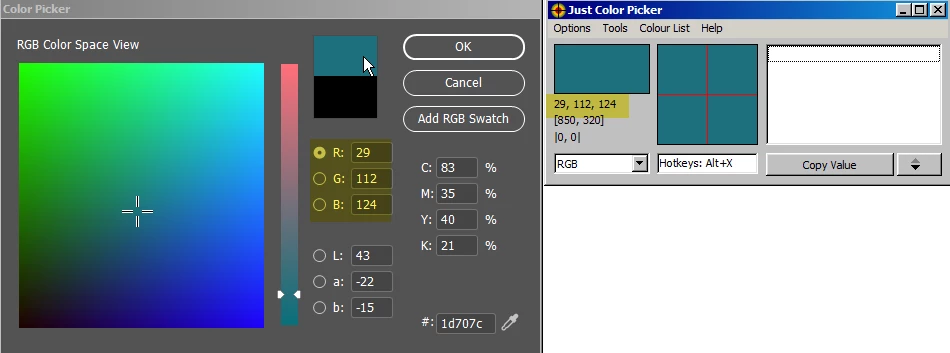
In InDesign, I use the Color Picker to create an RGB Color with values 29, 112, 124.
Using a color picker tool, I can verify that the color is correct:
Color Picking Tool
Swatch
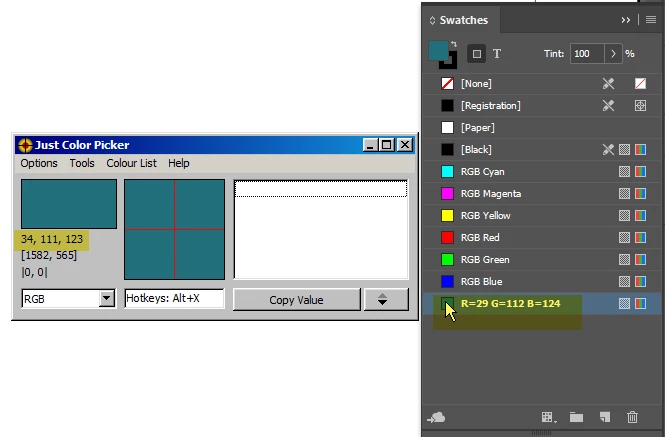
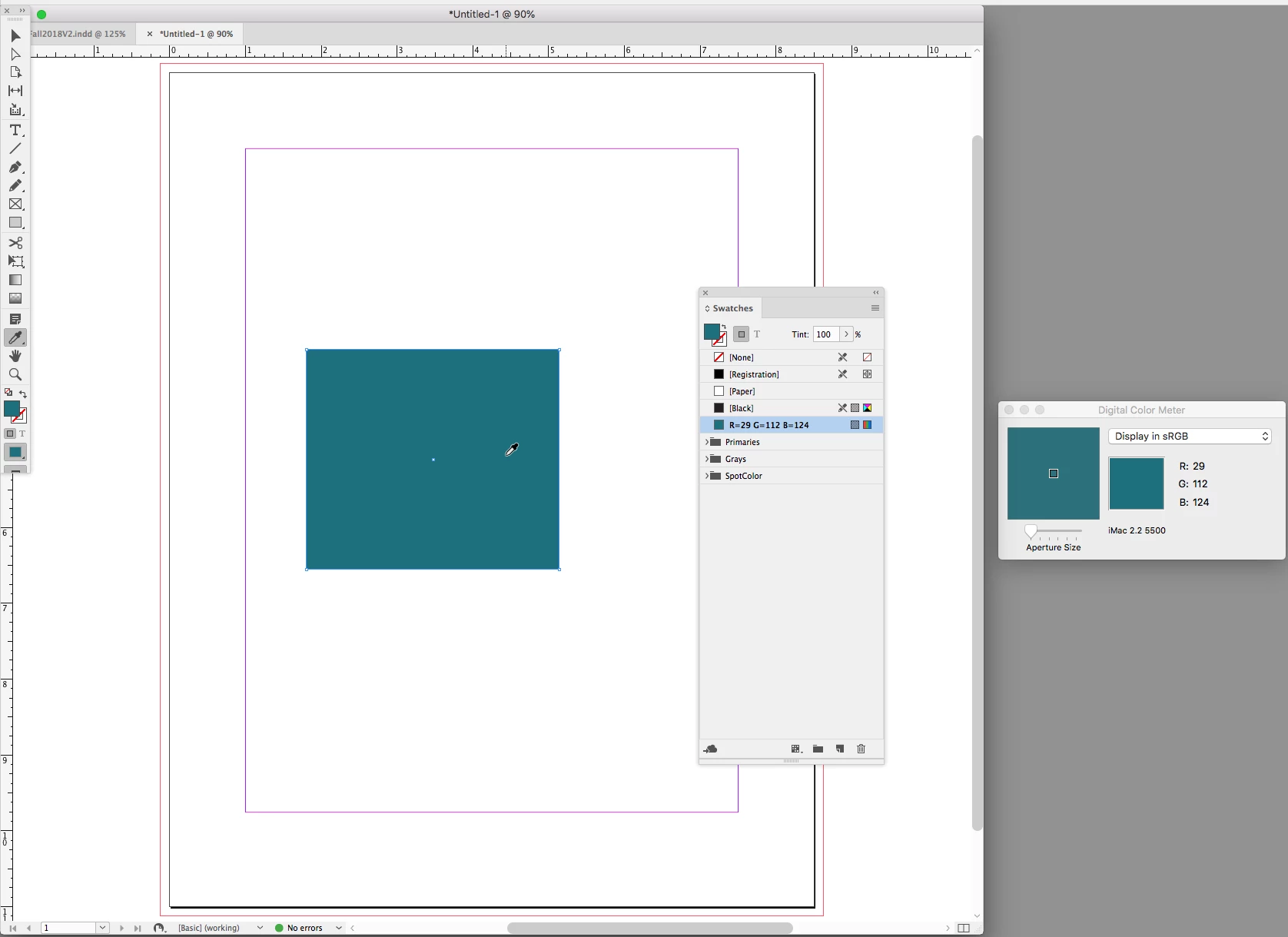
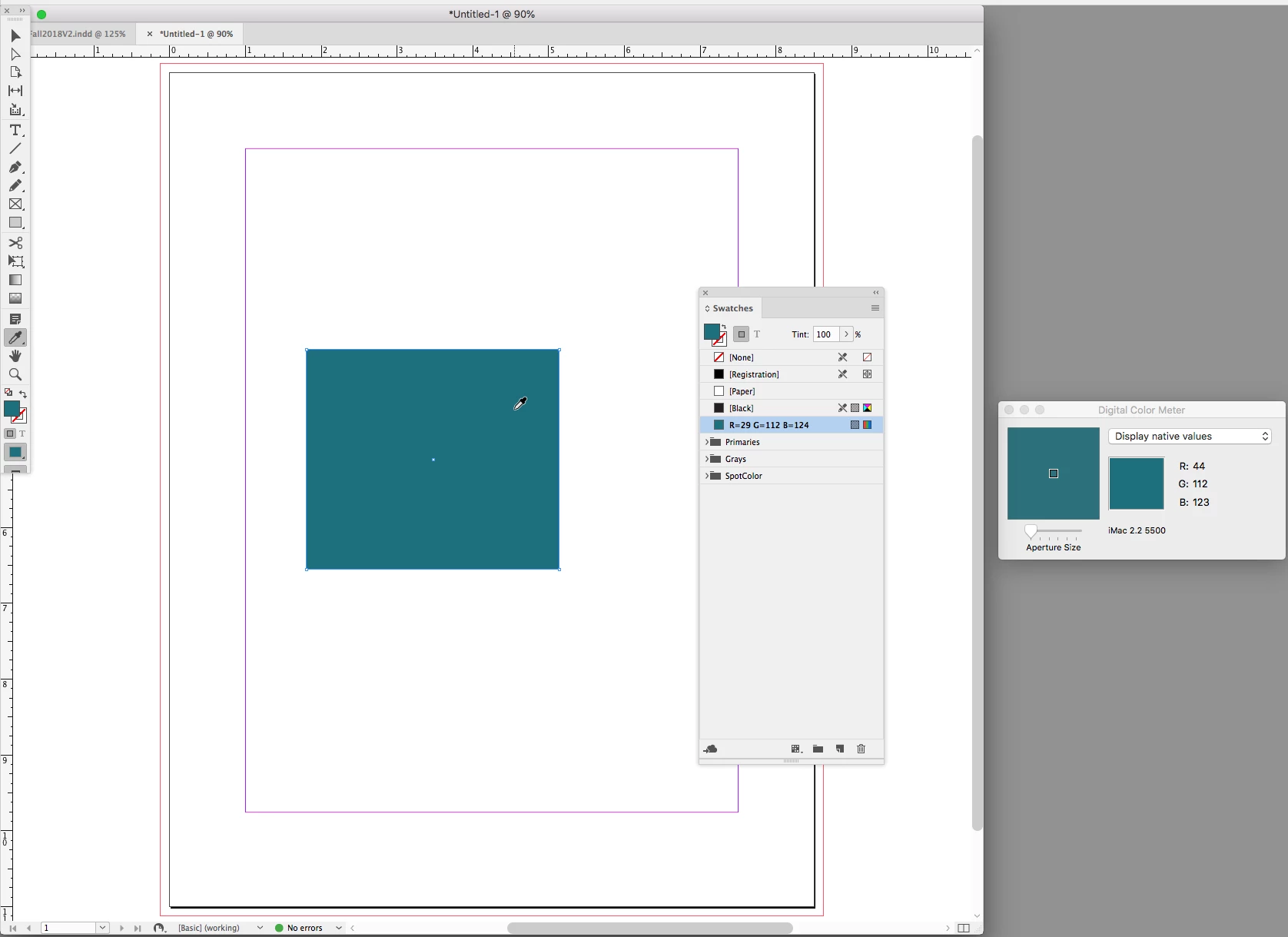
When I create a swatch with this chosen color, the colors are supposedly as inserted, but measuring them with the color picker tool, the color has changed to 34, 111, 123:
Using the color
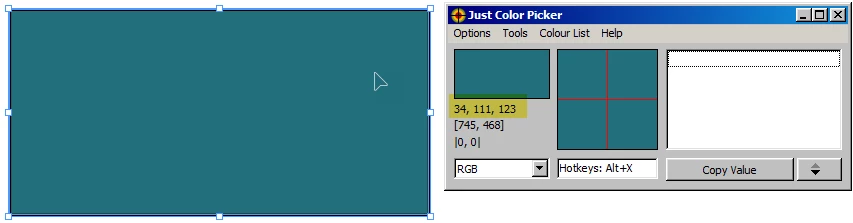
Filling a rectangle with the color is wrong, too (both when using the color picker or the swatch) – the color is 34, 111, 123:
Exporting as JPEG
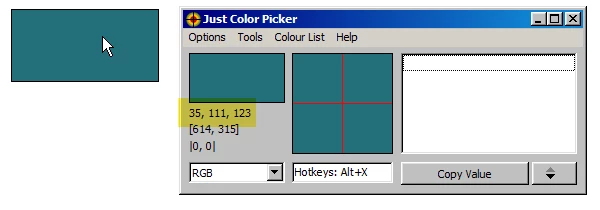
Exporting as a JPEG, the color changes even more (to 35, 111, 123):
The issue does not happen when…
.. I use for example RGB 0, 100, 100
.. I use Adobe Suite CS6 (on another computer)
What I have tried without success:
Deleting the InDesign cache.
Using other color settings in Bridge/InDesign.
I double checked: there is no CMYK color in my document, there are no transparencies.
Using a spot color (which does not really make sense if I am not even intend to print) does not help
Checked in Photoshop CC 2018 with a new document: the color also changes.
Color and Document Settings
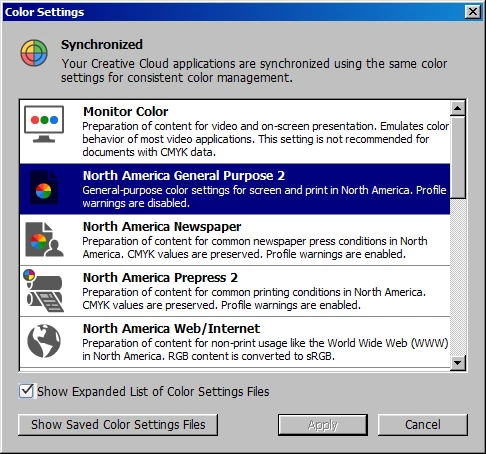
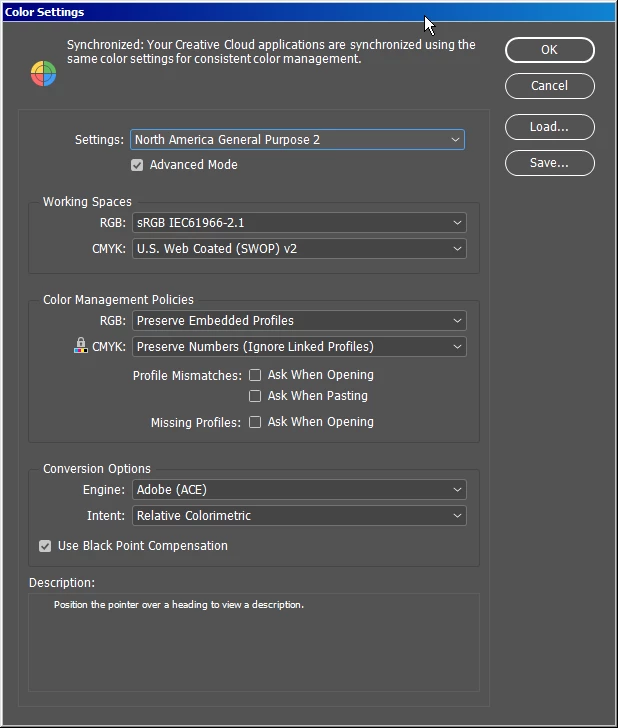
Although I cannot imagine that the color settings have to do with it (I am not trying to convert between RGB and CMYC, I am not trying to print), here are the color settings:
Bridge Color Settings
InDesign Color Settings
Document Setup
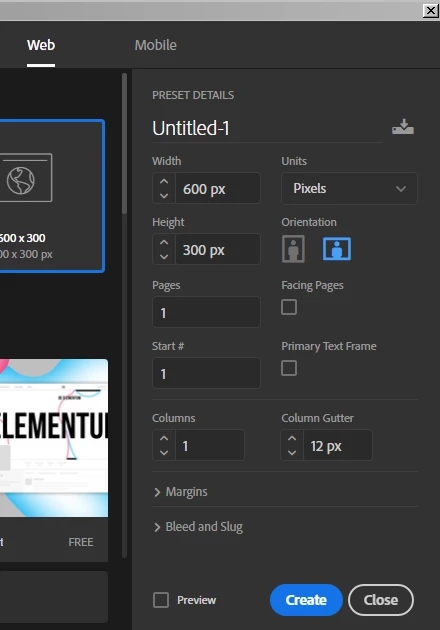
Can anyone point me in the right direction? Am I doing something wrong or is it maybe a bug in the Adobe Suite CC 2018? Maybe it is resolved in the 2019 version?
Thanks in advance,
Britta
 AdChoices