Participating Frequently
September 28, 2020
Answered

Right Align Numbers / Left Align Text in Table of Contents

  • September 28, 2020
  • 5 replies
  • 10069 views

Hello! 


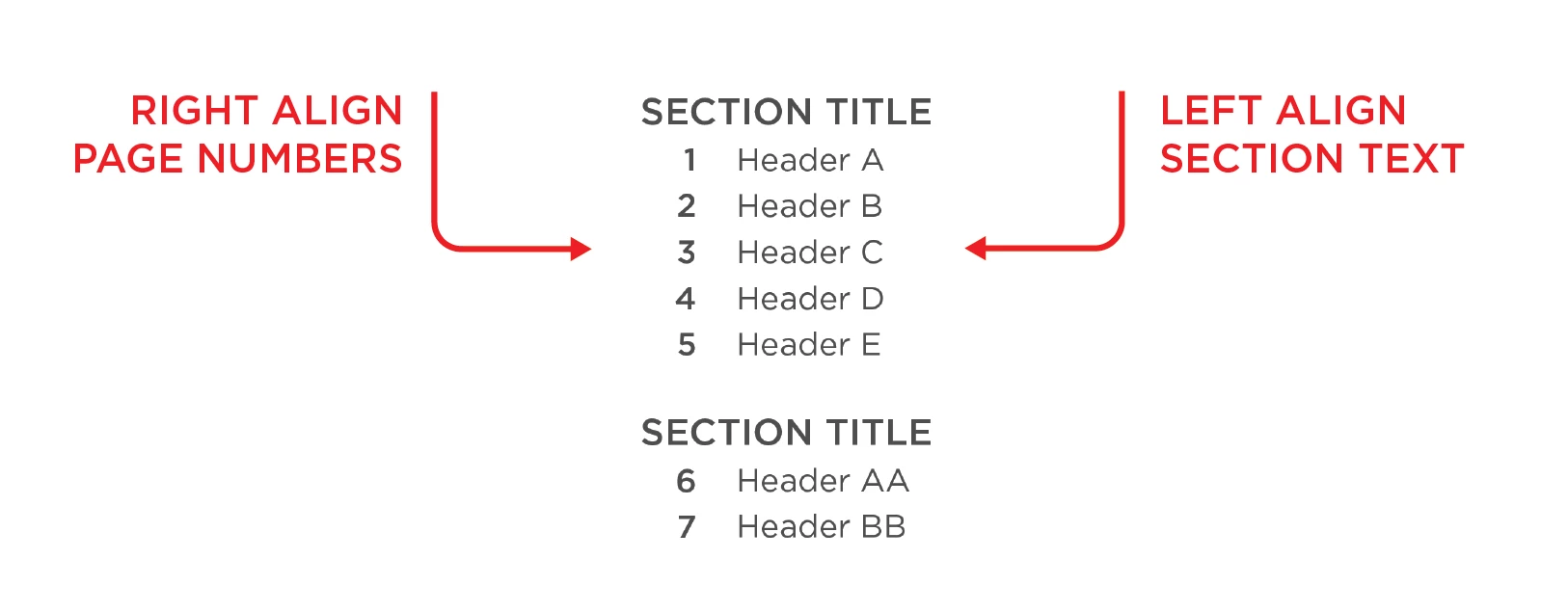
I have been trying and failing to create a table of contents that has right aligned numbers (on the left side) and left aligned text. Like this: 


Seems like there should be a simple solution to this that I'm missing.. Any thoughts?  


Thanks!

Correct answer Laubender

Hi C5FB2,

ok, here is yet another solution that will work, also with a trick:


Create two TOC styles for two purposes:

1. TOC style with page numbers only for the first TOC.

2. TOC style without page numbers for the second TOC.


You can create two text frames with two TOCs with the two TOC styles.

Arrange the two text frames side by side:
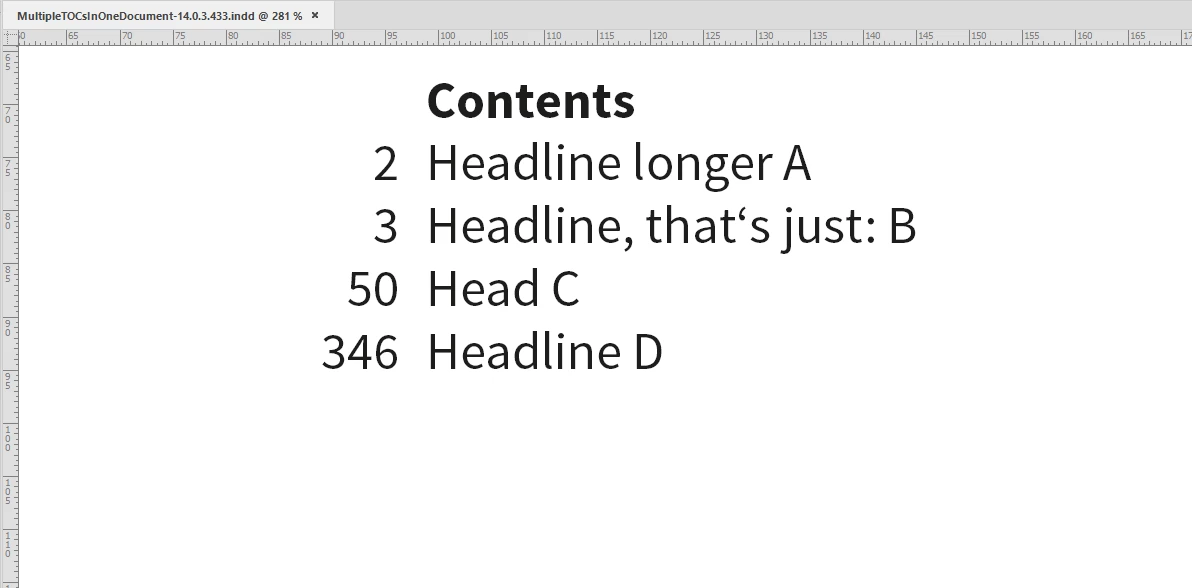


The left TOC contains both, the page numbers and the contents of the headlines as well. However, the headlines are hidden with a GREP style. The alignment of the paragraphs is Right Aligned.


This time the character style that is hiding the headlines' contents is done a bit different:

Fill color [None], character scaling: 1%, size: 0.1 Pt. That's pretty small and should "condense" the not visible text to such a small amount, that it is hardly visible, that behind every page number there is indeed some white space:


The TOC style is using the special white space character 1/24 of an EM space.

The GREP style is using that delimiter character to identfy the point where all text after this character will be formatted with the character style "Invisible-NoFill".


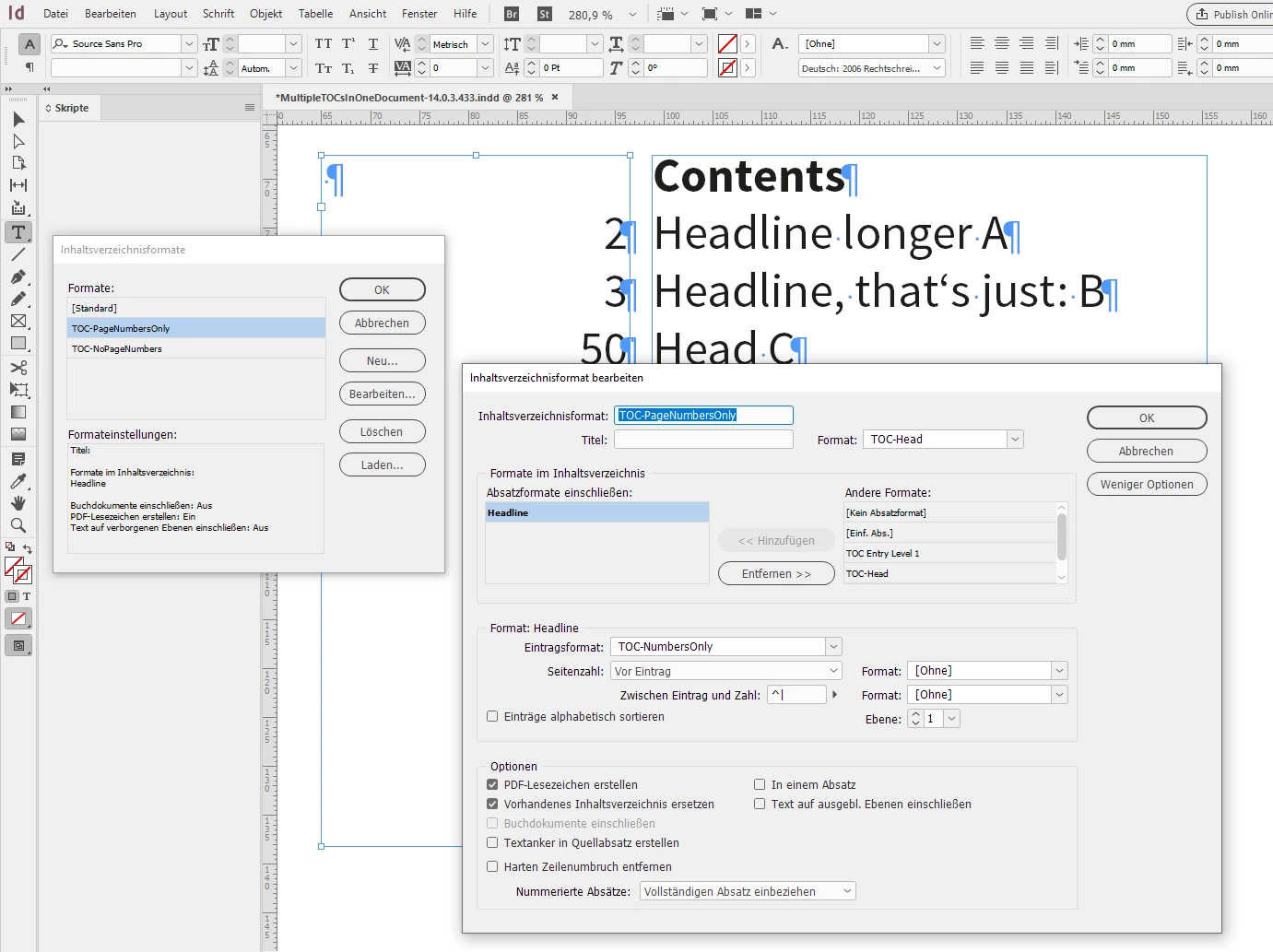
TOC style for the left TOC where the title of the TOC is just a blank character:


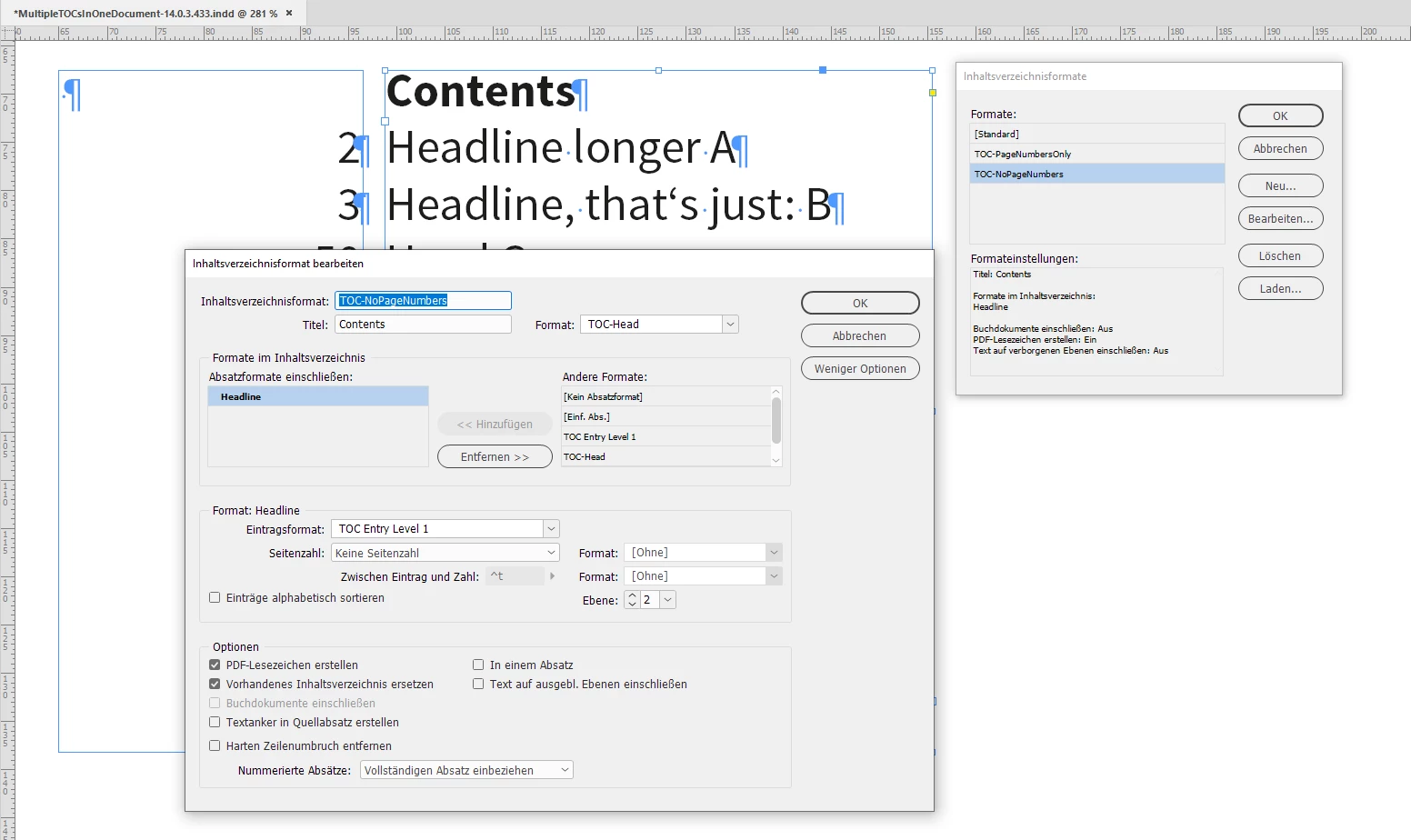
TOC style for the right TOC is simply leaving out the page numbers ("Keine Seitenzahl" with my German InDesign):


FWIW: All the page numbers are done with option: "1,2,3 …"


Regards,
Uwe Laubender

( ACP )

5 replies

Participant
February 8, 2023

To fix the issue when the title spans into 2+ lines, I found a solution that involves adding an invisible character as a bullet and messing with the alignment. 


1 - Result:

2 - On the ToC title paragraph style;

3 - The ToC settings

I hope that helps 😄


Community Expert
September 29, 2020

Warning: Be aware, that you can get a bit into trouble if one entry in the right TOC needs two or more lines of text.

The TOC to the left will suck in all that text into one "singularity" after the page number and the entry remains in one line of text.


Regards,
Uwe Laubender

( ACP )

LaubenderCommunity ExpertCorrect answer
Community Expert
September 28, 2020

Hi C5FB2,

ok, here is yet another solution that will work, also with a trick:


Create two TOC styles for two purposes:

1. TOC style with page numbers only for the first TOC.

2. TOC style without page numbers for the second TOC.


You can create two text frames with two TOCs with the two TOC styles.

Arrange the two text frames side by side:
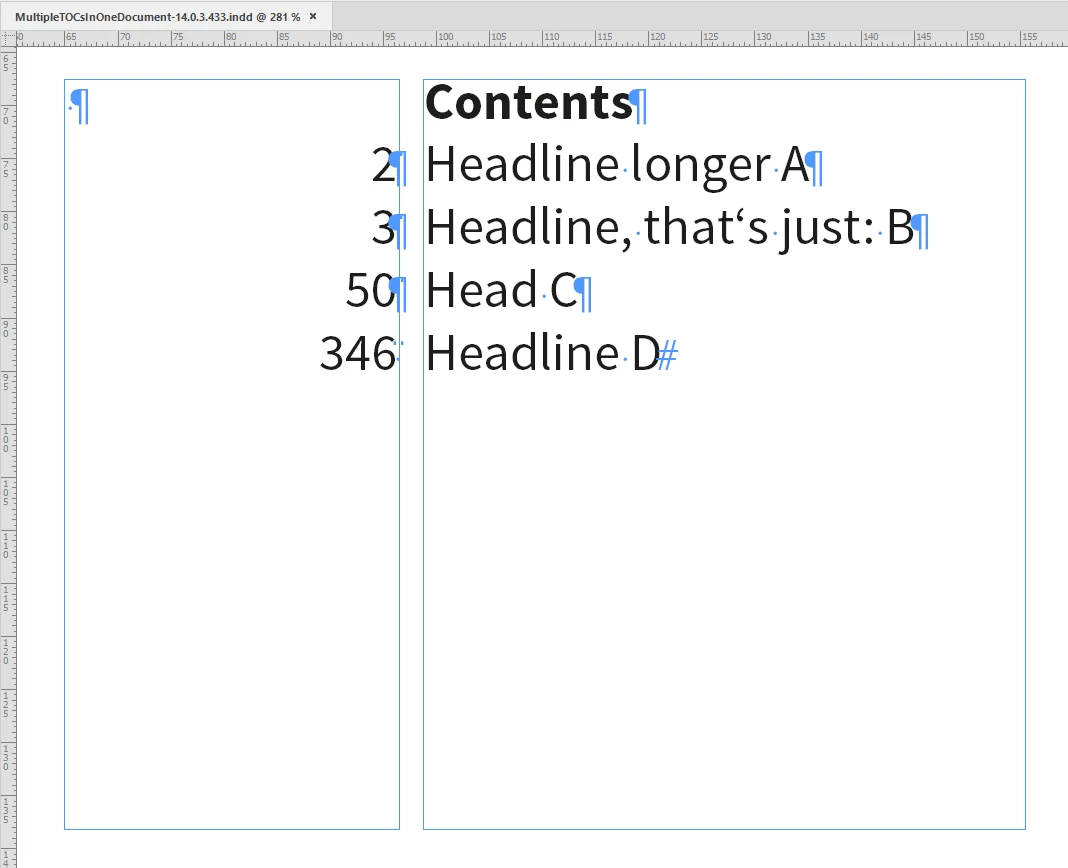


The left TOC contains both, the page numbers and the contents of the headlines as well. However, the headlines are hidden with a GREP style. The alignment of the paragraphs is Right Aligned.


This time the character style that is hiding the headlines' contents is done a bit different:

Fill color [None], character scaling: 1%, size: 0.1 Pt. That's pretty small and should "condense" the not visible text to such a small amount, that it is hardly visible, that behind every page number there is indeed some white space:
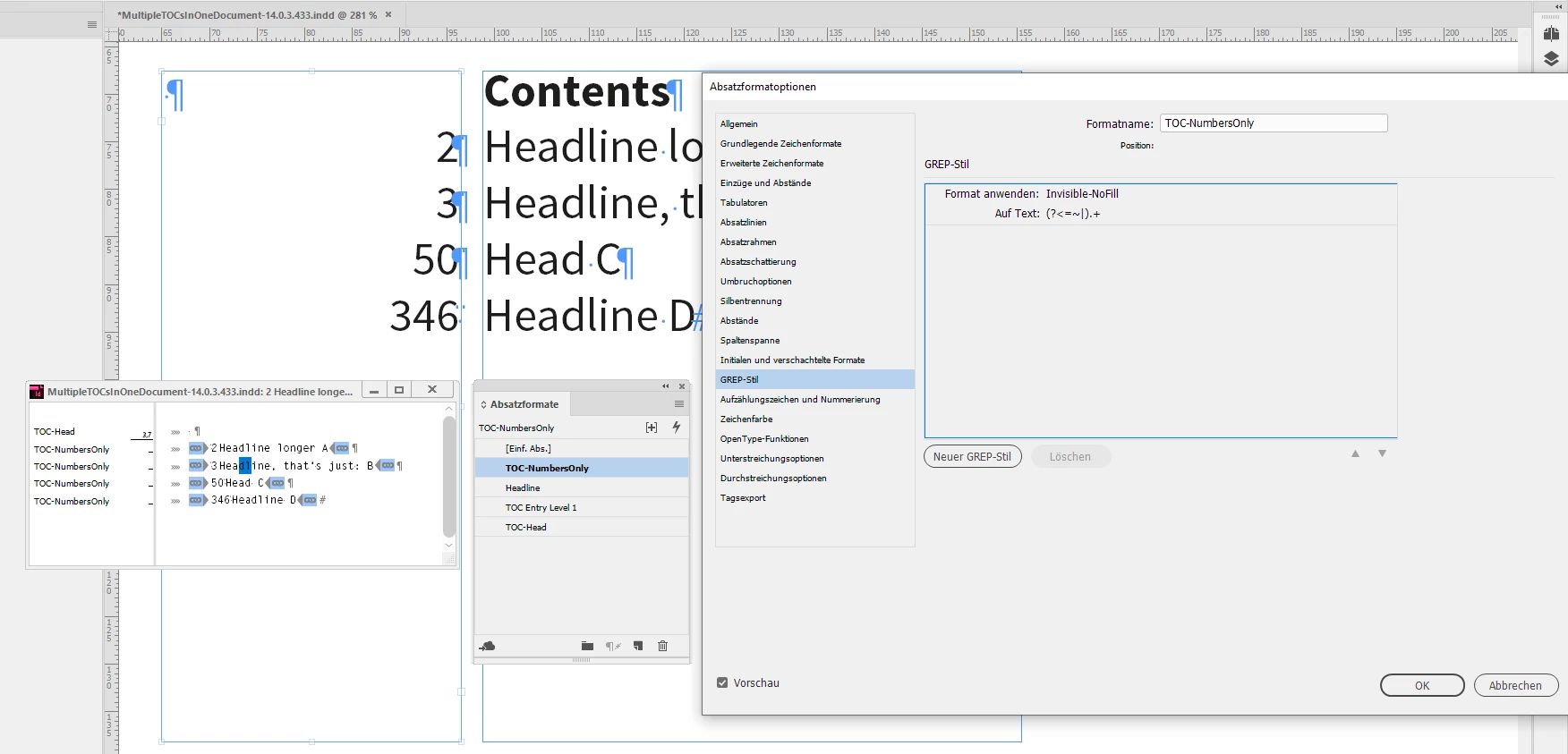


The TOC style is using the special white space character 1/24 of an EM space.

The GREP style is using that delimiter character to identfy the point where all text after this character will be formatted with the character style "Invisible-NoFill".


TOC style for the left TOC where the title of the TOC is just a blank character:
 

TOC style for the right TOC is simply leaving out the page numbers ("Keine Seitenzahl" with my German InDesign):
 

FWIW: All the page numbers are done with option: "1,2,3 …"


Regards,
Uwe Laubender

( ACP )

C5FB2Author
Participating Frequently
September 29, 2020

Ah yeah I think that makes the most sense, I'll try and set that up! New to GREP so it may take a mintue.. 
Thank you again for all the help! 

Community Expert
September 28, 2020

Hi C5FB2,

there is a way to do what you want. However, this is a trick that comes at a cost:
You have to use a different scheme of page numbering in the Pages panel.


Do not use: 1,2,3 …

Instead use: 001, 002, 003 … if you expect three-digit page numbers.


You then could use a GREP style to hide the leading zeros in the TOC. I created a character style that applies fill color [None] to one or two leading zeros at the beginning of a paragraph:


The issue with this approach:

That trick is not working with auto page numbers, because a page number is always treated as one unit and the applied GREP style cannot grab any leading zeros:


A workaround could be to use a numbered list for the page numbers on the pages.

So this might be no real solution for your use case.


Regards,
Uwe Laubender

( ACP )

C5FB2Author
Participating Frequently
September 28, 2020

Yeah the auto-numbering is key on this project unfortunately, but that's a very clever fix I'll keep that one in mind for future projects!

Community Expert
September 28, 2020

Include a tab in front of the page numbers, and set the tab to right-alignment

C5FB2Author
Participating Frequently
September 28, 2020

Sorry is there a way to do this through the Table of Contents dialog? This is what I currently have which is close: 


Sorry I am not an InDesign expert, so this is a bit new to me..


Thank you!

Community Expert
September 28, 2020

There is no way I know of in that dialog to add a tab before the number, but after the TOC has been generated, you can use this GREP find/change to add the tab. (It finds the beginning of a paragraph and one digit, and replaces it with a tab followed by the found digit)