Participant
November 4, 2016
Answered

Round corners of a table in InDesign

  • November 4, 2016
  • 8 replies
  • 81926 views

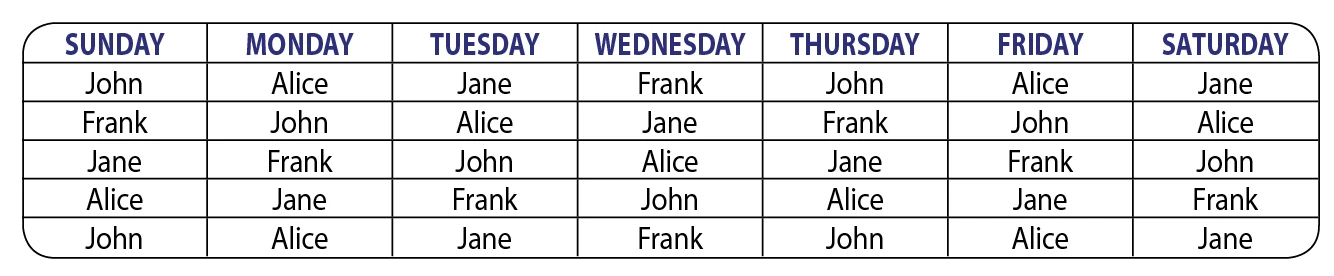
Is it possible to round the corners of a table in InDesign?

Correct answer Jeff Witchel, ACI

Technically the answer is no.

But there is an easy workaround. The only drawback is that the Table has to be the only thing in the Text Frame.

  1. Select your Table and using the Stroke widget in the Stroke panel, select just the outside Strokes.
  2. Apply None in the Swatches panel to these outside Strokes.
  3. Now, select the Text Frame with your Selection tool (V) and double-click on a corner bounding box point. This should make the Frame the same size as your Table. If it's not, delete any extra paragraph returns that come before or after the Table.
  4. With the Text Frame still selected, add a Stroke to the Frame.
  5. Under the Object menu > choose Corner Options round your corners.

See attached.

8 replies

Participant
October 26, 2022

Multiple workarounds. Several have given the paste into a frame technique. I didn't look at ALL the responses, but another option is textframes in a cell as anchored objects.

Participant
October 26, 2022

I also just saw one that uses paragraph shading/border to futher customize the table.

dashard
Participant
June 27, 2022

Sorry to necropost, but I came here looking for the same solution. I did the paste inside move on my own and it worked just as I expected. Easy peasy.

However…

Can't export to PDF. Fails and errors each time. Using ID 2022 v17.3

I am able to print to Postscript and render with Acrobat Distiller. But boy that's not user-friendly for non-pro users.


Has anyone successfully done a basic export to PDF?

Community Expert
June 27, 2022

Hi dashard,

printing to PostScript should not be necessary.

Can you see more information about the error if you expand that little triangle in the error message that comes with PDF Export?


Regards,
Uwe Laubender
( Adobe Community Professional )

dashard
Participant
June 27, 2022

Unfortunately it just repeats that the export failed. Is there a log somewhere to review?

Participant
June 29, 2020

Actually you'll need to embed the table and frame into a second (Image) frame, if you use just one text frame and round the corners, this will offset the table inside because the corners push it in. Embedding in a second frame and rounding the corners of that one prevents this from happening and you're all good.

So: 

Step 1.

Create a new text frame to house your table – this only works if the table is the only thing in the text frame.


Step 2.

Click into the text frame and insert table (or paste in one that you’ve created already)


Step 3.
select the table and just the outside strokes and reduce to 0mm so the table has now borders.


Step 4.

Hover over a corner anchor of the text frame and double click so it matches the size of the table.


Step 5.

Now create an image frame and copy and paste the frame containing the table into this new one, double click the corner again to match the size of the contents.


Step 6.

Select the new frame, choose Object>Corner options… from the top menu and make the corners round. You can then add stroke wieght and colour of your choosing.

Inspiring
August 29, 2018

Using your method, no matter what I do, I get the attached problem. The colored corners are still visible outside of the frame and there is white space on the top and bottom between the border and colored cell. How can I fix this?

philippanmei
Participating Frequently
June 23, 2017

For the Indesign Table Rounded Corner.

Draw a Rectangle Frame and goto Object menu and choose Corner Option... and make it rounded upto your satisfaction

Now copy or cut the table that you've created and select the rectangle frame and Press Ctrl+Alt+V (place into).. See the below table

Tx

Known Participant
August 18, 2017

Just in case someone else tries this "paste into" trick and discovers it does not work because you can't paste the table into the rectangle frame (the Paste Into menu option is disabled): you have to select and copy the whole text frame containing the table, and not just the table!

Jeff Witchel, ACI
Community Expert
Community Expert
July 18, 2018

I don't understand why the correct answer for this is such a kludge fix

Because at the time this was answered, Paragraph Strokes did not exist (see Laubender's answer immediately above).

Jeff Witchel, ACI
Community Expert
Jeff Witchel, ACICommunity ExpertCorrect answer
Community Expert
November 4, 2016

Technically the answer is no.

But there is an easy workaround. The only drawback is that the Table has to be the only thing in the Text Frame.

  1. Select your Table and using the Stroke widget in the Stroke panel, select just the outside Strokes.
  2. Apply None in the Swatches panel to these outside Strokes.
  3. Now, select the Text Frame with your Selection tool (V) and double-click on a corner bounding box point. This should make the Frame the same size as your Table. If it's not, delete any extra paragraph returns that come before or after the Table.
  4. With the Text Frame still selected, add a Stroke to the Frame.
  5. Under the Object menu > choose Corner Options round your corners.

See attached.

jane-e
Community Expert
Community Expert
April 21, 2017

Very clever, Jeff Witchel​!

kai*smith
Known Participant
April 22, 2017

Hi,

Jeff and Uwe add corners to the text frame that contains the table, not me!

Instead of this frame, I anchor a "rectangle". I cut the text frame above and "paste into" it.

The text frame and the rectangle have the same dimensions.

My process is just a little more complex with this variant [and 2 object styles created in background] and I'm very so lazy! … That's why I don't play it manually but by a personal script [not for free!] able to treat all the tables of a document in one click! 

(^/)


Thanks. Can you tell me how much the script is??

amaarora
Community Manager
Community Manager
November 4, 2016

hi,

Yes it is possible to.

Goto table->create table. Create the table of the required rows/columns. Now press in upper right corner of control panel(as shown in screen shot and choose the rounded entry)

Hope this answers your query.

Thanks

Frans v.d. Geest
Community Expert
Community Expert
November 4, 2016

amaarora : That does NOT work (as you can see from your own screenshot...).

you have to convert a cell to an inage cell, select that and give that a rounded corner, you will have to do so for each  'corner'-cell or follow the steps Jeff showed.

Community Expert
April 22, 2017

Frans said:
… you have to convert a cell to an image cell, select that and give that a rounded corner, you will have to do so for each  'corner'-cell or follow the steps Jeff showed.

Hi Frans,

how exactly should that work with Graphic Cells ?

1. The corner cells cannot contain any text.

( And if you manage to do that with some tricks InDesign would crash if you duplicate or copy/paste the table.)

2. The graphic object in the corner cells cannot leave the bounds of the cell.

Wheras the stroke on a cell will be always centered around the bounds of a cell.

So you will not get far with a simple graphic cell, I think.

Regards,
Uwe