Inspiring
April 26, 2017
Answered

Running Headers—I've read tutorials and many people's method, but got nowhere.

  • April 26, 2017
  • 1 reply
  • 3080 views

Hello. I spent yesterday and until now at 3 p.m. trying to establish headers for my

367-page document in InDesign CC 2017 to be printed as a book, trying to figure-out

headers for it.

Running headers seem to be the best kind for this, but I haven't been able to work it out

even after reading many people's method, including ones referred to in InDesign searches.

I want the headers to be established so that I can insert from the text what I want in them.

My book has 4 sections and many subjects, but I do not want to choose "sections,"

"chapters" or anything in the running headers specs.

Just an aside: This will be my final task in InDesign for this book.

I've made my way through pagination and text-wrapping.

Thank you so much,

Morty
    This topic has been closed for replies.
    Correct answer Barb Binder

    Okay, Barb—Applying A-Master to all pages worked

         but control-shift-click with Selection Tool brought up a menu,

    but I don't know what you mean by "that copies the frame forward to the Body Page."

    And then selecting the Text Tool wouldn't allow me to replace the Placeholder Text

    with anything. Wasn't able to type in that box.

    Onward and upward!

    Thanks for hanging-in-there with me,

         Morty


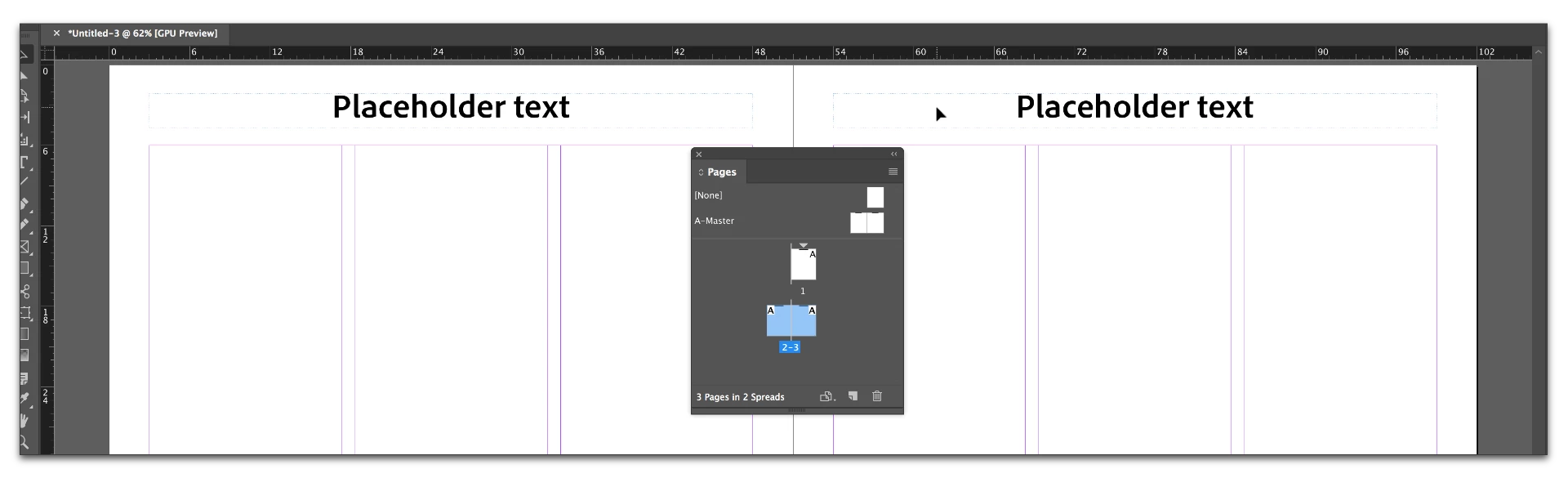
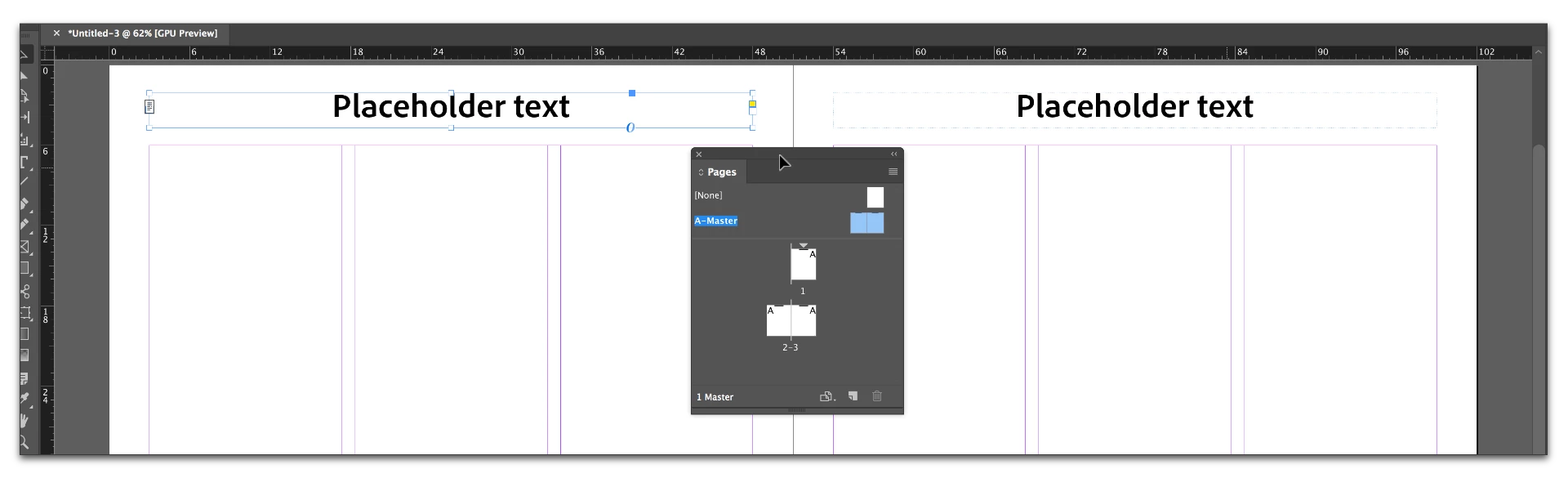
    The text frames are on the A-Master. Note the dotted blue outline on the unselected frame, and that you can select the frames. Add the text, format.

    Navigate to the body pages. The text frames are visible but not accessible on the body pages. You cannot select the frames. Note the dotted blue outline.

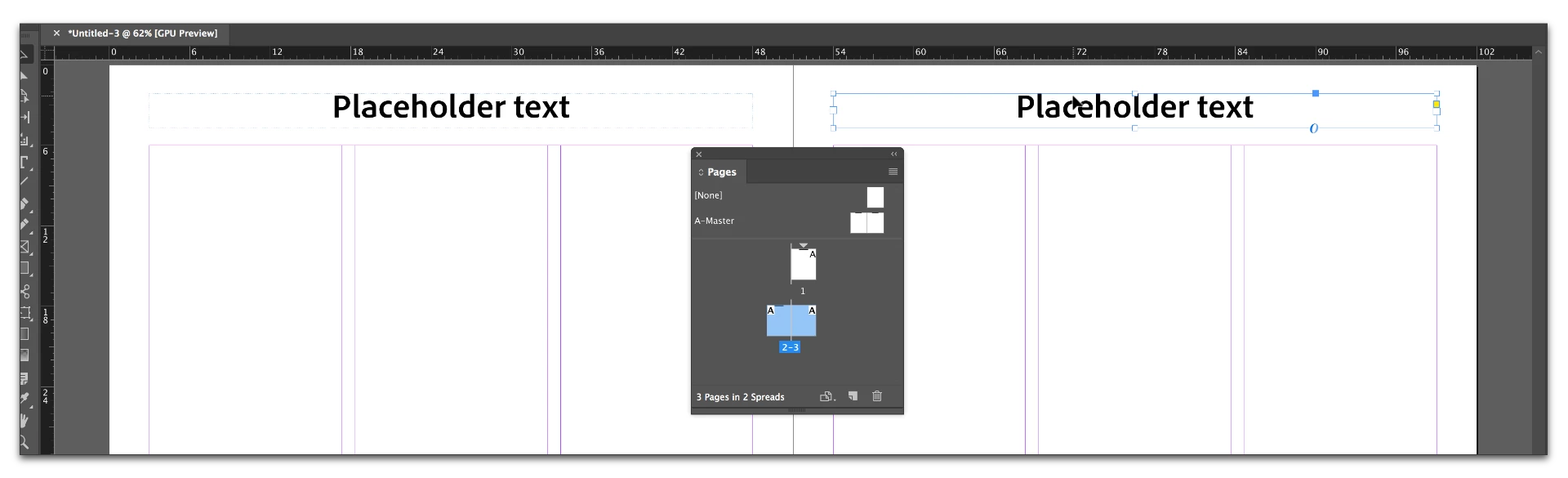
    Still on the body pages, Control Shift click (Cmd Shift click on a Mac) on the text with the Selection tool. Note that the dotted outline is now solid, and the frame is selected.

    Still on the body pages, switch to the Type tool and replace the text.

    1 reply

    Barb Binder
    Community Expert
    Community Expert
    April 26, 2017

    So Morty, to clarify—you do not want InDesign to collect and display the chapter names or section names for you. You do want to be able to type in custom content on each body page?

    In that case, add the running head text frames on the A-Master and add the words Placeholder Text. Format as desired. That text will appear on all the body pages.

    On each body page, Control+Shift+click on the words Placeholder Text with the Selection tool—which copies the frame to the body page—then switch to the Text tool and replace the words Placeholder Text with your custom content.

    ~Barb at Rocky Mountain Training
    Inspiring
    April 26, 2017

    I went to A-Master and clicked in text box,

    went to Type column>Text Variables>New>, typed Placeholder Text>Running Header Paragraph Style (basic)

    >OK, selected Placeholder Text>Insert.

    Worked on A-Master but when Layout>Pages>Apply Master to Pages, it didn't.

    Do you think it's because I followed your instructions with the running header text boxes

    I had previously installed? Should I start fresh instead?

    Also, the Master Pages have everything that's in the document, right?—not just new things?

    —so they shouldn't be deleted?

         Thanks, Barb,

              Morty

    Inspiring
    April 27, 2017

    Also, the Master Pages have everything that's in the document, right?

    The Master Pages hold the repeating information for the Body Pages—headers, footers, page numbers, repeating graphics. For more information on Master Pages, see Learn how to use master pages in InDesign.

    If you want InDesign to collect and display the chapter names or section names for you, then use Type > Text Variables. That's one of the things Text Variables do.

    If you want to be able add to type in custom content on each body page, simply;

    1. Draw text frames for the running heads text frames on the A-Master with the Text tool.
    2. Type in the words Placeholder Text.
    3. Format as desired.
    4. The words Placeholder Text will appear on all the Body Pages using A-Master.
    5. On each Body Page, Control+Shift+click on the words Placeholder Text with the Selection tool—which copies the frame forward to the Body Page.
    6. Switch to the Text tool and replace the words Placeholder Text with your custom content.
    7. Repeat steps 5–6 for each Body Page.

    Also, I would add to part 3 of Barb's excellent list - because you are overriding the running head frame on every page, you should use a paragraph style when you format that text. You don't want to be going through the frame on every page if you decide to change the typeface or size etc of your running heads later.

    Regards,

    Malcolm