


- Home
- InDesign
- Discussions
- Re: Same colour mode in digital and print versions
- Re: Same colour mode in digital and print versions

Copy link to clipboard
Copied
Hi everyone,
I am creating a document including various maps and graphics. This document will be available printed as well as online. I would like the colours to appear the same in both formats so I have exported the printed version in CYMK. This has muddied some of the colours compared to how they appear on screen.
However, is it possible to export a digital version in CYMK?
I had though about just putting the CYMK prink PDF online however there will be various interactive elements which I don’t think will work if I export to print.
I could also convert all my maps for the digital version to CYMK in Photoshop however this is a time consuming stage in my workflow which I would like to avoid.
Does anyone have any ideas?
Thanks.


 1 Correct answer


Hi,
export two PDFs and work on with Acrobat Pro DC.
First export as interactive PDF with all bookmarks, links etc.pp.
Then you export a second PDF with CMYK.
In Acrobat Pro DC you will be able to replace all pages of the interactive PDF with all pages of the CMYK one.
That would leave all interactive items intact.
Regards,
Uwe

 16
Replies
16
16
Replies
16


Copy link to clipboard
Copied
What format is your digital version--PDF or EPUB?
EPUBs and interactive PDFs are output as RGB. Depending on the type of interactivity you are using, a PDF might work in CMYK.
Color Conversion: you don't have to make to versions of the artwork--keep all your art in RGB and convert to CMYK during export (PDFX-1a) or afterwards in Acrobat Pro. If the job is being commercially printed, you could supply the RGB PDF. Many printers and and most digital output devices prefer RGB so the color conversion can be done on their end.
Color Accuracy: It would be best if you select RGB colors that map reasonably well to CMYK, rather than forcing out-of-gamut RGB colors to CMYK. That will help to keep your digital and print versions looking the same. (Keeping in mind that you have no control over the color accuracy of the viewers' monitors.)
Copy link to clipboard
Copied
The digital version will be provided as a PDF. I understand that I don't have to make two versions of the artwork. It is all being created in in RBG. Unfortunately my printer has asked for a CYMK PDF so I plan to export the print version to CYMK. Therefore all the maps and various other graphics throughout the document turn slightly muddier. I am fine with this. However, I want to ensure that the same colours appear on the digital-online version.
You mentioned that a PDF might work in CYMK. Did you mean I can make a digital version (with all the bells and whistles) in CYMK?
Many thanks

Copy link to clipboard
Copied
To convert your RGB artwork to CMYK for your printer, select PDF/X-4.
Copy link to clipboard
Copied
Derek,
I understand how to convert to CYMK to print. What i'm trying to do is make sure that the digital version (including linked RBG artwork) has the same colours as the CYMK printed version.
Thanks
Copy link to clipboard
Copied
Depending on the type of interactions, you could simply work in CMYK color space.
When you save as interactive PDF, the document will become RGB.
When you export to PDFX-1a, your document will become CMYK.
Copy link to clipboard
Copied
IDEAS-Training, thanks for the advice.
What do you mean by 'you could simply work in CMYK color space'? I changed the transparency blend space to CYMK which made the colors appear as muddy CYMK, then exported to interactive and there they were, those brilliantly vivid RGB colors again. Is there a way to export the blend space view.
Sorry, i'm a bit of a noob with all this.
Many thanks
Copy link to clipboard
Copied
That means your colors (in ID and images) are using out of range colors and getting compressed into the CMYK world.
If you are creating the images, use duller colors to begin with.
Basically, it is a matter of being disappointed up front (by using duller colors) vs. being disappointed later (upon export or printing).
If using Photoshop, if you see this icon, your RGB colors can't be printed accurately in CMYK. (This is dependent on your color management settings, but don't worry about that for now.)
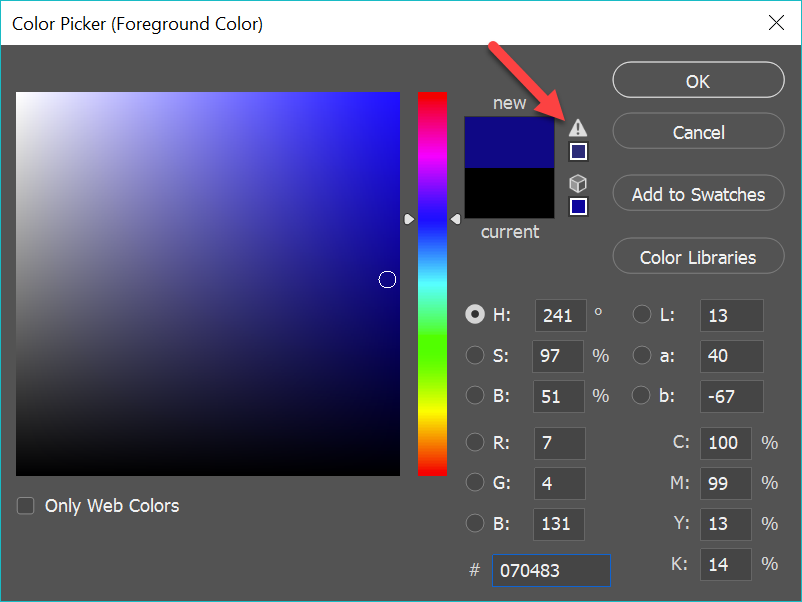
If you click on the icon, your color will shift into a CMYK-capable color.
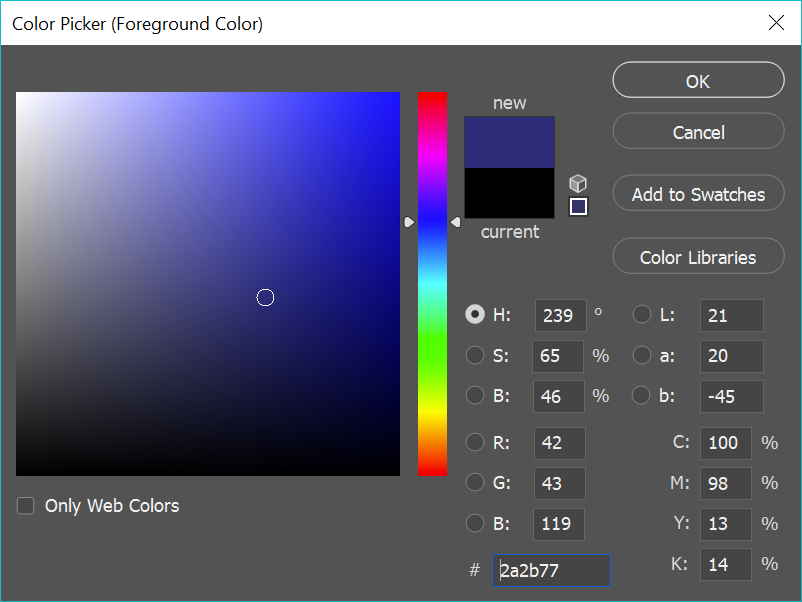
You may be disappointed with the color, but you will keep accuracy between versions.

Copy link to clipboard
Copied
I understand how to convert to CYMK to print. What i'm trying to do is make sure that the digital version (including linked RBG artwork) has the same colours as the CYMK printed version.
For the print version export to PDF/X-4 with the Output Destination set to Document CMYK. Your document should have the correct press profile assigned Edit>Assign Profiles.

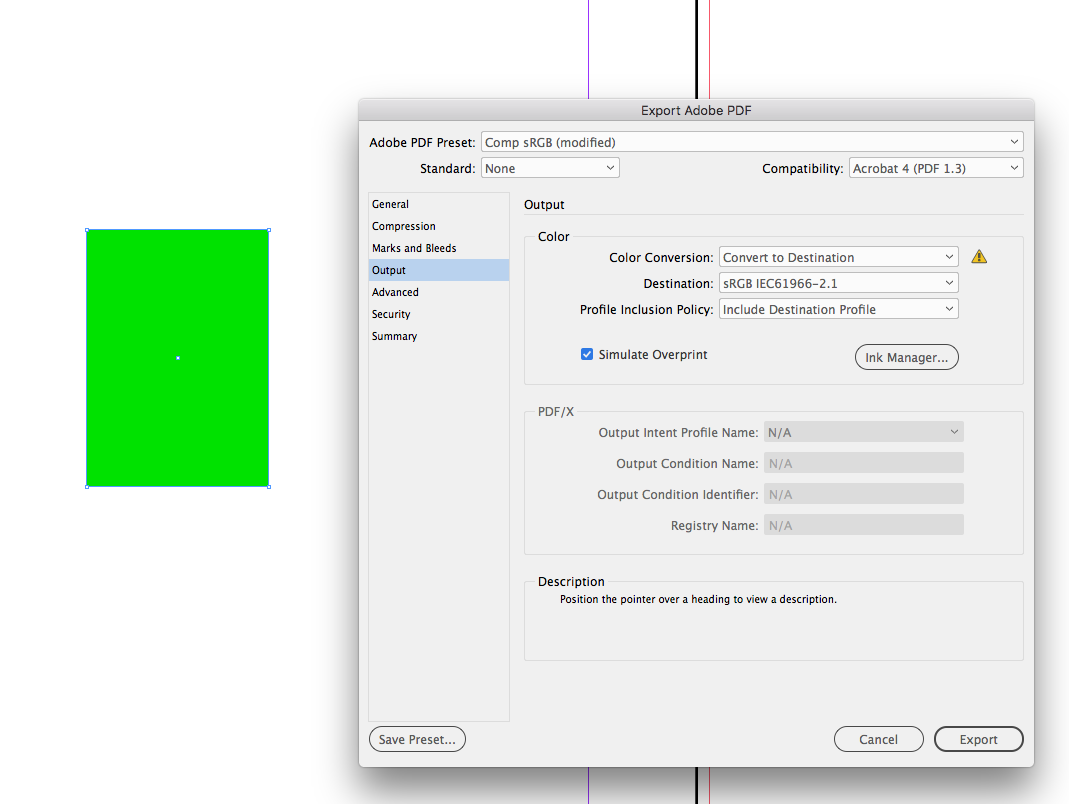
For the online version, set the Output tab like this where the Compatibility is Acrobat 4, the Destination is sRGB, and Simulate Overprint is checked. Checking Simulate Overprint will export all of the color as RGB, while simulating the CMYK appearance:
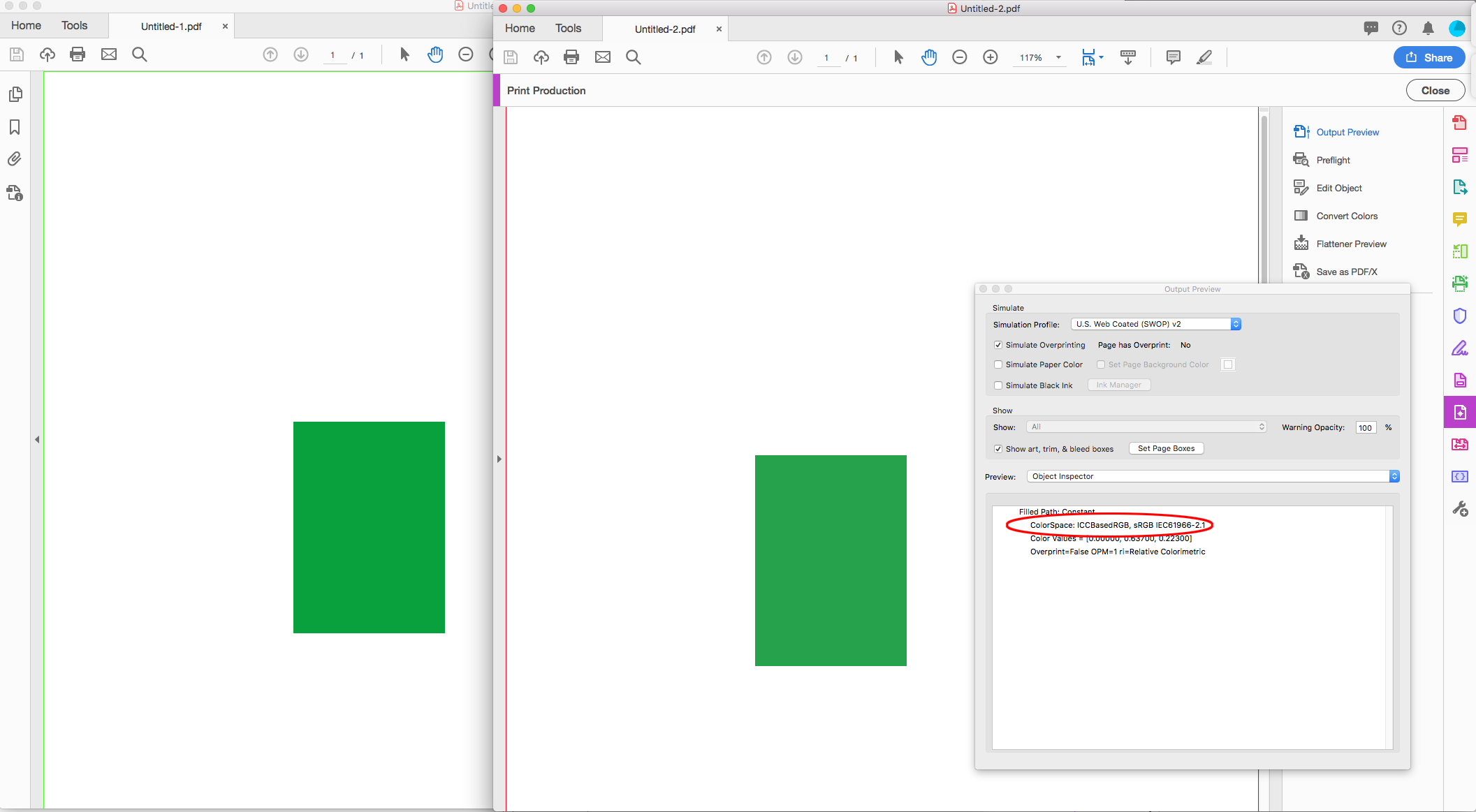
Here are the 2 exports. The version on the right is all RGB, the version on the left is all CMYK, but the color appearances match:

Copy link to clipboard
Copied
Rob,
Many thanks for the information and the examples that you have provided. However, they only help me create an RBG file which mimics the equivalent CYMK file. What I need is to create an interactive PDF which includes bookmarks, links, hyperlinks etc with colours which mimic the genuinely CYMK colours of the equivalent print version of the same document.
Unfortunately your instructions only create a print file where none of the interactive elements are active.
I didn't realise that this would be such a difficult task. Is it really not possible to export an interactive PDF with CYMK colours in InDesign?
Thanks,
desperate designer
Copy link to clipboard
Copied
Hi,
export two PDFs and work on with Acrobat Pro DC.
First export as interactive PDF with all bookmarks, links etc.pp.
Then you export a second PDF with CMYK.
In Acrobat Pro DC you will be able to replace all pages of the interactive PDF with all pages of the CMYK one.
That would leave all interactive items intact.
Regards,
Uwe
Copy link to clipboard
Copied
Laubender your method of replacing the pages in Adobe Pro works perfectly!! Although how it replaces the artwork and maintains the links I have no idea!
Are there any pitfalls with this method that you think I should be aware of before I commit it to my workflow?
100 thank you's!
Copy link to clipboard
Copied
Hi,
there are two "different layers of information" with your PDF. The "page contents" and the "interactive part".
Replacing pages will only replace the "page contents". So everything interactive should stay put.
Regards,
Uwe
Copy link to clipboard
Copied
Are there any pitfalls with this method that you think I should be aware of before I commit it to my workflow?
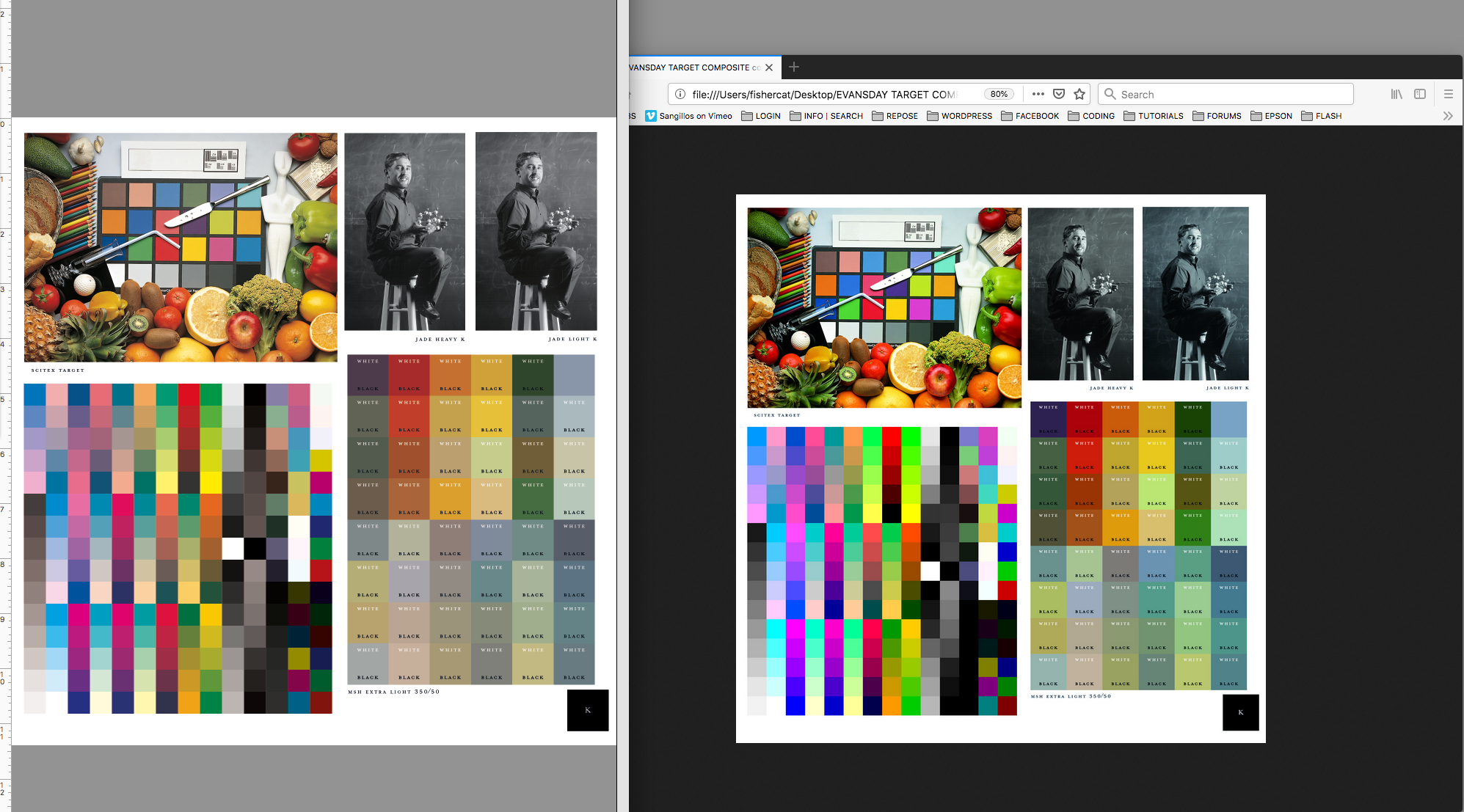
Make sure you test the CMYK interactive pdf in all browsers. AcrobatPro is fully color managed so it wont be a problem there, but your client's browser may not handle CMYK color correctly particularly if the CMYK color is DeviceCMYK (no profile assigned).
Here's an example comparing Photoshop CMYK with the same CMYK in Firefox:
Copy link to clipboard
Copied
Thanks for the heads-up Rob. I'll do some tests.
Copy link to clipboard
Copied
Is it really not possible to export an interactive PDF with CYMK colours in InDesign?
No. The interactive export forces all color into profiled sRGB.
Browsers don't reliably color manage the appearance of CMYK colors, and that's the reason for the forced conversion to sRGB. But only RGB colors that are out of your document's assigned CMYK space's gamut would have different appearances in the print and interactive versions. So you could either make the conversion to CMYK in PS before you place your images, or color correct the RGB images so they are in gamut—in Photoshop use View>Gamut Warning.
Copy link to clipboard
Copied
You will know that CMYK has about a third less colours in than RGB, so if you want to colours to be similar you'll have to put up with the RGB version being duller, this will be particularly noticeable with bright orange and bright green. In other words, the CMYK gamut can never match RGB. The good thing is, that unless the two versions are side-by-side the viewer will never know!


Get ready! An upgraded Adobe Community experience is coming in January.
Learn more
 AdChoices