
Copy link to clipboard
Copied
UPDATE
The answer to this is actually in the thread I posted to, and the problem I had was solved by FRIdNE and I missed it! So, if you're trying to do this too, click on the link to the other thread and scroll down to FRIdNE's comments/solution.
Although he's also posted a handy video in this thread!
Okay, so I'm sure we are all aware of how ridiculous it is that anchored and inline objects go ABOVE text in indesign... because who want's to read the text anyways right?
BUT I found a solution to this here:https://community.adobe.com/t5/indesign-discussions/anchored-object-behind-text/td-p/10781132
HOWEVER I need my graphic to extend outside the text box, on the left side, which apparently you can't do, even though you CAN do it on the right side. Go figure.
What I am basically trying to achieve is this:

Except the banner envelope thing needs to be anchored to the text in some way so I'm not chasing down and repositioning 1000 title banners every time someone makes edits to the text:
But all I have been able to achieve so far is this:
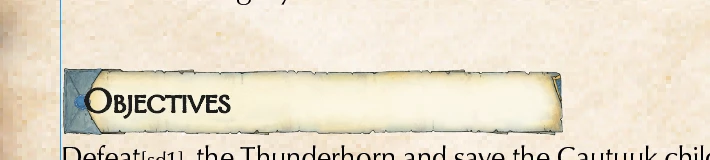
Which, don't get me wrong, is 90% where I need to be, but that extra indent now required to the title just irks me too much. It's so far from the start of the body text, plus, the break outside of the text box, to the left, further reinforces that this is a new section.
There must be someone out there that has figured out a way to do this, pretty please? I had a quick google for scripts or other bodge job work around but didn't really get very far.
I also thought I could extend the text box and then increase the indent for all the other text elements so the banner would sit further left, but I'm using columns and that messes the columns up and the gutter and it was just a short lived moment of triumph that ended in tragedy haha.
Thanks for any suggestions!
PS
Google also gave me the following script but I couldn't get it to work even with chatgpt trying to help me fix it:
// Function to push anchored objects outside the text frame
function pushAnchoredObjectsOutside() {
var selection = app.activeDocument.selection;
for (var i = 0; i < selection.length; i++) {
if (selection[i].typename === "GraphicFrame") {
// Check if the object is anchored
if (selection[i].itemLink) {
// Access Anchored Object Options
selection[i].itemLink.options.anchoredPosition = "Outside Frame";
}
}
}
}
// Call the function to apply the change
pushAnchoredObjectsOutside();
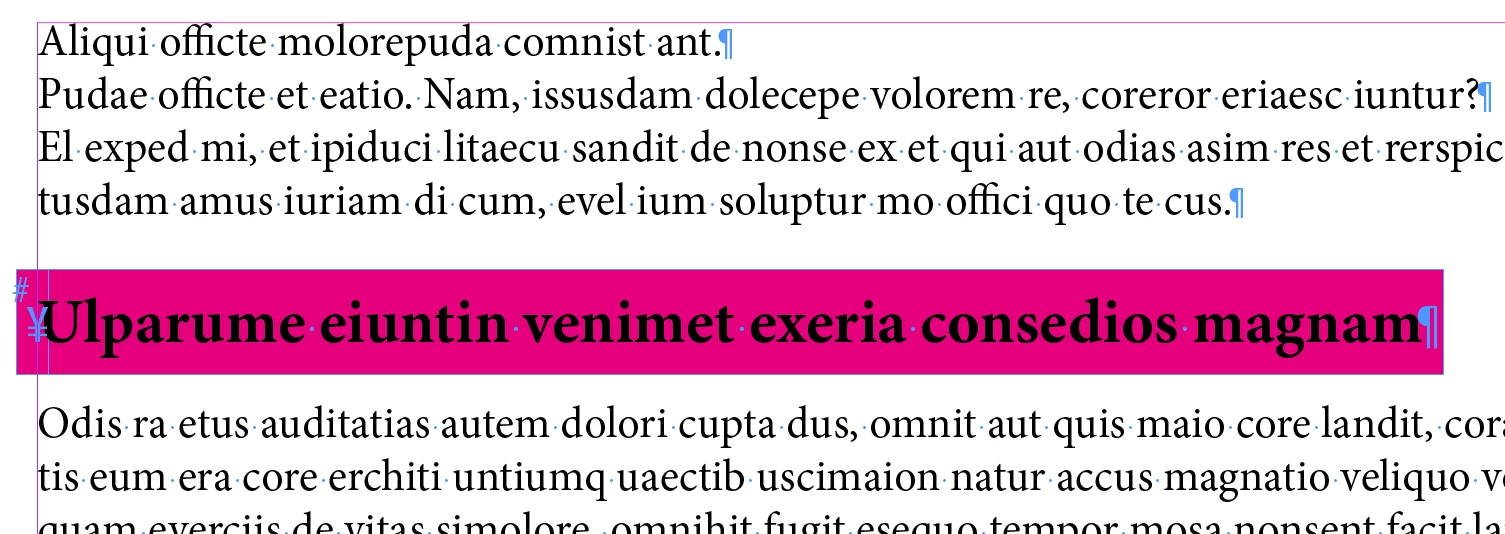
What I called in this old thread of december 2019 … a double-anchoring!
(^/) The Jedi
Copy link to clipboard
Copied
Using Custom anchor settings (Not inline or above), you can set the anchor to the anchor insertion point and set a negative x offset to achieve the effect you want.
Copy link to clipboard
Copied
There's also any number of ways to offset heads etc. to the left while the body text is indented, giving the same effect with very basic settings. (I don't always trust the negative-value offsets in cases like this.)
Copy link to clipboard
Copied
They are offsetting a graphic.
Copy link to clipboard
Copied
Thanks @James Gifford—NitroPress, could you explain what these other ways are so I can try them? Thanks!
Copy link to clipboard
Copied
This is just a quick hack, but —
This avoids all box-in-box, tricky anchoring settings, negative offsets, etc. You simply have to have the minor point of design discipline to work with a virtual left margin.
ETA: And then use an Object Style to manage the graphic, as Willi noted below.
Copy link to clipboard
Copied
Thanks for explaining! I'm still not sure I understand though. The text would still be under the graphic if it's not inline in the text box and it can't extend outside the text box on the left side regardless of where the margin is? If it's just anchored and not inside the text box, it's always on top of the text.
Copy link to clipboard
Copied
Does that help? 🙂
I see (now) that you want a full graphic behind the text. AFAIK anchoring will always put the anchored element on top. I was mostly addressing the offset issue.
Your only solution may be to use a frame for both graphic and heading, which can get tedious to manage. It's always undesirable to put text out of the main flow if it can be avoided. But I don't think there's any manageable combination of anchoring and inline text that will work out for this.
I mean, something like this works and could be managed, but puts your heading text in a separate frame:
OTOH, you can also set the opacity of the graphic and work around that with the first technique.
Copy link to clipboard
Copied
Thanks for taking the time to try and help me figure this out! Seems like FRIdNE posted the answer I needed, in the thread I linked to in my OP, years ago, and I somehow didn't see it! Alls well that ends well 🙂 Thanks again!
Copy link to clipboard
Copied
Hi, @brian_p_dts thanks for the tip! Custom settings are what I was using before and that places the image above the text though? Even though in the layers panel it's below the text, it covers it. Am I missing another step?
Copy link to clipboard
Copied
Change X Relative to Anchor Marker. Edit: Oops nevermind, misunderstood the issue. I'd look into @FRIdNGE's solution.
Copy link to clipboard
Copied
No worries! Thanks so much for taking the time to try and help me out ^_^
Copy link to clipboard
Copied
What I called in this old thread of december 2019 … a double-anchoring!
(^/) The Jedi
Copy link to clipboard
Copied
Thanks @FRIdNGE! I'm not seeing a link to another thread though? It sounds fairly self explanatory, I anchored the actual graphic to a text box in the PB and anchored that to the story, but it still places the original graphic over the top of the text?
Copy link to clipboard
Copied
You mentioned a thread in your question! Read my 2 last comments.
(^/)
Copy link to clipboard
Copied
Ah yes of course!!! I'm such an idiot, how did I not see that in the thread before??? You are a LEGEND!!!!!!! Thank you so much. It took a lot of faff and adjusting but IT WORKS!!!!!!!!!!!!!! A 1000 thank yous.
Copy link to clipboard
Copied
Copy link to clipboard
Copied
Ah I think my initial empty text box was too big and causing issues. Thanks for the video!
I'm not sure my GREP knowledge is good enough to know how to find and replace all instances but I'm only a few pages in so I'll set up styles to handle it moving forward 🙂 Thanks again!
Copy link to clipboard
Copied
First, cut the anchor_1 (copied in the clipboard):
Then, simply this Regex + Change All:
(^/)
Copy link to clipboard
Copied
You're like a wizard lol. Thank you
Copy link to clipboard
Copied
Why not using an object style to do this?
Copy link to clipboard
Copied
An object style would be an asset for this, but the actual positioning and setup has to be worked out first.
Copy link to clipboard
Copied
@James Gifford—NitroPress The position won't be set in stone as there are titles all over the pages, in the different columns etc.
Copy link to clipboard
Copied
@Willi Adelberger Thanks for the suggestion! I have object styles set up for everything but I still can't make the object extend outside the parameter of the text box, even with the "position" options in the object style settings. And anchoring the object still puts it on top of the text if it's not in the text box 😕
Is there a setting somewhere else in the object styles that I need to be using?
Find more inspiration, events, and resources on the new Adobe Community
Explore Now