Typothalamus
Known Participant
January 26, 2025
Answered

Setting two typeface styles within same line for character/paragraph style

  • January 26, 2025
  • 3 replies
  • 839 views

When defining a character/paragraph style, for instance, for captions, where only the initial word is to be set in italics or bold and the rest set regular, how's this done? E.g.: "Above: Schematic for Bronson House, Altadena, California, 1947". Thank you.

Correct answer Eugene Tyson

You can use Nested Styles - which lets you control what style is applied to your parameters you set up 

https://helpx.adobe.com/indesign/using/drop-caps-nested-styles.html


E.g. 
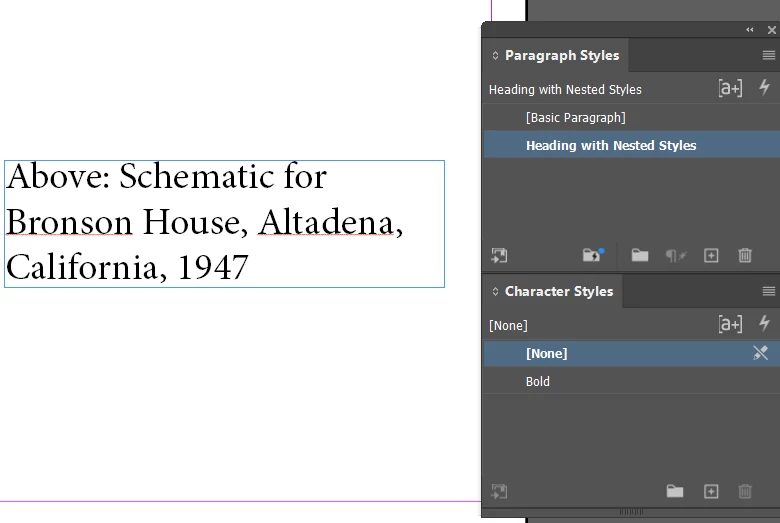


Here I've set it go to the First full colon - so it Bold applies to the 'Above:"



If you delete or move the : it will change the bold

Deleted it will bold the entire sentence due to the sentencing - BOLD UP TO FIRST :


Move the Colon


And you can nest them and build on them to automatically apply styles to the parameters you need

Here I've instructed to apply italic to the end of the nested style - which is the end of the paragraph seemingly.

So it's Bold UP TO : 

THEN

Italic up to end 


You can build them as you see fit.


3 replies

Barb Binder
Community Expert
Community Expert
January 26, 2025

I'm going to add one thing to @Eugene Tyson's correct answer—and this is covered in the link he provided—it's not immediately clear that there are four separate elements you can change:


  1. The character style
  2. To or through
  3. How many you need to match
  4. Presets for where the nested style ends, or as in Eugene's demo, you can add any character you like


When I teach nested styles, I see my students struggle with the interface, until they look at all four options and try a few options and then the light blub goes off. This is such a powerful feature in InDesign. 


~Barb

~Barb at Rocky Mountain Training
Community Expert
January 26, 2025

Cool! 


Once you play around with it an understand it it's very powerful feature.

Robert at ID-Tasker
Legend
January 26, 2025

@Typothalamus


If you are looking to style only the first word - you can select "up to 1 word" - no need for punctuations or "end nested style here" markers.


Community Expert
January 26, 2025
quote

@Typothalamus


If you are looking to style only the first word - you can select "up to 1 word" - no need for punctuations or "end nested style here" markers.


By @Robert at ID-Tasker

Yeh it was just a small demo of how it can be flexible and target.

But doing 1 word is another option. 


It's the same thing. I'm sure the OP can figure out how to work it - I posted a small sample - and a link to the Help files. 


It's not that hard. 

Eugene TysonCommunity ExpertCorrect answer
Community Expert
January 26, 2025

You can use Nested Styles - which lets you control what style is applied to your parameters you set up 

https://helpx.adobe.com/indesign/using/drop-caps-nested-styles.html


E.g. 


Here I've set it go to the First full colon - so it Bold applies to the 'Above:"
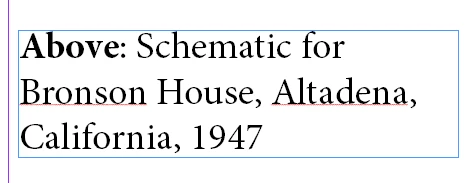


If you delete or move the : it will change the bold

Deleted it will bold the entire sentence due to the sentencing - BOLD UP TO FIRST :
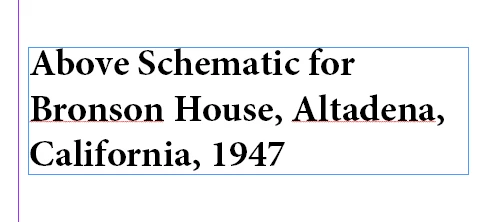
 

Move the Colon
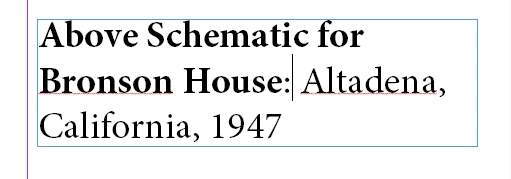


And you can nest them and build on them to automatically apply styles to the parameters you need

Here I've instructed to apply italic to the end of the nested style - which is the end of the paragraph seemingly.

So it's Bold UP TO : 

THEN

Italic up to end 



You can build them as you see fit.



Dave Creamer of IDEAS
Community Expert
Community Expert
January 26, 2025

Just a note to the OP--you can also set if to just the first word if punctuation is not always involved. Also, if you use different punctuation, you can enter them at the same time. For example: ";-,:" Any one of those would trigger the nested style. 


David Creamer: Community Expert (ACI and ACE 1995-2023)