Inspiring
January 14, 2018
Answered

So confused. How to center text within the page, on every page???

  • January 14, 2018
  • 6 replies
  • 1626 views

InDesign.

My first time using it.

I just need to get this text centered, and export a PDF.  Can somebody please help me? 

Legacy file, had been used for printing a book.  I just want one PDF that flows properly - text and page number centered the same on each page.  With the book format (two master pages) the left and right (even and odd pages) were different.  Thus my PDF "walks" side to side as you scroll down through the pages.

I reduced from two Master Pages to one.  Applied that Master to all pages.  It's still screwed up.

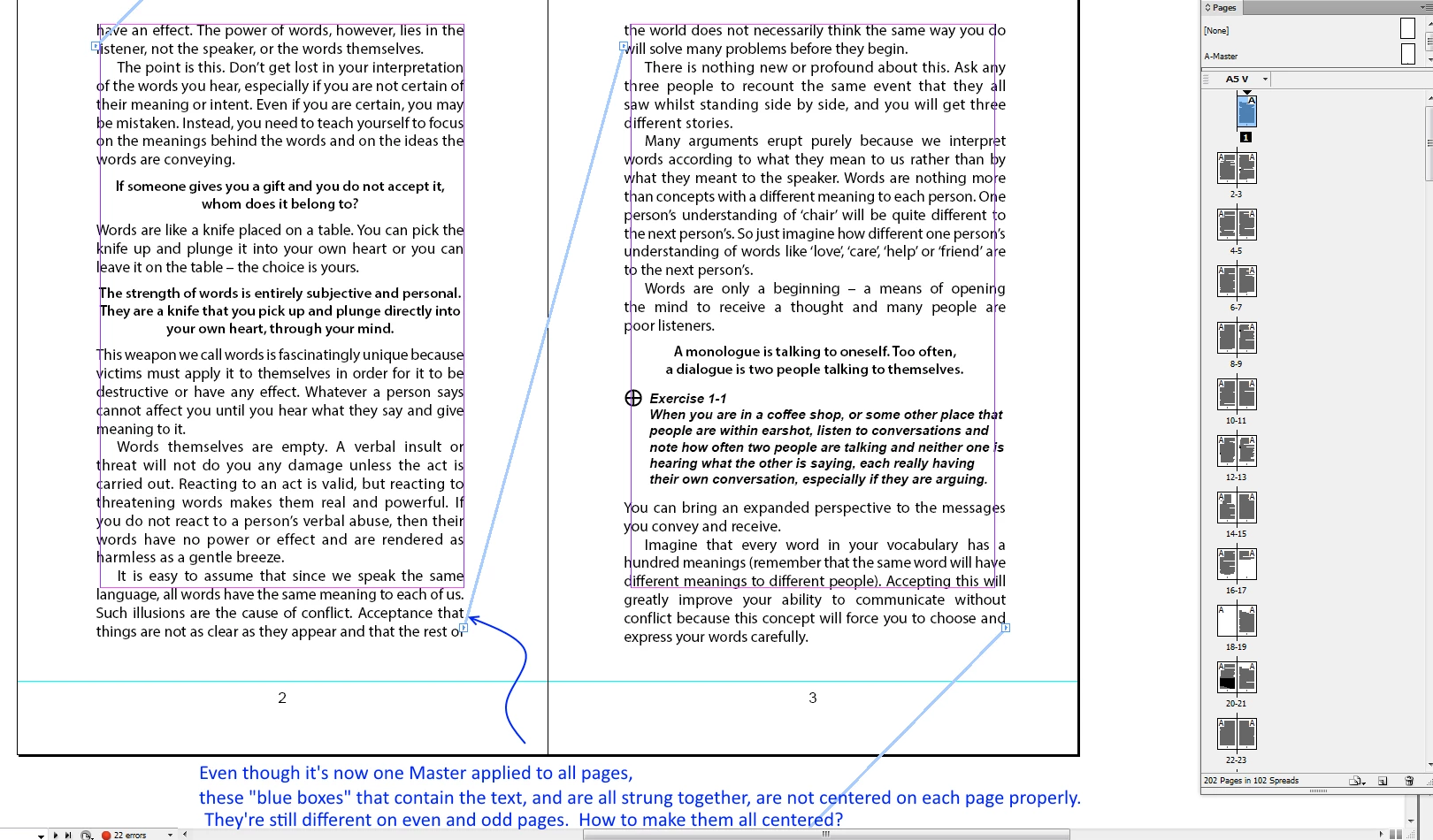
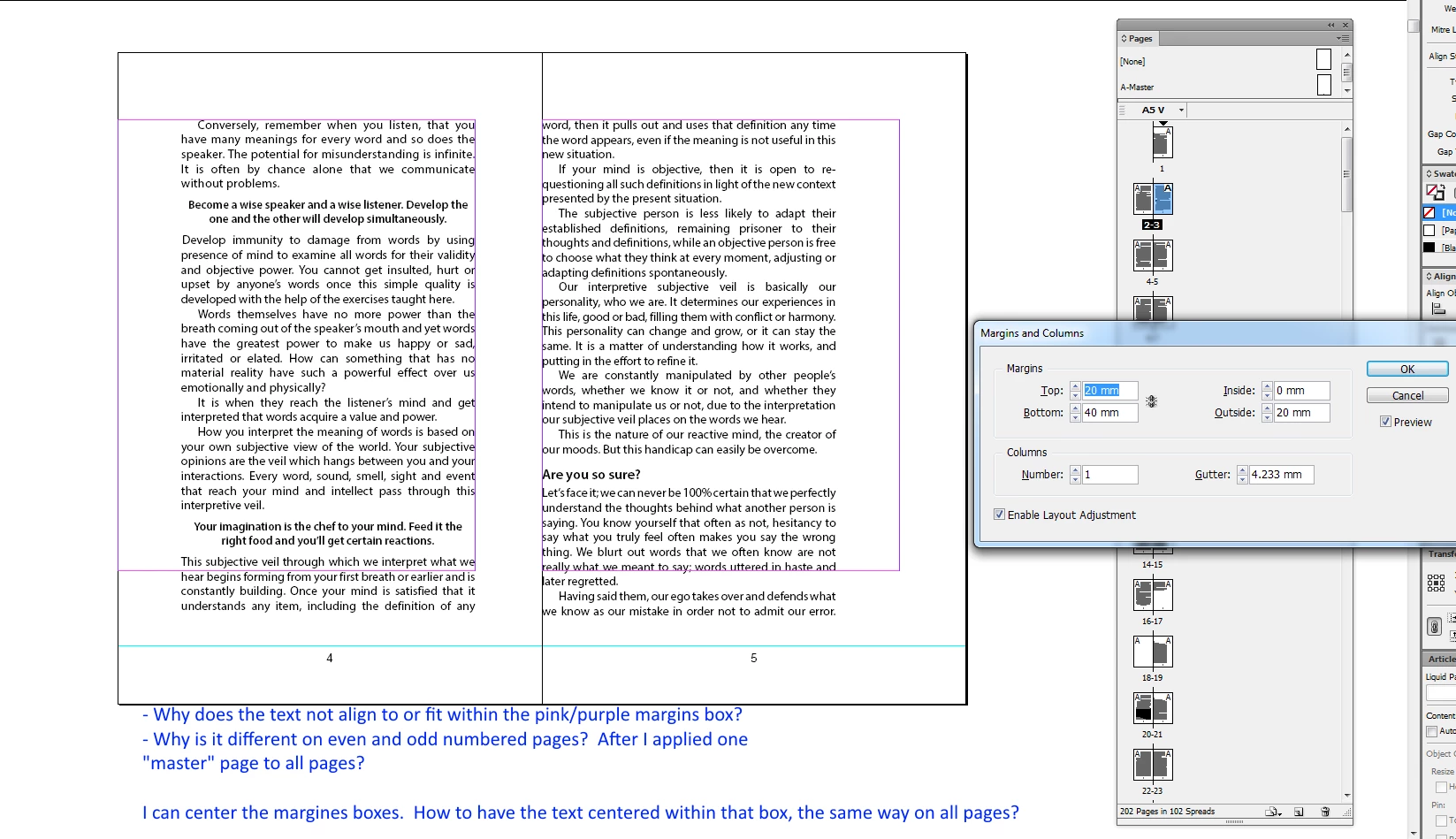
Question re-worded in image attached.

I can center the margins on one master page.  How to get the text on all 210 pages to be centered within those margins?

I hope it's easy for someone to answer.

Thanks!

Ref:  my previous posts:

InDesign Reduce Two Master Pages to One

How to edit page size to the trim size? ie Save a book to PDF in InDesign
    This topic has been closed for replies.
    Correct answer barbara_a7746676

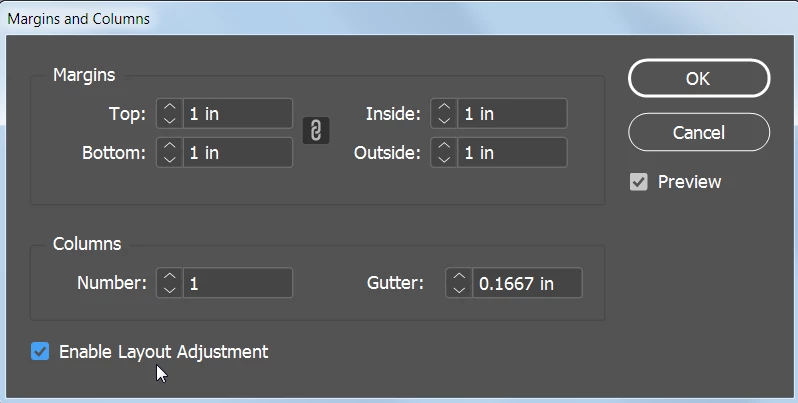
    If the original InDesign file had the text lining up with the margins, you could have changed the margins and still had the text line up. You can do that by choosing Enable Layout Adjustment before changing the margins.

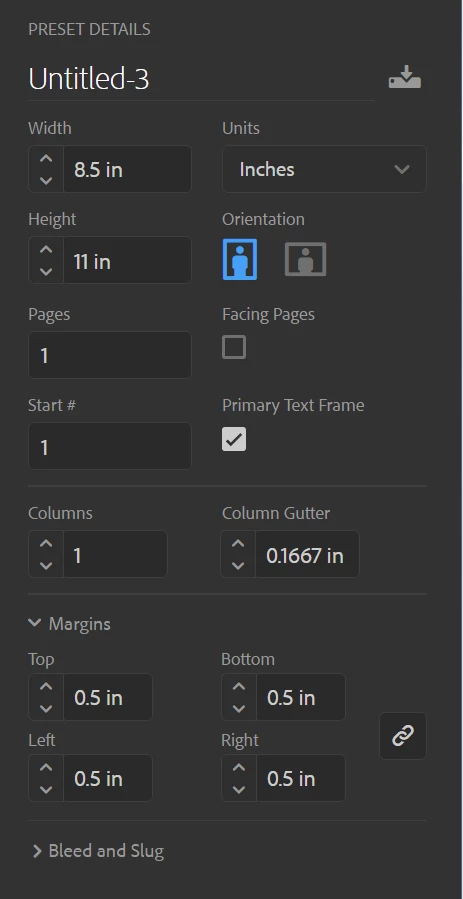
    If its not possible to go back to the original InDesign file and use Enable Layout Adjustment, I would suggest that you create a new document. Turn on Primary Text Frame (see below).

    Copy the text from the current document 

    Switch to the new document. With the Type tool, click on the text frame on the first page of the new document.

    Paste.

    The text should flow onto the pages correctly, although there may be a second or two delay before it flows from the first page to the rest of the pages.

    ______________

    As far as centering the page numbers, this is the way I like to do it to make sure that the number is centered:

    Navigate to the master page.

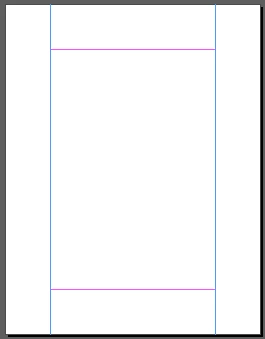
    Add vertical ruler guides at the left and right margins.

    With the Type tool draw a text frame from margin to margin.

    Choose center alignment for the text and insert the page number marker.

    I hope this helps.

    6 replies

    Participating Frequently
    January 15, 2018

    Did You open the old InDesign file or di you import the InDesign file?

    CBecksAuthor
    Inspiring
    February 14, 2018

    I opened an old InDesign file.  Got it to work.  Thanks!

    barbara_a7746676
    Community Expert
    barbara_a7746676Community ExpertCorrect answer
    Community Expert
    January 15, 2018

    If the original InDesign file had the text lining up with the margins, you could have changed the margins and still had the text line up. You can do that by choosing Enable Layout Adjustment before changing the margins.

    If its not possible to go back to the original InDesign file and use Enable Layout Adjustment, I would suggest that you create a new document. Turn on Primary Text Frame (see below).

    Copy the text from the current document 

    Switch to the new document. With the Type tool, click on the text frame on the first page of the new document.

    Paste.

    The text should flow onto the pages correctly, although there may be a second or two delay before it flows from the first page to the rest of the pages.

    ______________

    As far as centering the page numbers, this is the way I like to do it to make sure that the number is centered:

    Navigate to the master page.

    Add vertical ruler guides at the left and right margins.

    With the Type tool draw a text frame from margin to margin.

    Choose center alignment for the text and insert the page number marker.

    I hope this helps.

    barbara_a7746676
    Community Expert
    Community Expert
    January 15, 2018

    Was the original InDesign file correct, with the text within the margins the way it is supposed to be?

    Did the text get out of place after you received the InDesign file and made changes to it?

    CBecksAuthor
    Inspiring
    January 15, 2018
    is it a word file, that you place in Indesign or are you placing a pdf?

    It's an old InDesign file.  All the text is in the file already.  It was originally formatted to be printed as a paperback book.

    I've never used InDesign, but I have it installed.  So I was asked to re-format this to be used as a PDF.

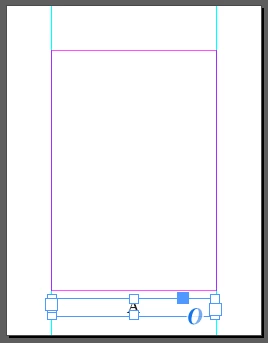
    Could you send a screenshot of your Masterpages?

    Attached below.  With some extra text explaining them.  Thank you.

    barbara_a7746676
    Community Expert
    Community Expert
    January 15, 2018

    The text is not flowing into the margin area, which can happen if your cursor is in the wrong place when you place or paste the text.

    If you are not typing the text directly in InDesign, the preferred method is File > Place. Position the place gun anywhere within the margins. When you click the text will flow within the margins. If you hold down Shift before clicking the text will automatically flow from one page to the next within the margins.

    If you are pasting instead of placing, you will need to first draw a text frame that is the same size as the margins before pasting.

    Participating Frequently
    January 15, 2018

    Hello,

    is it a word file, that you place in Indesign or are you placing a pdf? Could you send a screenshot of your Masterpages?

    thanks

    Birgit