September 28, 2021
Answered

some MYANMAR TEXT cannot type properly in InDesign - Pyidaungsu font, Pyidaungsu Number font

  • September 28, 2021
  • 2 replies
  • 6853 views

Hello team,


We use Adobe InDesing CC with Myanmar unicode "Pyidaungsu font" and "Pyidaungsu Number font" which are official fonts by Myanmar Government. These fonts are supported by Microsoft and Apple platforms and no this issue happened in MS & Apple. In InDesign some Myanmar characters are not displayed properly as shown below and attached .indd file.


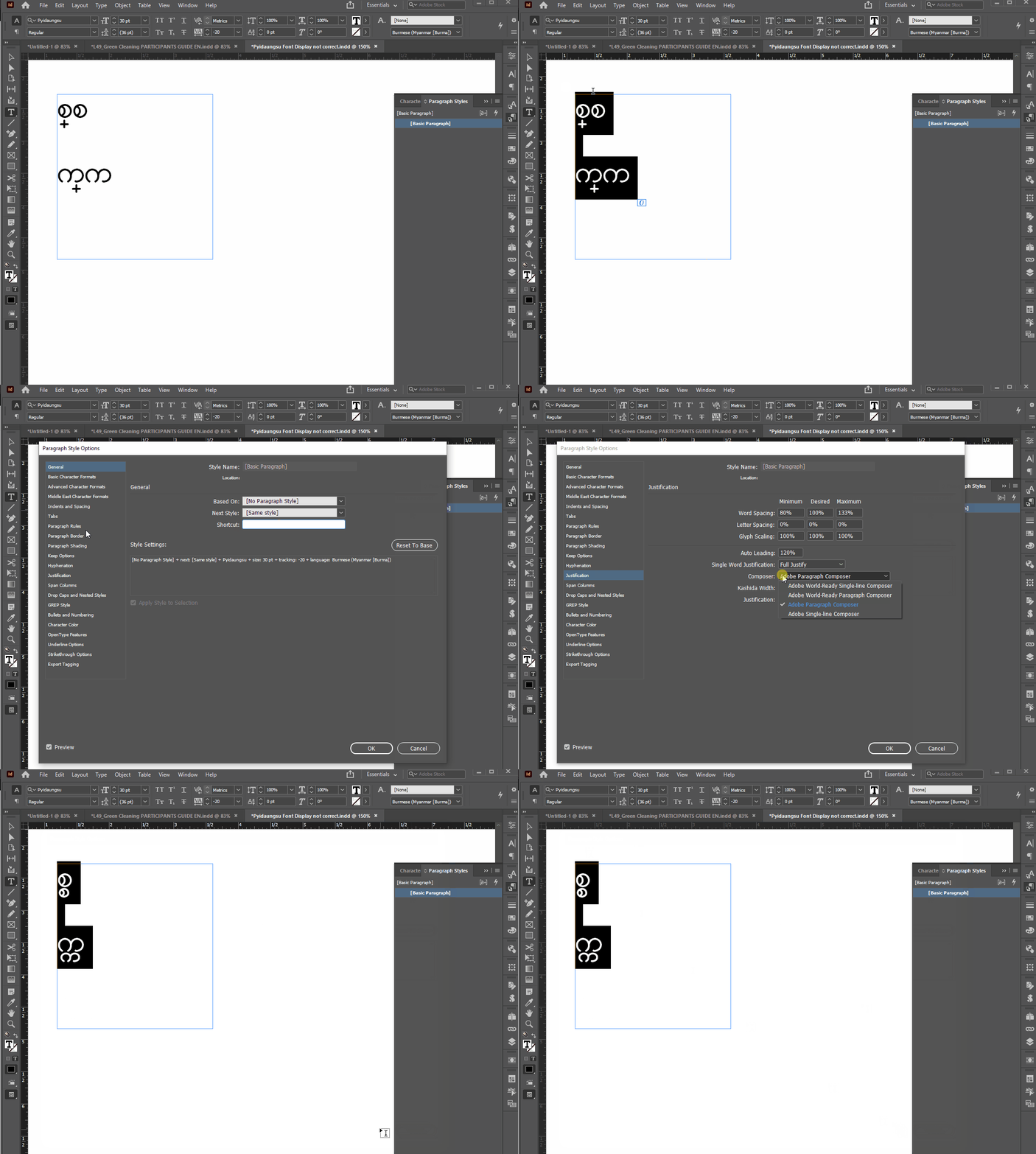
suppose to display - "စ္စ" when type [စ + (shift+F) + စ] with Pyidaungsu font. But InDesign displayed (စ္ စ).

suppose to display - "က္က" when type [က + (shift+F) + က] with Pyidaungsu font. But InDesign displayed (က္ က).


Link to font: https://myanmar.gov.mm/en/-/pyidaungsu-fonts-and-keyboards


Appreciate you can support us. Thank.
This topic has been closed for replies.
Correct answer Joel Cherney

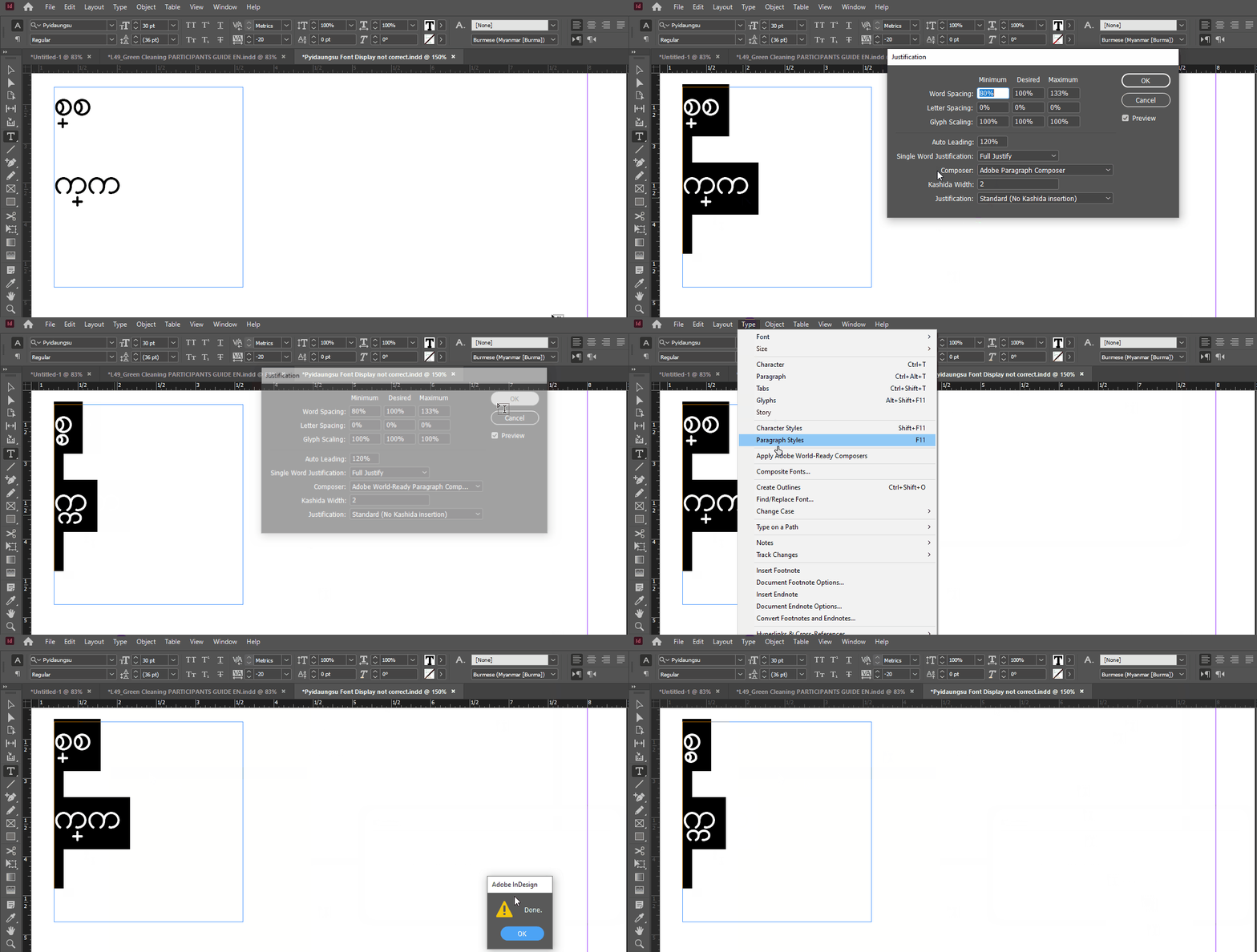
Well, when I test your file, here's what I get when I change the composer to the World-Ready Composer. You can find it in the Type menu, as well as in the Justification dialog (Ctrl+Alt+Shift+J).


It's also in a few other places, including in the Justification section of your paragraph style:


If that's not what you see, you might want to try resetting your preferences

2 replies

Thu Ra
Participating Frequently
October 5, 2021

Hi,

Could not use bullets & numbering style. Please help me do not
solve the problem.

Joel Cherney
Community Expert
Community Expert
October 5, 2021

Are you using the most recent version of InDesign? You should be on 16.4, which is CC 2021. I had many problems like this in CC 2020, which I had to work around in order to deliver a project. If you're not on 16.4, you should update if you can. When I found issues like this, I found that I could resolve them by finishing my layout, then going to Type -> Convert Bullets to Text, and then by whacking the Enter key at the end of each line,. I don't know if that will work for you, but it's how I managed to deliver.


This behavior is discussed over at indesign.uservoice.com in more than one bug report, that was reported by the devs as fixed. If you're on InDesign 2021, then maybe it's not fixed. Can you post an InDesign file which shows this behavior?

Joel Cherney
Community Expert
Community Expert
December 3, 2021


Hello team,

How to add page number using Pyidaungsu Myanmar font?


That's actually an interesting question! I don't know of any way to do it with normal InDesign. In the past, I've suggested that people use plugins to do page numbering in languages not offered by plain-vanilla InDesign, but even those plugins fail to support Burmese numbering systems. So I bet that it could be done, perhaps by editing the IDML directly, or by writing a plugin. 


However, in the long-ago past, what I did was this: I made a separate file, in maybe raw text or RTF, with all of the page nubmers I'd need:


၁၀
၁၁
၁၂

and so on


And then I'd place them by hand, perhaps with the aid of a master text frame on the master page. But that was the wholly manual procedure that I used, due to InDesign lacking support for the languages in which I was working.


I suspect that this could be done with scripting or by editing the XML in an IDML file, but I haven't found an immediate easy answer. I'll look this evening, and post later tonight or tomorrow regarding whether or not I've found anything.


Joel Cherney
Community Expert
Community Expert
September 28, 2021

It looks like applying the World-Ready Composer is what you need to do. It's a setting either in your Justification, orin the Justification section in your Paragraph Style. 


September 29, 2021
Thank you for your reply.

Justification settings, paragraph style and character style setting do not
solve the problem.

--
Best Regards;

Ko Ye
Joel Cherney
Community Expert
Joel CherneyCommunity ExpertCorrect answer
Community Expert
September 29, 2021

Well, when I test your file, here's what I get when I change the composer to the World-Ready Composer. You can find it in the Type menu, as well as in the Justification dialog (Ctrl+Alt+Shift+J).


It's also in a few other places, including in the Justification section of your paragraph style:


If that's not what you see, you might want to try resetting your preferences