
keithconover
Inspiring
January 25, 2017
Answered

Space at top of column?

  • January 25, 2017
  • 6 replies
  • 4917 views

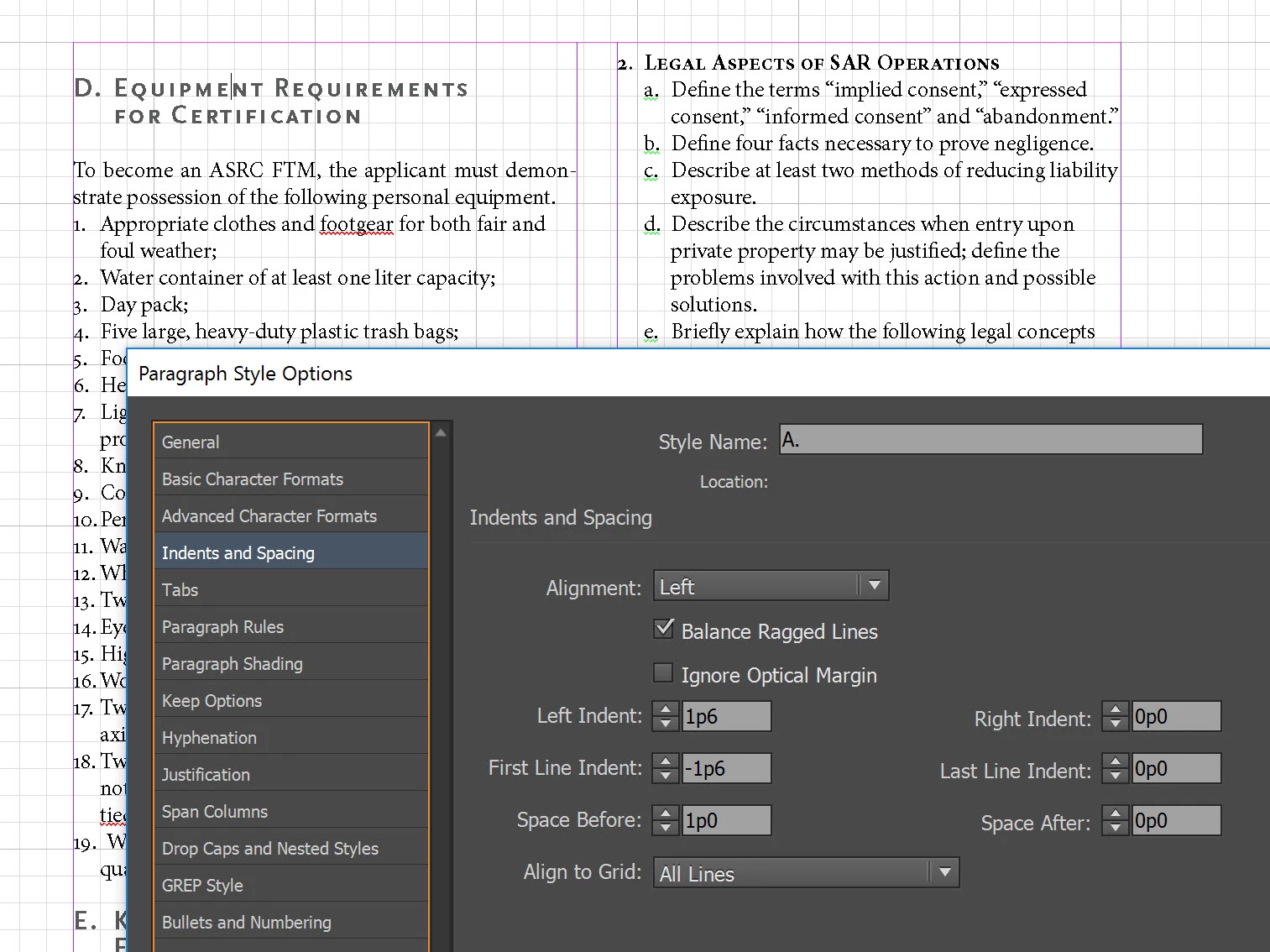
I have a document that is mostly an outline. I have styles for the outline headings. I use "space above" instead of "space below" to space paragraphs, as it seems to work better in many ways. And I know that InDesign is supposed to ignore the "space above" setting if a paragraph is at the top of a column. (I do wish that InDesign worked like the late and somewhat lamented Ventura Publisher where you could turn this off or on.) But as in the picture below, one of my headings sticks to the top of the column, and the other doesn't. Yes, the "A." Paragraph Style heading is 12/12 point, but changing it to 10/12 point like the "1." Paragraph Style makes no difference.

The settings in the Indents and Spacing panel are the same, including the Baseline options. I have hit a wall in trying to figure out why  Is it a bug? Is it related to some interaction with the Keep Options?

Any help appreciated.
Correct answer Scott Citron

Here's your problem, Keith. Exactly as I said in my first reply to you. Your paragraph style has a 0 pt rule above applied with a 1p4 vertical offset. Disable the rule (or change the Offset to 0) and the text moves upward where it belongs.

See my Before and After screen caps below.

6 replies

Barb Binder
Community Expert
Community Expert
May 21, 2018

Conversely, this is how we get around the fact that InDesign doesn't have Ventura's old honor or ignore space before at the top of a column. Turning on an empty rule above with a large inset is a great way to get spacing above chapter titles without a custom master page or master page overrides.

~Barb

~Barb at Rocky Mountain Training
Bevi Chagnon - PubCom.com
Legend
May 20, 2018

Is "Align to Grid" selected in the formatting style for the "D: Equipment" heading? From the screen cap, it looks like the larger caps in that paragraph might be too large to fit on the first gridline and still stay within the frame boundaries.

|    Bevi Chagnon   |  Designer, Trainer, & Technologist for Accessible Documents ||    PubCom |    Classes & Books for Accessible InDesign, PDFs & MS Office |
keithconover
Inspiring
May 20, 2018

Thanks for the suggestions.

That old file is changed now so I have a new example.

The style is set to Align to Grid: First Line Only.

If I change Alight to Grid to none, this is what I get:

A big higher, but not all the way to the top. (Note that the style is in SmallCaps.) The style has Space Above: 1 pica. If I change the Space Above to zero, it doesn't change at all. At this point I should note that Bringhurst's Elements of Typography has convinced me that aligning all text to the baseline grid is morally superior. I did try to set the Text Frame Options Baseline Options First Baseline to Cap Height, but it didn't make any difference, it still looked like the above example.

It really looks like it should move all the way to the top and align the baseline to that first gridline but it just doesn't want to go there. I tried turning off SmallCaps but made no difference. I tried changing from 12 to 10 point but that still didn't make it slide up to the top.

In case anyone would like to play with the file, I  put a copy of it online at:

http://www.conovers.org/ftp/ASRC-Training-Guide.indd

keithconover
Inspiring
May 21, 2018

Oops. Barb, looks like you beat me to the punch!

Scott


>dope-slap to my head<

Thanks for the help! I'd based some documents on a style that had a rule at the top, and I guess I zeroed out the thickness of the rule, thinking this would disable it. Wrong. Once I unchecked the "Rule On" checkbox just now the problem went away.

Thanks to all of you who helped. And I hope that this thread will be useful to someone in the future with the same problem: an invisible "Rule Above."

Barb Binder
Community Expert
Community Expert
May 20, 2018

Hey Keith, I’m happy to look a the file so that we can get this resolved. You can put a few pages (the one in the screen shot and the previous one) on Dropbox and post a link here (public) or message me by hovering over my name (private).

~Barn

~Barb at Rocky Mountain Training
Willi Adelberger
Community Expert
Community Expert
January 25, 2017

Woul it help, if you apply alignment to baseline not to the headlines and start with the baseline later?

keithconover
Inspiring
January 26, 2017

With align to baseline off. It's higher but not all the way at the top. Again, 12/12 point text, but changing to 10/12 makes no difference in position.

Sandee Cohen
Legend
January 25, 2017

Check the text in the paragraph to see if there is some higher leading amount in the first line.

keithconover
Inspiring
January 26, 2017

All text in the heading is 12/12 (or 10/12 when I temporarily change it, though the spacing is unchanged).

rob day
Community Expert
Community Expert
January 26, 2017

Have you checked the frame's Text Frame Options? Does setting the First Baseline Offset in Baseline Options to Leading help?

Legend
January 25, 2017

Can you do a new screen shot with Hidden Characters showing? If you have used blank paragraph returns between any of your paragraphs, you could have one above your errant paragraph.

keithconover
Inspiring
January 26, 2017

With hidden characters shown. No extra paragraphs.