mickyhulse
Known Participant
November 22, 2016
Answered

Space before/after for placed text with hard

  • November 22, 2016
  • 2 replies
  • 641 views

What is the best way to handle placed text that looks like:

Page: 1

Title: This is the title

Date: 2016

Artist: John Doe

Credit: John Doe

Source: https://site.com/

http://site.com/x

Page: 2

Title: This is the title

Date: 2016

Artist: John Doe

Credit: John Doe

Source: https://site.com/

http://site.com/x

Page: 3

Title: This is the title

Date: 2016

Artist: John Doe

Credit: John Doe

Source: https://site.com/

http://site.com/x

I am placing this text into a 3-column layout master frame, so the text spans all columns and multiple pages.

I am trying to avoid spacing issues by using "space after" (or "before").

Unfortunately, when placed, I get this:
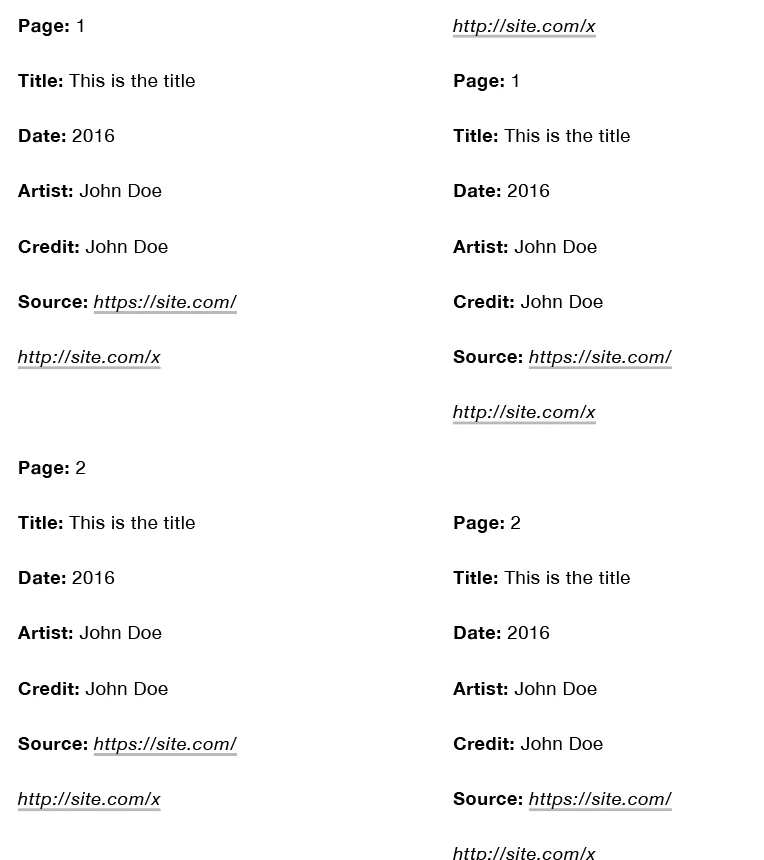
I would like my text to look like this (after being placed):
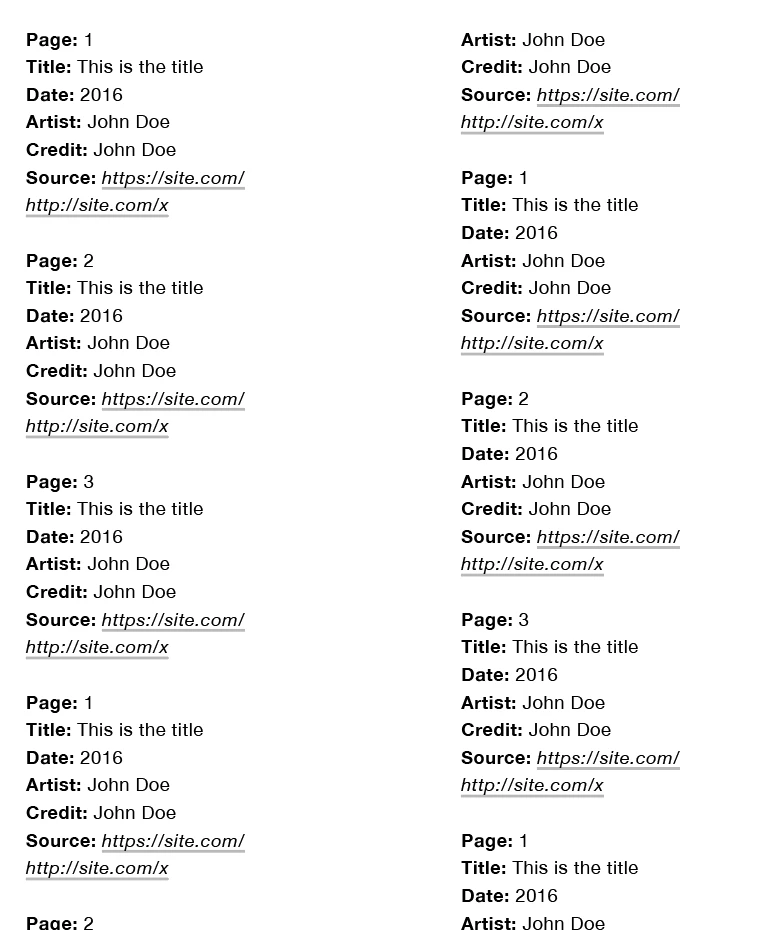
In the screen shot directly above, in order to get the related text bits to group together, I had to manually insert a "Forced Line Break" (Shift + Return) between the lines of related text.

Note that my paragraph style, for both screenshots above, uses space after to control paragraph spacing:
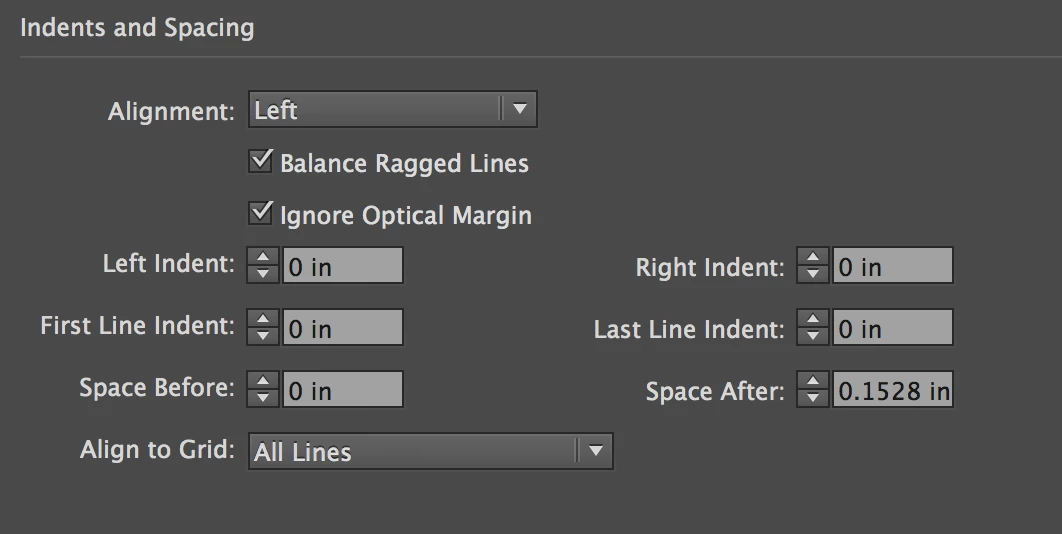
Question(s):

Is it possible for me to place the above text and have it look like the last screen shot as seen above?

If so, how?

From what I can tell, other than using a tagged text file (which I would like to avoid), I'll have to do some find/replace regex work on the placed text in order to get the results I want?

Any tips would be appreciated.

This topic has been closed for replies.
Correct answer vinny38

Hi

There are many ways to achieve what you want. This is the one I would use:

First, make sure you don't use double line breaks nor forced-returns.

Then, create two paragraph styles: i.e. "normal" and "1st line".

Set up "normal" style without space after/before.

If you want it aligned on baseline grid, make sure baseline grid leading is set to - at least - the same leading value as your paragraph style. Note: this explains why leading "looks" so big your first screenshot. Choose "View > Grids & Guides > Show/Hide Baseline Grid" for a better understanding.

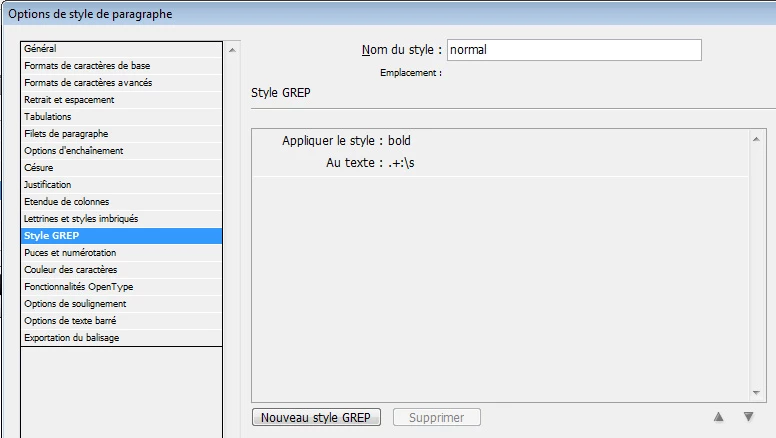
Tip: you might want to use GREP in order to set "Page:", "Title:" etc. to bold

Then, set up "1st Line" paragraph style with a space before (any would do if aligned on baseline grid).

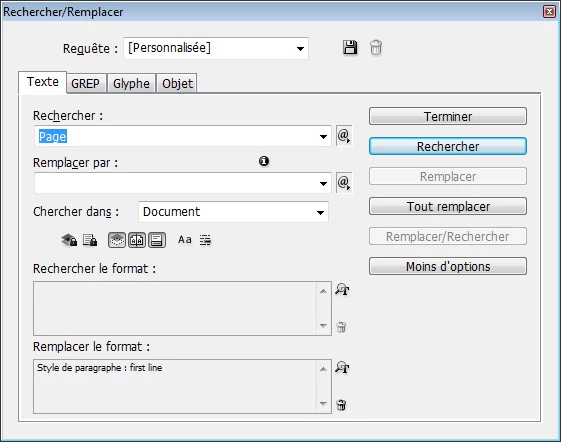
Finally, use a simple search/replace in order to apply "1st line" par. style to all paragraphs including "page" text:

Tip: Use Keep option in order to avoid "Page: x" to stand alone at the bottom of a column

You're done.

As I said before, this is one method, not the only one. (I don't like forced-returns, but you could also use them, using another method based on single paragraphs > Better if you want to avoid breaking)

Hope that helps

Regards

2 replies

vinny38
vinny38Correct answer
Legend
November 22, 2016

Hi

There are many ways to achieve what you want. This is the one I would use:

First, make sure you don't use double line breaks nor forced-returns.

Then, create two paragraph styles: i.e. "normal" and "1st line".

Set up "normal" style without space after/before.

If you want it aligned on baseline grid, make sure baseline grid leading is set to - at least - the same leading value as your paragraph style. Note: this explains why leading "looks" so big your first screenshot. Choose "View > Grids & Guides > Show/Hide Baseline Grid" for a better understanding.

Tip: you might want to use GREP in order to set "Page:", "Title:" etc. to bold

Then, set up "1st Line" paragraph style with a space before (any would do if aligned on baseline grid).

Finally, use a simple search/replace in order to apply "1st line" par. style to all paragraphs including "page" text:

Tip: Use Keep option in order to avoid "Page: x" to stand alone at the bottom of a column

You're done.

As I said before, this is one method, not the only one. (I don't like forced-returns, but you could also use them, using another method based on single paragraphs > Better if you want to avoid breaking)

Hope that helps

Regards

mickyhulse
Known Participant
November 25, 2016

vinny38 wrote:

Hi

There are many ways to achieve what you want. This is the one I would use: <snip>

Thanks so much Vinny! I really appreciate the help.

I am trying your suggestions now and will report back my findings (looks like it's going to work pretty well).

Thanks much!!!

tpk1982
Legend
November 22, 2016

Is it you using only one paragraph style?

mickyhulse
Known Participant
November 25, 2016

Hi Tpk1982, thanks so much for the reply, I really appreciate the help.

tpk1982 wrote:

Is it you using only one paragraph style?

Yep, just one paragraph style so far. The bold parts are grep styles and I have the baseline grid setup.

With that said, it looks like vinny38​'s suggestion will work pretty good!

Seems like I won't be able to avoid doing a find/replace unless I head the tagged text route? Thankfully find/replace is quick, and I can save the searches to make it even easier, so I think that's going to work well for my workflow.

Thanks again to both of you for the help!

I'll be back soon to report my findings.