SEASCAPE
Known Participant
February 4, 2018
Answered

Spacing lines in a Table of Contents

  • February 4, 2018
  • 2 replies
  • 9258 views

I'm having trouble setting spaces between lines in a TOC and not having much luck with the Leading spec.  Pls see this image:  http://ibb.co/c3cBJx

idd 2 — imgbb.com

I've had to set the space between 1 and 2 manually, ie there is actually no space there when the TOC is generated. 

Have tried different Leadings with both 1 and 2 with no luck.  Please advise.

    This topic has been closed for replies.
    Correct answer Barb Binder

    Thank you for sharing your TOC file, Seascape. Now I understand the confusion. You do have the three styles set up, and the leading values are good, but ChapterTitle and ChapterSubtitles are based on Font for All LLL Titles, so changing the spacing on that style changes the spacing on all three. The Based On option lets you link styles to each other, so that changes in one style ripple through the styles that are based on it. So:

    Put your cursor on Luminaries. Change the Space Above value.
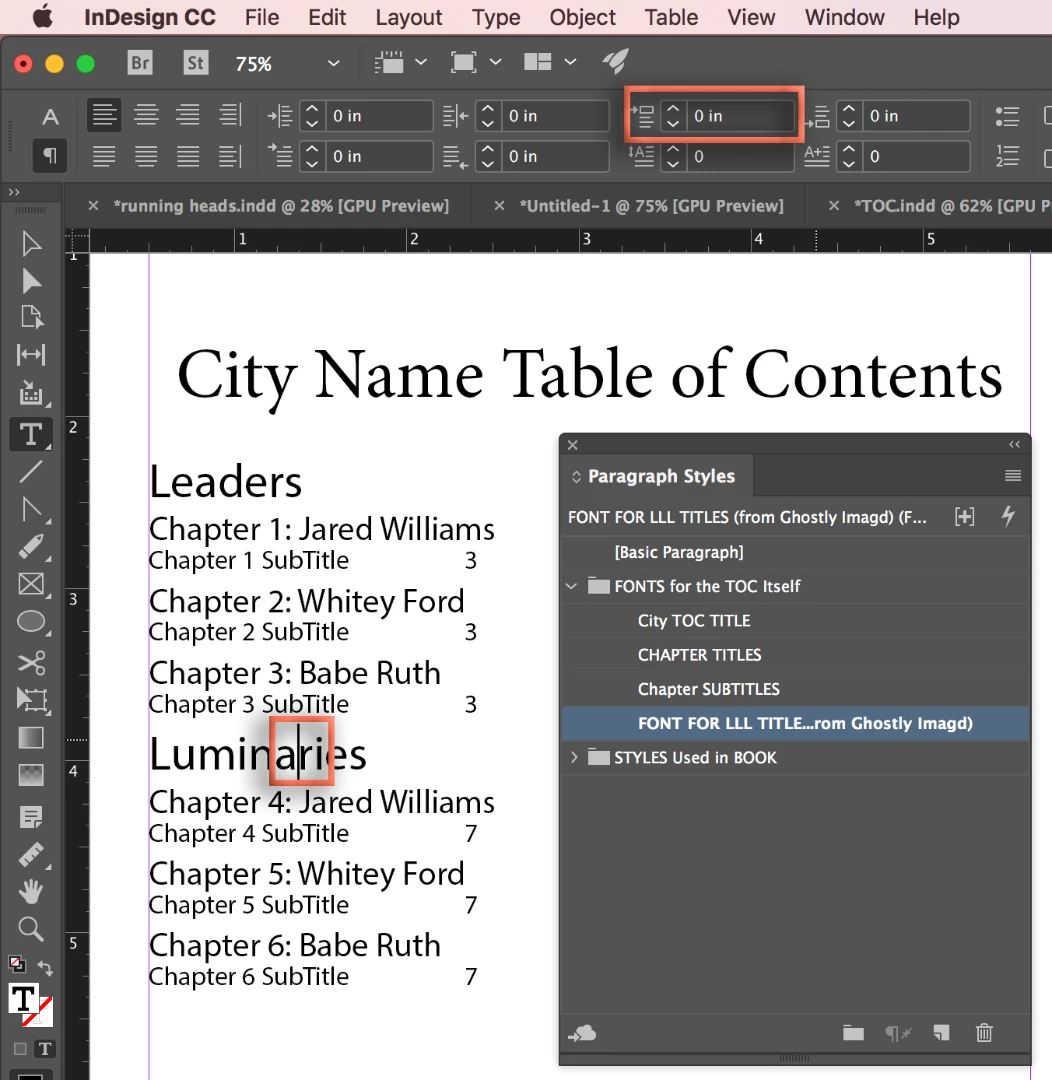
    This add the desired spacing, but produces an override in the Paragraph Styles panel. (Indicated by the +)
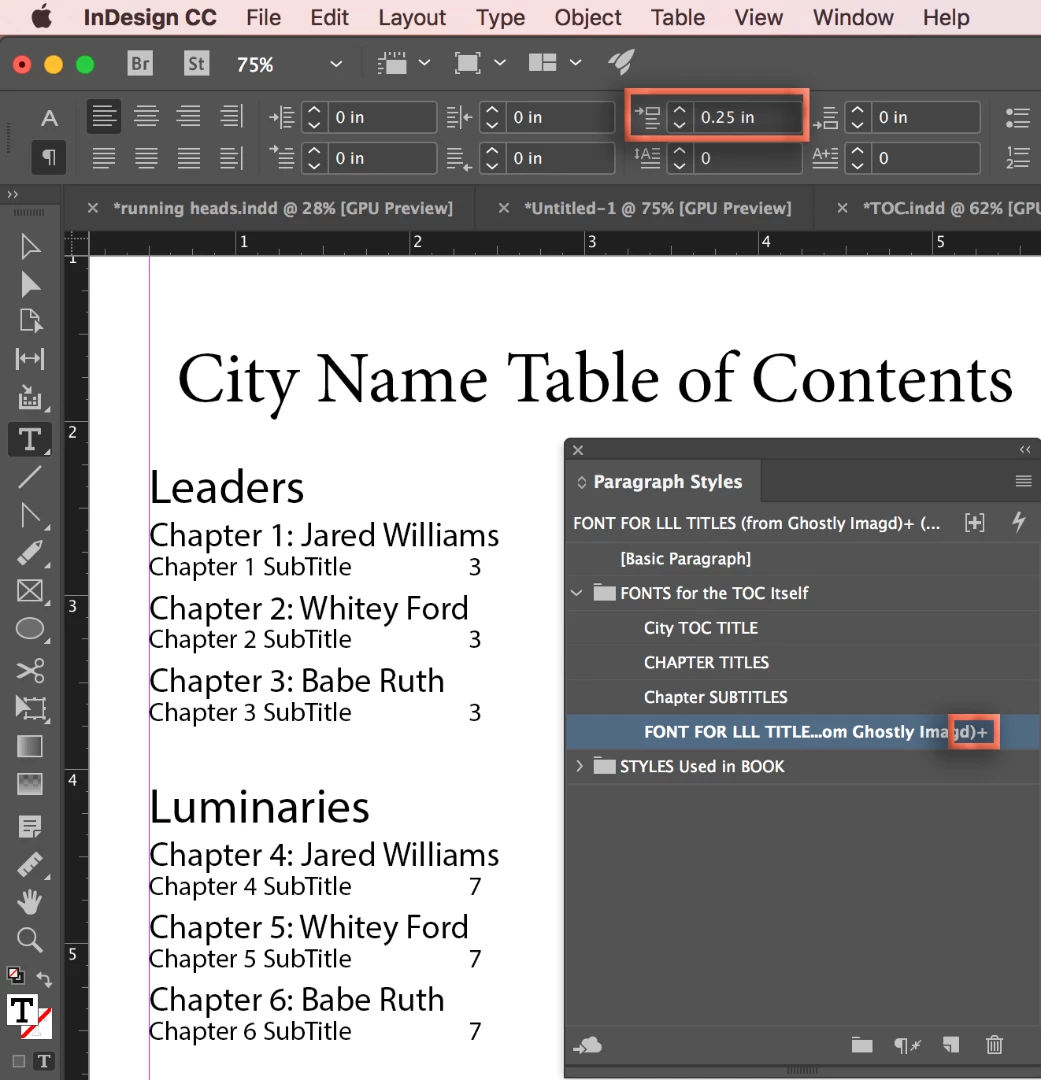
    Right click Font for LL Title > Redefine Style.
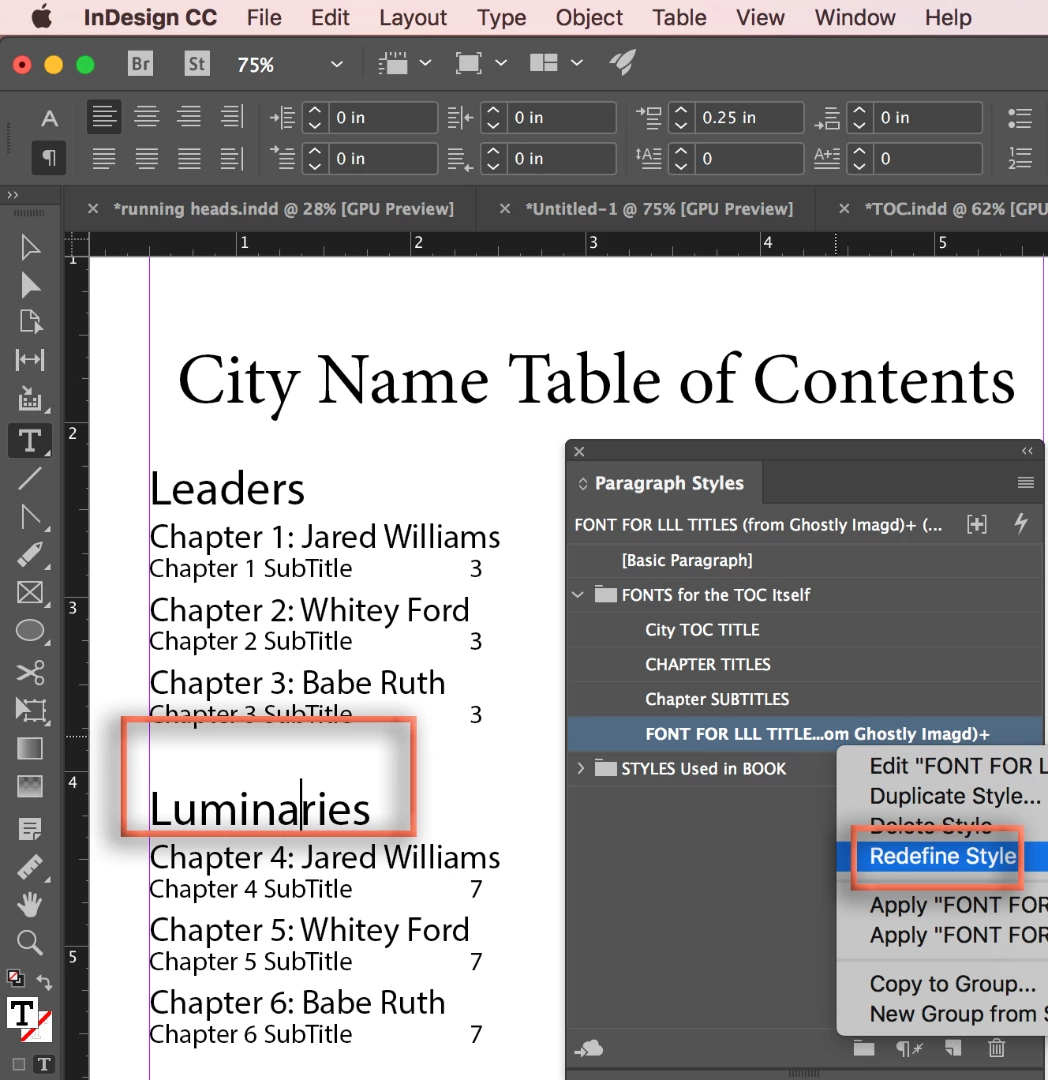
    This removes the override but because this is the parent style, the other two styles are updated as well.
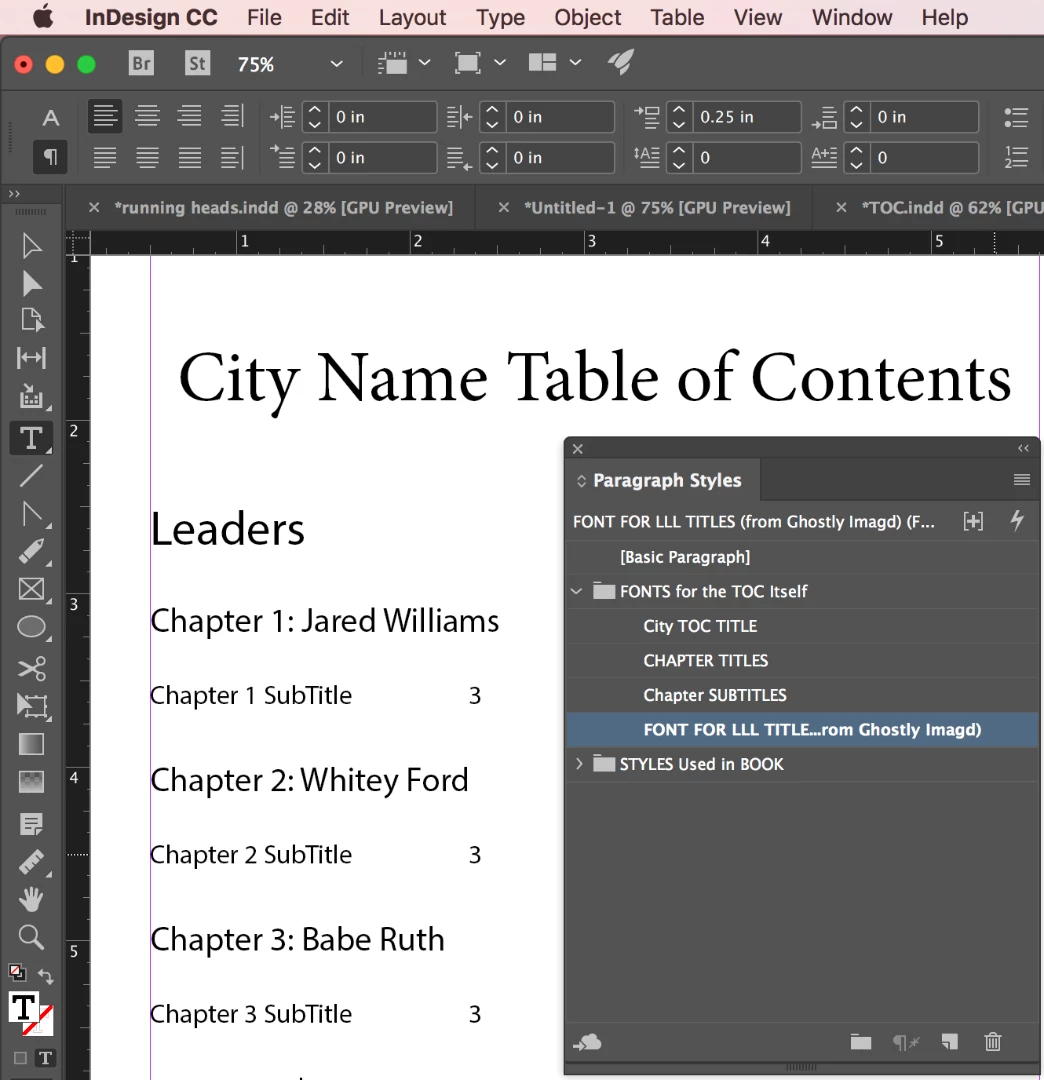
    With your cursor on Chapter 1: Jaredn Williams, remove the Space above. Right click ChapterTitles > Redefine Style.
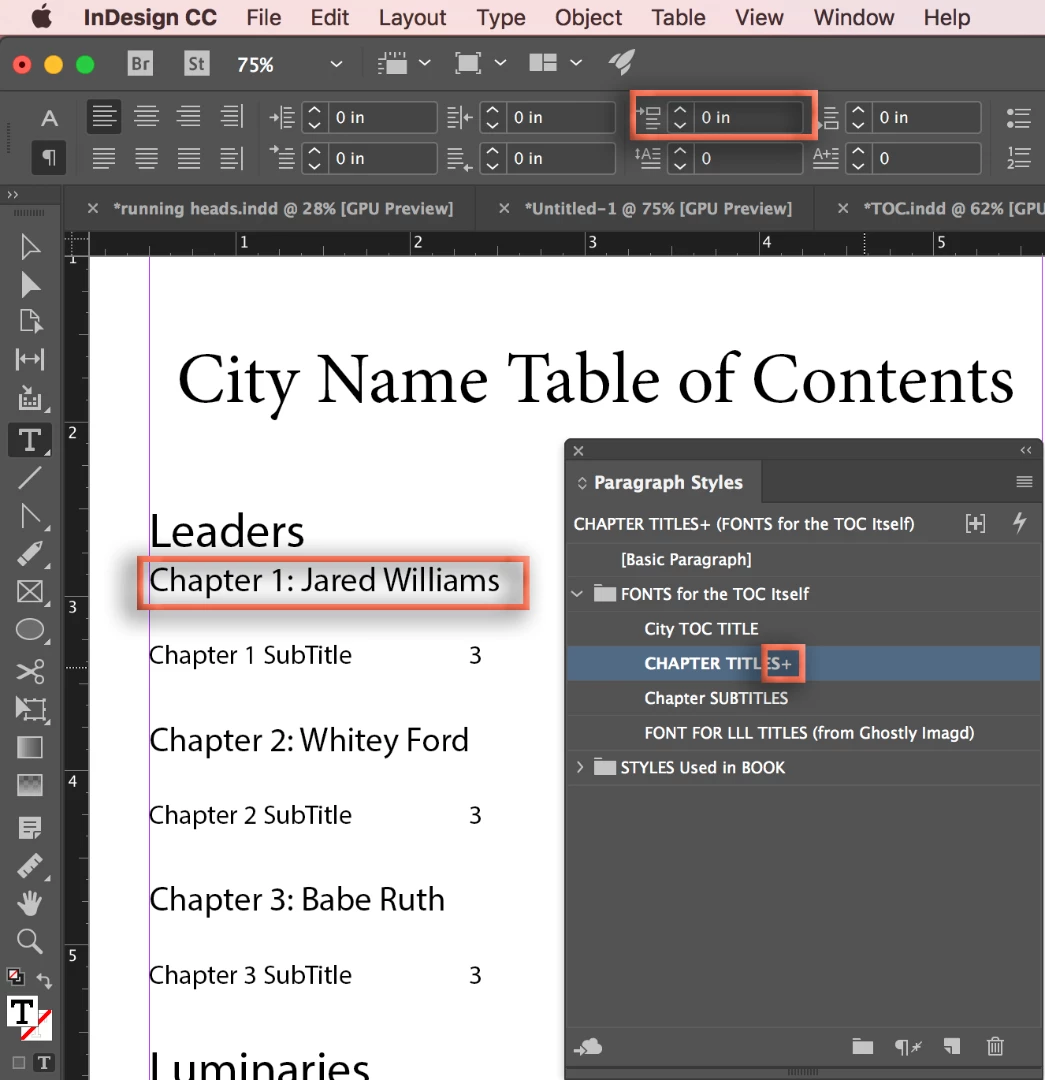
    This breaks the link on just the spacing value from the parent style. I think this is what you are looking for.
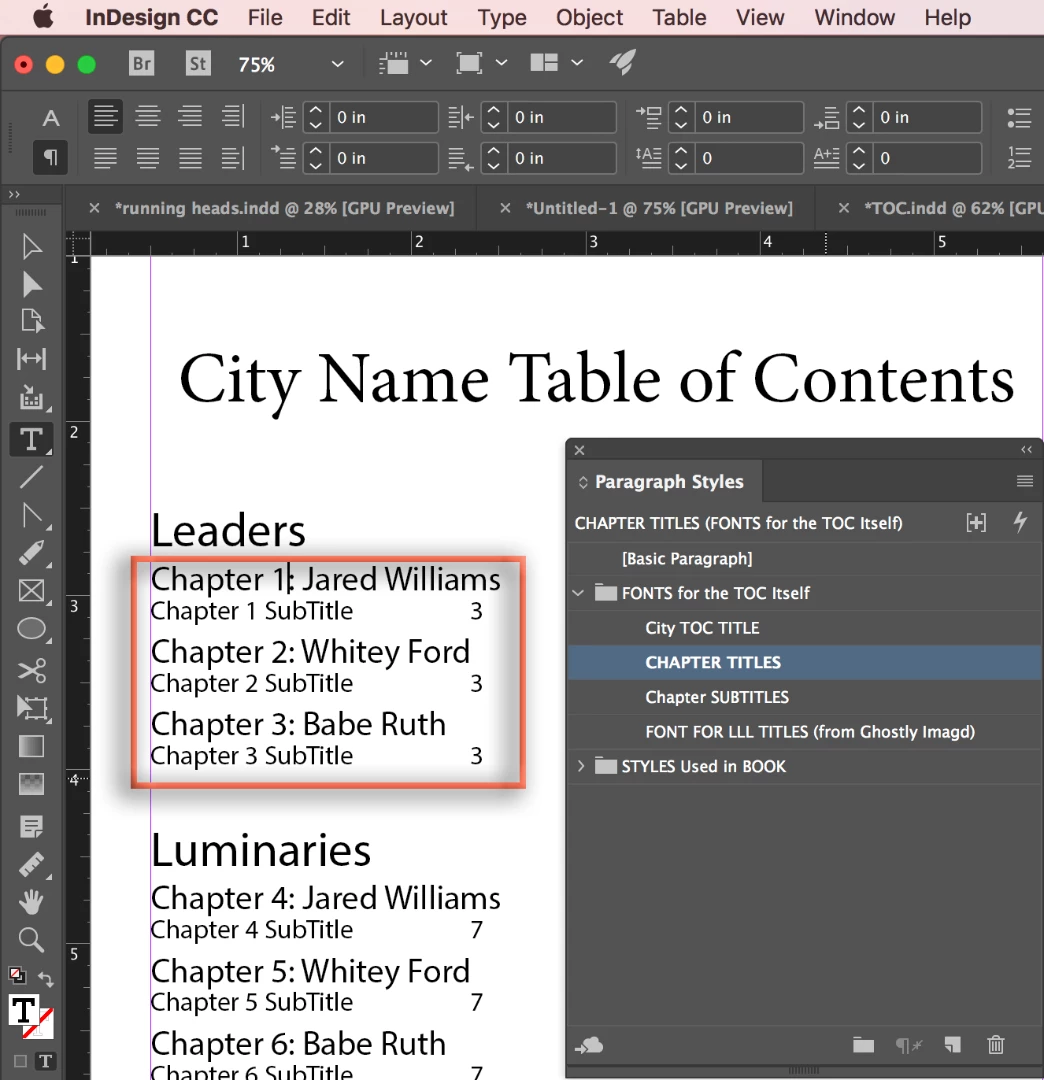
    ~Barb

    2 replies

    Barb Binder
    Community Expert
    Barb BinderCommunity ExpertCorrect answer
    Community Expert
    February 5, 2018

    Thank you for sharing your TOC file, Seascape. Now I understand the confusion. You do have the three styles set up, and the leading values are good, but ChapterTitle and ChapterSubtitles are based on Font for All LLL Titles, so changing the spacing on that style changes the spacing on all three. The Based On option lets you link styles to each other, so that changes in one style ripple through the styles that are based on it. So:

    Put your cursor on Luminaries. Change the Space Above value.

    This add the desired spacing, but produces an override in the Paragraph Styles panel. (Indicated by the +)

    Right click Font for LL Title > Redefine Style.

    This removes the override but because this is the parent style, the other two styles are updated as well.

    With your cursor on Chapter 1: Jaredn Williams, remove the Space above. Right click ChapterTitles > Redefine Style.

    This breaks the link on just the spacing value from the parent style. I think this is what you are looking for.

    ~Barb

    ~Barb at Rocky Mountain Training
    SEASCAPE
    SEASCAPEAuthor
    Known Participant
    February 5, 2018

    Whew!  That is a nuance that I would have never found on my own!  Thank you!

    This is like breaking out of a fever, thank you again!

    Barb Binder
    Community Expert
    Community Expert
    February 5, 2018

    This is like breaking out of a fever

    LOL. Glad I could help.

    ~Barb at Rocky Mountain Training
    Barb Binder
    Community Expert
    Community Expert
    February 4, 2018

    Hi Seascape:

    As a general rule, set the leading to type size plus 2 its to start. For example, 14 pt type on 16 pt leading. If you need more than that, you can increase it. Be sure to use paragraph styles to control the formatting for the various paragraphs in the TOC—you don't want to have to update it manually, because after edits you'll have to update it manually, again.

    Use space before and after for additional spacing between paragraphs.

    ~Barb

    ~Barb at Rocky Mountain Training
    SEASCAPE
    SEASCAPEAuthor
    Known Participant
    February 5, 2018

    In the example below, I've created a paragraph style for "Chapter 3: Babe Ruth" and another paragraph style for "Chapter 3 SubTitle".  Are you saying that I can include a parameter for "paragraph break" in the second one?  If so, how?  <br> ?

    Chapter 3: Babe Ruth

    Chapter 3 SubTitle

    SEASCAPE
    SEASCAPEAuthor
    Known Participant
    February 5, 2018

    So you need more space above the section heads: define space above on one of the section heads and then redefine the style so that all the other ones have that extra space. This will visually divide the table of contents into three separate sections.

    Format paragraphs in Adobe InDesign

    As for the leaders, add a tab—^t—between the entry and the page number. And then go to the Type > Tabs and set a right-align tab stop for the numbers and add as the leader character. Don’t forget to update your paragraph style so that all of the others also get the tab stop and the leader dots.

    Set tabs and indents in Adobe InDesign

    ~Barb


    I'm not having much luck with this.  Is this where you define the "space before":  space before — imgbb.com

    I've set it at 1 inch and resynced but the TOC spacing did not change.