
September 13, 2019
Answered

Stretch a jpeg without making it blurry

  • September 13, 2019
  • 2 replies
  • 3397 views

Good day,


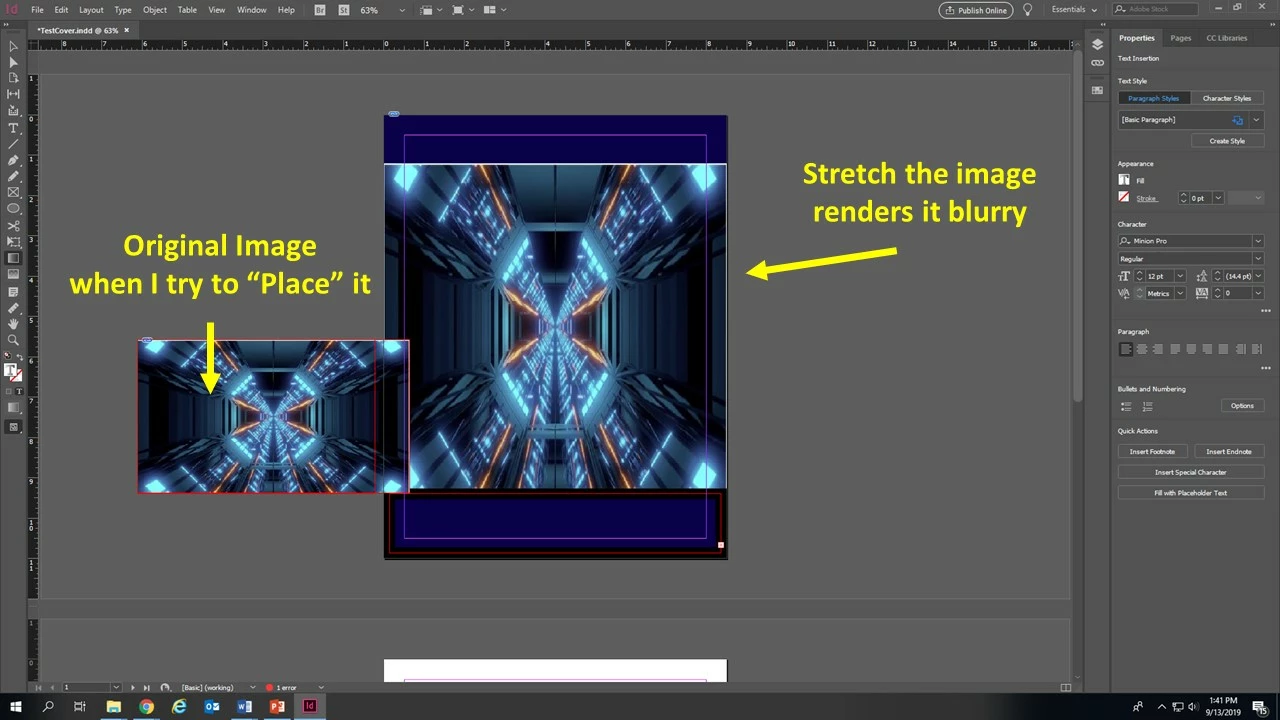
I want to import an image into InDesign and then stretch it to fill the whole page. However, stretching the image manually causes it to blur. Is there anyway to prevent this? I attach a screenshot of what I am trying to do? 
    This topic has been closed for replies.
    Correct answer SJRiegel

    You have not only enlarged your image 300% or more, you have distorted it out of proportion.
    While there is no way to avoid the loss of resolution when you size an image up like this, you could (in this case) mitigate it a bit by rotating your image 90 degrees and up-sizing it proportionally. That would help some by reducing the amount of scaling up that you would have to do.

    2 replies

    Mike Witherell
    Community Expert
    Community Expert
    September 13, 2019

    Do you have Preferences > Display Performance > Options and Adjust View Settings set to "High Quality"?

    Mike Witherell
    September 17, 2019
    Hi Everyone. I didn't want you to think I ignored this post. I've been working on Adobe all day trying to make a cover, but nothing in this program is intuitive. Half the time I click, nothing happens, whether it is text, move, cursor, etc. I've tried dragging the image into photoshop--it won't resize, I can't click on it, half the time image settings are grayed out and half the time they are not. I know the menu you are talking about--nearest neighbor, preserve, which does nothing half the time. I click and click and click on the image I drag in but nothing happens. I click on the "layers" with some success here and there. I don't even know where to begin asking questions. Every single thing I try and do I need to google search a tutorial. I need to take a break from this program for a minute. I just didn't want to be rude and not respond. Adobe photoshop and Indesign are tough. I'll come back to this later.
    SJRiegelCorrect answer
    Legend
    September 13, 2019

    You have not only enlarged your image 300% or more, you have distorted it out of proportion.
    While there is no way to avoid the loss of resolution when you size an image up like this, you could (in this case) mitigate it a bit by rotating your image 90 degrees and up-sizing it proportionally. That would help some by reducing the amount of scaling up that you would have to do.

    Jongware
    Community Expert
    Community Expert
    September 13, 2019
    To actually (literally) enlarge your image without blurring: use Photoshop, and enlarge with the "Nearest Neighbour" setting. Yes, your pixels will be large squares, but they are not *blurry*, are they? The extra information you want to add has to come from *somewhere*.