Participant
July 5, 2019
Answered

Stroke start/end scaling not working in InDesign when the stroke weight is below 1pt.

  • July 5, 2019
  • 4 replies
  • 3806 views

EDITED TO ADD: Just discovered that the scaling starts working when I increase the stroke width above 1pt. It even works at 1.01pt, but 1pt or less and it doesn't work. This seems like an odd restriction! Is there any way around this?

Since the last InDesign update I am having a strange problem with the scaling of arrowheads on the end of strokes.

When I add arrowheads to the end of a stroke, they do not respond to the scaling controls. They appear the same size no matter what scale I set. I can't find anything about this online, and not sure if there's just a new setting that would be controlling this? I have tried deleting the cache for InDesign, restarting, etc. but no change. I'm using InDesign CC 2019 on a 2011 Mac running High Sierra.

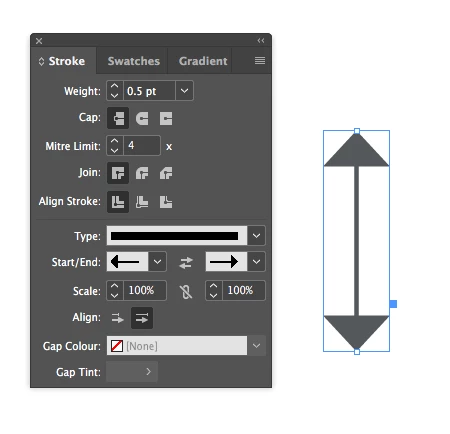
Here is the stroke with both arrowheads at 100%:
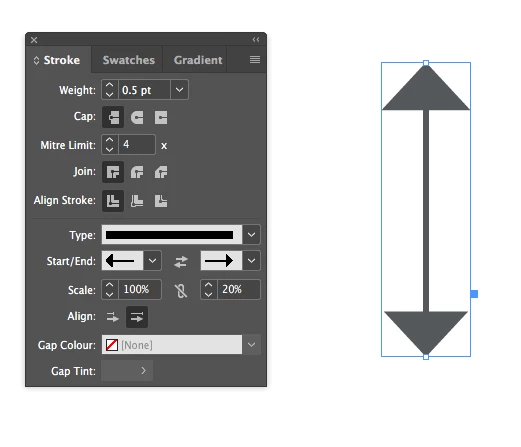
And here it is with one end set at 20%, but they are both still the same size:
Any suggestions? Thanks in advance!

{Renamed by MOD}

Correct answer Srishti Bali

Hi there,

Thanks for reaching out. I understand and was able to reproduce the behavior you are talking about. Actually, arrowheads do increase with scaling but the difference is very minute. Try increasing the scale to 1000% and you will see the difference.

When you increase the stroke weight to 2 the difference made by scaling is twice and is easily visible.

Please feel free to update, if you need any further clarification.

Regards,

Srishti

4 replies

Community Expert
July 15, 2019

To be more concrete:

1. Do a stroke weight of 5 Pt.

2. Apply the arrow head

3. Scale the arrow head to 58 %

4. Scale the stroke with the arrow head to 10% so that the effective stroke weight becomes 0.5 Pt.

Important: With Preferences > General > Scaling > Adjust Percentages

Three screenshots below to illustrate this. Screen 1 is showing what you have, a stroke weight of 0.5 Pt and a way too big arrow head.

I also drew an empty rectangle to get the area of the arrow head.

Now I did a stroke weight of 5 Pt, just ten times of the original and scaled it back to 10% to get the effective stroke weight as before.

And now I could use the arrow head's percentage input fields to make it smaller until 20% of the original width was reached:

That's the way to go, I think.

Regards,
Uwe

PS: A link to my sample file on my Dropbox account:

Dropbox - ArrowHeadScalingIssues-CC-2019.idml - Simplify your life

Participant
May 18, 2022

This needs a fix ASAP! What the hell is going on with this scaling weirdness and these bizarre workarounds!

creativeadvantech
Inspiring
December 21, 2022

I agreed!!!

Community Expert
July 15, 2019

rachmcfadden  wrote

…It even works at 1.01pt, but 1pt or less and it doesn't work. This seems like an odd restriction! Is there any way around this? …

Hi rachmcfadden ,

basically a solution works like this:

1. Start with an arrow head that fits the ratio of size and stroke weight.

2. Then select the graphic line or path and scale it with the percentage input fields of your Control panel or your Transformation panel so that the desired effective stroke weight will be achieved.

Important: Before scaling change your preferences for scaling to: Adjust Percentages

Preferences > General > Scaling

Regards,

Uwe

Srishti Bali
Community Manager
Srishti BaliCommunity ManagerCorrect answer
Community Manager
July 12, 2019

Hi there,

Thanks for reaching out. I understand and was able to reproduce the behavior you are talking about. Actually, arrowheads do increase with scaling but the difference is very minute. Try increasing the scale to 1000% and you will see the difference.

When you increase the stroke weight to 2 the difference made by scaling is twice and is easily visible.

Please feel free to update, if you need any further clarification.

Regards,

Srishti

Community Expert
July 15, 2019
Steve Werner
Community Expert
Community Expert
July 5, 2019

It appears to be working for me with macOS 10.14.5 and InDesign CC 2019 14.0.2:

I moved them screen captures on top of each other so you could see them better side-by-side.

Here are the settings for the four screen captures: