
Good Venture
Known Participant
December 11, 2023
Answered

sum of ink exceeding maximum value of standard ISO 320%

  • December 11, 2023
  • 4 replies
  • 4273 views

Hi,


I'm getting this query from the printer: 

"sum of ink exceeding maximum value of standard ISO 320% (350% in special conditions). Printing with supplied artwork may cause an problem with stability of colours on the printout or/and can cause sheets to stick together in stock. In current case sum of ink equals 355 %."
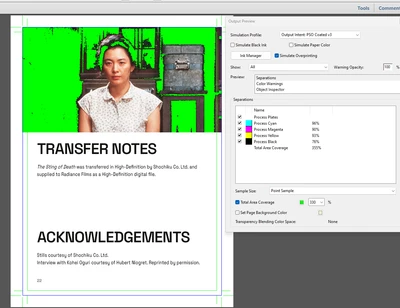


Does anyone know how export the image from photoshop, or what settings of InDesign I can change to avoid this? 


Thanks!

This topic has been closed for replies.
Correct answer rob day

Convert to LAB Color mode.

Convet back to CMYK.


That works in Photoshop for an individual CMYK image if the chosen Destination CMYK profile on the 2nd conversion limits the ink to the the desired total ink limit. You can’t do it in InDesign because the page can have a mix of color modes with different profile assignments—InDesign doesn’t have a single document color mode.

4 replies

Participant
July 10, 2024

My cheat to this...

Get the eyedroper tool and place it over your heavy ink area.

In the "Info" pop up window, select "Total Ink Coverage".

Convert to LAB Color mode.

Convet back to CMYK.

This resets the dark areas to default, print ready, CMYK.

Check Info... there's a side by side comparison of then/now of the image.

rob day
Community Expert
rob dayCommunity ExpertCorrect answer
Community Expert
July 10, 2024

Convert to LAB Color mode.

Convet back to CMYK.


That works in Photoshop for an individual CMYK image if the chosen Destination CMYK profile on the 2nd conversion limits the ink to the the desired total ink limit. You can’t do it in InDesign because the page can have a mix of color modes with different profile assignments—InDesign doesn’t have a single document color mode.

Good Venture
Known Participant
March 19, 2024

Thank you for your answer, was very useful, and the link! 


I've also found this tutorial helpful: https://www.youtube.com/watch?v=HcBrmAQqc9c&ab_channel=GrPrint

Community Expert
December 13, 2023

Hi @Good Venture ,

also check if an effect is applied to the image or its container frame that adds extra color to the image's pixels.

Remove the effect then…


FWIW:

Usually a printing company's prepress department could tackle the issue by converting your PDF with a special color server using Device Link technology so that the TAC does not exceed a certain amount of color without changing the appearance of the image in an unacceptable way…


Regards,
Uwe Laubender
( Adobe Community Expert )

Willi Adelberger
Community Expert
Community Expert
December 11, 2023

Did you place a CMYK image into InDesign. If a CMYK image is edited after conversion to CMYK it can happen that the maximum value is exceeded.

In InDesign are normally RGB images imported and converted to CMYK with the final PDF export or later with the APPE (Adobe PDF Print Engine). In Photoshop you need to turn on the CMYK Print Preview when you work with RGB images for print.

Good Venture
Known Participant
December 11, 2023

The image was originally palced as RGB, and file exported as PDF/X-4:2010  standard, with colour conversion to CMYK Convert to destination (Preserve Numbers). 


Not sure how the ink coverage came out 355%. I am asking myself, is there anything one could do directly on the image in Photoshop to avoid this, or is there a way to tell InDesign to limit the ink coverage of specific assets? 

Good Venture
Known Participant
April 3, 2024

here is something I'm missing from your example ... I would like that any image placed...will convert


With your PDF/X-4 Export settings, only color objects with profiles that conflict with PSO Coated v3 would be converted on the Export. So if an image link is listed as Document CMYK in the Link Info panel, it will export with its CMYK values unchanged—there will be no conversion because the source and destination profiles are the same.


Here the InDesign document’s CMYK assignment is PSO Coated v3, both images are CMYK with the same CMYK values.. The bottom version has the US Sheetfed Coated profile assigned, so on your export its values will be converted from US Sheetfed Coated to to PSO Coated v3 — InDesign‘s Separation Preview shows the image’s total ink as less than 300%:


The top version has no embedded profile, so it is treated as Document CMYK and its values export unchanged—including any values that exceed the ink limit:


Thank you for clarifying. So, when imported to InDesign, any CMYK image using a profile that does not limit the ink sum to 300% will not automatically be converted to the profile "PSO Coated V3" that I'm using in the export section. 


Will that be the same case if the exporting options are the following? 

would this process impact the images that are already in the "PSO Coated V3" output profile, or would the be converted back and forth from RGB to CMYK?