
Inspiring
February 24, 2023
Answered

Swatch Panel Pains - Where are my Folders and Libraries?

  • February 24, 2023
  • 2 replies
  • 2396 views

Hello!


I have noticed that every time I exit and re-enter InDesign, my swatch panel seems to "reset". Yesterday while I was working I had cleared out all my unused swatches and kept only my branding folder which included all the colors I would need for the document. 

I re-entered the document today, and my swatch panel is back on it's bs. It's not showing a bunch or random colors, all in list view. Additionally, the library icon is missing (standing books on a bookshelf that's usually in the lower left corner of the panel window).

I've got it switched back to my icon view, but where is the library icon and where are my user-created folders?


Thanks for your help in advance!

--------------------------

EDIT:

I think the main problem is that the swatch panel seems to be totally different in InDesign than it is in Illustrator. 

Is there no way to access swatch libraries in InDesign? In Illustrator I was able to create color groups, create pattern swatches from photos, and I can't seem to do either in InDesign. 

Since InDesign can't seem to create pattern swatched, I did it in Illustrator. But now that I've created it, there's no way to access it. 
This topic has been closed for replies.
Correct answer rob day

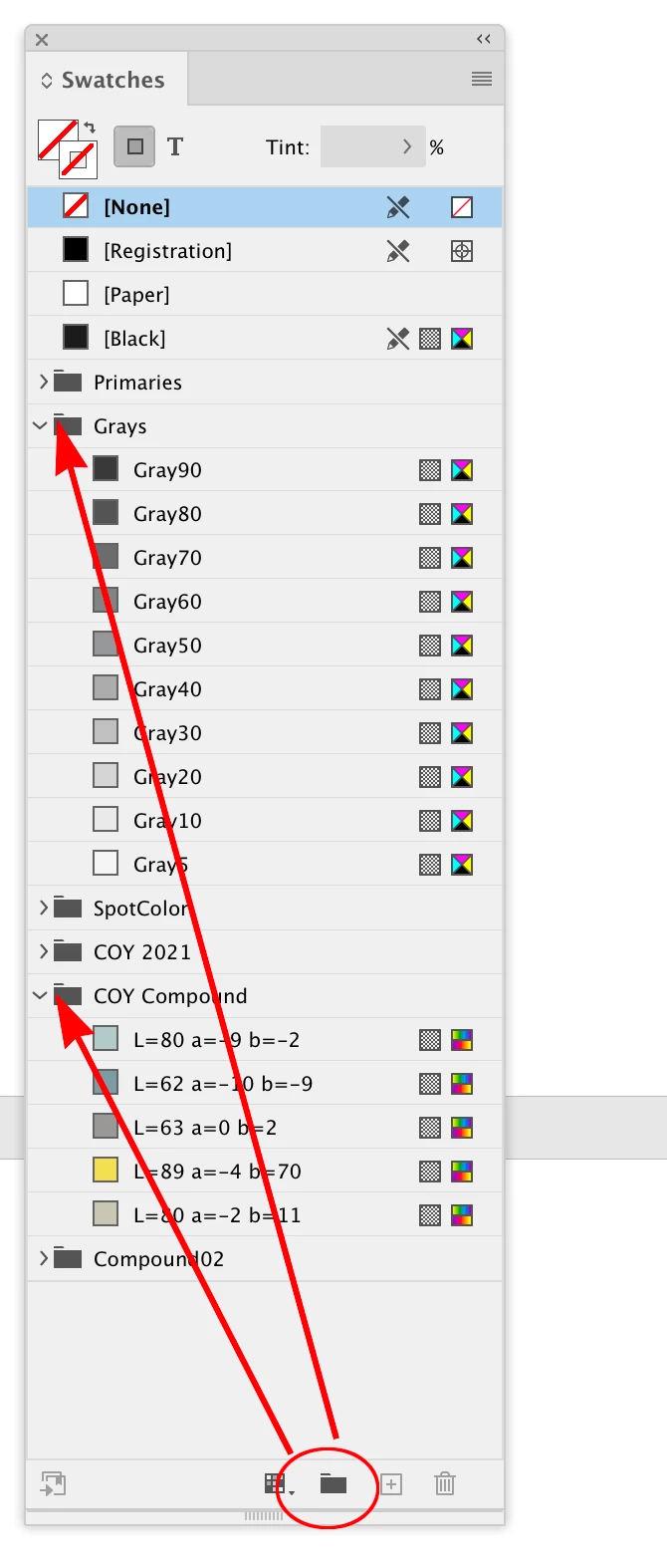
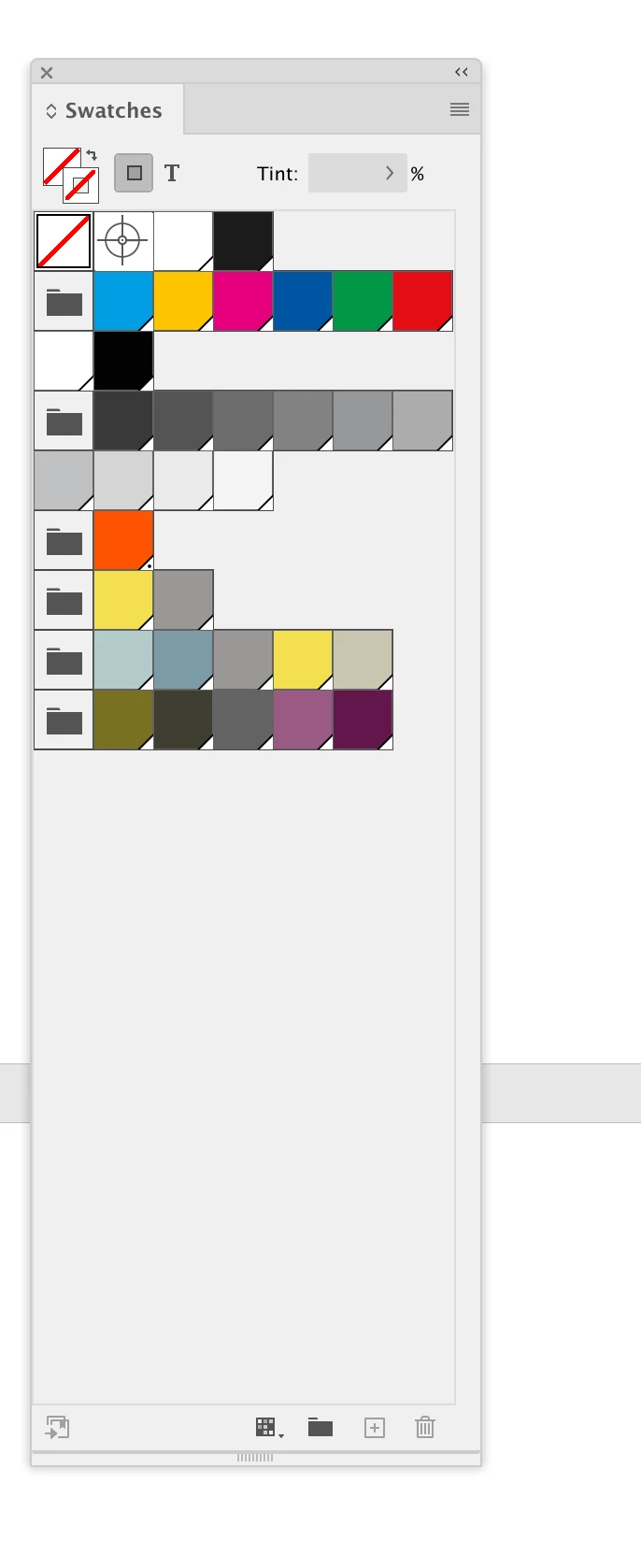
Hi @Marley C. , InDesign does have Color Groups—the panel in your capture looks OK. In your capture the add New Color Group icon is showing at the bottom of your panel (the folder icon). InDesign does not have pattern swatches, but it does have Mixed Ink (for mixing spot inks), and Gradient Swatches. This is my default Swatches panel which I created with no document’s open and is the default for my new documents:


Above I have the view set to Large List which shows the swatch color, name, process/spot icon, and color mode icon. You are showing the Large Thumbnail View, which with my grouped list looks like this:


2 replies

Bill Silbert
Community Expert
Community Expert
February 25, 2023

Try setting up your swatch Panel while no InDesign documents are open. When finished quit InDesign and then relaunch it. Any new documents created should now keep the swatches as you've changed them. Existing documents should retain their swatches as saved. Save a copy of your InDesign preference file in case you ever have to trash preferences. Replacing the old preference file with your copy made while the preferences were pristine will save having to do the process of swatch elimination and rearrangement all over again.

Marley C.Author
Inspiring
March 1, 2023

I think the main problem is that the swatch panel seems to be totally different in InDesign than it is in Illustrator. 

Is there no way to access swatch libraries in InDesign? In Illustrator I was able to create color groups, create pattern swatches from photos, and I can't seem to do either in InDesign. 

Since InDesign can't seem to create pattern swatched, I did it in Illustrator. But now that I've created it, there's no way to access it. 
Steve Werner
Community Expert
Community Expert
March 1, 2023

InDesign definitely has different reasons for using swatches than Illustrator. 


Illustrator swatch libraries are like their libraries for symbols, brushes and graphic styles. These give collections of these assets which can be for use in creating vector artwork.


InDesign is for creating publications. It isn't the place for creating artwork. Artwork is imported from Illustrator and Photoshop. It doesn't need such collections.


Patterns (either vector in Illustrator or image for Photoshop) are also part of creating artwork. Create the pattern in Illustrator and Place it as an Illustrator file.


InDesign does support color groups: Either click the New Color Group button at the bottom of Swatches, or choose New Color Group from the panel menu.

Steve Werner
Community Expert
Community Expert
February 24, 2023

When there are interrface anomalies like that, it can often be fixed if you restore your InDesign preferences and caches. Here's a document which explains how to do this:


https://www.rockymountaintraining.com/adobe-indesign-rebuilding-preferences-cache/

Marley C.Author
Inspiring
February 24, 2023

Thanks for the suggestion. Have you ever had to do this or know someone who has?

To be honest, the idea of doing this while I'm in the middle of working on a 30 page catalog makes me a bit nervous. 

Steve Werner
Community Expert
Community Expert
February 24, 2023

https://helpx.adobe.com/indesign/using/setting-preferences.html


This document shows you how to save backups of your preferences and caches so you could restore them if you need to.


Also backup the file(s) you are working on.