
Participant
May 15, 2017
Answered

Tab panel doesn't work

  • May 15, 2017
  • 2 replies
  • 6551 views

Hello,

I am quite new in InDesign (working for few months). I downloaded a version  InDesign CC 9 and I realize that the Tab panel doesn't work. It doesn't have any effect upon the text. The Leader cannot be modified and the paragraph can't be indented.

Has someone faced this issue before? Is it something I could change in the Preferences or elsewhere?

Thanks for your help.
    This topic has been closed for replies.
    Correct answer Barb Binder

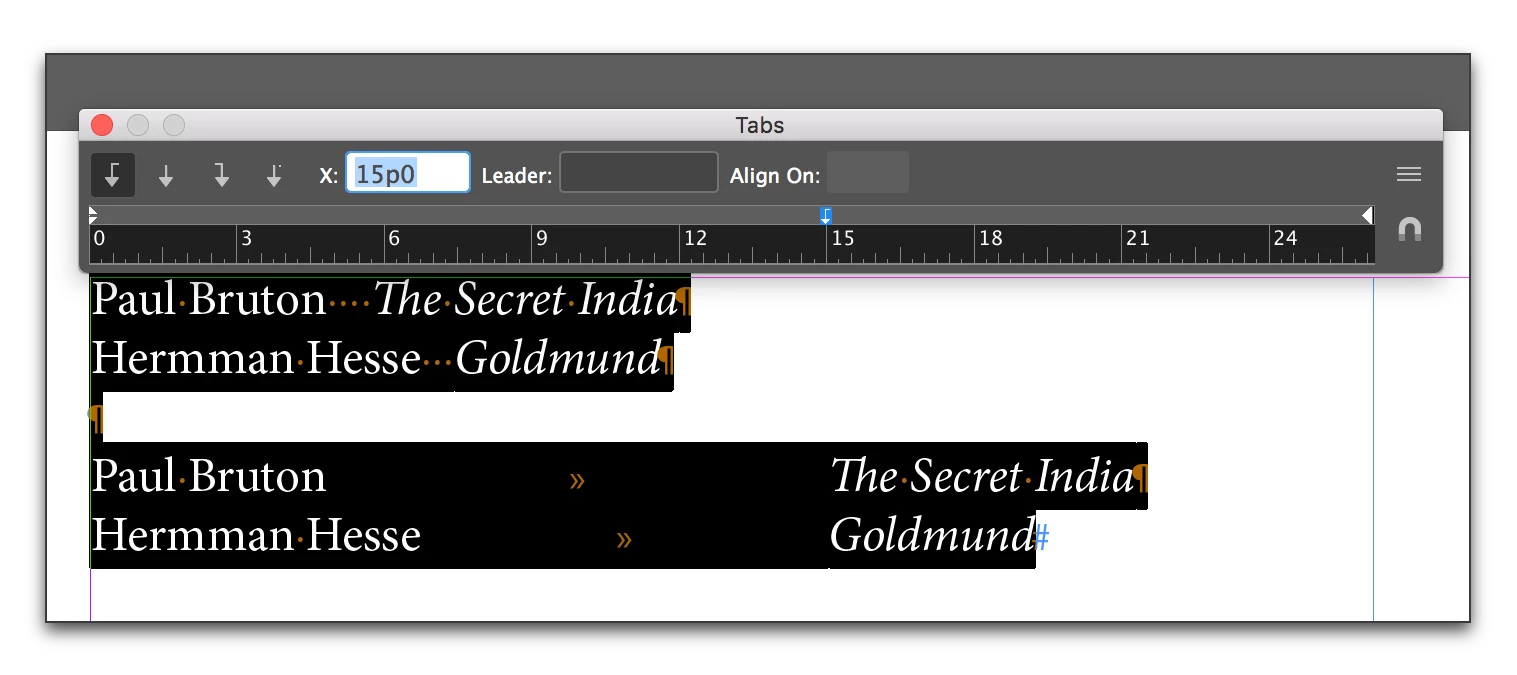
    You don't have a tab after Brunton or Hesse, you have spacebar spaces. Remove those blue dots and replace with the Tab character. It will look like  >> and will respond to the tab you have selected in the screenshot.

    Top two rows show the spaces, the bottom two rows show the tabs:

    If you need help refining the tab alignment or position, just come back and let us know.

    2 replies

    Barb Binder
    Community Expert
    Community Expert
    May 16, 2017

    Sharing a screen shot of your text with the Tabs panel open (just like Steve's screen shot above) would be helpful here. Notice that he also has hidden characters showing (Type > Show Hidden Characters), and be sure the text is selected.

    ~Barb at Rocky Mountain Training
    Participant
    May 17, 2017

    I don't seem to be able to link the tab panel to the text. The text simply doesn't react to any action in the Tab.

    And I can't delete the leader between words. As you can see in the capture, I let the leader box empty, but when I add space between words, it comes automatically. Am I missing something here? 

    Thanks for your help.

    Barb Binder
    Community Expert
    Barb BinderCommunity ExpertCorrect answer
    Community Expert
    May 17, 2017

    You don't have a tab after Brunton or Hesse, you have spacebar spaces. Remove those blue dots and replace with the Tab character. It will look like  >> and will respond to the tab you have selected in the screenshot.

    Top two rows show the spaces, the bottom two rows show the tabs:

    If you need help refining the tab alignment or position, just come back and let us know.

    ~Barb at Rocky Mountain Training
    Steve Werner
    Community Expert
    Community Expert
    May 15, 2017

    Here's a few things to watch for when you start using the Tabs panel (refer to the screen capture below):

    (1) Make sure you have the text selected to which you want to apply the tabs.

    (2) Make sure you have tab characters entered between the columns of the tabular material. To make sure choose Type > Show Hidden Characters.

    (3) Open the Tabs panel (Type > Tabs). There needs to be enough space above the text so it can properly align with the edge of the text.

    (4) Choose your tab alignment icon at the left end of the Tabs panel. Then click above the ruler to insert it. The illustration shows a center-aligned tab. You can also enter a precise value for the tab in the X field as shown.

    Participant
    May 15, 2017

    Thank you for the answer.

    All these settings are in order, I do all I'm supposed to do, but it still doesn't work. It doesn't move the text. In plus, when I add space between words, the dotted leader comes automatically, even though the Leader box is empty. I have no Style applied, I also checked the Preferences, but I couldn't find the root of this problem. It looks like the Tab panel has no connection with my text...  

    Steve Werner
    Community Expert
    Community Expert
    May 15, 2017

    You said you "checked the Preferences." Did you try restoring your preferences as described below:

    Trash, Replace, Reset, or Restore the application Preferences