
Known Participant
September 10, 2010
Answered

Table Border Won't Go Away

  • September 10, 2010
  • 4 replies
  • 83041 views

I have tried every way I can see to try but no matter what I do, the inner borders of my table continue to print. Everything I look at for the table, the rows, the columns, and even each individual cell, is telling me that no border should appear. When I print it, however, or export it as a .pdf, the inner border is still there.

What I most want is a bottom border for the header row and a top border for the footer row but I would gladly take no borders at all over having borders everywhere. Does anyone have any idea what I'm doing wrong?

I'm using CS4 and I'm a novice.
    This topic has been closed for replies.
    Correct answer Jeffrey_Smith

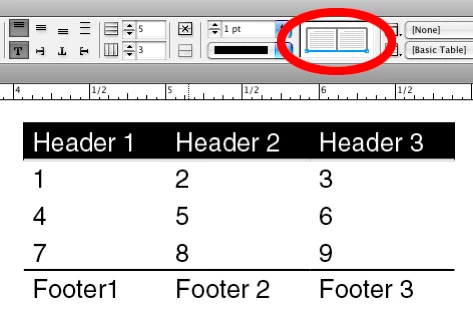
    Strokes applied to cells of tables can easily be obscured by guides. Hide guides and frame edges and then you will be able to verify whether strokes have been applied.

    As for applying strokes to one side of a cell, select the row of the table. Then, in the cell options (Note: what I have illustrated is from the control panel, but this can be found in various places.) select the appropriate part of cell you wish to change.

    4 replies

    Participating Frequently
    May 7, 2017

    One thing that confused me was that when you select a stroke it turns BLUE.  I thought BLACK was showing it as selected when I was trying to change a strokes property.

    Seilin
    Participant
    March 3, 2017

    I also had this problem, so I'd like to share my experience!

    Well, in my case, I took over other designer's indesign file.

    While I was writing contexts on a table, some weird thick lines which look like strikethrough appeared.

    I did everything to erase it, but nothing worked for me.

    If you're in my case, try to remove paragraph styles or character styles!

    masqu3rade
    Participant
    August 12, 2014

    I know that this post was almost 4 years ago, but I was having the same problem and it was one of the first links in Google.  Anyway I thought I'd share my experience.

    The key to the problem is that Adobe Strokes/Borders don't function like Word or Excel.  In Word or Excel when you deselect the frame/stroke it erases it or select a frame/stroke it turns it on.  However, in Adobe the selection is just that a selection; then you have to do something with it.

    So, to erase all of your borders you don't deselect everything, you actually select everything and then change the weight to zero.  Then you select the borders you want to add and change the weight and style to whatever you are trying to do. For instance:

    Everything else is erased here so highlighting the bottom stroke (as is shown) and changing the weight to zero would turn it off, deselecting the bottom stroke (as you would in Word or Excel) does nothing.  Similarly, if you would highlight all of the strokes on the box and select a zero weight it would remove all of them.  Select them all and add a weight and they all come on.

    Community Expert
    August 12, 2014

    @masqu3rade – sometimes it's unfortunate to set the line width of a border to zero.

    Instead go to to the Cells Options menu under the Table menu and chose the line style "None".

    Option "None" is not available in the Control Panel.

    Uwe

    Jeffrey_SmithCommunity ExpertCorrect answer
    Community Expert
    September 10, 2010

    Strokes applied to cells of tables can easily be obscured by guides. Hide guides and frame edges and then you will be able to verify whether strokes have been applied.

    As for applying strokes to one side of a cell, select the row of the table. Then, in the cell options (Note: what I have illustrated is from the control panel, but this can be found in various places.) select the appropriate part of cell you wish to change.

    KarynRHAuthor
    Known Participant
    September 10, 2010

    I've been doing that. It doesn't remove the border, no matter how many times I click on it to remove it.

    lemaquettiste_com
    Participant
    September 10, 2010

    Cell strokes are a little tricky, it depends on what you have selected of the actual table and what you hightlighted blue in the diagram of cell options. In your case, turn off all strokes. Then select the header row, then in cell options, highlight just the bottom portion, apply stroke: color, weight, etc.


    3 ideas

    a) sure no stroke and no color applied by the two side of the stroke ?

    b) No table or cell style applied ? perhaps look about standard style how they look

    c) is there another cell inside your cell that wouldn't have selected ?