
joffd
Inspiring
September 5, 2018
Answered

Table column dimensions showing incorrectly

  • September 5, 2018
  • 1 reply
  • 432 views

I have an Portrait A4 document with 15mm borders, two columns with a 30mm gutter.

When I create a table to fit, the dimensions of the columns do not match the sizes of the ruler of the document and I cannot figure why.
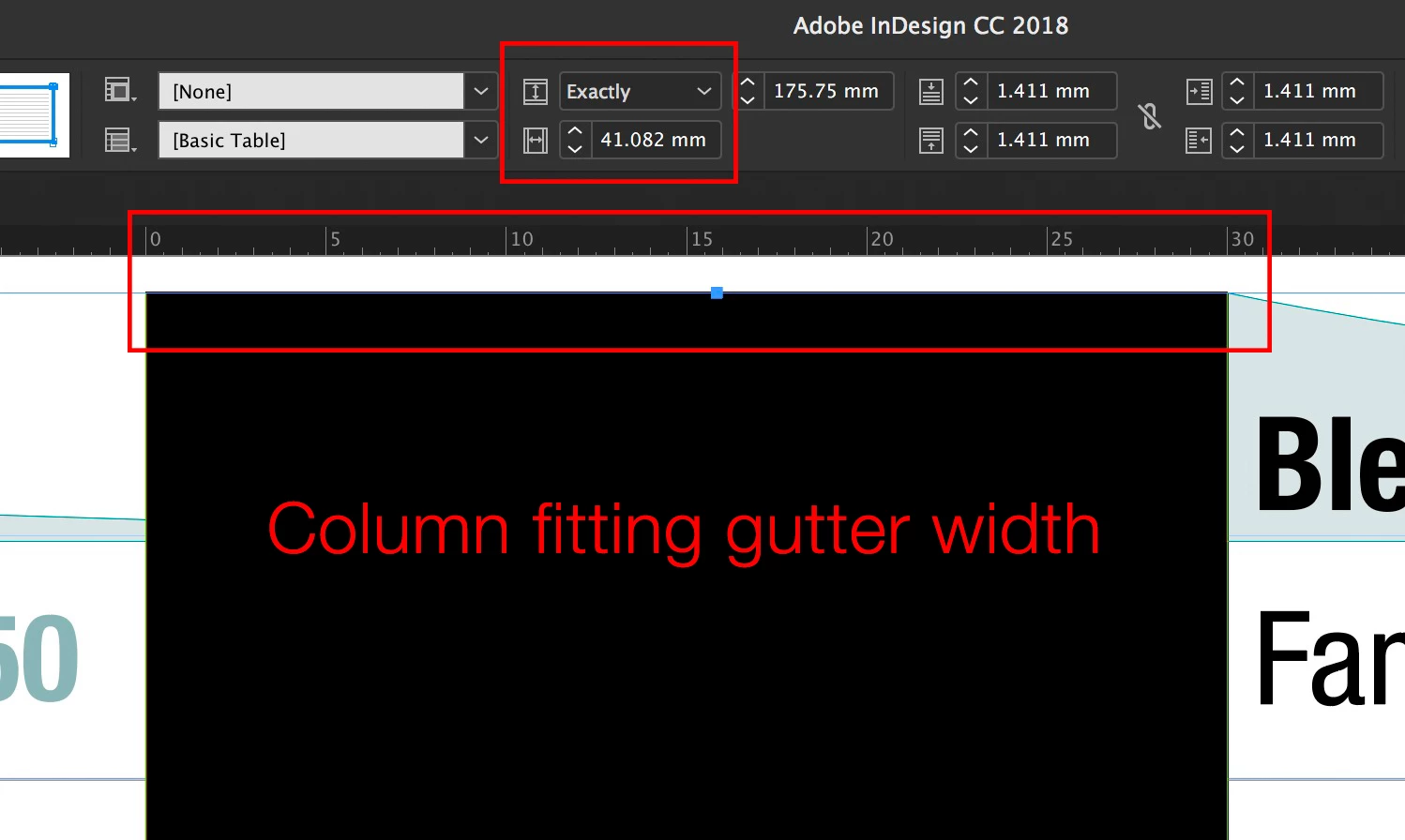
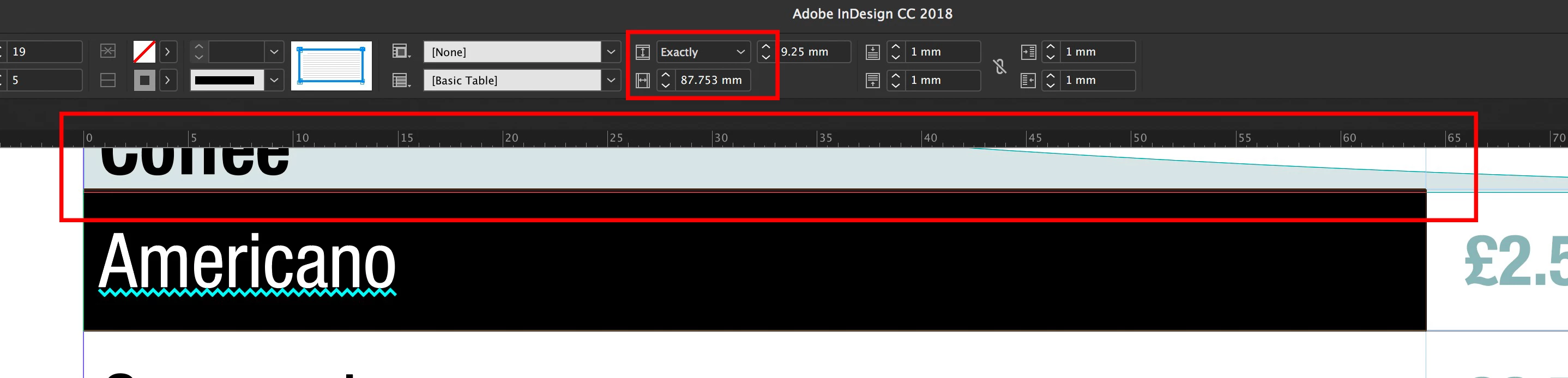
If I reduce the size on the toolbar the column reduces -  but not matching the ruler size
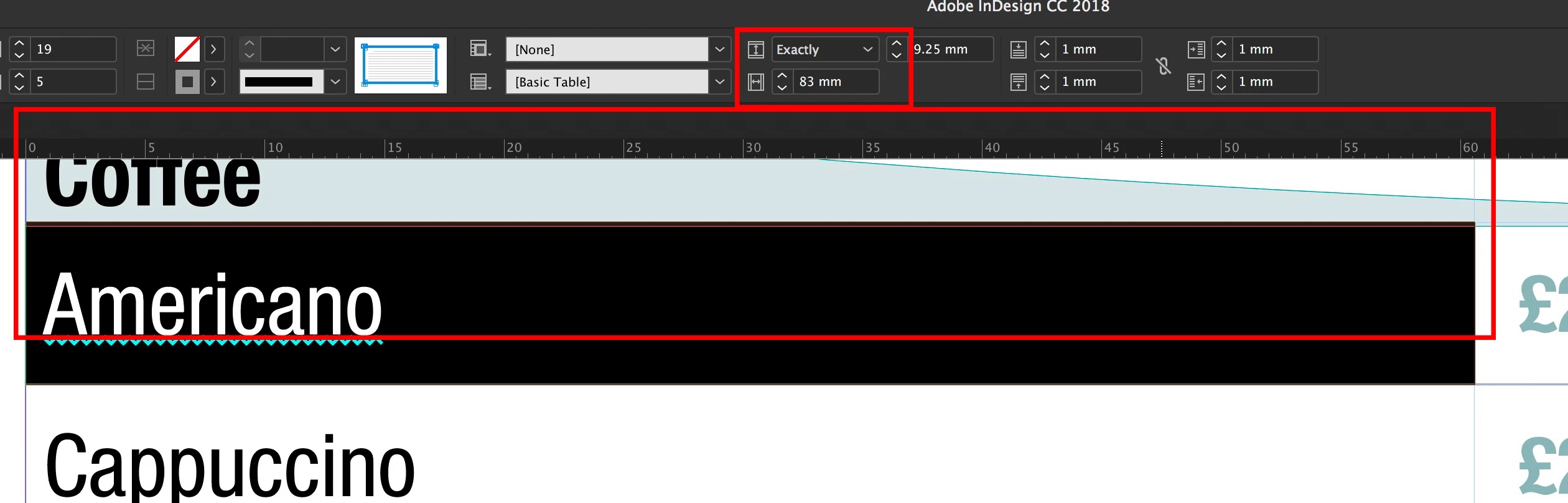
Any ideas greatly appreciated!

    This topic has been closed for replies.
    Correct answer Laubender

    Hi joffd48591012 ,

    it could be that the text frame your table is in was scaled down.

    Example:

    Both of the tables column one show a width of 50 mm. That sounds impossible. Table one column one, below selected, is obviously of a different width than the first column of the table below:

    So how can that be?
    The text frame with the table below was scaled to 70%.

    You can see the numbers below when the text frame is selected:

    How can that happen?
    Check your General Preferences.

    Uncheck "Adjust Scaling Factor with Scaling".

    What can you do?

    Select the contents of the text frame, the text in the frame, copy it to the clipboard, draw out a new text frame and paste the text in the first selected insertion point.

    Regards,
    Uwe

    1 reply

    LaubenderCommunity ExpertCorrect answer
    Community Expert
    September 5, 2018

    Hi joffd48591012 ,

    it could be that the text frame your table is in was scaled down.

    Example:

    Both of the tables column one show a width of 50 mm. That sounds impossible. Table one column one, below selected, is obviously of a different width than the first column of the table below:

    So how can that be?
    The text frame with the table below was scaled to 70%.

    You can see the numbers below when the text frame is selected:

    How can that happen?
    Check your General Preferences.

    Uncheck "Adjust Scaling Factor with Scaling".

    What can you do?

    Select the contents of the text frame, the text in the frame, copy it to the clipboard, draw out a new text frame and paste the text in the first selected insertion point.

    Regards,
    Uwe

    joffd
    joffdAuthor
    Inspiring
    September 5, 2018

    Brilliant! I hadn't thought of the frame being scaled!

    Thanks very much!