March 21, 2019
Answered

Tabs appear when placing Word text-why?

  • March 21, 2019
  • 1 reply
  • 2504 views

I have a Word template that I am using to redo formatting of report with many similarly laid-out pages, and then I'm placing them into a clean InDesign document.  It's been working flawlessly ( for ~30 placements), but the last 2 or 3 have come in with just one paragraph (the same one) containing extra tabs.  Those tabs are not in the Word original.  I'm trying to figure out why just one paragraph has extra tabs and, more importantly, how I get rid of them.  This is a document that we update annually, so I'm not enthralled with the solution of removing character overrides, which is how the InDesign style shows it. Thanks!

    This topic has been closed for replies.
    Correct answer Migintosh

    I used my report text as the base Paragraph Style.  Is that the/a problem?

    Also, I found that the Tax Name at the top had the Description Header character style applied to it.  Are my import options set correctly?  Anything there to fix?
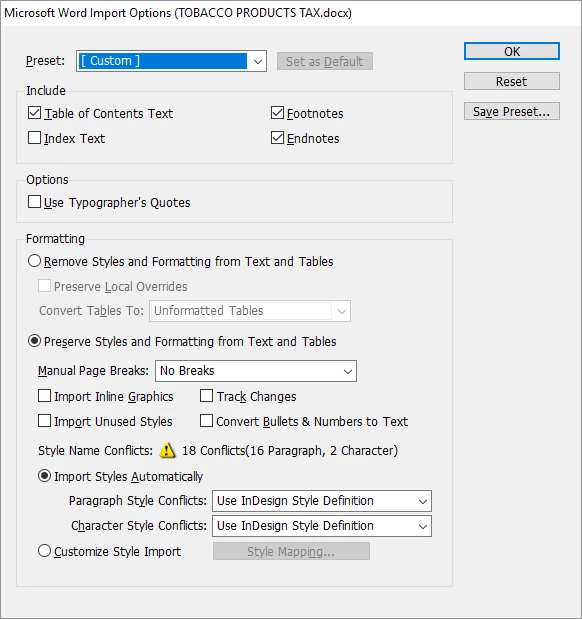
    I've got to leave & likely won't get back at this until next week.  Thanks for hanging in there with me!  I think I've some something to mess up what was working properly & I need to figure out how to return to where I was...


    I used to do a lot of book work some years back, but I haven't done any in a while, so I'm a little rusty. You don't have to do what I used to do (and many would say not to), but I used to get so many problems importing Word styles, I would just import as plain text and apply my styles in InDesign. That will take more time, and if you have to re-import from Word again (like if you have edits sent to you in Word), you will have to do the formatting again. The reason I did it was all of the junky stuff from many of the Word files I've been given. Many were done in what I call "Typewriter Style." That means that hanging indents were done with a paragraph return at the end of every line, followed by several tabs and then the second line of the paragraph, and so on. Basically faking it. Lots of double paragraph returns instead of space after, two spaces after a period, multiple tabs where one would do, etc. That would all have to be fixed with Find/Replace, but importing plain text also removes Local Overrides.

    One thing that is probably getting in your way is what's called Local Formatting in some circles, and Local Overrides in InDesign. It's basically changing the formatting to the text directly, as opposed to defining it in the paragraph style. If you select some text and look at the paragraph style pallet, you will see a + next to the name if that selected portion of the text has local overrides on it. You get that sometimes when bolds, italics or other treatments are done locally, instead of via character styles (which won't show a + if they are done without their own local overrides). You can clear local overrides by selecting some text and going to the fly-out of the paragraph styles pallet and selecting Clear Overrides. The shortcut is to hold Option (Mac OS) or Alt (Windows) and clicking on your style's name.

    1 reply

    Barb Binder
    Community Expert
    Community Expert
    March 21, 2019

    Hi Greta:

    I'm not clear on what is happening.

    Can you share a screen shot of the paragraph in Word with ¶s showing, and the same paragraph in InDesign with Type > Show hidden characters showing? Also, are you using File > Place to import a Word .docx file? If not, what type of file are you importing?

    ~Barb

    ~Barb at Rocky Mountain Training
    March 21, 2019

    Barb,

    InDesign screenshot. Look at the line labeled “Disposition.” That’s where my cursor is ... and you can see all the tabs. In the rest of the selection, there are only 2 tabs and they are at 2 ¼ and 2 5/8”. (this is public information that we post on our website, so it’s not confidential)

    Here’s the Word screen:

    Legend
    March 21, 2019

    InDesign screenshot.  Look at the line labeled “Disposition.”  That’s where my cursor is ... and you can see all the tabs.  In the rest of the selection, there are only 2 tabs and they are at 2 ¼ and 2 5/8”.   (this is public information that we post on our website, so it’s not confidential)

    Here’s the Word screen:


    gretar8063123  wrote

    InDesign screenshot…

    I see a tab ruler at the bottom of your screen shot, but I don't see the text cursor telling me where those tab stops are being applied. In this screenshot:

    …you can see the same text in three different text frames, but the text cursor is showing the tab stops only in the top one. Since no tab stops have been added to the top text frame, the tabs are stopping at regular intervals of 1/2" and 1", but they wouldn't stop there if there was more text. In the lower two text frames, tab stops have been randomly applied, but you don't see them in this screenshot because the text cursor isn't in them.

    In your screenshot from ID, I can see a tab stop at around 1.375", which is where the word Liquor is. In the previous line, the phrase "REPORT AND PAYMENT" is larger from the margin than 1.375", so that's why it doesn't stop there, but "DISPOSITION" does fit, so that's why it stops there.