Participant
June 19, 2019
Answered

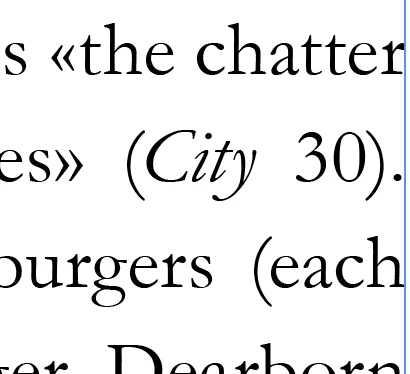
Text box giving me « instead of quotation marks on imported text

  • June 19, 2019
  • 2 replies
  • 2546 views

Hi All,

I"m sure this is a silly thing, but I can't find anything on it online. I imported a client's text into InDesign, and all the quotation marks were replaced with «. (photo below). I've tried changing the font and key entering it, but neither worked. Any help is greatly appreciated.

I'm using a Powerbook with the latest software and OS.

    This topic has been closed for replies.
    Correct answer G_Hoffmann

    1. Assign glyphs to quotation marks in Edit > Preferences > Dictionary for different languages:

    »Spanish«

    „German“

    “English”

    2. Choose language in advance to import.

    3. Changing "wrong" glyphs:

    Mark whole text. Choose language.

    Replace each quotation mark manually by input ".

    Or here automated, for the Guillemets:

    Mark whole text. Choose language.

    Find ALT 0171 Replace by "     

    («)

    Find ALT 0187 Replace by "      

    (»)

    InDesign Help:

    "Use quotation marks

    You can specify different quotation marks for different languages. These quotation mark characters

    appear automatically during typing if the UseTypographer’s Quotes option is selected in the Type section

    of the Preferences dialog box.

    Specify which quotation marks to use

    1. Choose Edit > Preferences > Dictionary (Windows) or InDesign > Preferences > Dictionary (Mac OS).

    2. Choose a language from the Language menu.

    3. Do any of the following, and then click OK:

    For Double Quotes, select a pair of quotation marks, or type the pair of characters you want to use..."

    Best regards --Gernot Hoffmann

    2 replies

    G_HoffmannCorrect answer
    Inspiring
    June 19, 2019

    1. Assign glyphs to quotation marks in Edit > Preferences > Dictionary for different languages:

    »Spanish«

    „German“

    “English”

    2. Choose language in advance to import.

    3. Changing "wrong" glyphs:

    Mark whole text. Choose language.

    Replace each quotation mark manually by input ".

    Or here automated, for the Guillemets:

    Mark whole text. Choose language.

    Find ALT 0171 Replace by "     

    («)

    Find ALT 0187 Replace by "      

    (»)

    InDesign Help:

    "Use quotation marks

    You can specify different quotation marks for different languages. These quotation mark characters

    appear automatically during typing if the UseTypographer’s Quotes option is selected in the Type section

    of the Preferences dialog box.

    Specify which quotation marks to use

    1. Choose Edit > Preferences > Dictionary (Windows) or InDesign > Preferences > Dictionary (Mac OS).

    2. Choose a language from the Language menu.

    3. Do any of the following, and then click OK:

    For Double Quotes, select a pair of quotation marks, or type the pair of characters you want to use..."

    Best regards --Gernot Hoffmann
    Participant
    June 19, 2019

    Thank you, G. Hoffmann! It was definitely some language/glyph situation.

    Derek Cross
    Community Expert
    Community Expert
    June 19, 2019

    Have you tried a Find/Change?

    One type of quote mark at a time, of course.

    Participant
    June 19, 2019

    Yes. It didn’t do the trick.