
Participant
April 10, 2025
Answered

Text disappearing hyphenation is turned off?

  • April 10, 2025
  • 4 replies
  • 643 views

Hi--


I autoflowed text from Word and it worked perfect for all but the last 10 or so pages, where it just stopped. After troubleshooting, it seems like my hyphenation (off) settings on my paragraph style are what is causing the text to not show. Any ideas or experience with this issue?


I tried copy and pasting the missing text, but when I apply my paragraph style it disappears. I tried creating a new paragraph style, but once I turned off hyphenation it disappeared again.


Any advice is greatly apprecaiated. Thank you!
Correct answer Randy Hagan

This is more working around the problem than sleuthing it, but it's worth a shot.


If turning off hyphenation is an issue, perhaps allowing it under difficult conditions will get your job done.


  • Open your offending paragraph style options.
  • Navigate your way to the Hyphenation option.
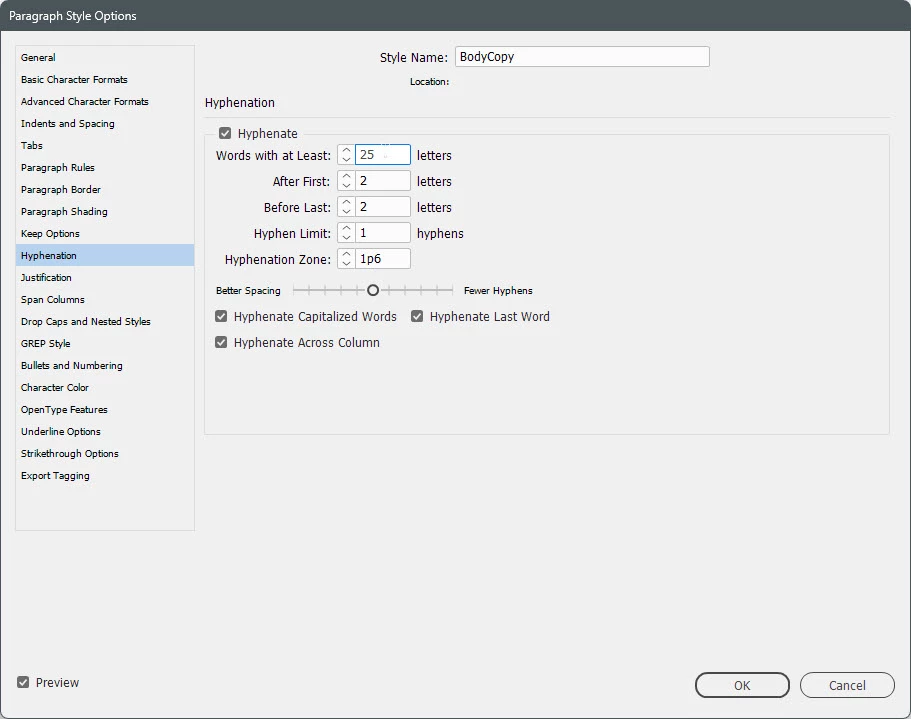
  • The first edit box is Words with at least: ___ letters. The default setting is 5 — change it to 25. That tells InDesign that it's only OK to hyphenate a word if it's 25 characters or longer.. Not too many words are. So you're allowing hyphenation, but only under next to impossible conditions.


Hopefully the type will show now. I've never heard of the condition you describe, but you know it's real because you're experiencing it. Maybe if we can break the rules, we can fix it.


Hope this helps,


Randy


4 replies

Peter Spier
Community Expert
Community Expert
April 11, 2025

The fastest way to find a problem like this is to look at the text in Story Editor and check the text in the first overset line.

As @Frans v.d. Geest mentions, No Break applied erromniously is a common culprit, bu t its also fairly common for there to be non-breaking spaces instead of regular spaces between the words that are not allowed to hyphenate. The overset problem might be in just the first line, or it may extend over many lines.

Frans v.d. Geest
Community Expert
Community Expert
April 11, 2025

Make sure you indeed turn Hyphenation off and nót instead use No Break in your style, the latter will make your text disappear.

Robert at ID-Tasker
Legend
April 10, 2025

@ellie_9176


Can you share your document - please click my nickname if you prefer to send it privately? 


Randy Hagan
Community Expert
Randy HaganCommunity ExpertCorrect answer
Community Expert
April 10, 2025

This is more working around the problem than sleuthing it, but it's worth a shot.


If turning off hyphenation is an issue, perhaps allowing it under difficult conditions will get your job done.


  • Open your offending paragraph style options.
  • Navigate your way to the Hyphenation option.
  • The first edit box is Words with at least: ___ letters. The default setting is 5 — change it to 25. That tells InDesign that it's only OK to hyphenate a word if it's 25 characters or longer.. Not too many words are. So you're allowing hyphenation, but only under next to impossible conditions.


Hopefully the type will show now. I've never heard of the condition you describe, but you know it's real because you're experiencing it. Maybe if we can break the rules, we can fix it.


Hope this helps,


Randy


Participant
April 11, 2025

This worked, thank you so much Randy!

Randy Hagan
Community Expert
Community Expert
April 11, 2025

It's my pleasure.


Can I ask a favor? Could you mark answers that worked for you as correct? That alerts the moderators to archive the thread and include it in that Related conversations list at the top of the page for users who have similar issues.


And if you have problems with InDesign, or any Adobe app, in the future, please feel free to come back to these forums and sound the alarm. There are a lot of sharp folks around here who may be able to lend a hand.


Glad this worked well for you,


Randy