
Known Participant
November 25, 2024
Question

Thai Font error After Exporting

  • November 25, 2024
  • 3 replies
  • 3399 views

Hello Indesign Community,


We have been using Indesign for our work research paper for 3 years now, we have to export it to pdf and upload on our website to make it publicly available. However, we have the font error problems, in this case we mostly use fonts in Thai Language.


After exporting, everything looks perfectly fine like in the pic. 
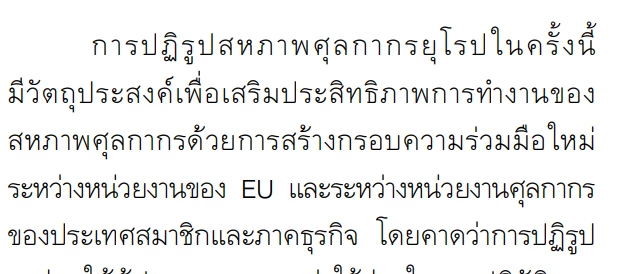
 

However, if we copied&pasted it elsewhere or try to use ctrl+f funtion to look for keywords. We coundn't find a single match as all the fonts are in the wrong orders and abnormal styles as attached some lines, 
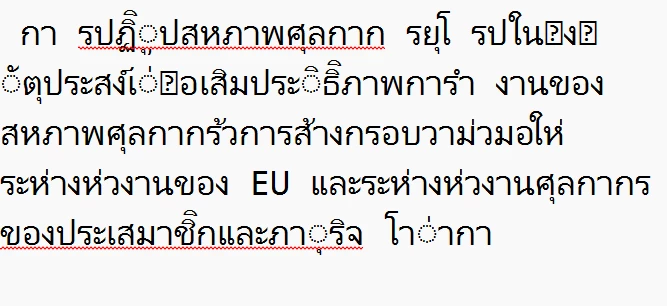
 

This causes us lots problens as we want to spread knowledge and info to all audience, but our work has never been showed up on the web browser as it cannot find the matching keywords from the engins to our works.  I tried changing fonts but still have the same problems, FYI, we never have this problems when we use just Microsoft Words and English Words are not affected. 


Looking forward to your suggestions, maybe some fonts setting or what kind of fonts should we look for. Thank you.

3 replies

Known Participant
March 10, 2025

Hello, this post hasn't been resolved, the issues still occur. Could some expert take a look into it one more time?

BobLevine
Community Expert
Community Expert
November 25, 2024

How are you viewing and testing this PDF? Doesn't everything work okay in Acrobat?

Known Participant
November 25, 2024

Im testing it on Acrobat, the fonts are all in wrong orders when I copied and pasted out to Notepad. Also I could not find asingle matching words by crtl F on Acrobat

Abhishek Rao
Community Manager
Community Manager
December 12, 2024

Hello, any updates or some trobleshooting on the files?

Thank you


Hi @THBrussels,


Thank you for your patience and for sharing the file with us.

To further troubleshoot, could you please try the following steps:

  1. Test in the PDF Viewer: Open the exported PDF and attempt to type the specific Thai characters (e.g., -่, -ำ, -็) into the application you're using to view the PDF (such as Adobe Acrobat). If you're able to type the characters successfully, it means that the application is able to recognize and render the fonts correctly.

  2. If you are unable to type the characters, it could be that the application doesn't fully support the font, which may lead it to convert the text into an image or render it incorrectly. This is a known issue with certain PDF viewers not properly handling complex fonts, especially for non-Latin scripts like Thai.

Let me know the results of these tests.

Thanks again for your cooperation,


Best,

Abhishek Rao

Abhishek Rao
Community Manager
Community Manager
November 25, 2024

Hi @Thai Customs Brussels,


Thank you for sharing the details. Could you let us know:

  1. The version of InDesign you’re using.
  2. Your operating system (e.g., Windows 11, macOS Ventura).
  3. If this issue occurs with only this file or other files as well.

Additionally, could you share a screen recording of your workflow, from working on the file to exporting the PDF? This will help us better understand the issue and provide a solution.

Looking forward to your response!


Thanks, 

Abhishek Rao

Known Participant
November 25, 2024

Thanks for your reply

1. I'm using and recently updated to Version 19.5.1.

2. Windows 11

3. This happens to all files.

I attached the workflow here, You will see there are some warnings on the font JS Jindara, yet I tried changing fonts but the issues still occurs.