Chris  P.  Bacon
Inspiring
August 29, 2022
Question

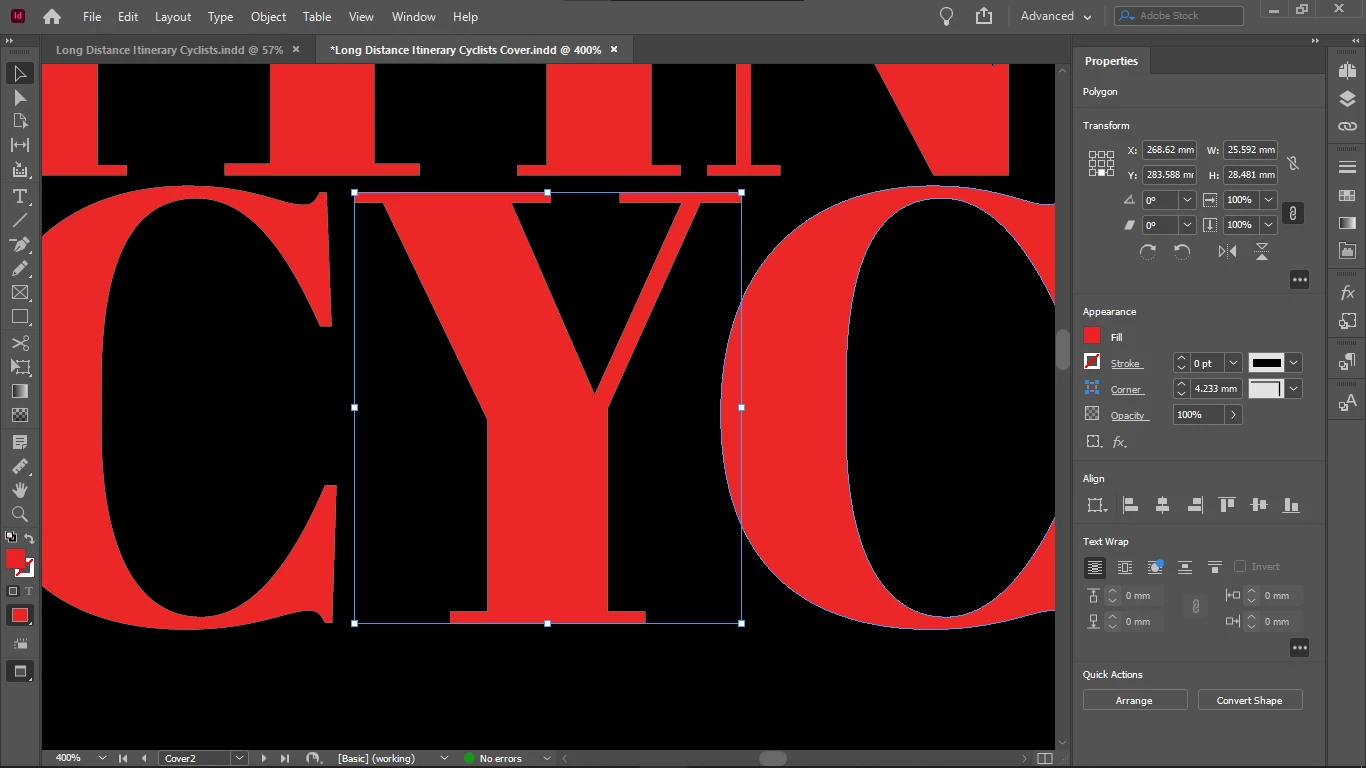
Thin light brown line around text imported as outlines from Illustrator

  • August 29, 2022
  • 3 replies
  • 1056 views


Does anyone know what are they and how o get rid of the light brown outlines, and if they are printing or not?

This topic has been closed for replies.

3 replies

Mike Witherell
Community Expert
Community Expert
August 31, 2022

Placing an .AI file into InDesign is fine.

Never drag n drop. Never copy n paste.

No need to convert any live text to outlines.

But do make sure the .AI and .INDD have the same color model ( I often prefer RGB)

InDesign's color space mode is Edit > Transparency Blendspace > ...

Mike Witherell
Chris  P.  Bacon
Inspiring
September 3, 2022

Thanks Mike.

Illustrator does not have a Transparency Blend Space setting in its Edit menu. Where do I set the Transparency Blend Space in Illustrator to make sure it's in sync with InDesign for the case when I am placing content from Illustrator?

Transparency Blend Space in my InDesign is set to CMYK. This is a magazine for print, I need to be able to see the CMYK blending as it will be looking in print (if the monitor can replicte that and if that is the purpose of the CMYK blending mode - I don't know). So I cannot set it to RGB.


Chris  P.  Bacon
Inspiring
September 3, 2022
Jumpenjax
Community Expert
Community Expert
August 30, 2022

Did you check to be sure there is not a stroke added? Worth a check.

Lee- Graphic Designer, Print Specialist, Photographer
Chris  P.  Bacon
Inspiring
August 30, 2022

My stroke box was inactive with nothing in it and when I typed in 0 pt, I lost the blending mode of the element.

Chris  P.  Bacon
Inspiring
August 30, 2022

But that stroke was for the text box not for the glyph bundaries. I cannot select individual letters to check for the letter stroke. It was placed as .AI type into InDesign.

Willi Adelberger
Community Expert
Community Expert
August 29, 2022

It may be a screen issue on your side. I cannot see any brown outline.

Do they persist in different zoom factors? If not, they are only screen issues.

Chris  P.  Bacon
Inspiring
August 29, 2022

You can see the brown outlines better through Windows Magnifier Lens (Win key + plus key) 

Left: (almost) no outlines (no blending modes)

Right: outlines (blending modes and blending isolation)

Both text blocks are identic, placed as .ai type files from Illustrator (not outlines).


So even though I declared this as solved in the previous thread, the outlines came back after I re-applied my blending mode (multiply) and grouped objects blending isolation.

If anyone wants to play with it:

black bg: #0f0f0f

red font: #ed1c24

font: abril fatface capitals

The red text is given multiply blending mode.

Then the red text is grouped with an image (the one which is blending with)

Then to the resulting group "isolate blending" is applied, so the red text will blend with the image, but not with the black background.

The background of the red text is transparent.


Chris  P.  Bacon
Inspiring
August 29, 2022

I mean after I re-applied my blending mode to my new red text block that was not copy pasted or drag and dropped, but it was placed.