Participant
May 7, 2018
Answered

Tint box under text?

  • May 7, 2018
  • 2 replies
  • 688 views

Am sure this is a dumb newbie question, but I am on a deadline for a newsletter. Trying to use old one as a template (next issue I'll start from scratch).

The gal that did this before had most text boxes and images over top a tint frame.

I may be thinking this the wrong way. But can I place a text box over top of a tint filled box? every time I try to do so the text box disappears underneath. And layers don't seem to be working - which I find confusing as I'm use to Photoshop. It may be the setup of the layout - but I'm new enough I don't know how to trouble shoot why layers aren't working.

Have searched and search... Sorry for beginner's mind. Lindy

    This topic has been closed for replies.
    Correct answer Steve Werner

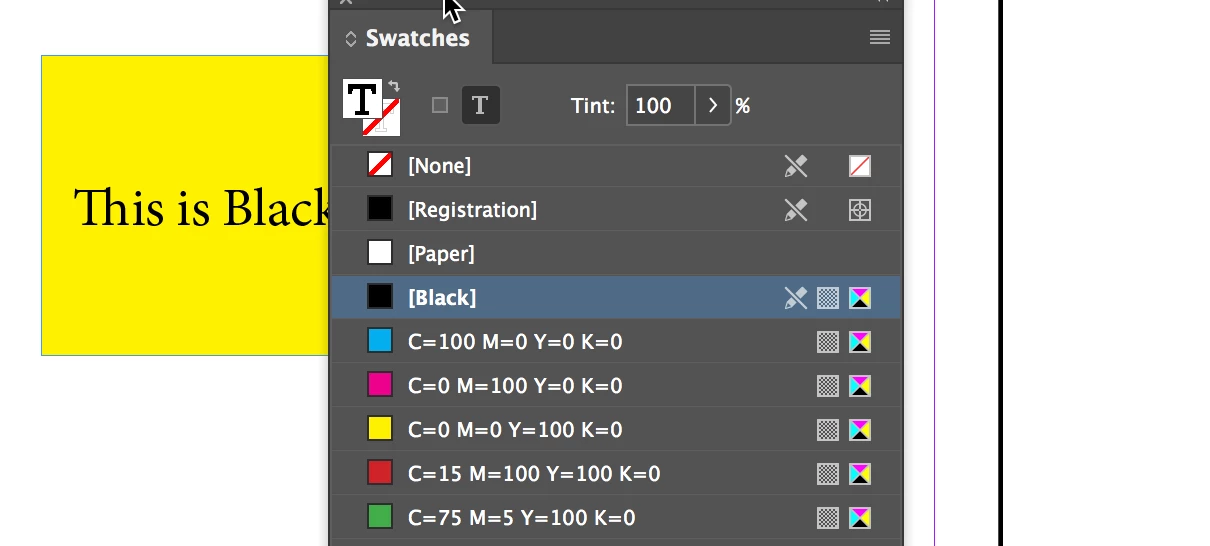
    I selected frame with the black arrow (Selection) tool and chose Yellow fill color.

    I chose the Type tool and clicked in the frame. Set the type color to Black.

    2 replies

    Bill Silbert
    Community Expert
    Community Expert
    May 7, 2018

    Steve is right about using the same text frame for the text and background tint as long as you understand how to manage indent and vertical alignment for your text. If that is too daunting then try locking the layer that the tinted frame is on and then creating a new layer above that one upon which you can create and position your text frames.

    Steve Werner
    Community Expert
    Community Expert
    May 7, 2018

    Better is to make the fill color (background color) of the text frame the color or tint that you want. Make the text in the frame the color you want it to be. You don't need two frames.

    Steve Werner
    Community Expert
    Steve WernerCommunity ExpertCorrect answer
    Community Expert
    May 7, 2018

    I selected frame with the black arrow (Selection) tool and chose Yellow fill color.

    I chose the Type tool and clicked in the frame. Set the type color to Black.