Roger Breton
Legend
November 1, 2023
Answered

Transparency Blend Space is giving me trouble

  • November 1, 2023
  • 2 replies
  • 2497 views

I created a new "Print" document using InDesign v19.0 on Win 11.

It automatically inherited current color settings which are RGB = sGRB and CMYK = GRACoL.

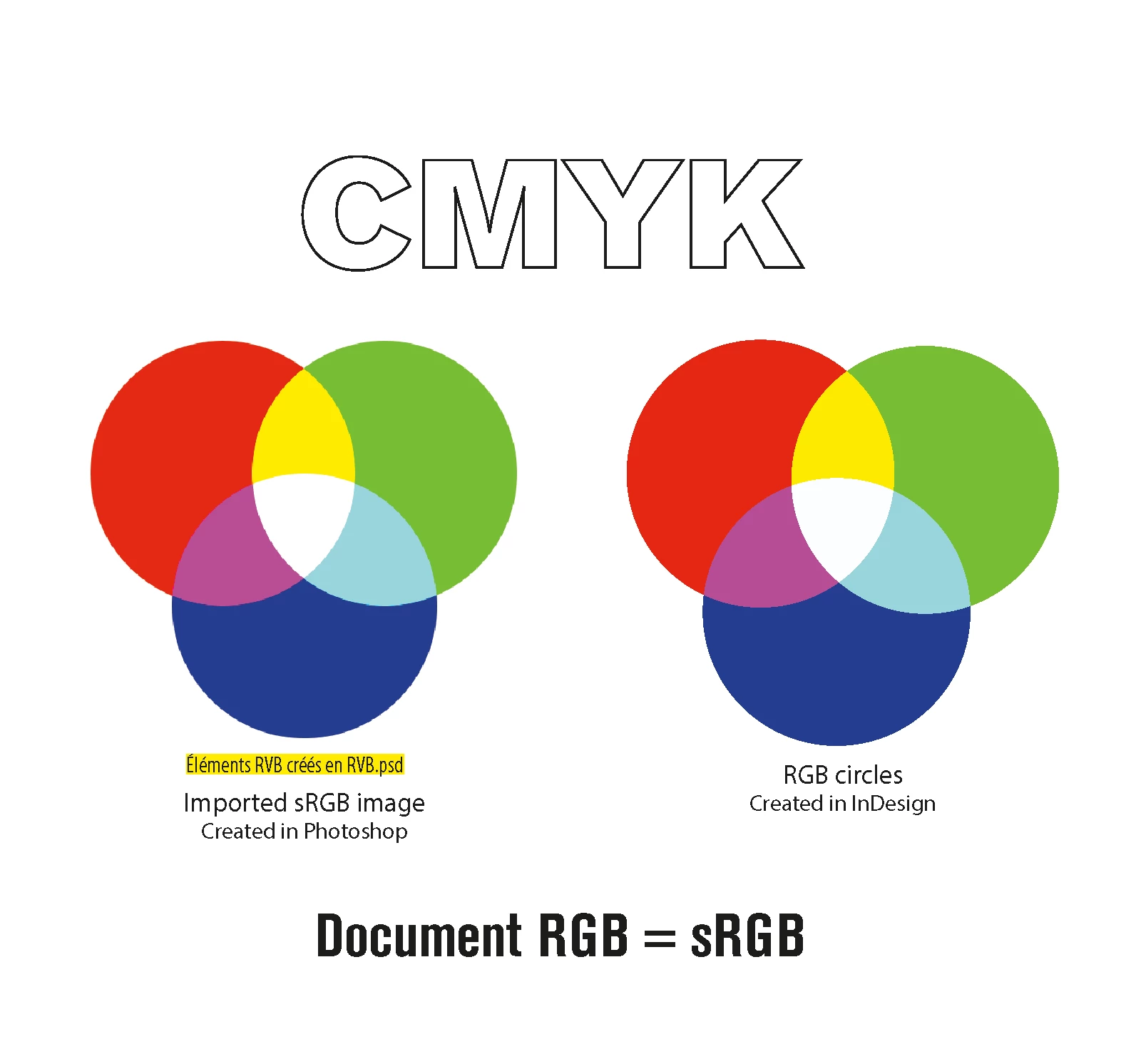
I drew three RGB circles on the page, partially overlapped them and used "Overlay" blend mode.

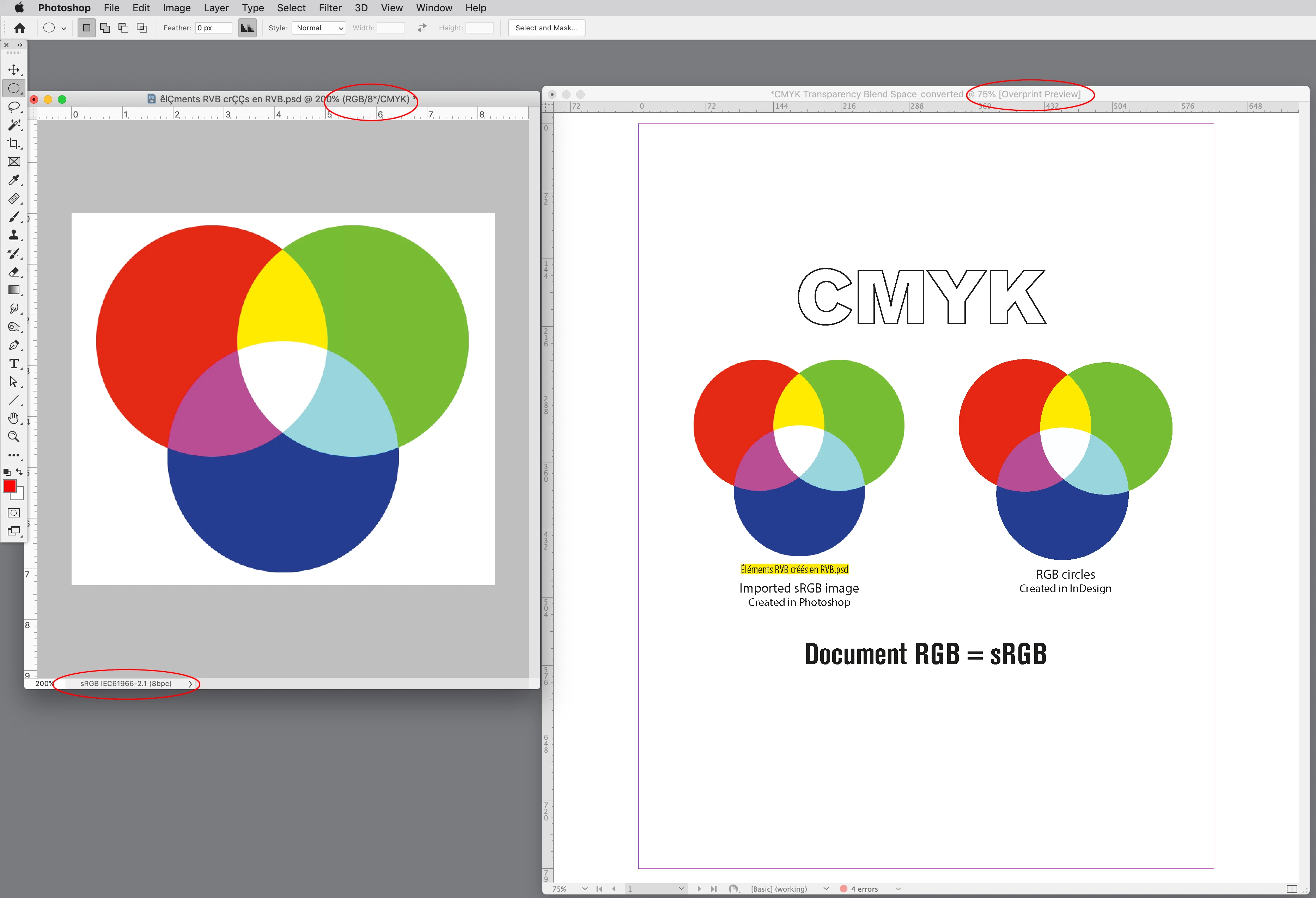
In Photoshop, I did the exact same thing and save as PSD with sRGB embedded ICC profile.

Placed the image in InDesign.

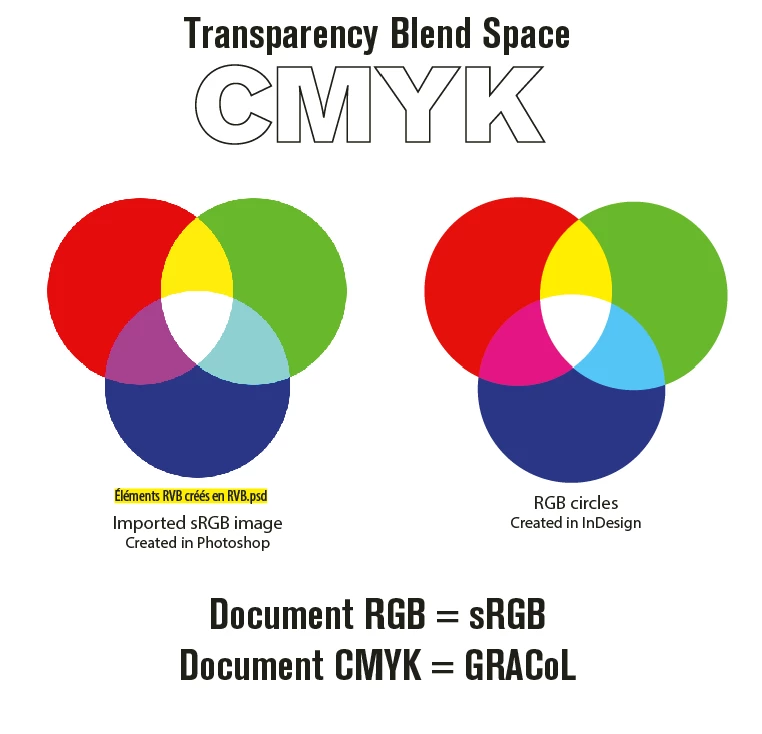
In "theory", the color apperance of these two groups of circles ought to closely look alike?


My question is why is there a visual difference between the two elements?
Activating Proof Setup does not solve the problem.


Here is a screen capture:
 Here is a link to the Packaged document:
https://1drv.ms/u/s!AkD78CVR1NBqm91SWA13tUYbjpH6zA?e=aL0UrC

Thank you in advance for your kind help and patience.
 

This topic has been closed for replies.
Correct answer rob day

Hi @Roger Breton , I think you asked the same here?


https://community.adobe.com/t5/indesign-discussions/expected-appearance-of-placed-photoshop-rgb-content-in-indesign-cc-2023/m-p/13331476/page/2#M501626


In Photoshop, I did the exact same thing and save as PSD with sRGB embedded ICC profile.


Photoshop files can only have a single color space, so there’s no need for a Transparency Blend Space choice—the sRGB document’s Blending Mode has to be RGB.


InDesign documents can have a mix of objects with different color modes—CMYK, RGB, or Lab—so when color gets flattened on export or output there needs to be a single output space selected, which is the Transparency Blend Space.


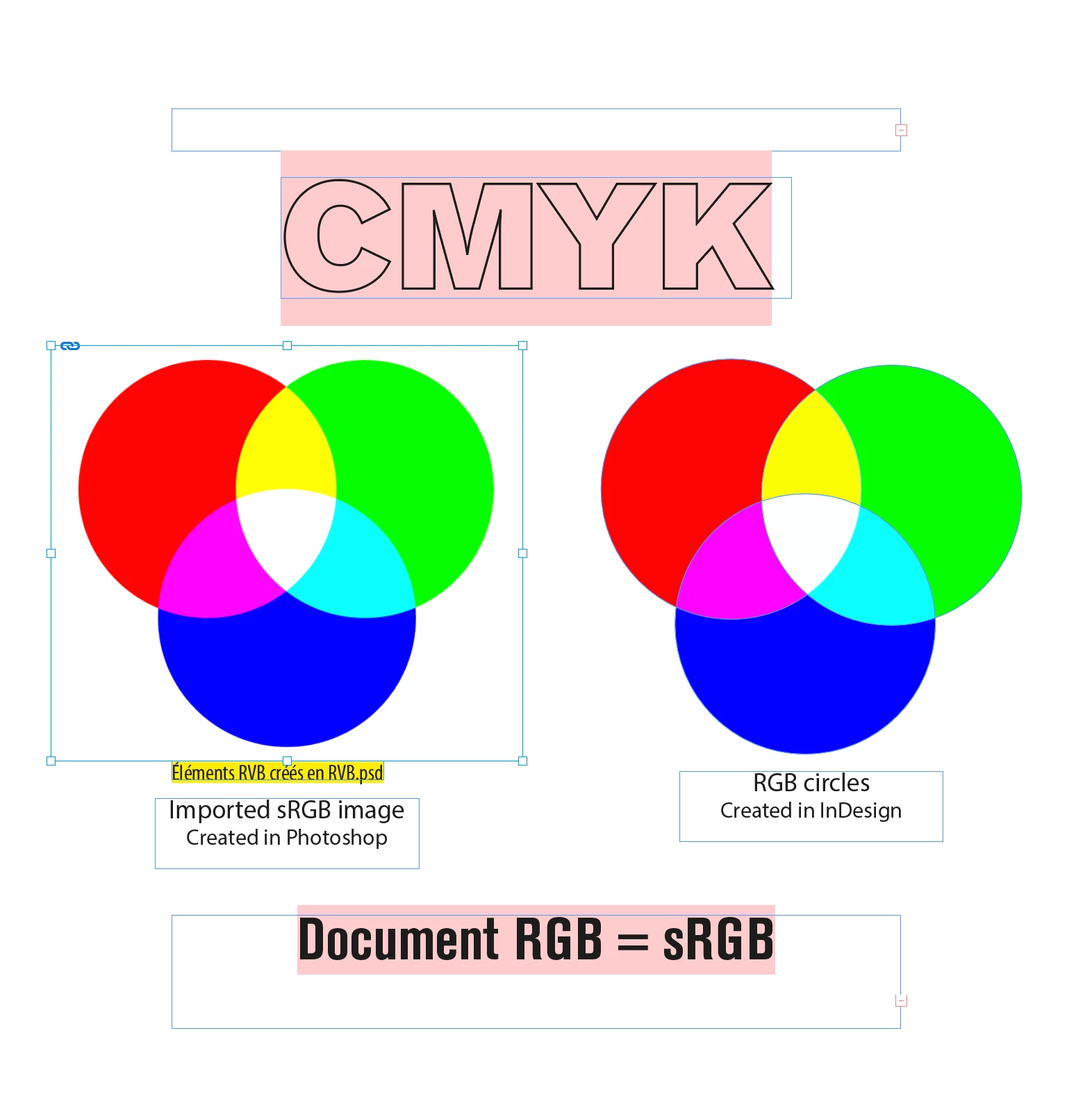
If I set InDesign’s Transparency Blend Space to Document RGB (sRGB in your case), both the placed sRGB Photoshop file (which by default has an sRGB blending space) and the native InDesign colors match:


They also match if I turn on Overprint/Separation Preview, which shows the conversion to Document CMYK:


Photoshop’s Proof Colors set to Working CMYK does the same. Here the Working CMYK space is GRACoL with the Intent set to Relative Colorimetric:


2 replies

rob day
Community Expert
rob dayCommunity ExpertCorrect answer
Community Expert
November 1, 2023

Hi @Roger Breton , I think you asked the same here?


https://community.adobe.com/t5/indesign-discussions/expected-appearance-of-placed-photoshop-rgb-content-in-indesign-cc-2023/m-p/13331476/page/2#M501626


In Photoshop, I did the exact same thing and save as PSD with sRGB embedded ICC profile.


Photoshop files can only have a single color space, so there’s no need for a Transparency Blend Space choice—the sRGB document’s Blending Mode has to be RGB.


InDesign documents can have a mix of objects with different color modes—CMYK, RGB, or Lab—so when color gets flattened on export or output there needs to be a single output space selected, which is the Transparency Blend Space.


If I set InDesign’s Transparency Blend Space to Document RGB (sRGB in your case), both the placed sRGB Photoshop file (which by default has an sRGB blending space) and the native InDesign colors match:


They also match if I turn on Overprint/Separation Preview, which shows the conversion to Document CMYK:


Photoshop’s Proof Colors set to Working CMYK does the same. Here the Working CMYK space is GRACoL with the Intent set to Relative Colorimetric:


Roger Breton
Legend
November 1, 2023

Rob,

You're right. This is an old post I ended up revisiting.

You're right to point out "If I set InDesign’s Transparency Blend Space to Document RGB" everything matches.

Anyone can observe the same including yours truly.

BUT that is NOT the case, here, is it? 
It's a "Print" document and therefore "InDesign’s Transparency Blend Space is set to Document CMYK".
I wish you could help further.
At least, have you been able to replicate my results at your end? I'm going to submit this as a bug.

rob day
Community Expert
Community Expert
November 1, 2023

Rob, I appreciate your help and i would appreciate you acknowledge the behavior I reported.


Yes I see the same, but I think it is expected.


I can replicate what you are seeing in InDesign over in Photoshop if I use Convert to Profile... and keep the transparency layers. The Screen blending mode produces a different color appearance when the mode is CMYK:


If I flatten the transparency there is no blending effect and the conversion is from the flattened RGB pixels to the chosen CMYK space:


Roger Breton
Legend
November 1, 2023

For curiosity, using RGB Transparency Blend space, the result is flawless:


Roger Breton
Legend
November 1, 2023

I must be doing something "silly"?
I tried "flattening" the Photoshop file in Photoshop and import that back -- no difference.
I tried copying and pasting from Photoshop in InDesign -- no difference.