
Inspiring
August 10, 2022
Answered

trying to place Excel spreadsheet as inline graphic

  • August 10, 2022
  • 2 replies
  • 768 views

I created a document in Indesign and placed (Ctrl + D) Excel spreadsheets in the text inline. Now I have the document open and am trying to use the same steps I used before to place some more Excel spreadsheets and Indesign is placing them in a separate box and not inline with my text like before. I am following the same steps. Using the Type Tool, I place my cursor where I want the spreadsheet to be. Type Ctrl +D. The Place dialog box opens. I select my file and Show Import Options. The Excel Import Options dialog box opens. I put in my cells and make sure it says Formatted Table then click OK. Instead of the spreadsheet pasting into my text, it is in a separate box from the text. Previously, I got a warning message about it taking longer to import a formatted table but I'm not getting that anymore. 


I went back and tried to place some previous spreadsheets and now they don't work either. Did I change a setting accidentally? Help! I need to get these spreadsheets in this document ASAP and I can't figure out why it's not working the way it was! 


Thanks!!
This topic has been closed for replies.
Correct answer Laubender

@techwriter1995 said:

"I am simply placing my Type Tool cursor in my text window."


"Then typing Ctrl + D to place. After that I select the spreadsheet, set the Excel settings and then instead of pasting into the document or asking me if I want formatted or unformatted, it attaches the text to my cursor and when I click the page it pastes the spreadsheet in it's own separate box."


That's definitely not the way it should work with placing Excel files by default.

Ok. I think, I found a way, that the Excel file will be placed to the cursor and not to the active text insertion point.

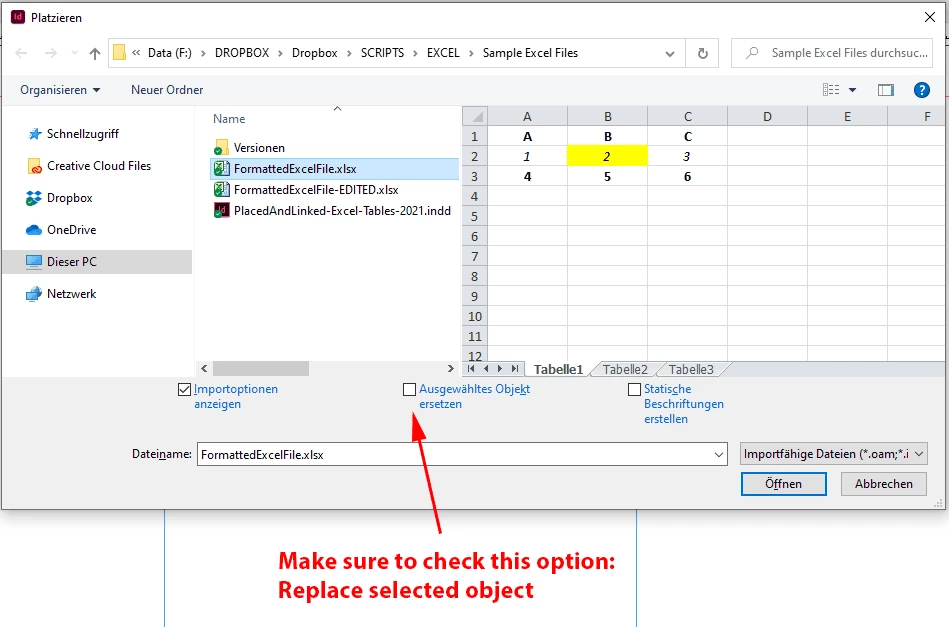
I unchecked the option to replace the contents. Make sure that the option is checked to replace selected contents when you select the Excel file.


From my German InDesign 2022 on Windows 10:


Regards,
Uwe Laubender
( Adobe Community Professional )

2 replies

LaubenderCommunity ExpertCorrect answer
Community Expert
August 11, 2022

@techwriter1995 said:

"I am simply placing my Type Tool cursor in my text window."


"Then typing Ctrl + D to place. After that I select the spreadsheet, set the Excel settings and then instead of pasting into the document or asking me if I want formatted or unformatted, it attaches the text to my cursor and when I click the page it pastes the spreadsheet in it's own separate box."


That's definitely not the way it should work with placing Excel files by default.

Ok. I think, I found a way, that the Excel file will be placed to the cursor and not to the active text insertion point.

I unchecked the option to replace the contents. Make sure that the option is checked to replace selected contents when you select the Excel file.


From my German InDesign 2022 on Windows 10:


Regards,
Uwe Laubender
( Adobe Community Professional )

Dave Creamer of IDEAS
Community Expert
Community Expert
August 10, 2022

Are you placing as an inline graphic or as a table?

Have you restarted InDesign?

Have you rebuilt your InDesign prefs?

Have you restarted your computer?


David Creamer: Community Expert (ACI and ACE 1995-2023)
Inspiring
August 10, 2022

I restarted my computer. I restarted Indesign. It's still not working. I did not knowingly change any settings or preferences. 

I am simply placing my Type Tool cursor in my text window. Selecting the style I want it to be. Then typing Ctrl + D to place. After that I select the spreadsheet, set the Excel settings and then instead of pasting into the document or asking me if I want formatted or unformatted, it attaches the text to my cursor and when I click the page it pastes the spreadsheet in it's own separate box. 

Dave Creamer of IDEAS
Community Expert
Community Expert
August 10, 2022

This is how it should work if I understanding your workflow correctly:


David Creamer: Community Expert (ACI and ACE 1995-2023)