


Participant
April 17, 2022
Question

Turn columns into separate text frames

  • April 17, 2022
  • 5 replies
  • 1626 views

Hi,


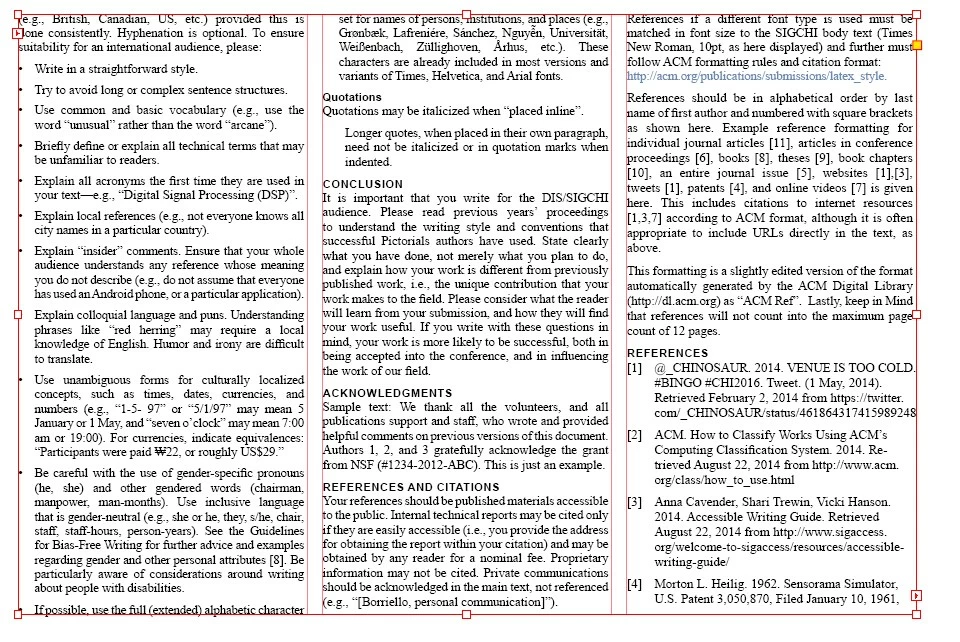
I have a question about text frames in InDesign. It should probably be easily solvable, but for some reason, I can't seem to find the solution. I am working with a template that uses multiple columns and threading text. Now I want to split the columns into separate text frames, so I can change the height of each column individually. Is there an easy way to do this? I added a picture of how it looks now.
5 replies

Community Expert
April 18, 2022

There's a script to do this

https://creativepro.com/convert-multicolumn-text-frames-to-individual-frames-script/


----------------------


The manual way 


Select all the text (CTRL A or CMD A)

Cut it

Delete the 1 frame


Layout>Margins and Columns

Add the amount of columns you need (if not already setup)


Draw a text frame in the first column

Paste in your text


You now have 1 column text frame

Click the overset text red plus at the bottom

Shift click the top left of the next empty column


And it will autoflow the next columns,

Randy Hagan
Community Expert
Community Expert
April 17, 2022

The easiest way is to do it by hand.


  • First, Get your Selection/Arrow tool. Select your three-column block of text. Go to the Control Panel at the top of the document window and change the number of columns from three to one, as shown at right.


  • Second, select the Layout>Margin and Columns menu command to open the dialog box. Move down to the Columns: edit box and change it to 3, then click the OK button. This will make it easier for you to line up the columns and size the width equally.


  • Third, move the right side margin for the text to the right edge of the first column. Since you've already set your column guides, sizing them will be easy. Release the mouse button to create your first separate, but linked, text frame.


  •  Fourth, click in the bubble with the red + sign in the lower-right quarter of the first column. Click on it to pick up the Text Place Gun with your cursor. move the cursor to the upper-left of the second column, then hold down the left mouse button to drag down and to the right to create a second text frame the size of the first one in the second column. Click in the red + sign in the lower-right quarter of the second column, and repeat the process.


After that, you can adjust the bottom of each column to line up as you wish.


Hope this helps,


Randy


Participant
October 21, 2025

SOOOOO HELPFUL!!!!!!!!!!!!! Thank you!!!!!!!!!!!!!

Randy Hagan
Community Expert
Community Expert
October 21, 2025

Glad I could help. 


If you get stuck with InDesign — or any Adobe app, for that matter — come back to the appropriate forum and sound the alarm. There are lots of sharp folks around here who are happy to lend a hand.


Randy

Brad @ Roaring Mouse
Community Expert
Community Expert
April 17, 2022

No need to spilt the text columns at all. What you want to do is change your layout to three individual (but still threaded) text frames of 1 column, as opposed to one text frame that has 3 columns in it.

If your page doesn't currnetly have column guides, add them.

Dave Creamer of IDEAS
Community Expert
Community Expert
April 17, 2022

You could use a frame with a stroke/fill of none with text wrap to force the text to move to another column.

David Creamer: Community Expert (ACI and ACE 1995-2023)
jmlevy
Community Expert
Community Expert
April 17, 2022

Unfortunately, there is no way to automatically split a multiple columns frame into multiple one column frames. You have to do it manully : resize the existing frame, create 2 other frames then thread them. Maybe a script exists, but I don't know it.