
Participant
May 21, 2020
Answered

Universal Color Change in InDesign

  • May 21, 2020
  • 3 replies
  • 6016 views

Hello,


I am wanting to do a simple update to our brochures, and wondered if there is a way to perform a universal color change? For example, I need to change the color theme in one section of our brochure that is reddish themed to a yellowish theme. This change would include any text, borders, boxes, and semi-transparent overlays of picures. I don't want to have to individually select each piece, 1) because of time, and 2) I don't want to miss a section.


I hope that all makes sense? Attached a couple of screenshots to help show what I am wanting to change.


I appreciate any help, especially since I am very green with InDesign. Thanks so much!
This topic has been closed for replies.
Correct answer Bill Silbert

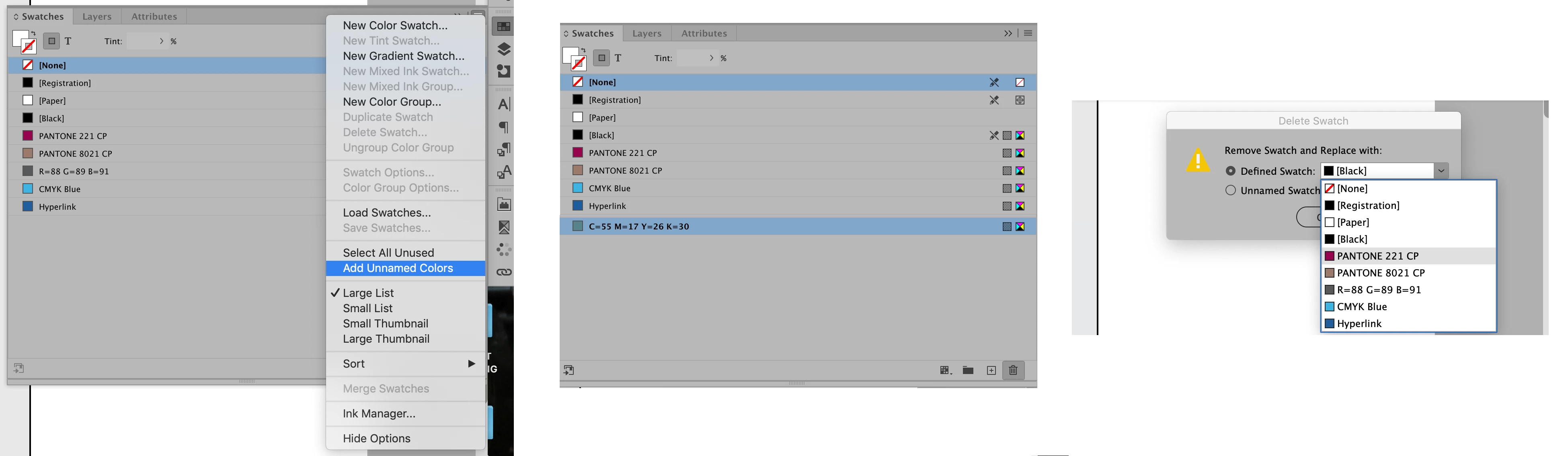
In order to do what you're looking for the original color has to be defined in the Swatches Panel. You must also add the new color that you want to the Swatches Panel (you can define it in the Color Panel and then choose "Add to Swatches" in the Color Panel Pull-down Menu). If the old color is not already defined in Swatches then go under the Swatches Panel pull-down menu and choose "Add Unnamed Colors". As you can see in the second picture below that will add colors that have been used in the document but not previously defined. Then select the color you wish to change and click on the trash can icon at the bottom of the Swatches Panel. In the Delete Swatches box that appears replace the old color with the new color that you've previously added to the Swatches Panel. This will replace all instances of the old color globally (assuming that the same exact color was used throughout).

3 replies

Bill Silbert
Community Expert
Bill SilbertCommunity ExpertCorrect answer
Community Expert
May 21, 2020

In order to do what you're looking for the original color has to be defined in the Swatches Panel. You must also add the new color that you want to the Swatches Panel (you can define it in the Color Panel and then choose "Add to Swatches" in the Color Panel Pull-down Menu). If the old color is not already defined in Swatches then go under the Swatches Panel pull-down menu and choose "Add Unnamed Colors". As you can see in the second picture below that will add colors that have been used in the document but not previously defined. Then select the color you wish to change and click on the trash can icon at the bottom of the Swatches Panel. In the Delete Swatches box that appears replace the old color with the new color that you've previously added to the Swatches Panel. This will replace all instances of the old color globally (assuming that the same exact color was used throughout).

Inspiring
August 22, 2022

What if you can't trash the old color (black) and substitute it? Printer wants a "rich black" which is 40/30/20/100.

rob day
Community Expert
Community Expert
August 22, 2022

Hi @leannz30751615 , You could try Find Color, which was introduced with CC2021. Be careful though, you wouldn’t want small black text or thin lines to output as a 4-color Black.


Derek Cross
Community Expert
Community Expert
May 21, 2020

Learn to use Paragraph (and Character) Styles and Object Styles – it will save your (InDesign) life!

BobLevine
Community Expert
Community Expert
May 21, 2020

If it was done by assigning a swatch (as it should have been), just edit the swatch.