
Inspiring
July 23, 2024
Answered

Unlinking and Relinking Primary Text on Few Pages in 20-Page Project

  • July 23, 2024
  • 3 replies
  • 1565 views

Hello there. I have a 20-page project, and I started with the primary text option ON so that I don't have to keep shifting the text back and forth every time.

Here's what I need:

  • I want one of the few pages to be unlinked from the primary text without changing / disturbing the layout of the other pages without disturbing any text/content.


  • After working on those pages individually, I need to be able to restore the primary text to its original state, including any new changes made after unlinking.

    I hope I am able to articulate myself better.
This topic has been closed for replies.
Correct answer K-Ten

@K-Ten


You don't have to "unlink" anything.


You have two options when editing text:

1) select text directly in TextFrames, 

2) use Story Editor. 


In either case - you just edit text like you would in WORD - TextFrames are just containers that hold and display the text. 


If you need to add a new Text - as a separate Story - just create a new TextFrame and add your text in it, if there is too much text - overset / red "+" in the bottom-right corner - click on it and draw a new TextFrame.


If you need to add a new Object(s) - just add them. 


If you need to add new pages - just add them - by dragging on the Pages panel or from the menu - but be careful and rather add two at the time. 

Then, if you need to continue main text on those newly added pages - just click on an "outport" of the TextFrame of the main story on the previous page and draw new TextFrame on the newly added page(s).


This process has still not helped me, but thanks for your reply.

Here's the fastest solution I found:
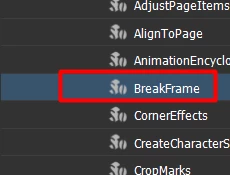
I used the break-frame script to solve the problem. It worked without disturbing the other pages, content, layout and images.

I found the solution on Youtube Link >> - Unlink InDesign Text Boxes without Changing Layout (Script: SplitStory.jsx)


3 replies

rob day
Community Expert
Community Expert
July 24, 2024

Hi @K-Ten , I might be misunderstanding, but can’t you simply delete the Primary Text Frame on the page you want to skip? Like this:


The threaded primary text flow:


Delete the frame on page 5 and the text flows to page 6


Make a new text frame on page 5:


Dave Creamer of IDEAS
Community Expert
Community Expert
July 24, 2024

That was my initial thought too, Rob--but this line threw me off...

"After working on those pages individually, I need to be able to restore the primary text to its original state, including any new changes made after unlinking.'

David Creamer: Community Expert (ACI and ACE 1995-2023)
rob day
Community Expert
Community Expert
July 24, 2024

After working on those pages individually,


Then it sounds like what‘s needed is an alternate Parent/Master Spread with Primary Text frames and the changes?


Dave Creamer of IDEAS
Community Expert
Community Expert
July 23, 2024

Not sure, but it sounds as if you should put the PTFs that you want to get out of the way on a separate layer and then hide the layer. 


David Creamer: Community Expert (ACI and ACE 1995-2023)
K-TenAuthor
Inspiring
July 24, 2024

Sorry, I am new to the Indesign slangs. What are PTFs?

Robert at ID-Tasker
Legend
July 24, 2024
quote

Sorry, I am new to the Indesign slangs. What are PTFs?


By @K-Ten


Primary Text Frames. 


Robert at ID-Tasker
Legend
July 23, 2024

What kind of "work" do you need to do on those pages?


Do you have on those pages - that you want to "unlink" - text frames that are linked to other pages?


K-TenAuthor
Inspiring
July 24, 2024

I think I was able to find the solution, which is link breaking, but unfortunately, it's not working, and my project is getting crashed.

Robert at ID-Tasker
Legend
July 24, 2024

Yes, you got it right! I have to do all this—add a new, unrelated text on the page, add new text in the middle of the Story, re-arrange texts in the middle, and re-arrange objects (but on the pages in between). That is why I want to unlink the primary text on a few of the pages I want and relink it after that if necessary.


@K-Ten


You don't have to "unlink" anything.


You have two options when editing text:

1) select text directly in TextFrames, 

2) use Story Editor. 


In either case - you just edit text like you would in WORD - TextFrames are just containers that hold and display the text. 


If you need to add a new Text - as a separate Story - just create a new TextFrame and add your text in it, if there is too much text - overset / red "+" in the bottom-right corner - click on it and draw a new TextFrame.


If you need to add a new Object(s) - just add them. 


If you need to add new pages - just add them - by dragging on the Pages panel or from the menu - but be careful and rather add two at the time. 

Then, if you need to continue main text on those newly added pages - just click on an "outport" of the TextFrame of the main story on the previous page and draw new TextFrame on the newly added page(s).