


- Home
- InDesign
- Discussions
- Re: Unwanted Lines in Table in InDesign
- Re: Unwanted Lines in Table in InDesign
Unwanted Lines in Table in InDesign

Copy link to clipboard
Copied
I transferred a Word document into InDesign; this document contained some tables as well as text. In each and every table, black lines have appeared within each cell (see below); these lines are not part of the formatting in the original Word document. Nothing I do to get rid of them seems to work: I tried changing table settings, stroke settings, fill settings...any ideas on what's causing them and how to get rid of them?


 11
Replies
11
11
Replies
11


Copy link to clipboard
Copied
That looks like character styles

Copy link to clipboard
Copied
check underline formatting


Copy link to clipboard
Copied
These are not underlines since InDesign can only underline actual text -- and not, as you see here, extend the line left and right.
Therefore they must be Paragraph Rules. It looks like this is a Rule Below.
See the Online Help: Format paragraphs in Adobe InDesign

Copy link to clipboard
Copied
Not necessarily, underline will underline spaces and tabs.

Copy link to clipboard
Copied
Tried to mimic the example, and it is a Paragraph Rule Above and Below !
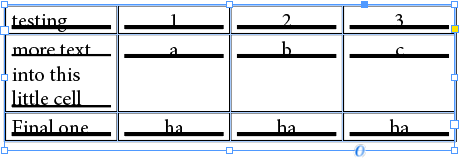
The thinner line above and below a multi-line paragraph just gave it away...

Copy link to clipboard
Copied
Hi Peter,
it could be a paragraph border where bottom, left and right border are set to zero weight:

Regards,
Uwe
Copy link to clipboard
Copied
I also thought of that possibility, which is a newer and much more appropriate way to add lines to paragraphs in a typographical way. But it's the typical doubling of the two (thin) rules above and below the text on the baseline (when they don't have any offset yet), which reveals it. The result would look like this if it were default paragraph borders:

That looks very different and would require quite some tweaking and very precise setting of the borders to make them look the same like default rules. Paragraph Borders are also very common in Word, and convert to Paragraph Rules in InDesign, when placing such a text:

The rules above and below are apart (so the rule above gets some offset) but quickly looks the same like the OP's example when the offset goes back to zero.

Copy link to clipboard
Copied
If the previous posters' suggestions don't work, go back to the original Word doc and change the styles there before you Place it in InDesign (and ensure Basic Paragraph in Paragraph Styles and None in Character Styles are selected).

Copy link to clipboard
Copied
Yes, as others have said, probably a text styles issue. Click in the text and see what style is highlighted in the Paragraph Styles panel. Check the style definition, and if Paragraph Rules (check “Above” and “Below”) have been applied, uncheck to remove.
Copy link to clipboard
Copied
Yes, Eugene is right, it could be character styles. In that case, select some of the text and go the the Character Styles panel. Make sure “None” is applied.
Copy link to clipboard
Copied
I'm very curious to get my hands on this Word and InDesign file !
Could you post them in a Dropbox link or something similar here ?
Not the whole InDesign file is necessary – a restricted one will do.


Get ready! An upgraded Adobe Community experience is coming in January.
Learn more
 AdChoices