

bfrankphoto
Inspiring
February 18, 2020
Answered

Using Photoshop Blending Modes In InDesign

  • February 18, 2020
  • 5 replies
  • 5328 views

Hi everyone,


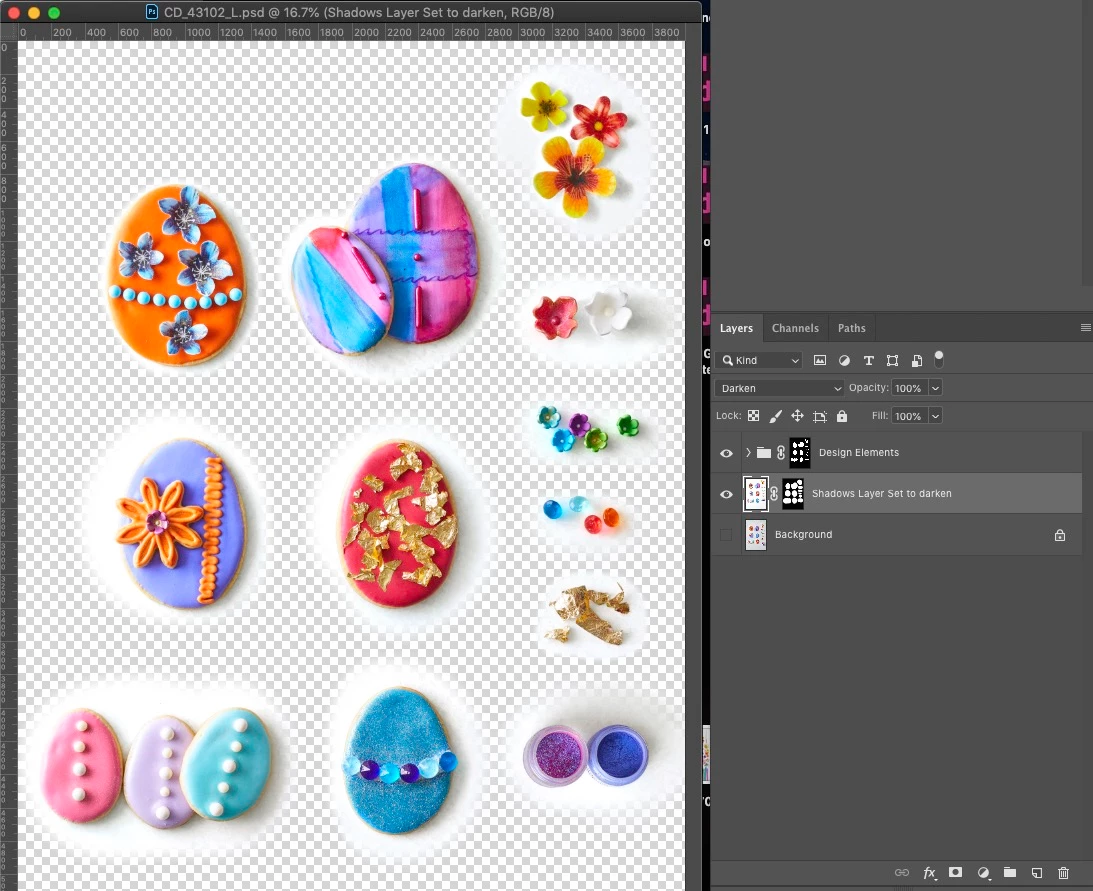
I'm trying to save myself many hours of work, and hope you can help out. The below image was shot on a marble slab, and there are many others like it. PSD files, when complete, will be placed in an InDesign layout with text and design elements. The Designer is going to want to nudge things around to fit the layout and will want to make sure all the marble backgrounds of all the images match.


My idea is this:

  1. Make one layer of precise masking of the elements
  2. Make a second layer below with a softer mask for the shadows
  3. Set the lower layer to "darken" blending mode
  4. In InDesign, place this photoshop image on top of a blank marble slab and repeat for the other images.


To do this, I need the "darken" blending mode to be represented in InDesign. Is this possible? Right now the lower layer is not carrying the blending mode over to InDesign. Using layer styles shadows in Photoshop or InDesign is not an option since they don't create cast shadows.
 

This topic has been closed for replies.
Correct answer Bojan Živković11378569

If I can understand your question correctly then the answer is no. You can not use blending mode from photoshop to blend with some object in InDesign, blending mode will be applied and used to render image placed in InDesign but nothing beyond that.

5 replies

Inspiring
December 20, 2024

In InDesign, select the image, go to the Object drop-down, select Effects then Transparency then change the blending mode to Multiply or any other mode that works for you. Easy Peasy...

Willi Adelberger
Community Expert
Community Expert
October 26, 2022

From Photoshop is blending not possible except reduced opacity.

But from Illustrator it is possible.


  1. Open a layered PSD file without blending mides in Illustrator (Illustrator has better filter for exchange with Photoshop than Photoshop)
  2. In Illustrator apply all transparency effects.
  3. Save as AI or PDF/X-4.
  4. Place that in InDesign.
Participating Frequently
October 26, 2022

You can do this with a single photoshop support file by accessing the object layer options menu command in InDesign. You will need to duplicate the imported photoshop image in place and change their effect in InDesign.

Participating Frequently
October 26, 2022

Edit: I realize this is the same solution as "sinra" has proposed. I am not sure why their reply isn't indicated as the correct answer.

sinra
Inspiring
September 23, 2021

You can do it manualy in InDesign.
Duplicate the psd image in InDesign exactly in the same place. Select lower image and change Effects mode to Multiply, Darken or whatever You need. Then select top image and use Object Layer options to change layers visibility, switching off  shadow layers (You can switch on/off any layers in lower image too).
Then group both images for using as single object.

Bojan Živković11378569
Community Expert
Community Expert
February 18, 2020

If I can understand your question correctly then the answer is no. You can not use blending mode from photoshop to blend with some object in InDesign, blending mode will be applied and used to render image placed in InDesign but nothing beyond that.

bfrankphoto
Inspiring
February 18, 2020

Bummer. Thanks.