


Weird PDF import - need help!

Copy link to clipboard
Copied
Hello Adobe community,
A bit at a loss here, not sure what is happening with the file but here goes:
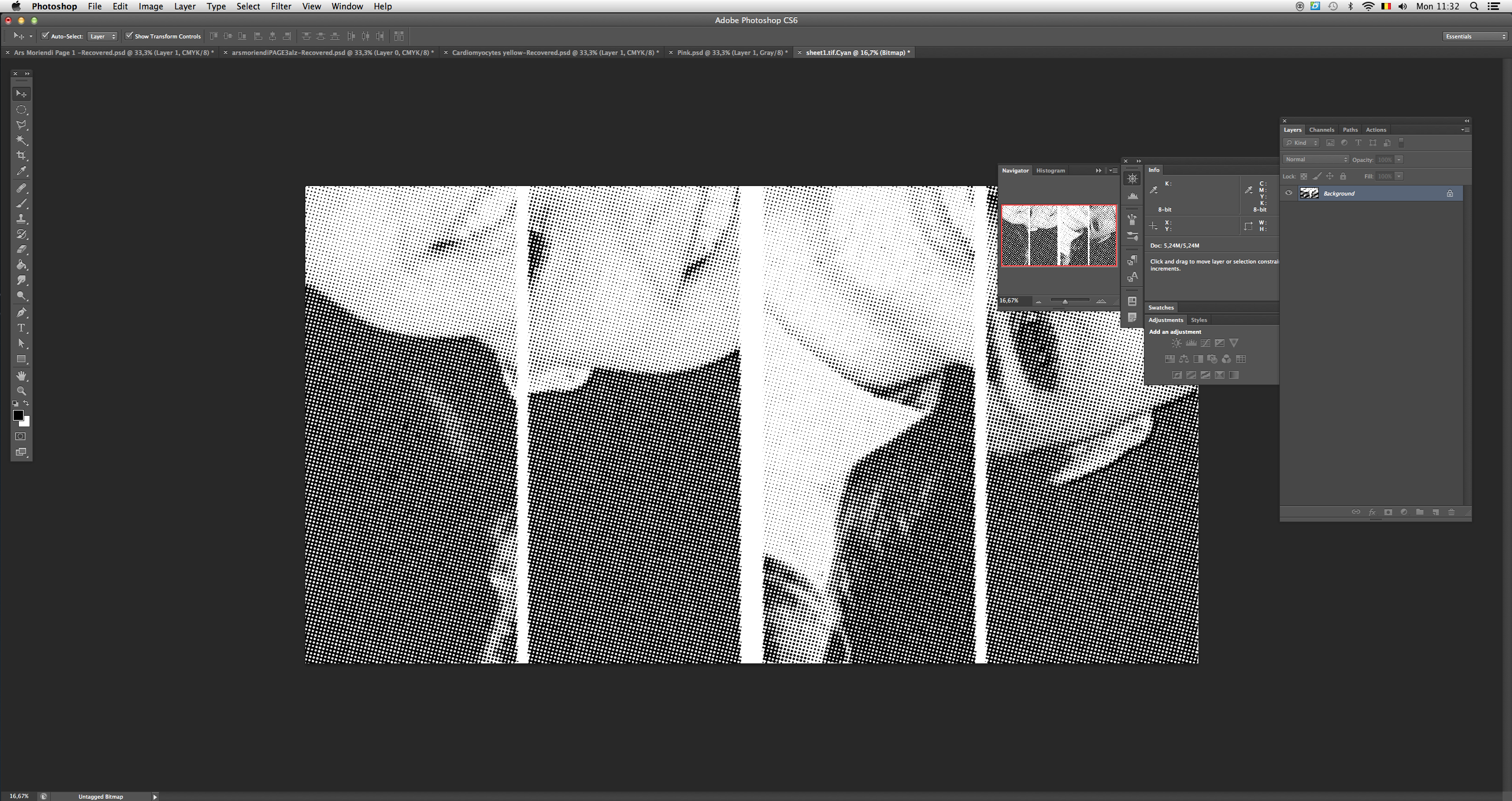
Using CS6, I am working with a halftone image in Photoshop, that I bitmapped, to do some CMYK screen printing. I need to print/export it as a PDF, to add the crop marks I need. This here is the cyan layer, and I am making a document up in Indesign, that is the right size for the printers, so that I can place the 4 layers in one file to print.
So, from here on, I go to Print > Save as PDF.
Then, when I highlight the saved PDF in Finder and press space, it still looks good.
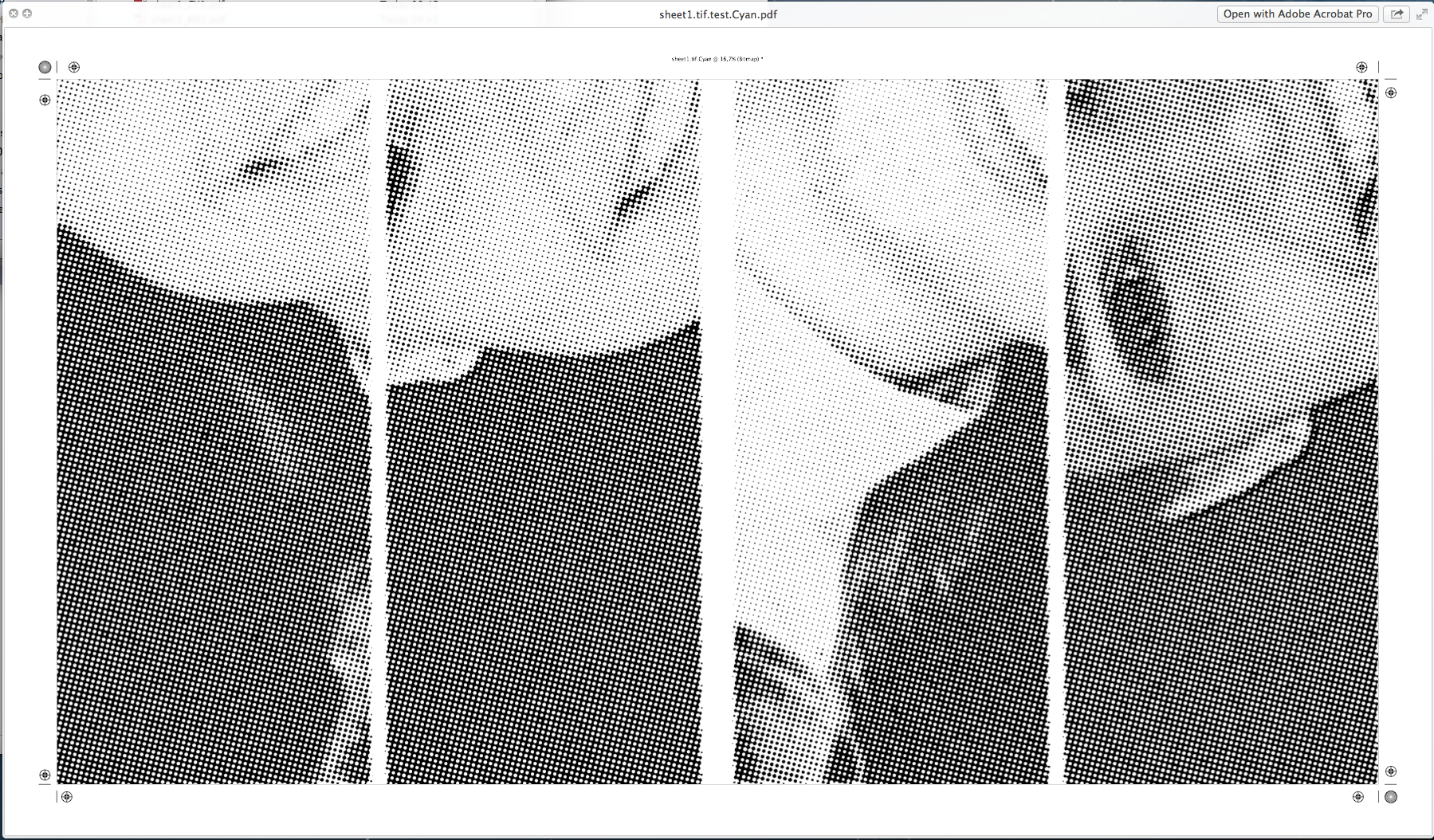
Now the unpleasantness happens. When I open the file in Acrobat Pro there seems to be a pinkish background.
In Indesign, it looks even worse. When I place the PDF in my document, there's a dark grey background.

I don't think I have any fancy options checked when exporting.. The problem is that those background colors actually show up when printing, which is obviously not ideal when you need a halftoned black and white image.
Has anyone come across this before? Does anyone know how I can fix this? Thanks in advance!
Nathan


 23
Replies
23
23
Replies
23




Copy link to clipboard
Copied
Don't bitmap and preseparate your image. Save it as RGB image with color profile and import that.
Never use print to make a PDF from InDesign, use Export to PDF.
Copy link to clipboard
Copied
I did not print to make a PDF from Indesign, it was from Photoshop, and so that I could add the crop marks...
Also, like I mentioned, I am screen printing a CMYK color separation (which is a manual process), so I have to halftone bitmap it in order to have the separated channels at varied angles using a specific CMYK profile.
I have no issues with the preparation of the image, it is the output an random shapes and colors that appear that bother me.

Copy link to clipboard
Copied
That is not what Willi meant. Stop using the print command.
From InDesign choose, File> Export>Adobe PDF (print) and choose the PDF/X-4 setting.
If you have some fascination with printing a PDF then make sure you set send image data to all in the print dialog.
Copy link to clipboard
Copied
Bob and Willi, I am NOT using Print to PDF in Indesign. I know I have to Export as a PDF when working in Indesign. I am working in Photoshop, and there is no Export to PDF option in Photoshop. It is when I bring it into Indesign that it looks weird. In Acrobat Reader, the PDF looks fine and does not have a background color. It's only in Acrobat Pro that is has a pink background, and it Indesign it has a dark grey one.
And Jongware, thanks for actually addressing the issue. There definitely is a pink background. I tried opening the files on a PC and the background is there as well. I'll have a look at the Acrobat Pro color models... I was thinking I had indeed a weird/wrong setting in the export-to-PDF step, but I can't think of what setting would prompt a rainbow of backgrounds across the creative suite.

Copy link to clipboard
Copied
nathan_gotlib wrote
..There definitely is a pink background. I tried opening the files on a PC and the background is there as well. I'll have a look at the Acrobat Pro color models... I was thinking I had indeed a weird/wrong setting in the export-to-PDF step, but I can't think of what setting would prompt a rainbow of backgrounds across the creative suite.
It sounds like there is some conversion to color, possibly in combination with (maybe because of) downsampling. However, this is what I get when printing a really high dpi monochrome bitmap to PDF -- it's exactly what it ought to be.

Ah -- never mind that "pixels/mm" value, I forgot that I always have to change these units in Acrobat's global Preferences. It's still 1200 dpi, though.

Copy link to clipboard
Copied
I am working in Photoshop, and there is no Export to PDF option in Photoshop
You can use the Save As dialog to export a PDF. When you print from AcrobatPro you can add cropmarks via Advanced>Marks And Bleeds

Copy link to clipboard
Copied
Are you printing to PDF from Photoshop? That is just as bad as from InDesign. Who knows what happens to the data when prepared for printing... Save as PDF.
Copy link to clipboard
Copied
Are you printing to PDF from Photoshop? That is just as bad as from InDesign. Who knows what happens to the data when prepared for printing... Save as PDF.
In this case I don't think it would matter—the OP is trying to make a bitmapped halftone separation. The output is 1-bit, so there would be no need for color management or live transparency, which are typically the reasons to avoid printing postscript and distilling a PDF.
Printing postscript does allow you to print separations, so a single composite page can be printed to 4 C,M,Y,K pages. But the resulting PDF pages would be grayscale, and the OP would still need to output to a device that can set the LPI and halftone screen angles. It sounds like the output is to an inkjet printer printing onto film?

Copy link to clipboard
Copied
nathan_gotlib schreef
. I am working in Photoshop, and there is no Export to PDF option in Photoshop.
Yes there is, in Photoshop you SAVE it as Photoshop PDF, in the Save PDF dialog you get the PDF options!
Copy link to clipboard
Copied
Check your process step by step, using appropriate tools only  .
.
Because
> when I highlight the saved PDF in Finder and press space, it still looks good ..
So you're working on a Mac. Be aware that Apple's PDF tools are ... not the very best ones. As you can see, the Finder Preview is happily lying to you, because that same image displays elsewise in other software. Apple's PDF tools have in particular problems with transparency and embedded color profiles (amongst other things).
So first find out what happens when ...
> When I open the file in Acrobat Pro there seems to be a pinkish background ..
seems to be, or is? Acrobat Pro can show an exact color breakdown for images, and also the used color model and the resolution. Check the color model itself, and from what plates it is built up.
If these are not what you expected them to be, then you have wrong settings in your export-to-PDF step.
Copy link to clipboard
Copied
Also, like I mentioned, I am screen printing a CMYK color separation (which is a manual process), so I have to halftone bitmap it in order to have the separated channels at varied angles using a specific CMYK profile.
What's the output device you are printing the film from? Is it really not capable of printing a halftone separation?
Both InDesign and AcrobatPro are capable of printing separations and allow you to set the frequency and angles at output. Or are you printing film to some kind of inkjet printer or a device where halftoning isn't an option?

Copy link to clipboard
Copied
I assumed the OP was printing via the Screen printing method (sometimes called Silk Screen). Maybe he can confirm.
Copy link to clipboard
Copied
I assumed the OP was printing via the Screen printing method (sometimes called Silk Screen). Maybe he can confirm.
That's what I was assuming. Screen printing wouldn't force you to make a bitmapped separation, but the output device making the film would if it has no halftone capabilities.
Copy link to clipboard
Copied
nathan_gotlib wrote
I don't think I have any fancy options checked when exporting..
What exactly are you doing when exporting? If you chose smallest file size it would all be converted to RGB.
Copy link to clipboard
Copied
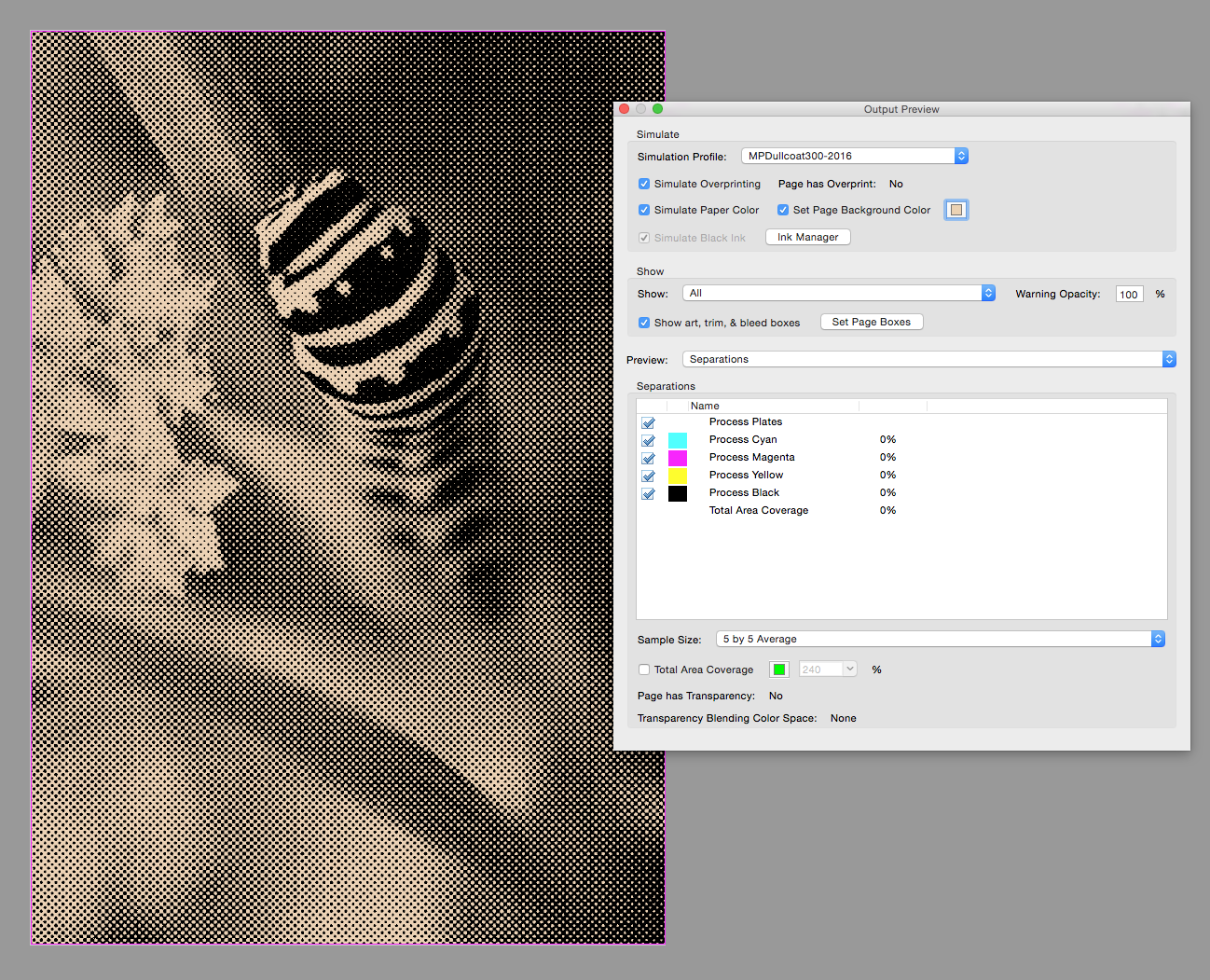
Now the unpleasantness happens. When I open the file in Acrobat Pro there seems to be a pinkish background.
AcrobatPro let's you set a paper simulation color, which would do it. Set Page Background Color checked::
In Indesign, it looks even worse. When I place the PDF in my document, there's a dark grey background.
When you place a bitmap object in InDesign the color of the white pixels can be changed via the container box fill color. Make sure it is set to none or Paper.
Copy link to clipboard
Copied
It might matter. I don't think anyone has yet suggested verifying the actual data in the PDF is bitmapped? I haven't heard of anyone printing to PDF from Photoshop in years, it could easily be seriously broken.
Copy link to clipboard
Copied
Yes you are absolutely right, I thought the Nathan was trying to use InDesign only to add cropmarks to the bitmap images. Seems like he could simply print with cropmarks from Photoshop directly to the device making the film. It's hard to imagine why he even needs the PDF.
Copy link to clipboard
Copied
thank you for all the responses. When I'm back at work on Wednesday I'll go through all the answers and see where there might be a weird option.
The reason I was "Printing to PDF" rather than "Save As..." was that Photoshop didn't offer to add the cropmarks in that sub menu, but does when you go through "Print to". I will try to add the crop marks in Acrobat Pro though, so I can just save the file normally and don't have to use the "Print to" option. i wanted to bring them into Indesign to reduce costs, to create one PDF with all four channels next to each other, already with their own cropmarks.
The reason I am not letting the printer handle the color separations is that I am working with specific dot frequency and angles for the four channels to reconstruct the artwork manually through silk screen (like some of you observed correctly). For those interested, when exposing high details, such as a halftone, the photo emulsion used will not pick up any greytones so the image needs to be black and white or detail will be lost (or blur). I am aware that there are high level printers equipped to properly print the finest halftones and have specific wizards installed to separate images for silk screen, but our studio isn't equipped with those.
I appreciate all the responses, thank you for taking the time to reply to my query. I will update the post on Wednesday after I've gone through everyone's suggestion.
Copy link to clipboard
Copied
The reason I am not letting the printer handle the color separations is that I am working with specific dot frequency and angles for the four channels to reconstruct the artwork manually through silk screen (like some of you observed correctly).
Has the printer told you they can't run the correct frequency and angles, or are you the printer? Any RIP or postscript device should be able to do it either directly from InDesign or AcrobatPro. When they print separations InDesign (or AcrobatPro's) Frequency and Angle fields can be customized for each plate. It wouldn't take unusual or highend equipment to adjust screen angles or run a lower frequency.

I would worry about the accuracy of the angles and dot sizes using Photoshop's bitmap conversions.
If you really have to do it don't try to create the crop marks in Photoshop. You can simply make a document with page dimensions that match the Photoshop output size, make 4 pages, place a separation on each with the same X,Y position, and Export with cropmarks.


Copy link to clipboard
Copied
Thank you for the detailed guide Rob! The reason I can't let the printer handle the separations is that (conveniently...) the printer that has all the Creative Suite software installed is not the computer linked to the printer. That one only has Acrobat Reader.
I'm going to try putting the crop marks in indesign rather than photoshop, so that I do not have to save it that way. I'll try saving the images as TIFFs and place them in Indesign, adding the crop marks there. I prefer this way of working, it's less messy than the archaic unnecessary program iterations I was using : )
Copy link to clipboard
Copied
is not the computer linked to the printer. That one only has Acrobat Reader.
I assume you can't network the two computers and share the printer? I'm not a windows user, but it's a fairly easy process on OSX.
Copy link to clipboard
Copied
If you want everything on one piece of film you might also look at the CropMarks.jsx script that ships with ID:


Copy link to clipboard
Copied
I'm almost certain that the issue is being caused by the the 'Save as PDF' part. This will make Apple's Quartz generate the PDF data... badly.
So, you've got the halftone dots you want, in four 1-bit TIFFs (one for each ink) and you want to print those TIFs with crop marks. Is that correct? You could perhaps place each of those TIFFs onto a separate InDesign page, and print (or export to PDF) from there with crop and registration marks.


Get ready! An upgraded Adobe Community experience is coming in January.
Learn more
 AdChoices