
Participating Frequently
May 2, 2025
Answered

When I search with Place Dialog Box always reverts to "searching... This Mac" instead of selected f

  • May 2, 2025
  • 4 replies
  • 1239 views

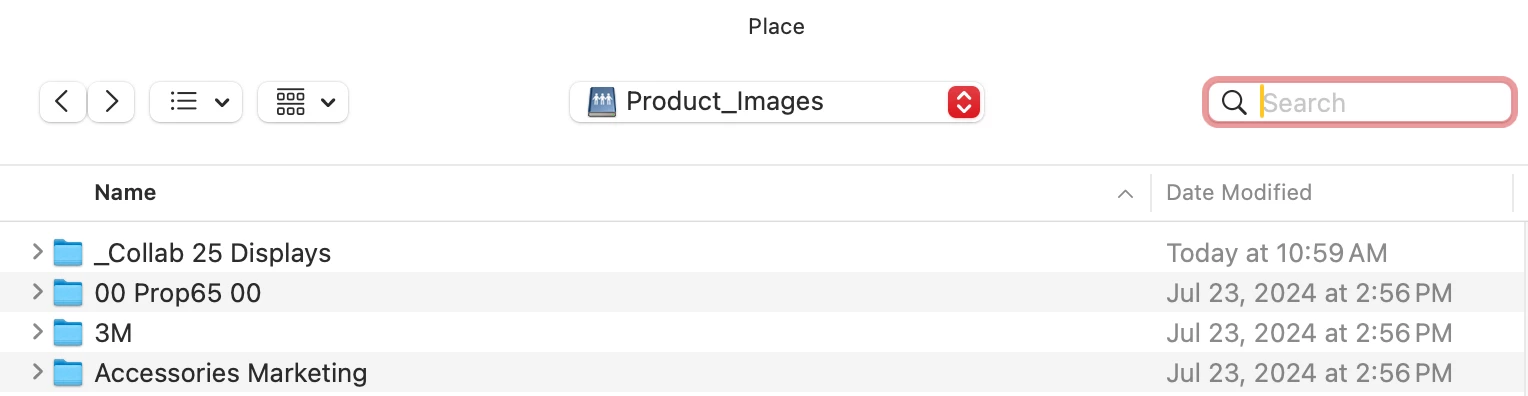
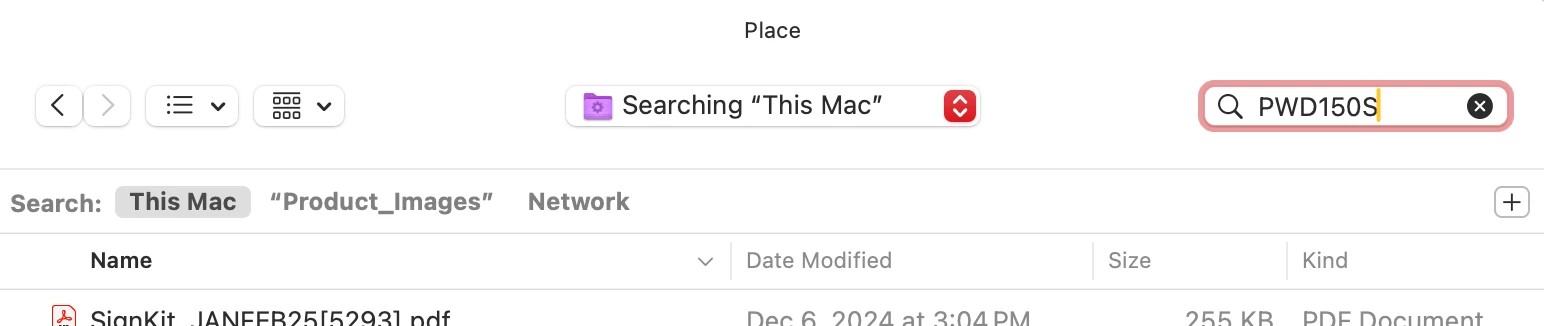
When I open the Place Dialog Box of InDesign 2025 and type into the search field, the search parameters automatically switch from the selected folder location (see screen shot: Place dialog box_1) to "searching... This Mac" (see screen shot: Place dialog box_2). Is there a way to set up or lock the search parameters of the Place Dialog Box? This worked when I was using a PC, but on my Mac (OS Sequoia Version 15.4.1) it no longer works. Thank you in advance.
Correct answer Abhishek Rao

Hi @Stephanie34038417j16l,


Thanks again for sharing the screenshots and details!

I checked with the product team, and as it turns out, this behavior isn't specific to InDesign. The default search location in the Place dialog (or any Open/Save dialog) on macOS always switches to 'This Mac'. This is consistent across both Adobe and non-Adobe apps. Only searches done directly within Finder respect the preference to limit search to the current folder.

That said, I understand how this impacts your workflow, especially with large folder structures and timeouts. If this is an important functionality for you, I'd recommend submitting a request on our InDesign UserVoice page, so the team can review and consider it for future improvements: Adobe InDesign


Please feel free to let me know if you have any further queries. 

Abhishek

4 replies

Abhishek Rao
Community Manager
Community Manager
June 11, 2025

Hi @Stephanie34038417j16l,


Thanks again for explaining the issue in such detail. To help us look into this further, could you please share a short screen recording showing your full workflow? It would be really helpful to see exactly what's happening when you open the Place dialog box.

Also, could you kindly confirm the exact version of InDesign 2025 you're using?

Once I have those, I'll do some testing on my end and get it investigated further for you.


Looking forward to your update!

Abhishek

Participating Frequently
June 11, 2025

Thank you so much @Abhishek Rao  for reaching out!
I am working with Adobe InDesign 2025, Version 20.3.1
You will find 2 attached PNGs. Please view 1.png then 2.png to see my workflow process.
Thank you.

Mike Witherell
Community Expert
Community Expert
June 10, 2025

Stephanie, for what it's worth, I have noticed the same shortcoming. As yet, I know of no fix for this annoyance.

Mike Witherell
leo.r
Community Expert
Community Expert
June 11, 2025

...and we now know that it won't be any different on macOS 26 Tahoe.

leo.r
Community Expert
Community Expert
May 3, 2025

Yes, I can confirm this behavior.


It's not an InDesign issue - this function is simply poorly implemented by Apple in the navigation dialog. This happens in all apps.


Ideally, the search behavior should adhere to the option selected in the Finder preferences:


However, it doesn't happen, and in the navigation dialog the search always defaults to "search this Mac". 


It's the same on both Sequoia and Ventura, and most likely has always been like this.


All you can do is submit feedback to Apple with a request to improve this behavior.

Community Expert
May 3, 2025

I think you can change the default behaviour in the Mac Os - I totally agree with you on this it's a Mac thing. 


https://www.techrepublic.com/article/how-to-search-the-current-folder-on-your-mac-instead-of-this-mac-with-finder/


Mac OS drives me mad.

leo.r
Community Expert
Community Expert
May 3, 2025
quote

I think you can change the default behaviour in the Mac Os

By @Eugene Tyson


Would be nice but, like I mentioned, it only affects the Finder but not the navigation (Open/Save) dialog.

Bill Silbert
Community Expert
Community Expert
May 2, 2025

I'm not sure what the problem is here. When you use the Place Command and the selected folder location shows up then scrolling down in that folder will find the image or object that you're looking to place. By using the Search option you are telling the computer to search everywhere else for the image or object. Why would you then need to maintain the original selected folder?

Participating Frequently
May 2, 2025

The selected folder location contains multiple folders within folders, so when I am unsure of an item's exact location I select the Parent folder and search within it. Every time I copy/paste or type in an item name it automatically switches to "Search this Mac". 

Bill Silbert
Community Expert
Community Expert
May 2, 2025

If you click on the "Product_Images" icon that is next to "This Mac" in your screen shot then it will search only within that folder. I'm not sure, though, if it will also search within its subfolders. If that is not so then searching the whole Mac still seems to me a more efficient way to find the files that you're looking for.