Inspiring
March 22, 2019
Answered

Why doesn't InDesign allow me use a three page master page layout?

  • March 22, 2019
  • 3 replies
  • 4953 views

I just created a (A-)master page consisiting of three pages, which I am suppose to create seven copies of in the same document.

There is no problem making this in the master page panel, but when I start to create the regular pages only the two first pages shows, not the third, final page.

When I uncheck the double page in the document and try again only the first page in the masterpage shows.

Obviously there is some kind of logic here I dont quite seem to understand.

So basically, only way to solve the issue for me is using facing pages, make the third page on a different (B-master page) where first one is the layout of the supposed third master page, and the fourth page is blank. Problem then is that it table of content/page numbers wont be correct because I have to delete the blank pages in acrobat after I made it into a PDF-document.

ANyone with any kind of laternative solution?
This topic has been closed for replies.
Correct answer Steve Werner

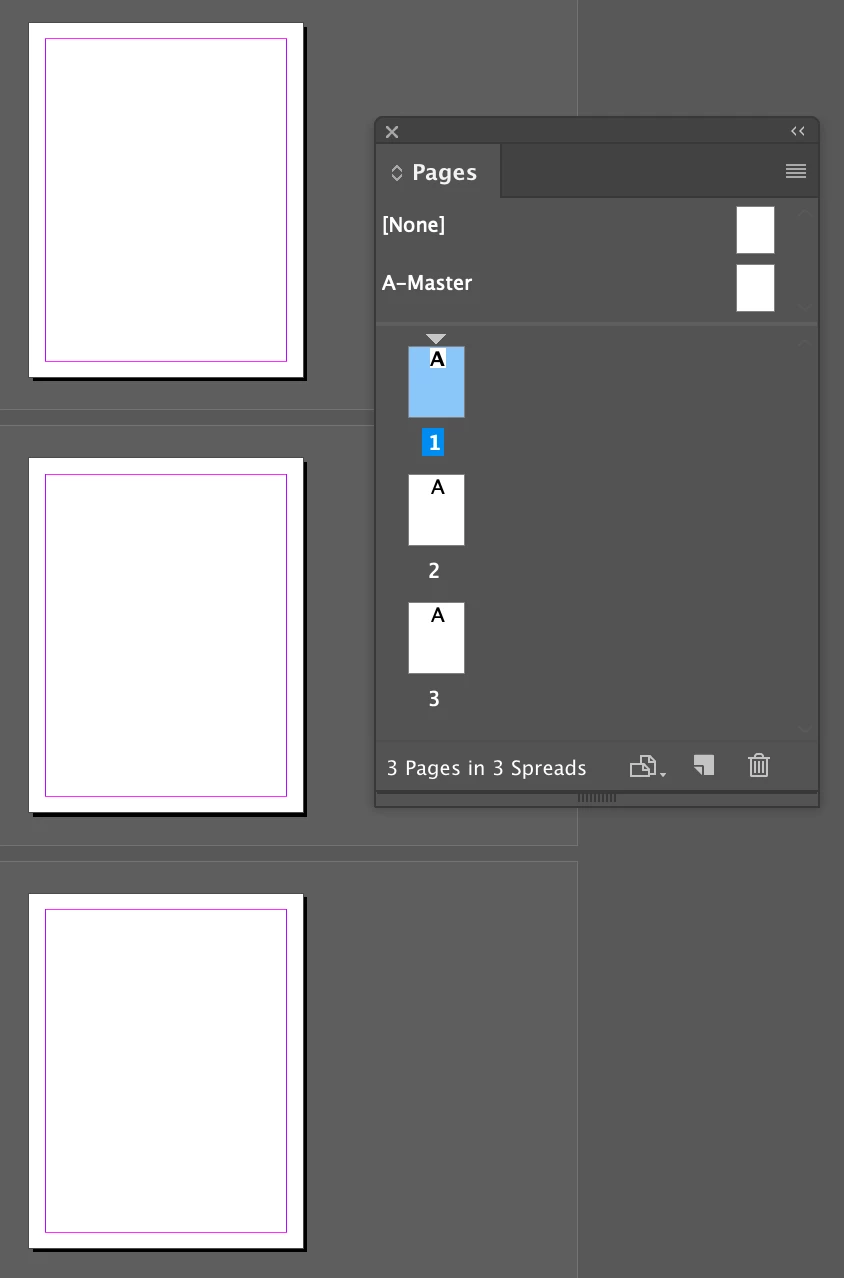
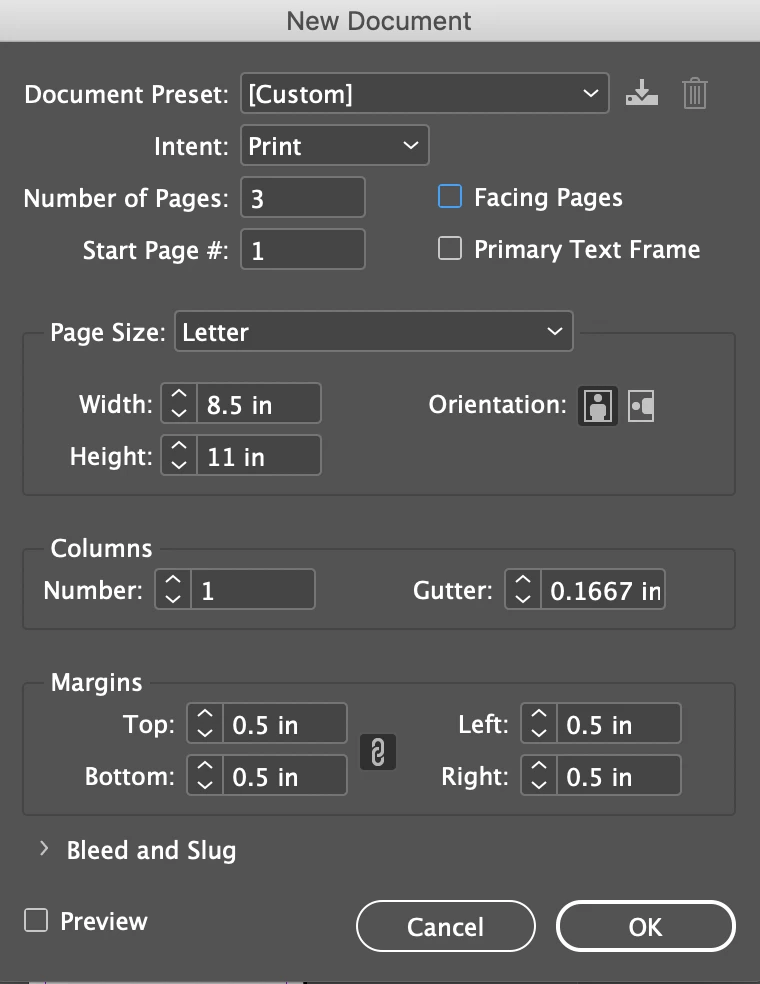
The alternate is to turn OFF Facing Pages and make a 3-page document like this:

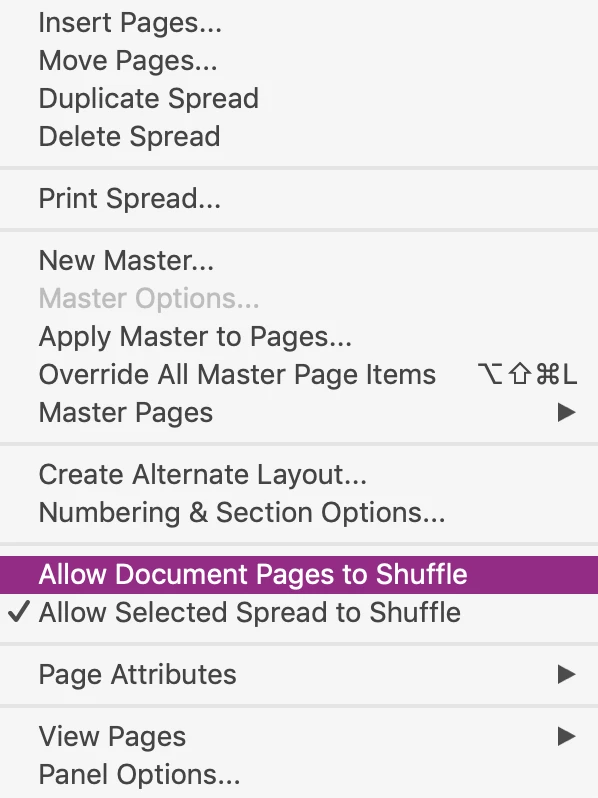
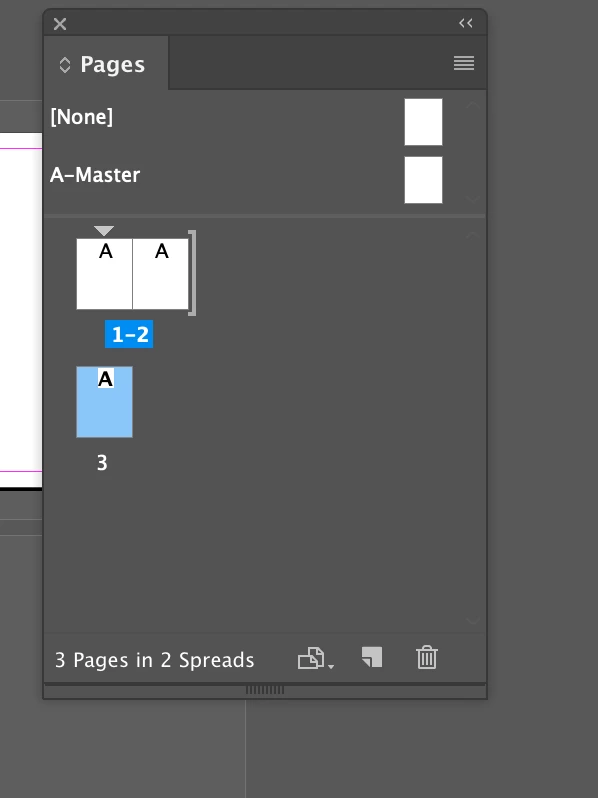
Then turn OFF "Allow Pages to Shuffle" in the Pages panel manu and drag pages 2 and 3 beside page 1, one at a time. Look for the bracket symbol when page 2 is beside page 1 are release. Repeat when you move up page 3.

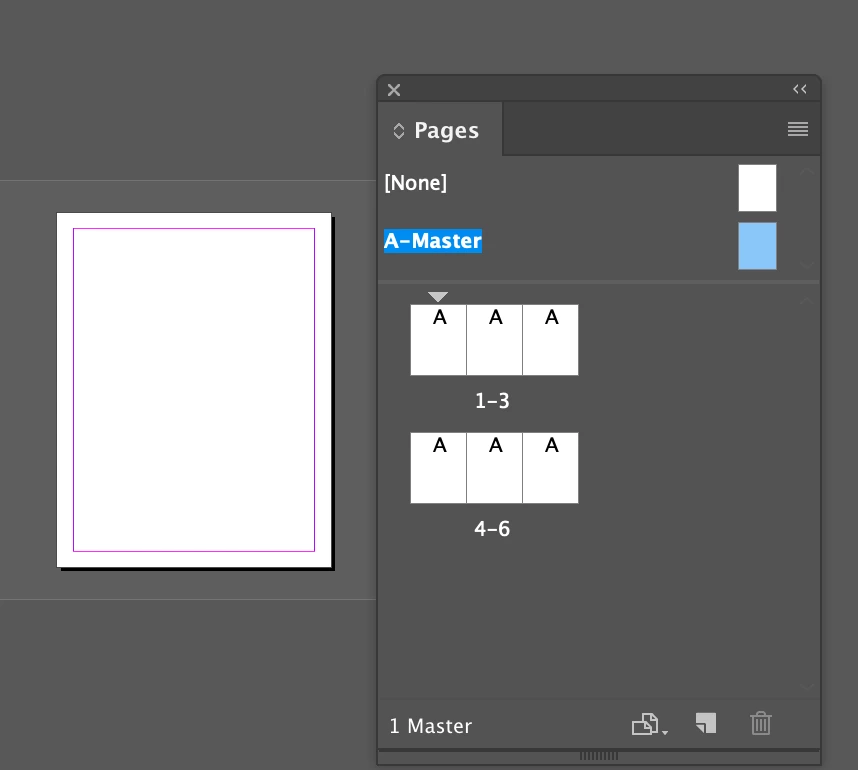
  There will be one master page but the you can arrange the pages three at a time:

If you needed each of the three side- by-side pages to be a DIFFERENT master, create Masters A, B and C for single pages and apply them to pages 1, 2, and 3 as you like, as well as pages 4, 5 and 6, and so on.

3 replies

MikaelFLAuthor
Inspiring
March 22, 2019

I must admit I answer only as well as understand, as i am obviously no expert and english is not my language.

The document wont be long, about 25 pages, and its a official/public document made for local authorities and the public, not for being sold like a magazine, book or anything. In that regard I doubt any spine is nessecessary. The PDF version will probably be used a lot more than the paper version.

Community Expert
March 22, 2019

Hi Mikael,

ok, there will be a paper version. Then a brochur with 25 pages cannot work.

The number of pages must be devidable at least by 2 or by 4 depending how the brochur is bound.

Or it will not be bound and you only deal with single sheets of paper where some are folded and some are not?

You see, I'm not clear at all how all this should work.

Best ask the printer how you must set up a reasonable number of pages if you e.g. plan to use a fold out where when unfolded three pages are visible to the reader.

Regards,
Uwe

MikaelFLAuthor
Inspiring
March 22, 2019

It works when I print it

Community Expert
March 22, 2019

Hi Mikael,

do you need a facing pages document?

How will the document be printed/produced with your 3 pages per spread layout?

Or will a non-facing pages document fit your needs?

Perhaps you like to set up a gatefold layout?

Regards,
Uwe

MikaelFLAuthor
Inspiring
March 22, 2019

What kind of practical importance does the facing pages play? Obviously it would look better with a two page common layout where the two pages face each other when document is opened in paper version, but except that is there any other difference? Its not like I can chose that option when I have a three page layout anyway, right?

Community Expert
March 22, 2019

Hi Mikael,

there are some features with InDesign that explicitly work with the facing pages document setup.

Or work differently if that option is not enabled with a document.

The big difference is: With Facing pages layout comes a spine.

Spine is not available with non-facing pages documents.

Some of InDesign's text alignment features are built on spine: away-from-spine or towards-spine .

Also anchoring options for anchored frames.

FWIW: You can have 1 to 10 pages in one single spread.

Be it a facing pages document or not.

To answer your question about using facing pages or not we need to know how the printed and bound document should look like.

Unfolded and folded.

Regards,
Uwe

Steve Werner
Community Expert
Steve WernerCommunity ExpertCorrect answer
Community Expert
March 22, 2019

The alternate is to turn OFF Facing Pages and make a 3-page document like this:

Then turn OFF "Allow Pages to Shuffle" in the Pages panel manu and drag pages 2 and 3 beside page 1, one at a time. Look for the bracket symbol when page 2 is beside page 1 are release. Repeat when you move up page 3.

  There will be one master page but the you can arrange the pages three at a time:

If you needed each of the three side- by-side pages to be a DIFFERENT master, create Masters A, B and C for single pages and apply them to pages 1, 2, and 3 as you like, as well as pages 4, 5 and 6, and so on.

MikaelFLAuthor
Inspiring
March 22, 2019

Thanks a lot Steve Werner, this seem to work!