Participant
October 24, 2021
Answered

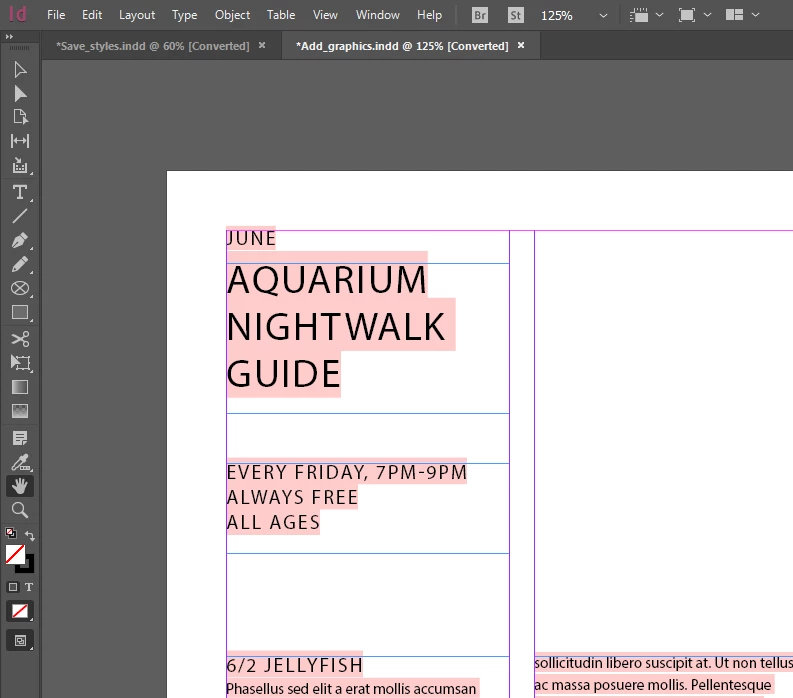
Why is there pink highlight [was: red frame] around text? how do i remove it?

  • October 24, 2021
  • 5 replies
  • 39553 views

Hello im new to InDesign and i downloaded these files to learn (adobe toturials) but everytime i open any file to learn theres some kind of red frame showing around the texts

It's not exactly hindering but its very annoying and seeing the guy in the tutorial work with the files without these frames im thinking its something in the settings of my own InDesign

Can you help please?
Correct answer Barb Binder

Hi @Carefree_detail5C13:


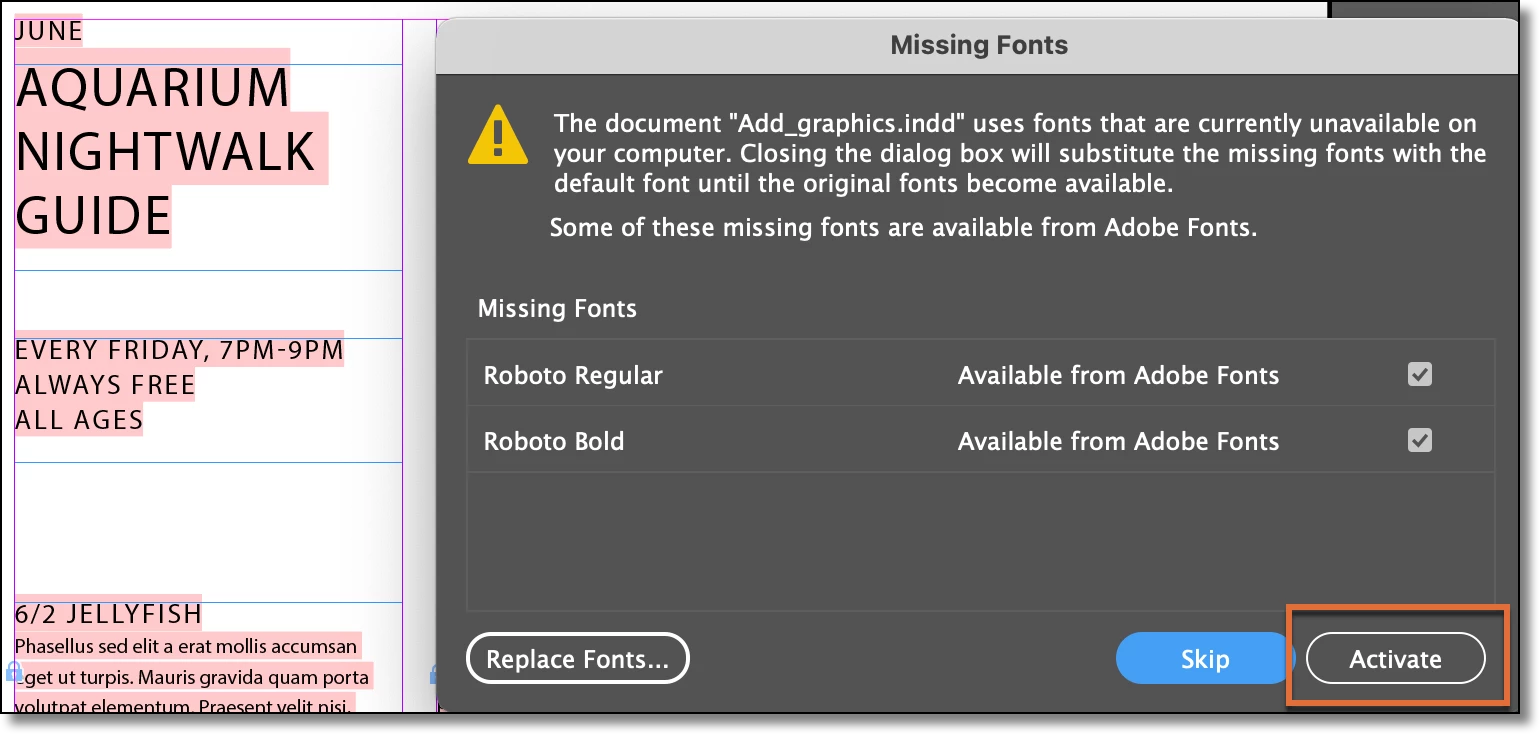
That particular document uses Roboto Regular and Roboto Bold. As stated earlier, missing fonts are highlighted with a pink background. You can activate the fonts when you open the file:


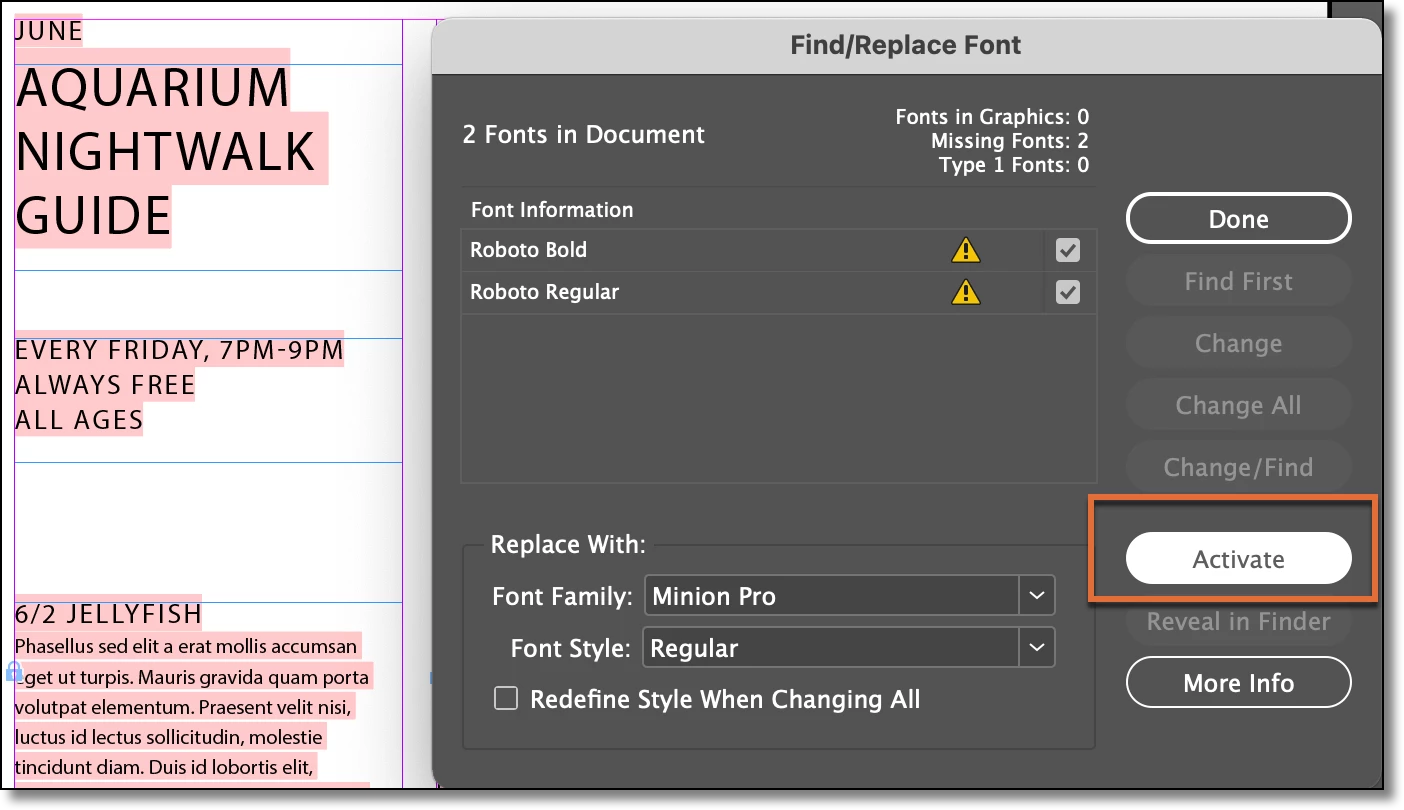
Or, in your case, since the file is already open, choose Type > Find/Replace Font and click the Activate button. 


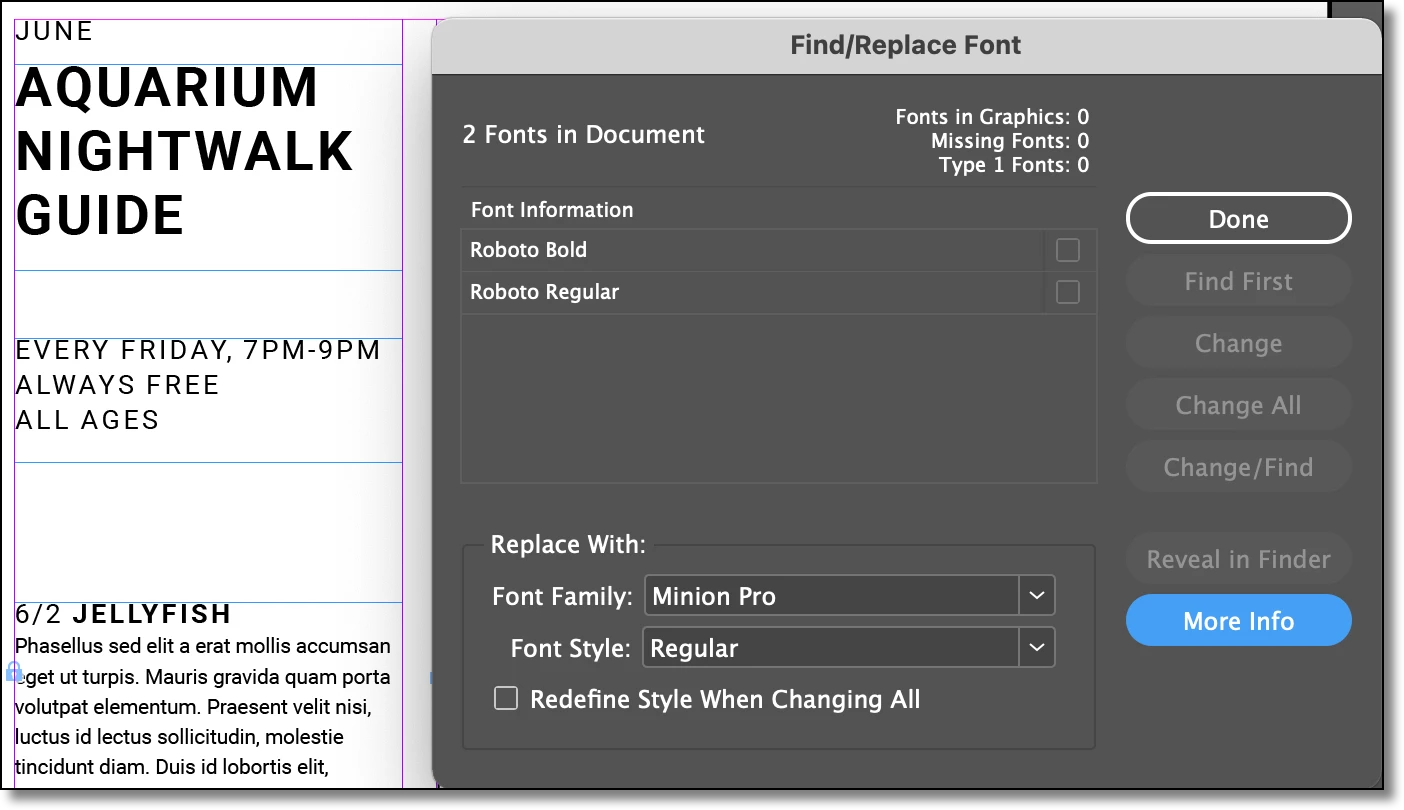
Either option will download the fonts to your computer and the pink background will disappear. 


~Barb

5 replies

Community Expert
October 25, 2021

And another one:

Before you activate any fonts go to the Find/Replace Font panel and check for every font style what's under More Info.

Could be that you can see that your missing font is not from Adobe Fonts, but e.g. possibly from Google Fonts or vice versa. And that makes a difference! Even if the name is quiet the same and InDesign offers an activation with Adobe Fonts.


Regards,
Uwe Laubender

( ACP )

Dan Rodney
Community Expert
Community Expert
October 25, 2021

As the others have said, the pink highlight indicates you're missing fonts, so the proper fix would be to either install that font, or choose another.


One thing that hasn't been mentioned, is if you want to work on the file and don't want to bother with the fonts, you can switch to Preview mode. At the bottom of the toolbar click and hold on the Normal button and choose Preview (you can switch back to Normal mode using the same button). The keystroke for entering and leaving Preview mode is W (just make sure you're not in text or else it will type a W).


Keep in mind that switching to Preview mode will only hide the pink highlight and does not fix the actual problem of the missing font. 

— Adobe Certified Expert & Instructor at Noble Desktop | Web Developer, Designer, InDesign Scriptor
Barb Binder
Community Expert
Barb BinderCommunity ExpertCorrect answer
Community Expert
October 24, 2021

Hi @Carefree_detail5C13:


That particular document uses Roboto Regular and Roboto Bold. As stated earlier, missing fonts are highlighted with a pink background. You can activate the fonts when you open the file:


Or, in your case, since the file is already open, choose Type > Find/Replace Font and click the Activate button. 


Either option will download the fonts to your computer and the pink background will disappear. 


~Barb

~Barb at Rocky Mountain Training
Diane Burns
Inspiring
October 24, 2021

To add to Derek's reply, and since you are new to InDesign, these missing fonts are highlighted as a feature. It is set in Preferences > Composition > Substituted Fonts. Recommend you never turn that off, you'll always want to know when fonts are missing. There are other things you can highlight, too, that might be of use once you are using InDesign more. 

Derek Cross
Community Expert
Community Expert
October 24, 2021

The fonts you've selected are not installed on your system, change them to another from your fonts menu if you can't install those indicated in the template.