This question comes up a lot in the forums.
Bottom line:
- There are 2 reading orders in a PDF. One is the tag tree RO, the other is architectural / construction RO that you see in the Order panel.
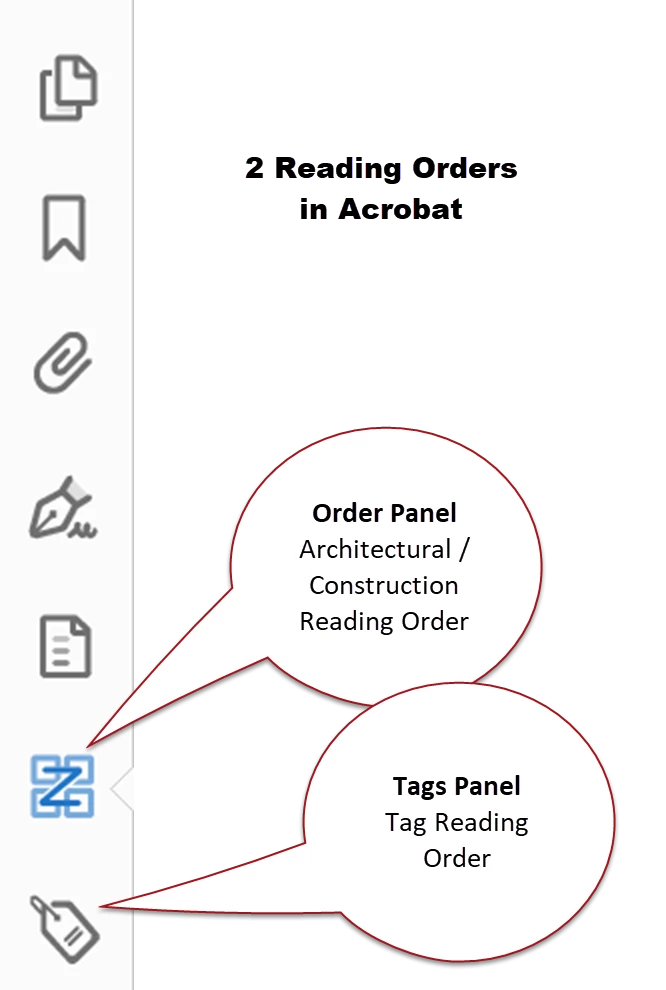
- Often, changes you make in the Arch RO will be done in the Tag RO, as well. But not always. And only sometimes does it go in the reverse direction where a change in the Tags RO will be done int he Arch RO, too.
- Per the PDF/UA-1 international accessibility standards, only the Tag RO is required to meet accessibility requirements. All assistive technologies are supposed to use it to present the content to the end user.
- The reality of the real world, however, often lags behind the standards. There are legacy assistive technologies that still use the original architectural / construction RO. And there are regular technologies that use that RO, too.
- And the reality of making accessible PDFs from InDesign is that you really have to control both ROs.
In InDesign, you achieve accessibility mostly by following these steps:
- Thread your stories from start to finish (when possible).
- Anchor all graphics, sidebars, and other do-hicky frames into the main story thread.
- Control the stacking order in the Layers panel (bottom-most item in the layer is read first).
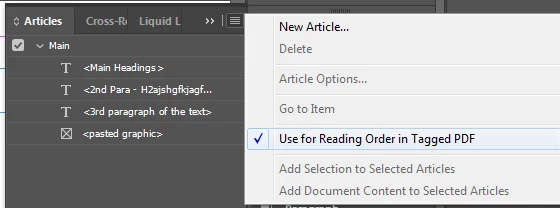
You DO NOT need to use the Articles Panel at all. In fact, it adds little benefit to most documents. And it has severe limitations (see Does the Articles panel actually work for anyone)
But in some documents and when you learn how to use it, the Articles Panel can help. It's just a very limited tool.
And if you do use it, you must include everything in your layout in the panel or it will be untagged in the PDF. And its RO is top down, which is opposite of the Laywer panel.
Following the 3 steps above should improve the accessibility of your PDFs.
--Bevi Chagnon
Accessibility expert | www.PubCom.com



 AdChoices