
June 22, 2018
Answered

Auto-mapping styles from Word to InDesign

  • June 22, 2018
  • 4 replies
  • 5212 views

I'm new to InDesign, so please bear with me. I'm trying to link a Word document to my InDesign layout so that the layout can be updated with a click of the "update link" icon if the original manuscript changes. I can do that bit... but the styles I have set in Word appear in InDesign and I don't want that. Instead I want them to map automatically to the InDesign styles I have set up with the same names.

I can do the mapping manually, but that's a pain given that I'll be creating one of these every couple of days. When I file>place the Word doc and "show import options" it has "import styles automatically" set to "use InDesign style definition" for conflicts. You would think that would do it - I have style conflicts for each of the styles I use (since I purposefully set up the InDesign file with styles of the same name), but instead new styles of the same name appear at the bottom of the style panels and, not surprisingly, the text appears how it looked in Word, not how it should look if the InDesign styles were imposed.

What am I doing wrong?

Thank you in advance for any help you can offer.
This topic has been closed for replies.
Correct answer cinziamarotta

Hi,

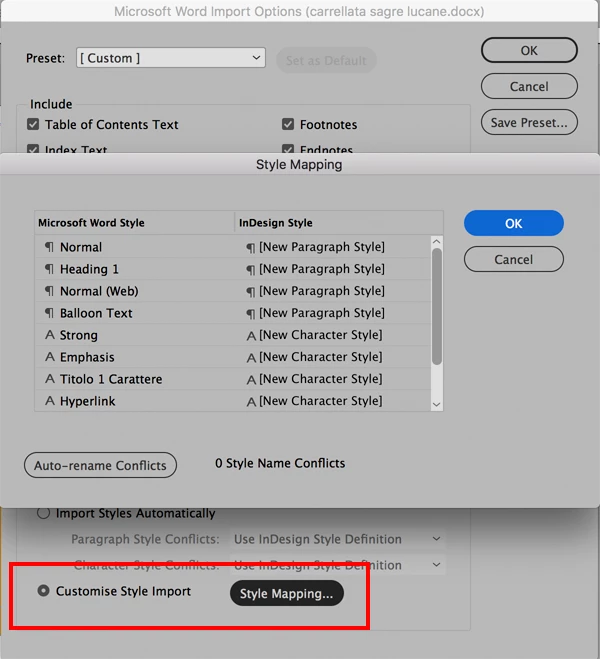
are you using "Customise style import”? (into Import options window)

4 replies

June 23, 2018

Holy Shmoley, Batman! The option was right there all the time. I didn't realize I could save that equivalence map as a preset to use each time. That's perfect, folks.

Thank you all sooooo much.

Barb, you mentioned, "If you need a copy of the Word file with revisions down the road, there are various ways to extract the text." Is there a decent guide anywhere to those various ways? My biggest concern is that writers are generally terrible at sticking to using styles (and not using Word hotkey over-rides for things like bold and italics), so we have a Word template that locks writers into using only the styles we want, and stops hotkey bolding and italics - they have to use styles for those. If I export from InDesign, I'm betting it will be into a file that our writers mess up fast when they do their edits. That would make it much worse when re-importing to InDesign.

-MMK

All Round Good Egg

Dave Creamer of IDEAS
Community Expert
Community Expert
June 25, 2018

As long as your writers use (the same) styles, you don't have to worry about manual formatting. I find that as soon as import mapped Word files, I have to select all the text and remove overrides anyway (even for perfectly mapped files). However, you may want to some fine-&-change sequences to replace italic, bold, and bold-italic body text formatting first.

That said, using WordsFlow makes life much easier...

David Creamer: Community Expert (ACI and ACE 1995-2023)
Community Expert
October 23, 2018

You mention having to remove overrides anyway. I am using Place to bring a Word file with footnotes. The style is mapped to the InDes style, but all the fns come out as overridden, i.e., Toggle Style Override Highlighter shows all the fns blue. Click on one, and the Styles list shows no overrides. If I click in one fn then click the style, the override blue disappears. But I can't select more than one fn at a time, and there are hundreds of fns. I'm not going to click in each one and click again in the styles? What's going on and what can I do?


Hi Sandy,

removing overrides in footnotes in one go could work like that:

Go to Find/Change, choose the GREP tab.

Do leave the Find field blank, just define the paragraph style you like to find.

That's the one of your footnotes. I hope, that this particular style is only used by the footnotes in your document.

Enable the GREP search to find text in footnotes.

Leave the change field also empty.

Only define a change with found text in styles.

Choose the same paragraph style you were searching for.

Run find/change.

All overrides should be gone after the action.

Here a screenshot from my German InDesign for GREP Find/Change where the paragraph style ( in German "Absatzformat" ) is named "Footnotes":

Regards,
Uwe

Dave Creamer of IDEAS
Community Expert
Community Expert
June 22, 2018

After you map the custom styles, be sure to save your custom style mapping settings so you don't have to do it again (assuming the Word styles don't change from version to version).

If this feature still isn't working for you, check out WordsFlow from EmSoftware.com

David Creamer: Community Expert (ACI and ACE 1995-2023)
Barb Binder
Community Expert
Community Expert
June 22, 2018

In cinziamarotta's dialog box, you want to match up the names on both sides. You said you used the Word style names in InDesign, so it should be fairly straightforward. The top row would show Normal on both sides, the second will show Heading 1 on both sides, etc. This directs InDesign to map the word style to the equivalent InDesign style.

If it isn't working, please share the same window that cinziamarotta shows so that we can see what you are doing.

Also, while the linking workflow you are using can be done, I wouldn't call it ideal. Most of us copy the Word documents into InDesign (via File > Place) and edit them there. If you need a copy of the Word file with revisions down the road, there are various ways to extract the text. You may find that linking the Word docs and updating them in Word to be a constricting workflow.

~Barb

~Barb at Rocky Mountain Training
cinziamarotta
cinziamarottaCorrect answer
Participating Frequently
June 22, 2018

Hi,

are you using "Customise style import”? (into Import options window)