InaLandCalledHonahlee
Known Participant
June 23, 2017
Answered

Drop Shadow Being Blocked Out By Another Object

  • June 23, 2017
  • 2 replies
  • 3274 views

Okay here's my problem...

See this button here?
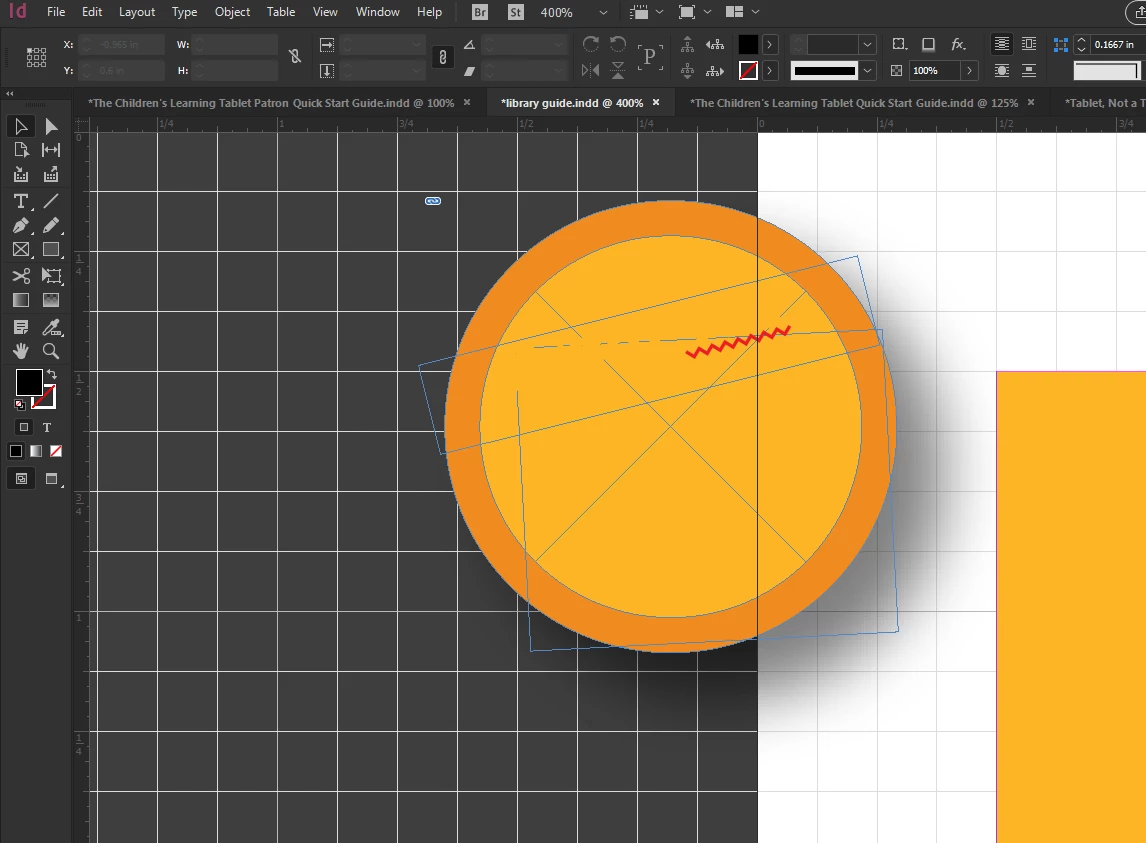
This button is the bane of my existence right now!

You see how it has a lovely drop shadow? Isn't that just the bee's knees? But wait... what's this?!
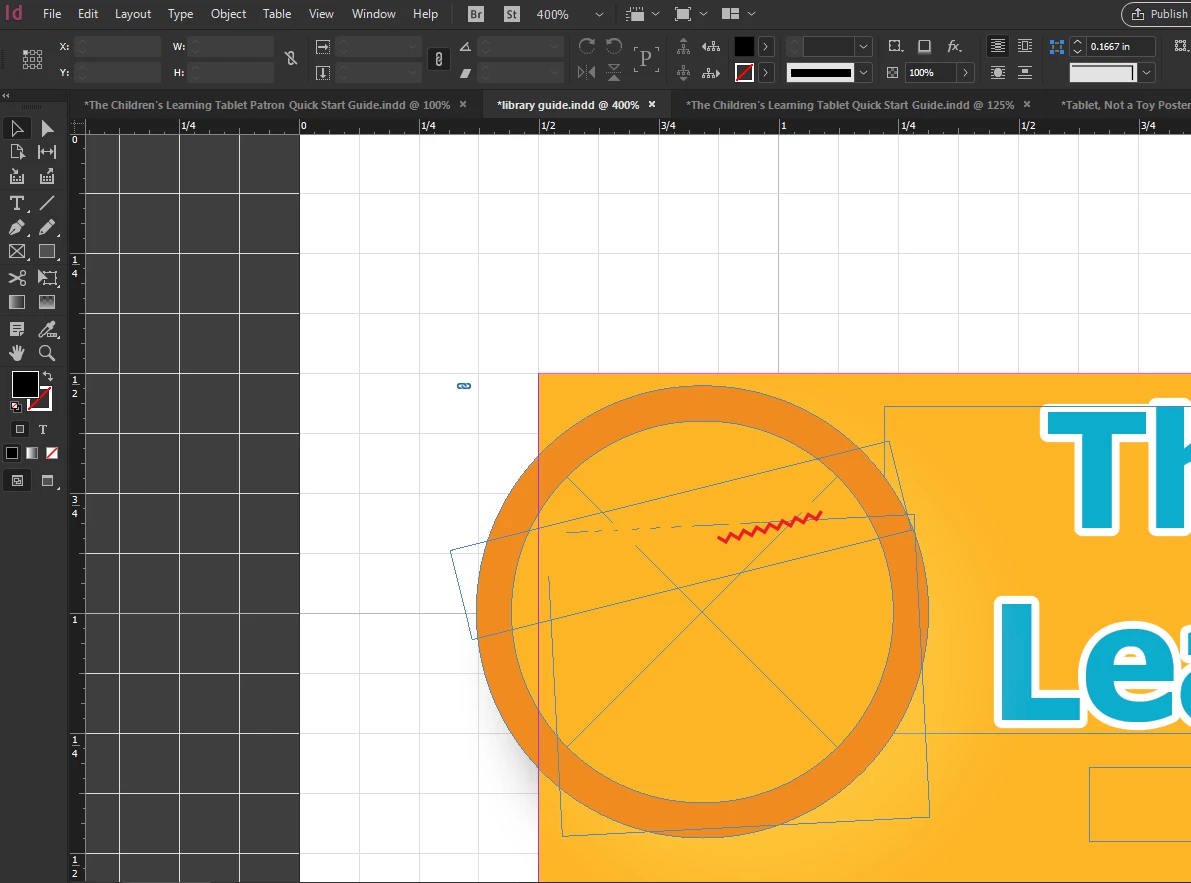
The button has been moved in front of another object... but where is it's lovely drop shadow? It's just disappeared! I didn't do it... promise!

Oh look at that!
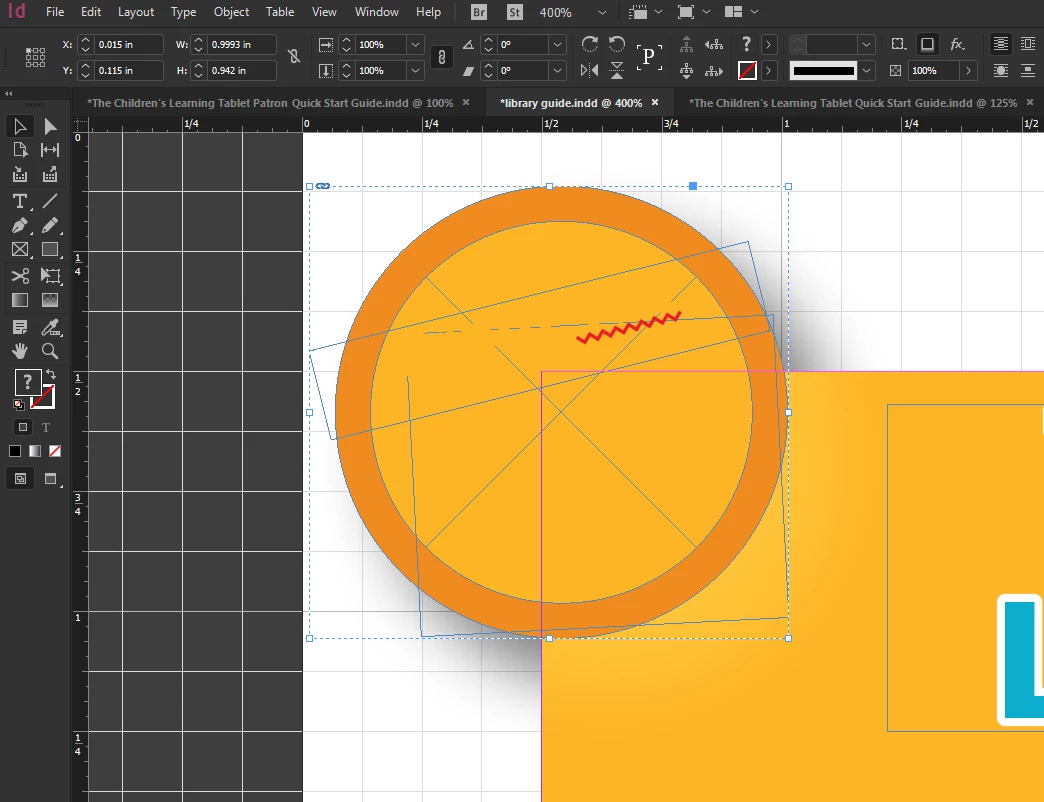
It's hiding behind the other object...... WTH?!?! !%^#*&$

I've made sure that the button is arranged to the front and the other object all the way to the back.

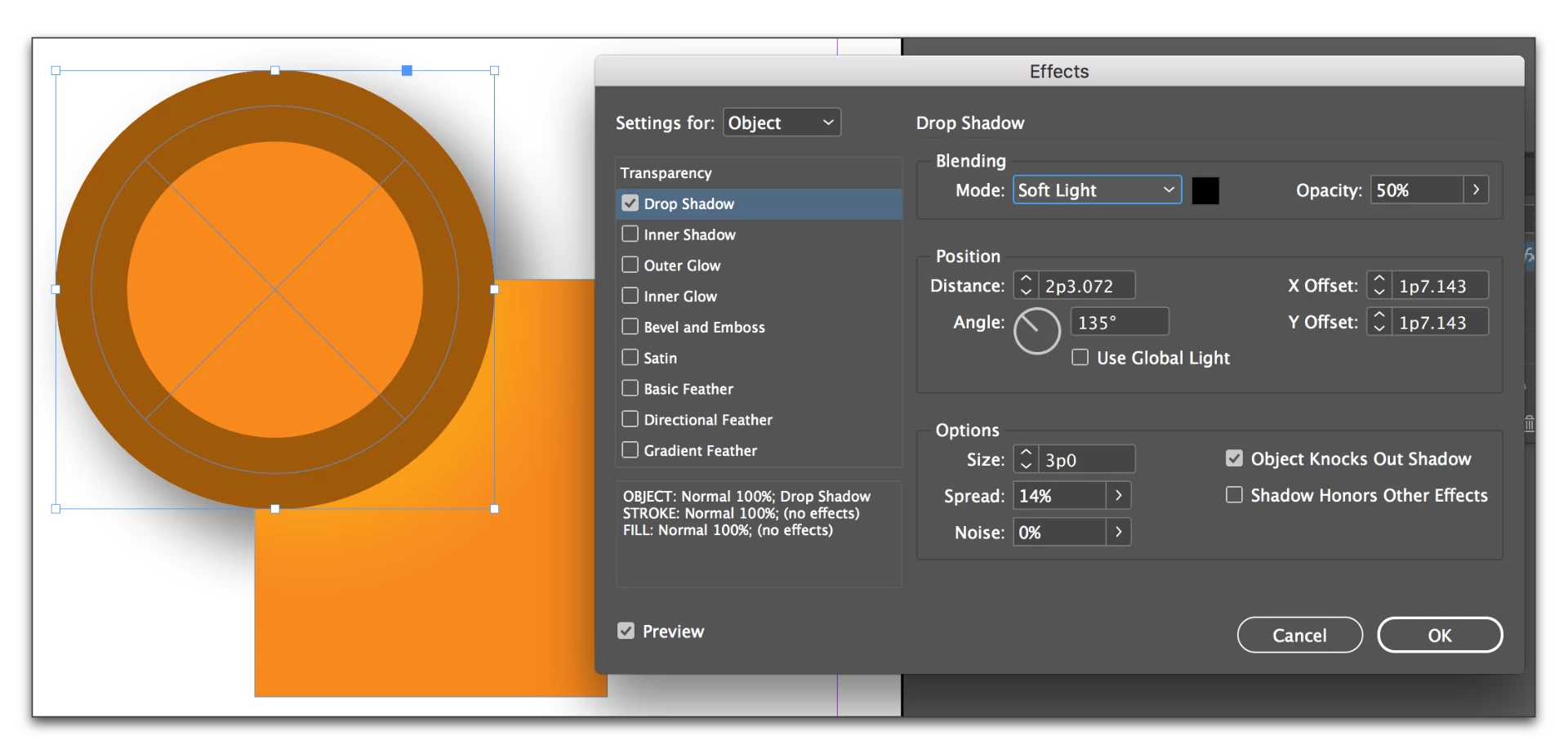
Here are my settings...
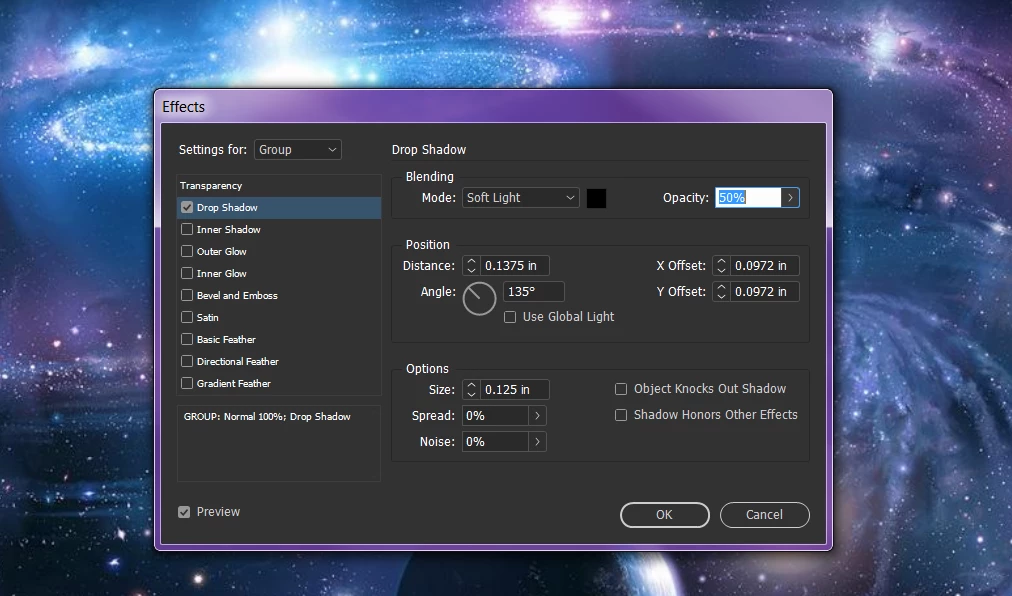
What am I doing wrong?!

This topic has been closed for replies.
Correct answer Barb Binder

It's because you are using the Soft Light blending mode. Drop Shadows are typically set to Multiply. Mine is brighter than yours, but I can see yours when I look closely.

Multiply:

Soft Light:

2 replies

Barb Binder
Community Expert
Barb BinderCommunity ExpertCorrect answer
Community Expert
June 23, 2017

It's because you are using the Soft Light blending mode. Drop Shadows are typically set to Multiply. Mine is brighter than yours, but I can see yours when I look closely.

Multiply:

Soft Light:

~Barb at Rocky Mountain Training
BobLevine
Community Expert
Community Expert
June 23, 2017

That doesn't look like a button and you'll find rotating buttons doesn't work. Buttons are always rectangular.

All that out of the way, put it on a new, top layer.