
Participant
March 7, 2021
Answered

Guides are hanging off of my master pages when copy and pasted

  • March 7, 2021
  • 5 replies
  • 754 views

As the title said, I redid some parts of my indesign, and when I copy/paste the guides into a new page it massively overhangs the guides. When I apply this master page, it spreads these guides across my two page spread.


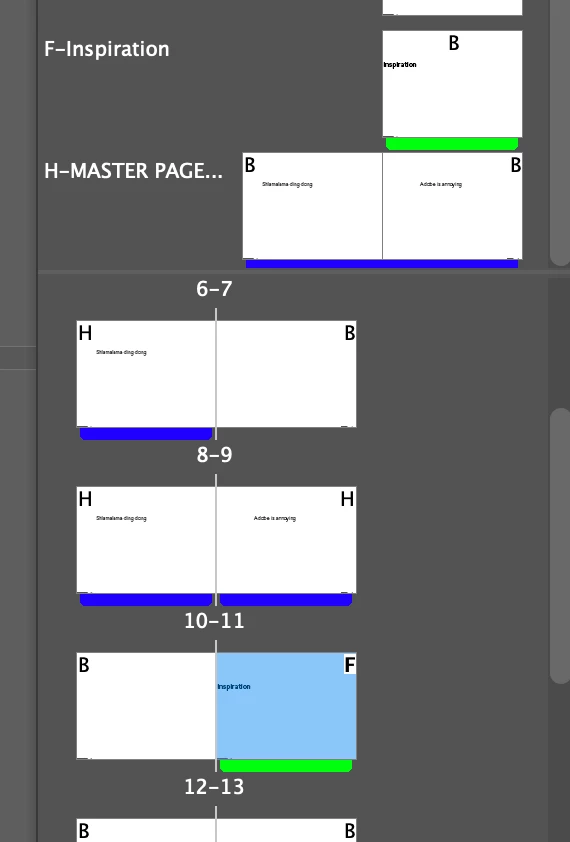
Speaking of two page spreads, whenever I make a 2 page master page within my file and set everything up and apply it to certain pages, it "flips" the application. For example, I'll have a left and right page, I'll put "apply master to pages 5-6", what it does is the RIGHT master page, is applied on the LEFT page, and the LEFT master page is applied to the RIGHT page. This is massively slowing down my work time, and it has never done this before. You'll see this example on page 7-8 on my indesign file. 

Any help to these two fixes would be awesome 🙂 
This topic has been closed for replies.
Correct answer Barb Binder

Hi @Adrian Aghaie:


It is appling the master pages, correctly—the left master to the left body page and the right master to the right body page. If you intend to output a facing-pages doc, I would leave it on.


You just need to keep an eye on the master pages as you work. I use color coding in my docs so that I can quickly review the master page application in the Pages panel, and update when necessary. I find this more way faster than examining each page. Color labels are in the Pages panel menu > Page Attributes.


~Barb 

5 replies

Barb Binder
Community Expert
Barb BinderCommunity ExpertCorrect answer
Community Expert
March 9, 2021

Hi @Adrian Aghaie:


It is appling the master pages, correctly—the left master to the left body page and the right master to the right body page. If you intend to output a facing-pages doc, I would leave it on.


You just need to keep an eye on the master pages as you work. I use color coding in my docs so that I can quickly review the master page application in the Pages panel, and update when necessary. I find this more way faster than examining each page. Color labels are in the Pages panel menu > Page Attributes.


~Barb 

~Barb at Rocky Mountain Training
Community Expert
March 9, 2021

Adrian said:

"This makes no sense. I tried following the instructions, but my "folder" is empty and I'm not sure how to run a "script", any info on how to actually make the script do a thing would be useful. "


Hm. Maybe a video by Dan Rodney will make it more clear for you:


How to Install InDesign & InCopy Scripts
Just Put Them into the Proper Folde

Dan Rodney

https://www.danrodney.com/scripts/directions-installingscripts.html


To execute my script code:

Select a guide and double click the script file once it is available in InDesign's Scripts panel under the User folder there.


Regards,
Uwe Laubender

( ACP )


Barb Binder
Community Expert
Community Expert
March 9, 2021

When you are dragging ruler guides out of the ruler, if you release the guide over the page, the guide will stay on the page. If release over the pasteboard, you will create a spread guide that extends to the edges of the pasteboard. In my experience, the guides retain these settings after I copy/paste them—they don't switch from a page guide to a spread guide, or vice versa. 


As for the master page issue, H is set up with a left and right page spread.


If you apply H to 7-8—which are not facing pages—InDesign correctly assigns the left master page to page 7 (a left page) and the right master page to page 8 (a right page). If you apply them to a facing page spread 10-11, they also apply correctly. 


~Barb 

~Barb at Rocky Mountain Training
Participant
March 9, 2021
So how can I just have it apply the master pages in order?
Should I uncheck the “facing pages” or something?

It’s for a portfolio, so I may be adding more pages etc down the road, and
don’t want to battle spreads every time I do.
Community Expert
March 8, 2021

Another hint when working with masters in a facing-pages document:

I think there is no application for a master spread with 6 pages like E-Master in your sample document.


What I do not understand from your description is what goes wrong in your oppinion:
When you apply one master to pages 5-6, with a master containing two facing pages, InDesign will apply the right master to the right document page, that is page 5 and the left master to the left page, that is page 6. Nothing's wrong with that. InDesign's master pages work like that. However, if there is only one master page in the master spread you apply the same master page is applied to both pages.


Could you describe in more detail what you like to see when you apply master pages on document pages?


Regards,
Uwe Laubender

( ACP )

Participant
March 8, 2021

Here you can see what I'm talking about. It isn't placing the master pages in the correct order. This hasn't happened to me in the past when I last used indesign. 

Unless I should only apply master pages to two adjacent master pages with no "spill over" if that makes sense. 

Community Expert
March 8, 2021

Hi Adrian,

when adding guides to a spread you have two options:

[A] The guide's length is limited to the width or the height of a page or

[B] the guide is limited to the height or the width of the whole spread containing the page(s).


In your sample document the horizontal guides on master G-intro brief or some guides on master F-inspiration.


You can convert an existing guide from [B] to [A]. But this requires a script.

Select one single guide a run this ExtendScript (JavaScript) code on the selection:

app.selection[0].fitToPage = true;


How to save ExendScript code to a script file, how to install the script file so that you can run it from InDesign's Scripts panel see: https://www.indiscripts.com/pages/help#hd0sb2


PS: You may guessed it from reading the code above. To get [B] just set false where you see true:

app.selection[0].fitToPage = false;


Regards,
Uwe Laubender

( ACP )


Participant
March 8, 2021

This makes no sense. I tried following the instructions, but my "folder" is empty and I'm not sure how to run a "script", any info on how to actually make the script do a thing would be useful.