Inspiring
July 18, 2017
Answered

How do I anchor text boxes?

  • July 18, 2017
  • 2 replies
  • 7106 views

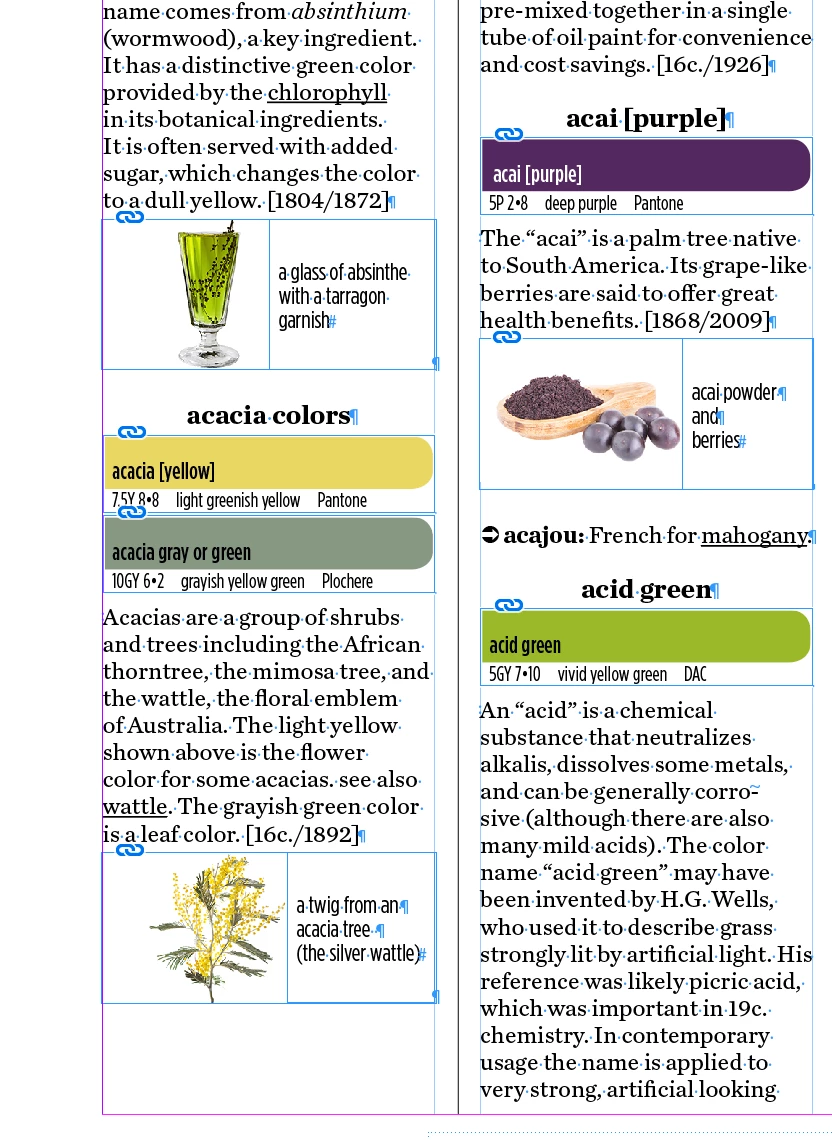
The three little blocks of text you see in this screen shot are individual text boxes. How do I anchor them so that they will stay together with the photo they are next to (or with the paragraph of copy they follow) if other changes are made on the page?

    This topic has been closed for replies.
    Correct answer Bill Silbert

    This can be done quite simply. In the screen shot below I've shown two different scenarios based on what it appears to me from your screen shot. I couldn't tell for sure if you had already anchored the caption text into the overall text:
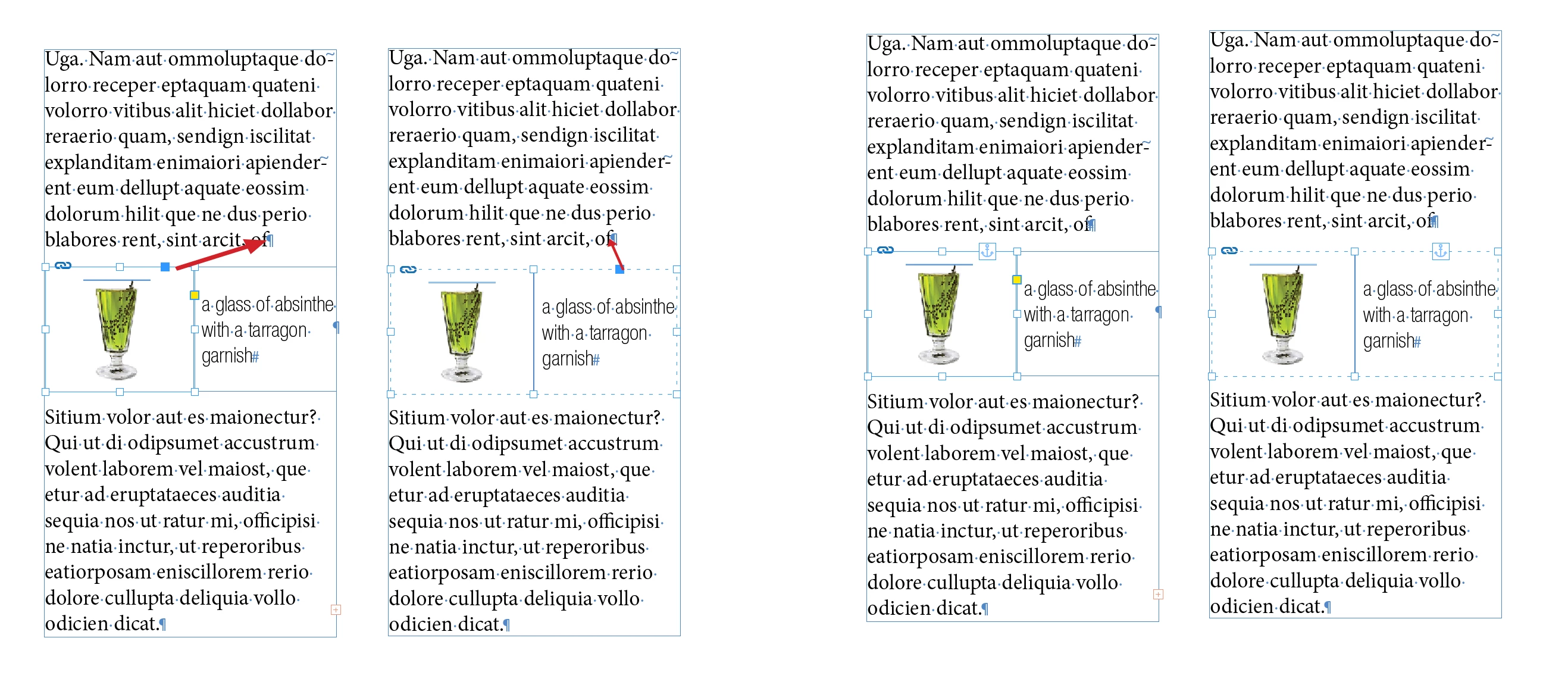
    The example on the left of each set of columns assumes that the caption is already anchored. If that is the case then select the graphic and drag the blue box that appears on the upper right of the graphic frame into the end of the paragraph above it. In the example in the right column of each example the unanchored caption and the graphic are selected together, grouped and the single blue square that appears for them both is dragged to the same place as in the first example. The anchor icons shown in the set of columns on the right show that all objects are now part of the text chain.

    2 replies

    Bill Silbert
    Community Expert
    Bill SilbertCommunity ExpertCorrect answer
    Community Expert
    July 18, 2017

    This can be done quite simply. In the screen shot below I've shown two different scenarios based on what it appears to me from your screen shot. I couldn't tell for sure if you had already anchored the caption text into the overall text:

    The example on the left of each set of columns assumes that the caption is already anchored. If that is the case then select the graphic and drag the blue box that appears on the upper right of the graphic frame into the end of the paragraph above it. In the example in the right column of each example the unanchored caption and the graphic are selected together, grouped and the single blue square that appears for them both is dragged to the same place as in the first example. The anchor icons shown in the set of columns on the right show that all objects are now part of the text chain.

    Jeff Witchel, ACI
    Community Expert
    Community Expert
    July 18, 2017

    You beat me to it Bill. Grouping is an easy way to solve this problem.

    Legend
    July 18, 2017

    I think the easiest way would be to set those image/text sections as two-cell tables in the text flow.

    Inspiring
    July 18, 2017

    Unfortunately that won't work - the photos and blocks of text are coming into the document via a large import using InData; the little text boxes shown in the image are after-thoughts I want to add on top.