bruce5640202
Participant
March 3, 2017
Answered

How to set up page as landscape 576 x 1152 pt

  • March 3, 2017
  • 1 reply
  • 1357 views

Hi,

I need to set the page size up as 8inch height by 16 inch width (so according to google conversion - 576 x 1152 pts, correct me if this is wrong!).

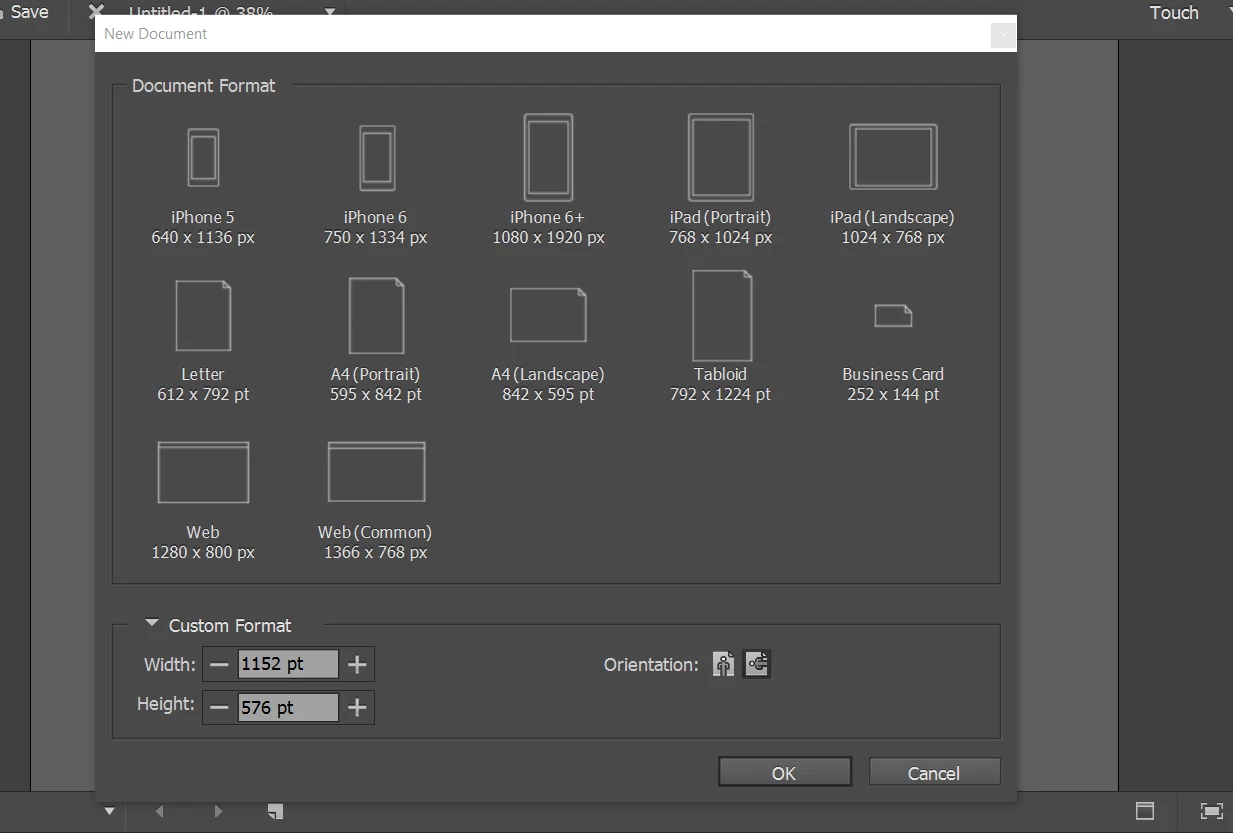
When I input the custom size, it flips the values and won't stay as a landscape layout, it only seems to set the page as portrait.

What am I doing wrong? How would I set this up otherwise? It just for a photo book (8x8inch) layout.

Thanks for your help!
This topic has been closed for replies.
Correct answer Barb Binder

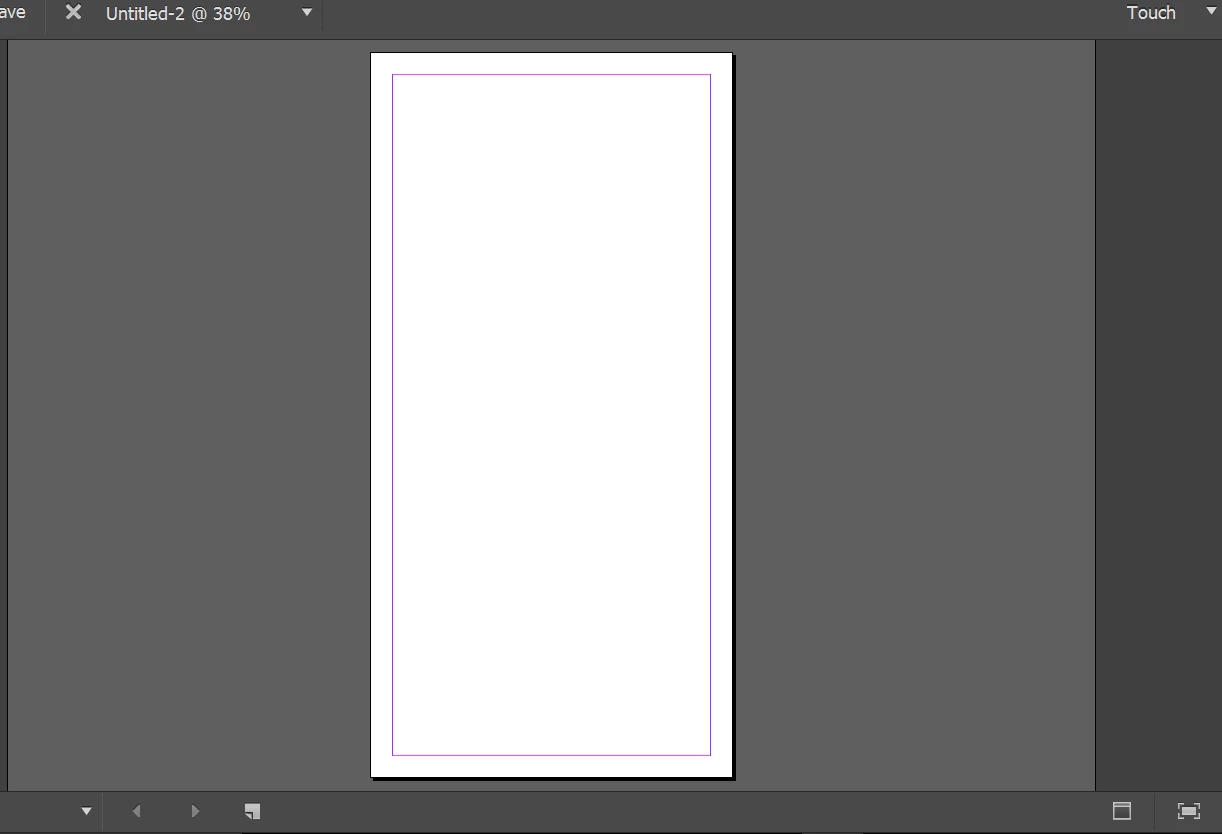
It looks like this, and then when I hit ok it looks like the image below. How do I get it to actually be on the side? :


Hmmm. I can see you are using the Touch workspace on Windows. I just pulled out my Surface and had the exact same result. That's not normal!

So, click on Touch in the top right corner of your screen and change the workspace to Essentials. Then try File > New and it should work as expected.

And consider reporting your experience to Adobe!

Wishform - Adobe InDesign

1 reply

Inspiring
March 3, 2017

bruce5640202
Participant
March 3, 2017

Hi Ian,

yep, I set it to landscape, but then the numbers that I put in the width and height values automatically swap. then when I click on portrait they swap back. Wait does that make sense? :/

Barb Binder
Community Expert
Community Expert
March 3, 2017

You don't have to worry about picking Landscape—just put the larger number in the for width, and the smaller for the height and you will be given landscape automatically (1152 pt x 576 pt). Turn preview on the lower left corner of the dialog box and you can see it in the background prior to clicking on OK. (And yes, those are the points equivalent of 16" x 8").

~Barb at Rocky Mountain Training