
Participant
December 19, 2016
Question

Indesign Photo box discolouring background

  • December 19, 2016
  • 4 replies
  • 531 views

I'm creating some point of sale material. I have photographed the product and cut it out with a layer mask in Photoshop. Adding it to the in design file and it looks perfect.  As below.
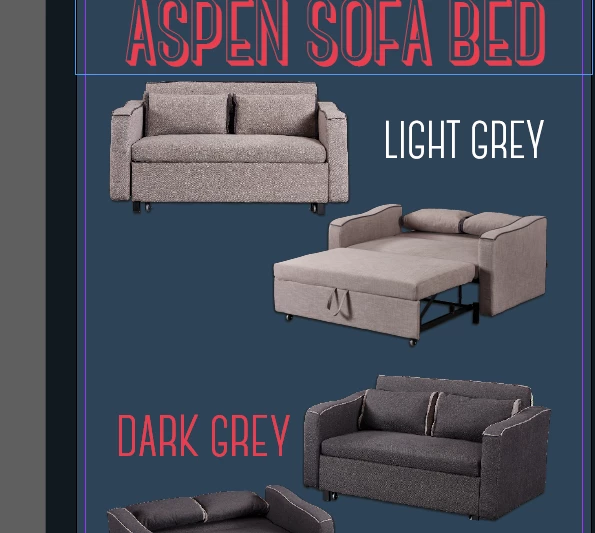
How ever, when i print it the rectangle frame discolours whats the background colour. as below.

I have tried save the image file as psd and a png both have the same effect.

i have 10 different products to do. any one know how to fix this?

    This topic has been closed for replies.

    4 replies

    Danny Whitehead.
    Legend
    December 20, 2016

    What printer? Does it have a separate controller/RIP/DFE (Fiery etc), and if so, which?

    Is the blue a spot colour swatch? If so, unless it will actually be printed on the press as an extra ink, it's best to keep to process swatches.

    Willi Adelberger
    Community Expert
    Community Expert
    December 20, 2016

    For offset printing, it is not an issue as it will show up correctly. Another thing is for any kind of digital printing. I have found a sloution for myself. I use the transparency layer mask as you do also, but I add also a clipping path outside the transition area where complete transparency should be, so I have both, a path for digital printing, which cuts away any transparency and transparncy which makes the soft transition to look better.

    Community Expert
    December 19, 2016

    The article that Eugene posted has 2 workarounds: "Print as Image" or "Rasterize all Elements through Transparency Flattener". Personally, I like the "Print as Image" method, it can be done with one step.

    Community Expert
    December 19, 2016