
francesi23298136
Participating Frequently
September 12, 2018
Answered

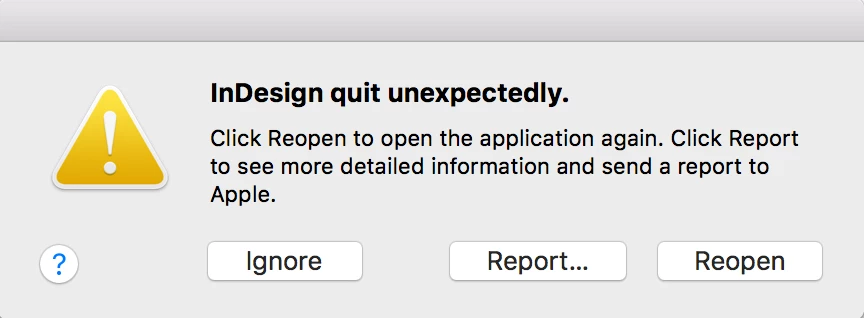
Indesign "quit unexpectedly" Error message immediately upon opening

  • September 12, 2018
  • 1 reply
  • 6239 views

I am trying to open indesign CS6 on my Mac but it immediately shows an error message that reads "Indesign quit unexpectedly" I have been using the application for years now and have had no issues. The application is up to date as well. I am running it on a MacOS Sierra 10.12.6 software. Any ideas of why it is happening?
This topic has been closed for replies.
Correct answer Bill Silbert

That did not work either


Try going to InDesign freezes or quits when you start on Mac OS . There are some font related trouble-shooting tips there that may be of help.

1 reply

Bill Silbert
Community Expert
Community Expert
September 12, 2018

CS6 is not supported for any Mac OS after Yosemite. That may possibly be the root of your problem. However, if you have been able to run CS6 up until now and this is a new problem then try deleting your InDesign preferences.

To do so:

The User Library folder in which InDesign’s preferences are stored is hidden by default on most Macintoshes. To access it make sure that InDesign is closed and click on the desktop to launch a Finder Window (Command-N). With this window in column view follow the path User>Home folder (it’s the folder with an icon that looks like a house—it may have the user’s name rather than “Home”) and click on the Home folder. With the Option Key pressed choose Library from the Finder Go Menu. “Library” will now appear within the Home folder. Within the Library folder find the folder called Preferences and within it find the folder called “Adobe InDesign” and the file called “com.adobe.InDesign.plist” and delete both that folder and that file. When InDesign is next launched it will create new preference files and the program will be restored to its defaults.

The advantage of manually deleting preference files in this manner is that after you’ve reset up the program (make sure that no document window is open) to your liking, you can create copies of your personalized “mint” preference files (make sure that you quit the program before copying them—that finalizes your customization) and use them in the future to replace any corrupt versions you may need to delete.

francesi23298136
Participating Frequently
September 12, 2018

I could only find a file named com.adobe.indesign.plist and not a folder too. It was not in the Adobe Indesign folder, I searched for it and it said it was just in preferences, but just deleting that file still is not helping.  I am still receiving the original error message. Is there another way to find the folder?

Bill Silbert
Community Expert
Community Expert
September 12, 2018

You should be deleting the entire folder called "Adobe InDesign" which is in the same Preferences folder that you found com.adobe.indesign.plist. New versions of these deleted items will be created when you relaunch InDesign after the deletions.