Participant
Aug 14, 2009 10:56 PM UTC
Answered

Need 2 page layout next to eachother

I have a 2 page document and I need them to be next to each other. It's for a large banner that will be split down the middle. I can do it on page 2 and page 3 but not on page 1 and 2. page 1 always shows  up alone at the top.

rob day
rob dayCorrect answer
Community Expert
Jun 8, 2018 12:35 PM UTC

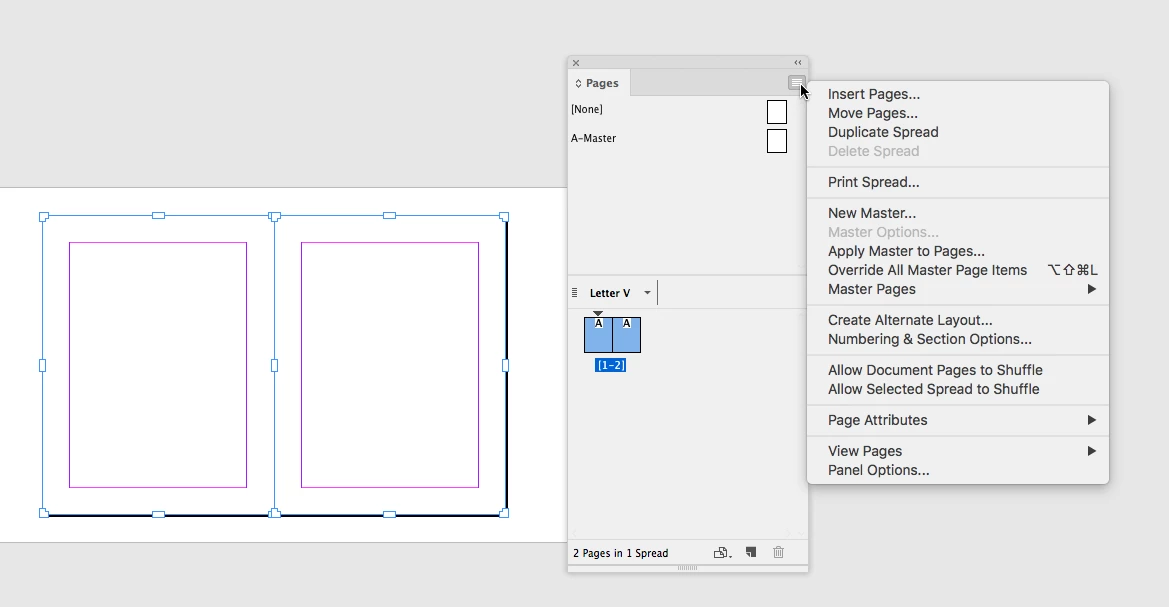
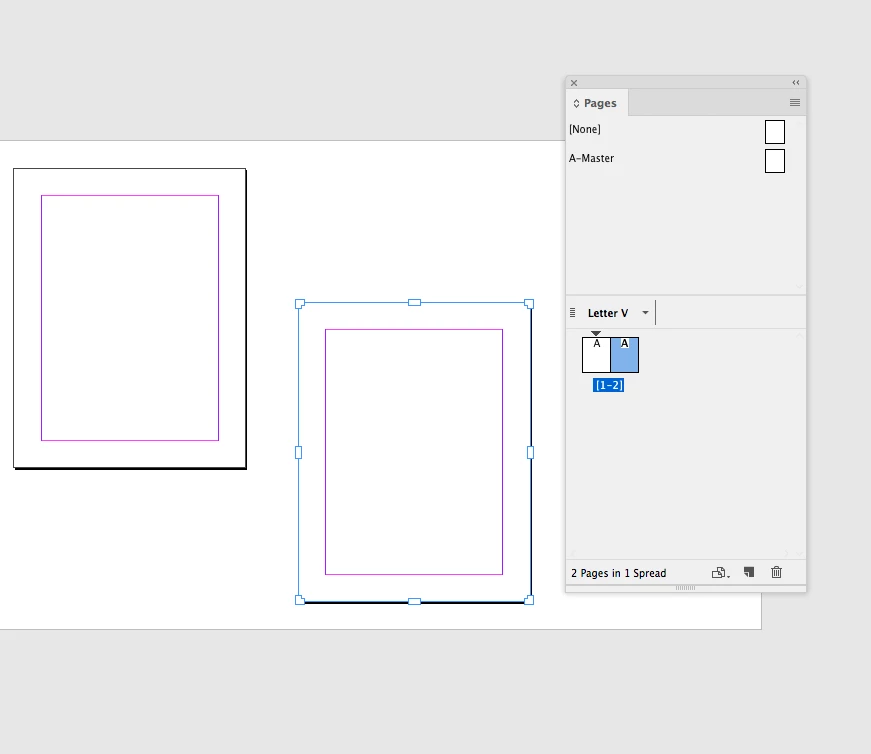
You can also setup spreads with non facing page documents by unchecking Allow Document Pages to Shuffle and dragging the page icons together. In that case you can use the Pages tool to position the page anywhere on the paste board, which can be useful for visualizing projects like trade show banners where you might want space between the panels

9 replies

Participating Frequently
Dec 6, 2023 3:04 AM UTC

You don't seem to be able to do that anymore in version 2024. Any new information?


Translate
rob day
Community Expert
rob dayCommunity ExpertCorrect answer
Community Expert
Jun 8, 2018 12:35 PM UTC

You can also setup spreads with non facing page documents by unchecking Allow Document Pages to Shuffle and dragging the page icons together. In that case you can use the Pages tool to position the page anywhere on the paste board, which can be useful for visualizing projects like trade show banners where you might want space between the panels

Translate
Community Expert
Jun 8, 2018 12:57 PM UTC

FWIW: The feature Rob's showing is available for InDesign CS5 and above.

( This thread started in 2009. InDesign CS5 wasn't out at that time. )

Regards,
Uwe

Translate
rob day
Community Expert
Community Expert
Jun 8, 2018 3:25 PM UTC

Thanks Uwe, wasn't paying attention to the date.

Translate
Jongware
Community Expert
Community Expert
Aug 14, 2009 11:06 PM UTC

First of all, you have 'facing pages' set to checked in your page setup. That creates a singular page 1, then pairs of 2 pages -- the default book layout mode.

Next, you have to check (or un-check -- never can remember what's the default) "Allow pages to shuffle" in the Pages panel menu. With that done, you can drag individual pages in the Page panel side-to-side. While dragging a page icon, you will see the cursor change when you come near the edge of the one you want it to stick to.

Translate
Participant
Jun 8, 2018 7:32 AM UTC

its better to make sure you have facing pages ticked, number of pages 2, start page number 2.

Translate
Participant
Aug 2, 2018 10:19 PM UTC

This worked for me!

Translate