Mr_Bimg
Known Participant
May 12, 2017
Question

Object on Master (facing pages) showing on blank page

  • May 12, 2017
  • 2 replies
  • 3687 views

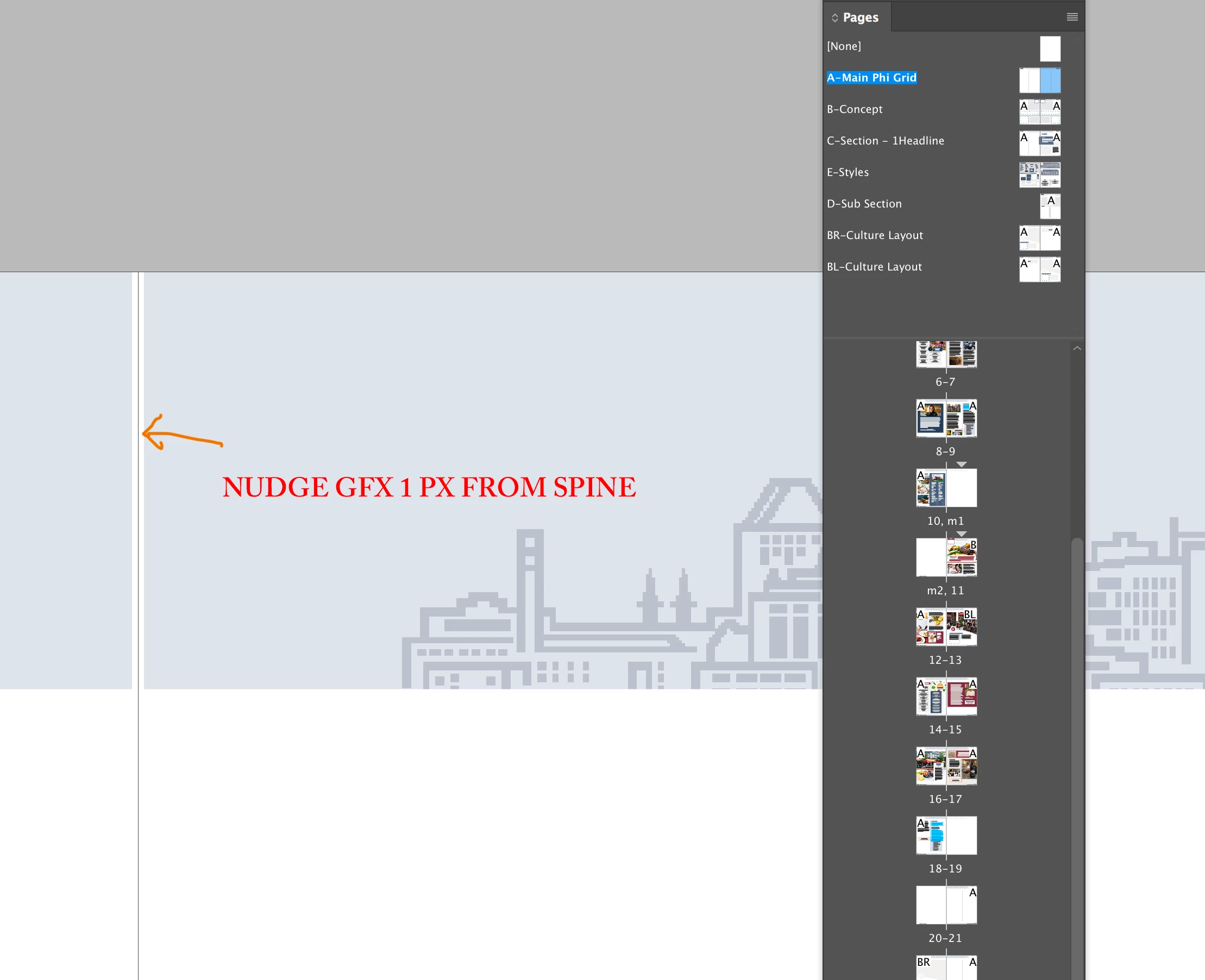
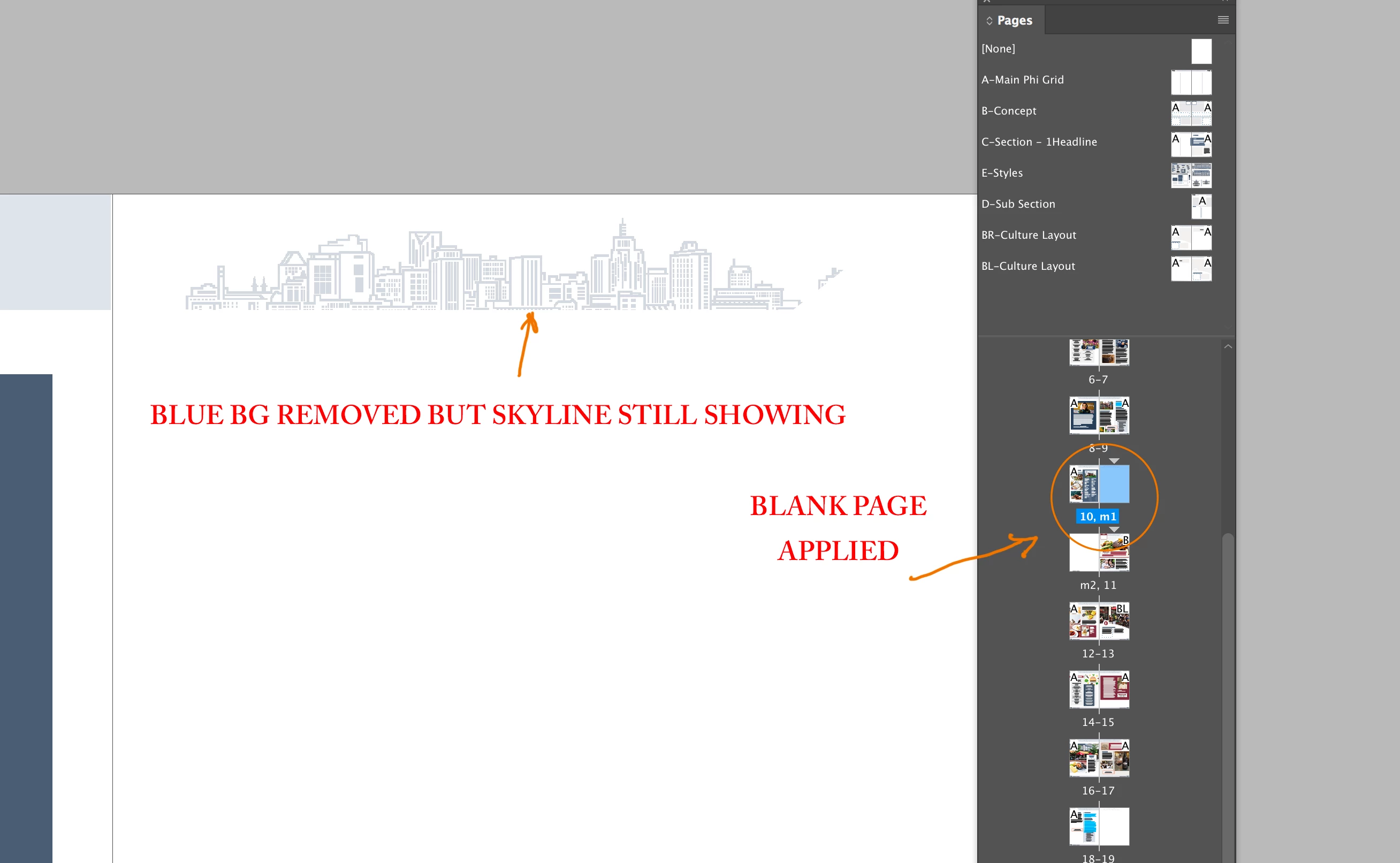
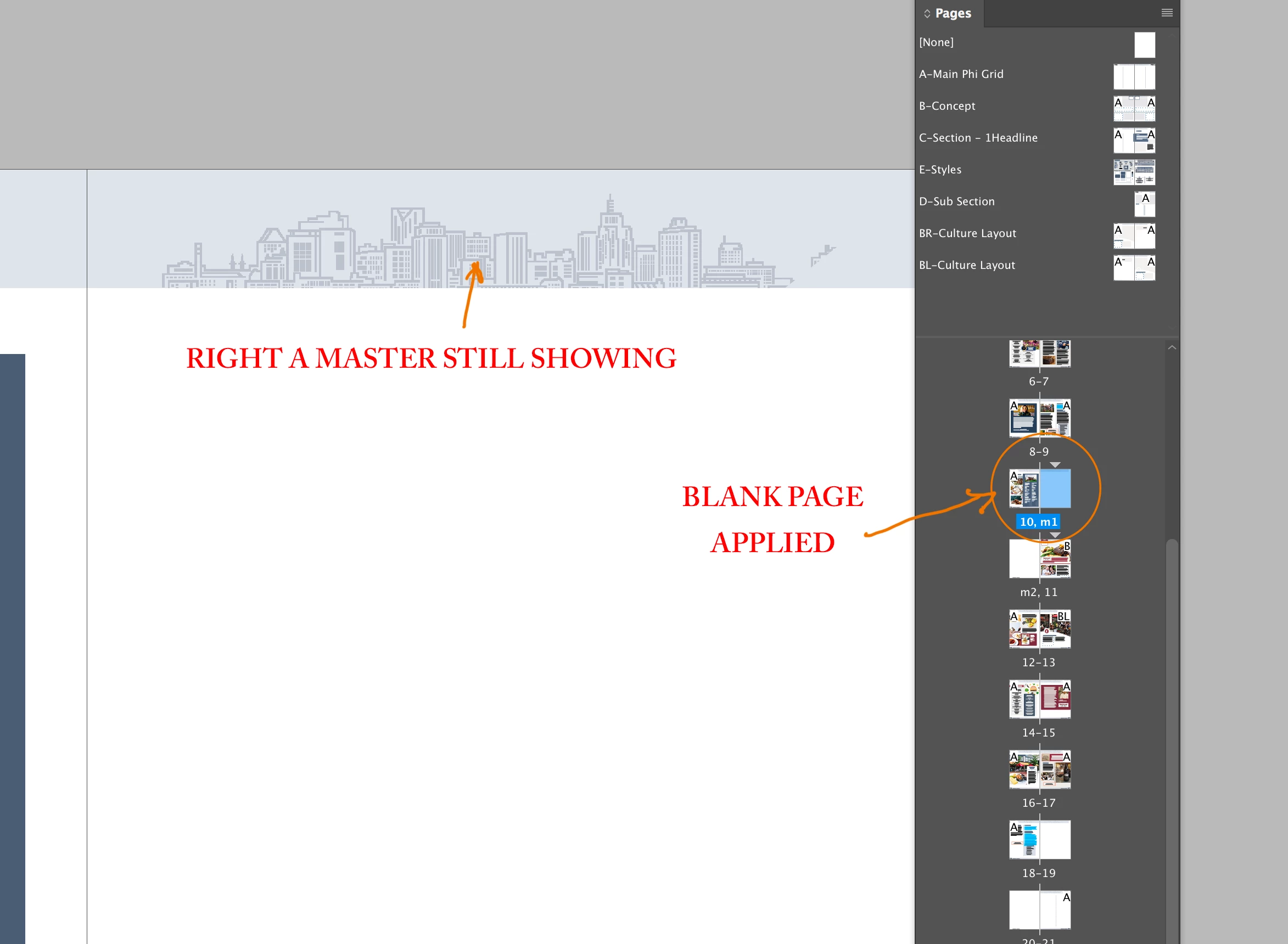
I've been using InD since it came out and apparently something in my perception/brain changed or something in InD changed. I have a file setup as facing pages with a full bleed header/footer and when I add a page and apply None to it the graphics still show on the None page. I recently read that if you nudge the graphics 1px away from the spine the graphic will then disappear on the None page. As you can see by the attached screenshots, this solves the problem but now I have graphics that reach the edge of the spine.

So what am I missing? I swear I have designed 100 documents before with graphics on both left and right and when I apply another blank style they simply disappear as expected. 
This topic has been closed for replies.

2 replies

Participant
April 10, 2018

One work around is to re-enter the size values. For example, working on an A4 document and you have an rectangle box 210mm wide and set to '0' on the x axis, by changing the measurement of the box to 209.99999 seems to work, and Indesign automatically, jumps it back up to 210mm.

Community Expert
April 11, 2018

rossw52106505  wrote

... and Indesign automatically, jumps it back up to 210mm.

It's an illusion that InDesign "jumps it back". In fact InDesign is showing 210 where indeed 209.999999999936 may be fact.

You could test that by scripting where the "real" bounds can be shown.

Select the object and run the following ExtendScript ( JavaScript ) code:

alert( "geometrciBounds:"+"\r"+app.selection[0].geometricBounds.join("\r") );

Or you could alert the positions of the path points in x/y pairs:

var sel = app.selection[0];

var pathPoints = sel.paths[0].pathPoints.everyItem().anchor;

alert( "path points anchors:"+"\r"+pathPoints.join("\r") );

Regards,
Uwe

Participant
April 11, 2018

You're absolutely right Uwe, the geometric bounds scripts also reveals the x/y points and show that the object is sat at -5.00000001 mm instead of -5 mm, so this could explain why the object is being attached to the other master page.

Legend
May 12, 2017

Most likely, the frame containing the skyline is touching the left-hand page.

happie_97
Community Expert
Community Expert
May 17, 2017

I agree, my students have the same problem when using facing pages. It isn't a consistent issue, but when it happens, it is annoying.

We usually zoom in and nudge it just a little and it goes away. Even more interesting is that if you move it back to the same spot you had it at originally, it usually won't reflow to the other page.